Task follow-up result acceptance
I,Scenario introduction
In software development, construction engineering, event planning and other industries, the project manager needs to follow up the tasks assigned by team members to ensure that the goals of each stage are achieved on time. The acceptance function allows the project manager to check whether the completed work meets the established standards, such as code quality, design compliance, construction safety, etc., and then officially mark the task as "completed".

2. Building steps
Next, let's share how to build the ability of task follow-up and acceptance based on YIDA.
Taskpass is a boutique application officially launched YIDA.Real-time viewing of project tasks and online reporting of project progress help enterprises manage project progress scientifically and truly achieve "controllable progress and risk prediction".
👉Click here to install and use for free👈
(It involves YIDA basic components, sales notifications, permission settings, integration and automation functions)
1. First, we add acceptance fields and acceptance personnel to record the acceptance results.
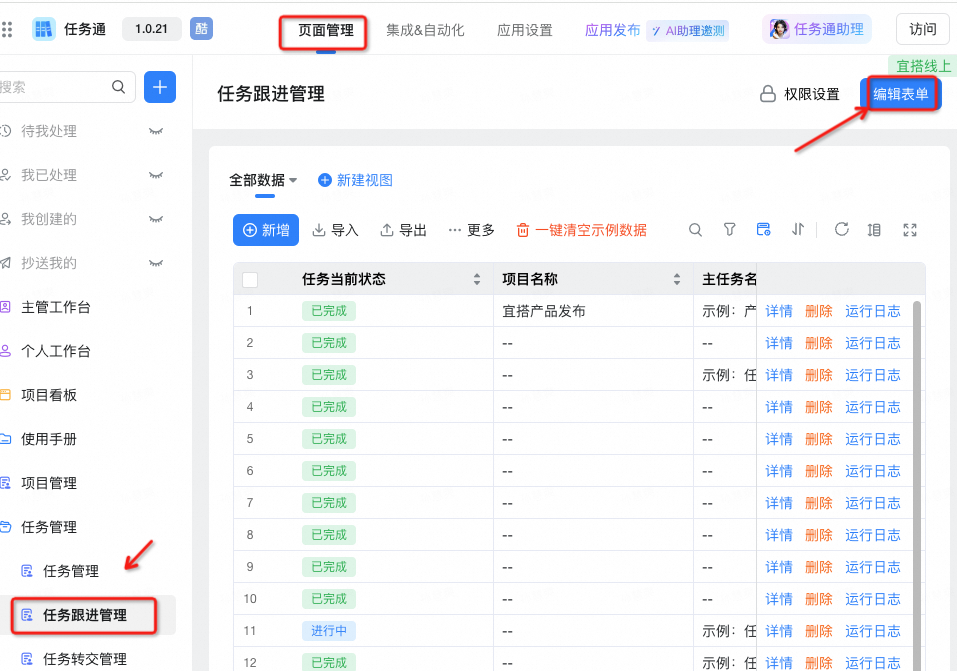
- Step: manage the background>Task follow-up management page> edit form> Add Member component "acceptance personnel" is the first-level supervisor of follow-up personnel by default> add group "acceptance", approval result "radio component", approval description "multi-line text 」> group status settings hide
 |   |
2. Follow-up personnel and acceptance personnel to view field permission assignment
- Step: page settings> permission settings>View status>Add permission group "check permission for acceptance personnel 」>Permission member custom settings page fields-acceptance personnel> data range-custom filter condition is acceptance personnel = current logon person> Field permission-Custom
 |   |
3. Notify the acceptance personnel of the task follow-up completion message for approval
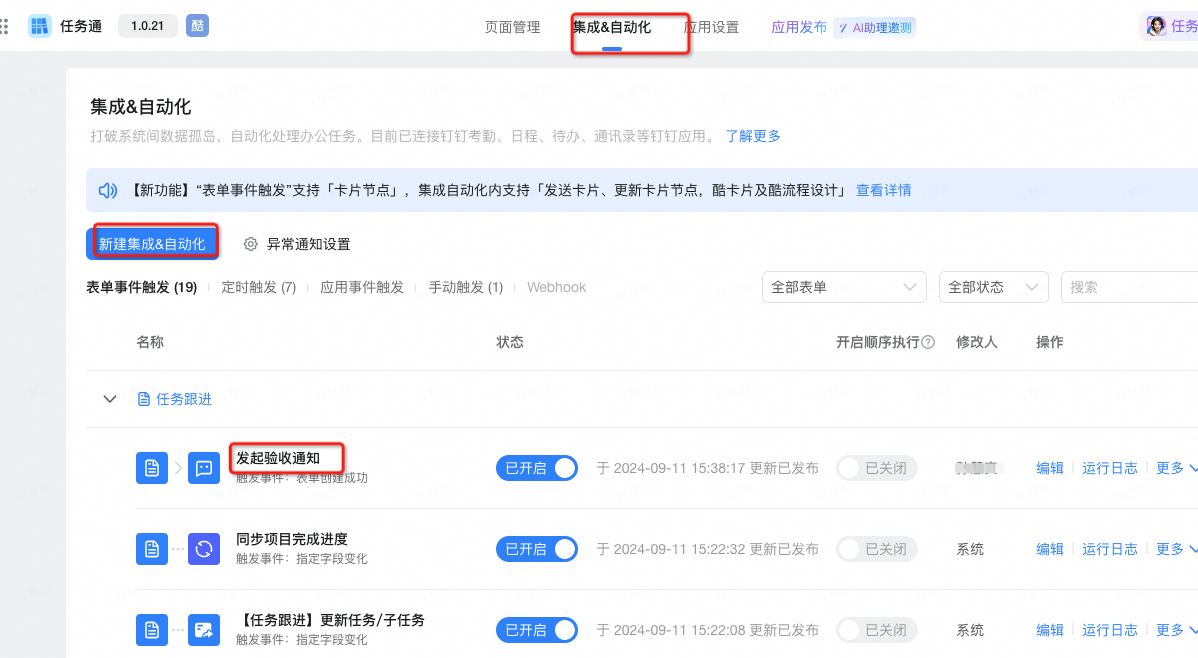
- Step: Integration & automation> create Integration & Automation [initiate acceptance notification]> trigger event isCreated successfully> data filtering is the current status of the task = completed> add a message notification node> Notification personnel-specified Member field-acceptance personnel> custom settings acceptance content
  |   |
4. The approval of the acceptance personnel is completed, and the follow-up personnel are notified in the form of a single chat.
- Steps: page Setup> message notification> Create message notification-graphic details card> trigger when the specified approval result field is successfully edited> notify page field follow-up personnel> configure notification content> add message notification node> Notification personnel-specified Member field-acceptance personnel> custom settings acceptance content
 |  |
5. Note: after second section, the tasks involved will follow up the modification of page logic.
- Step: Integration & automation> [synchronize project completion progress] and [integrate with new tasks/subtasks]> Change the trigger event to edit successfullySpecified field change -- triggered when approval result = agree
before   | after  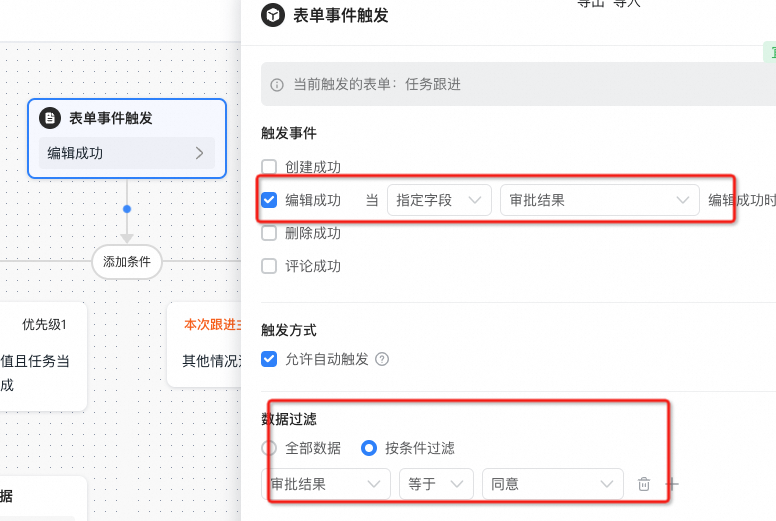 |
3. Rendering display
   |