Task module introduction and operation demonstration
I. Function of supervisor
1. Enter the supervisor Workbench
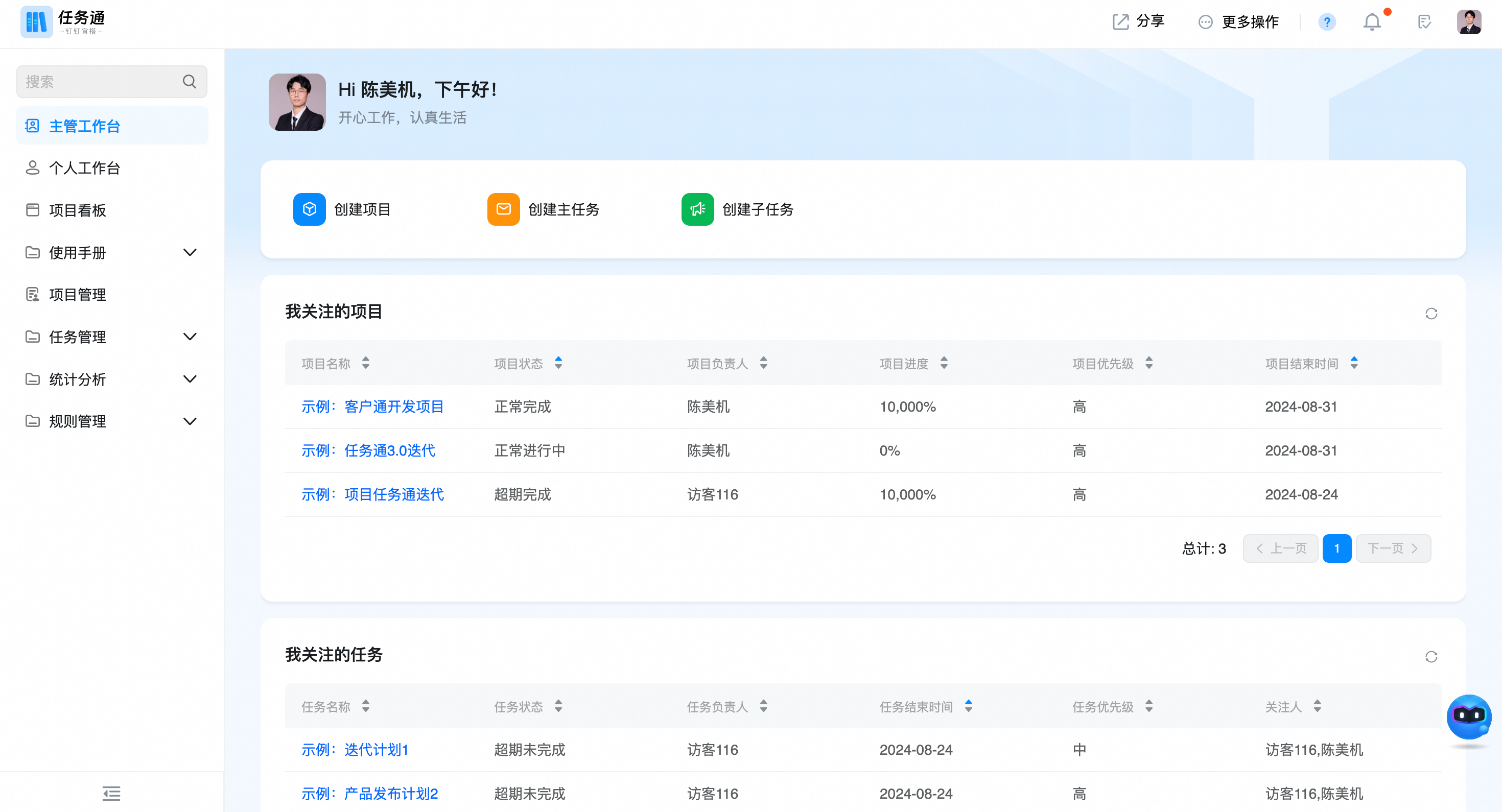
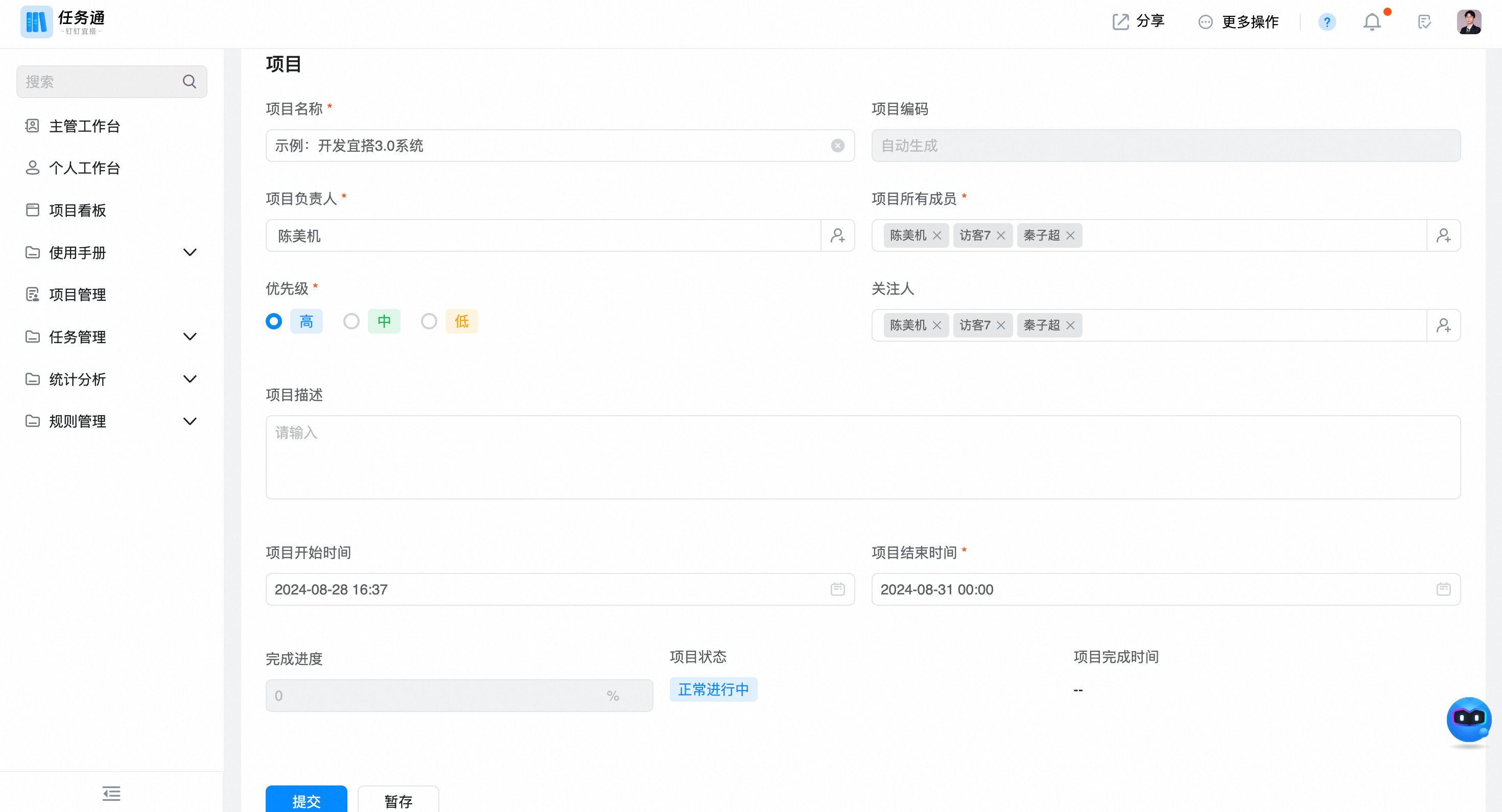
2,Create a project
- Fill in basic Project Information
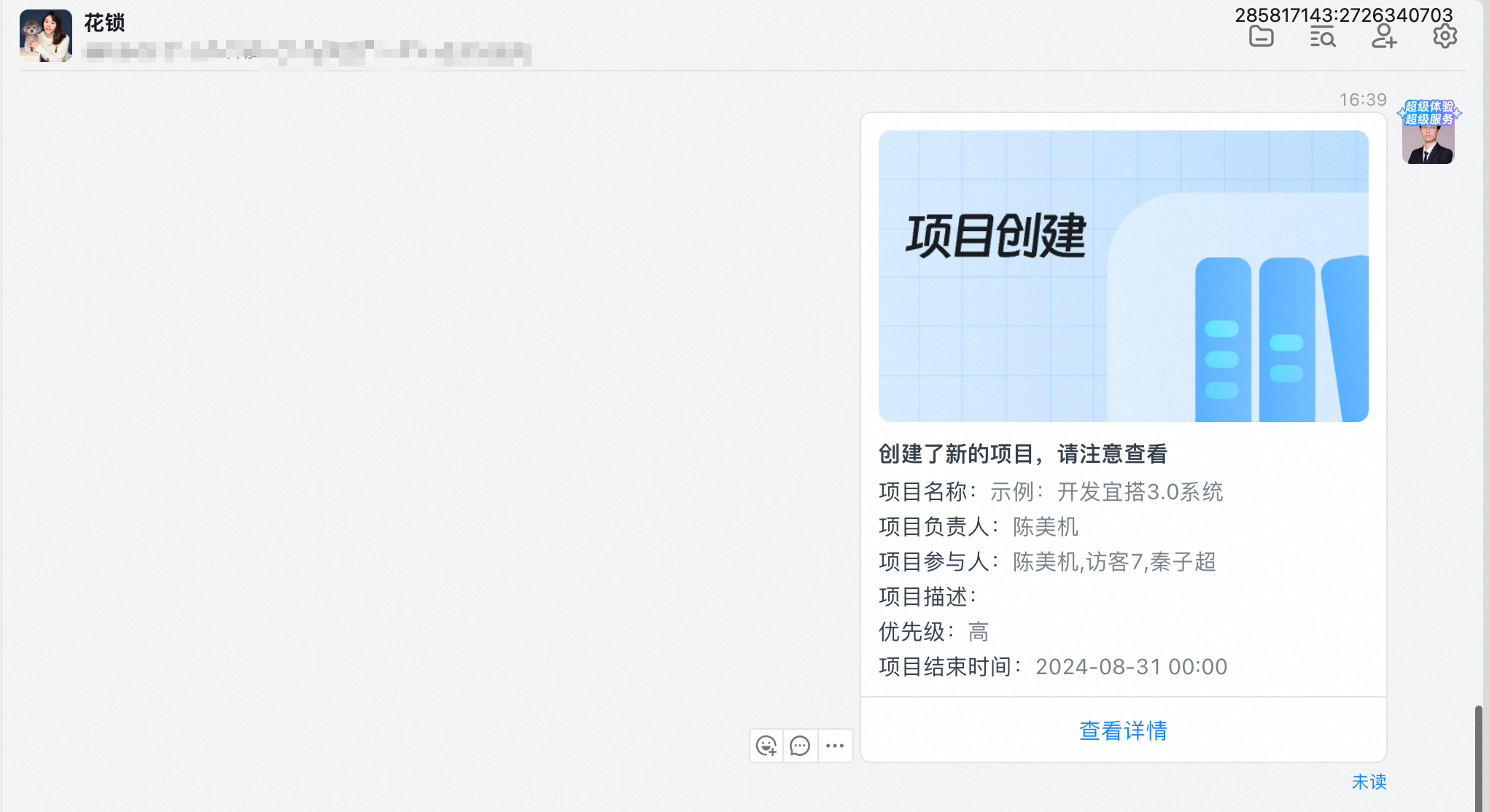
- After the project is created, the project creation notification card is automatically sent to the project participants.
3. CREATe director affairs
- In daily work, we can create tasks based on projects or directly assign some daily tasks.
- Click on the supervisor workbench to view any project details.
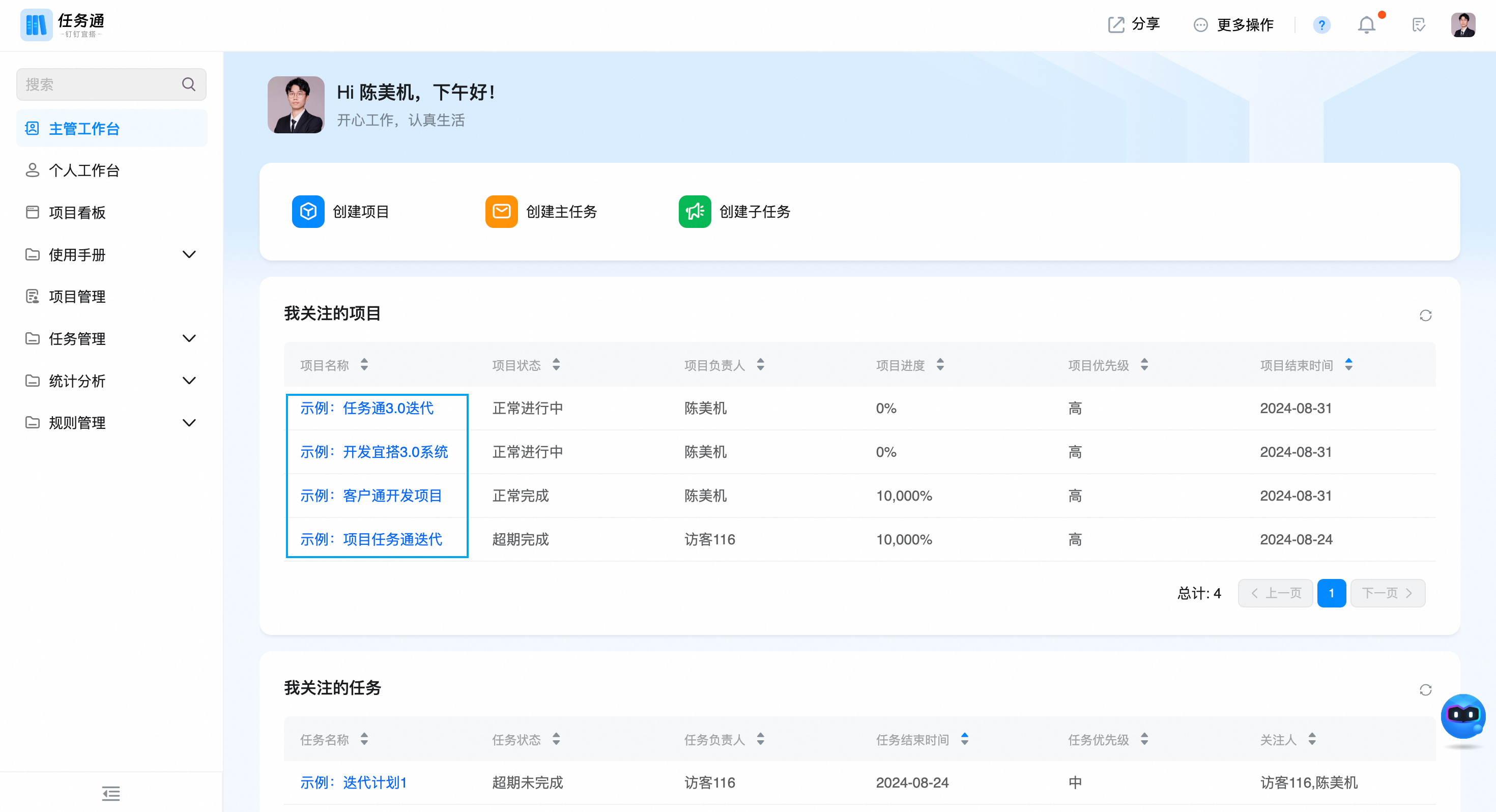
- Click director affairs to see all project director affairs, and click add to create director affairs associated with the project.
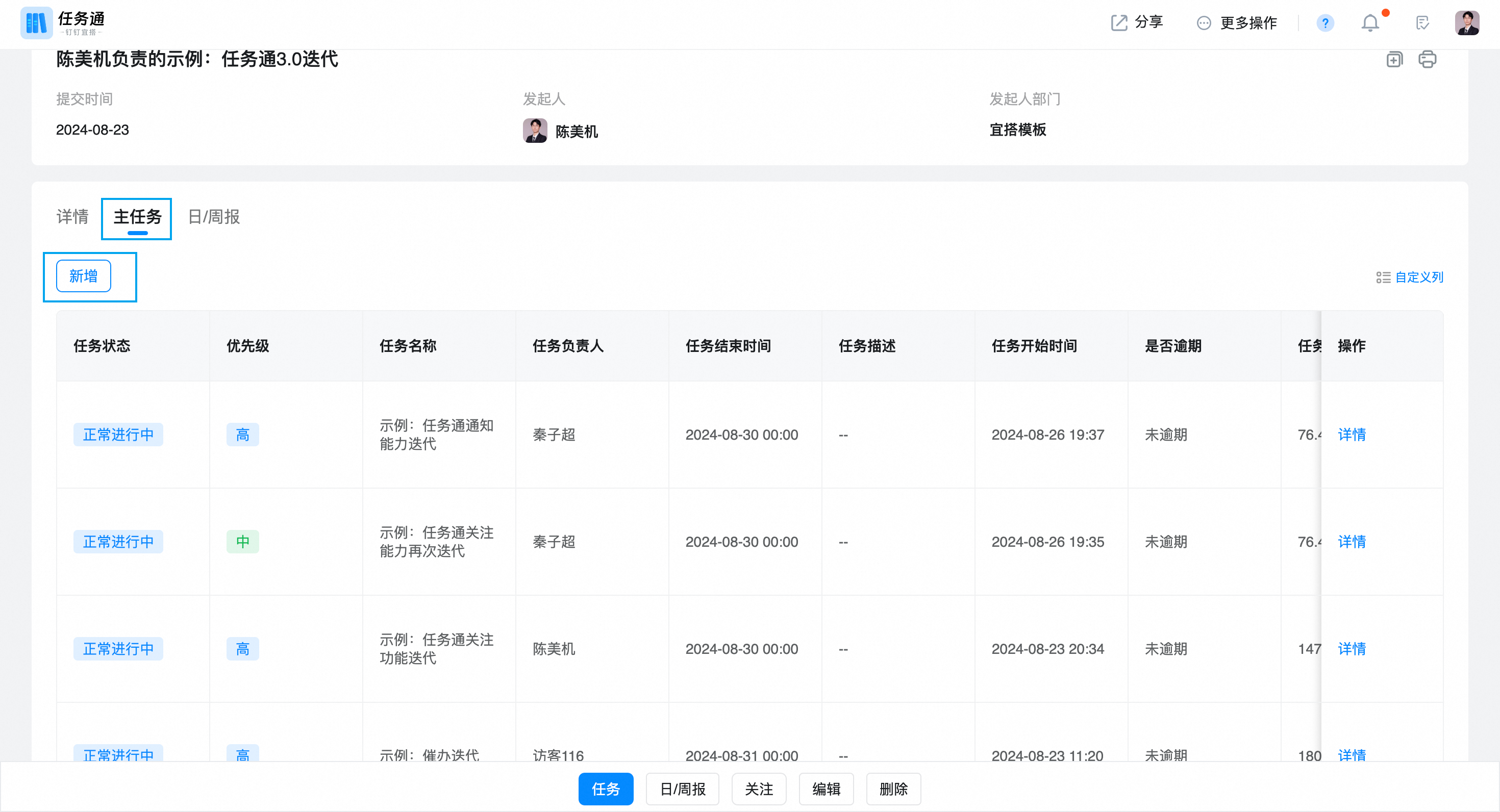
- Enter basic task information
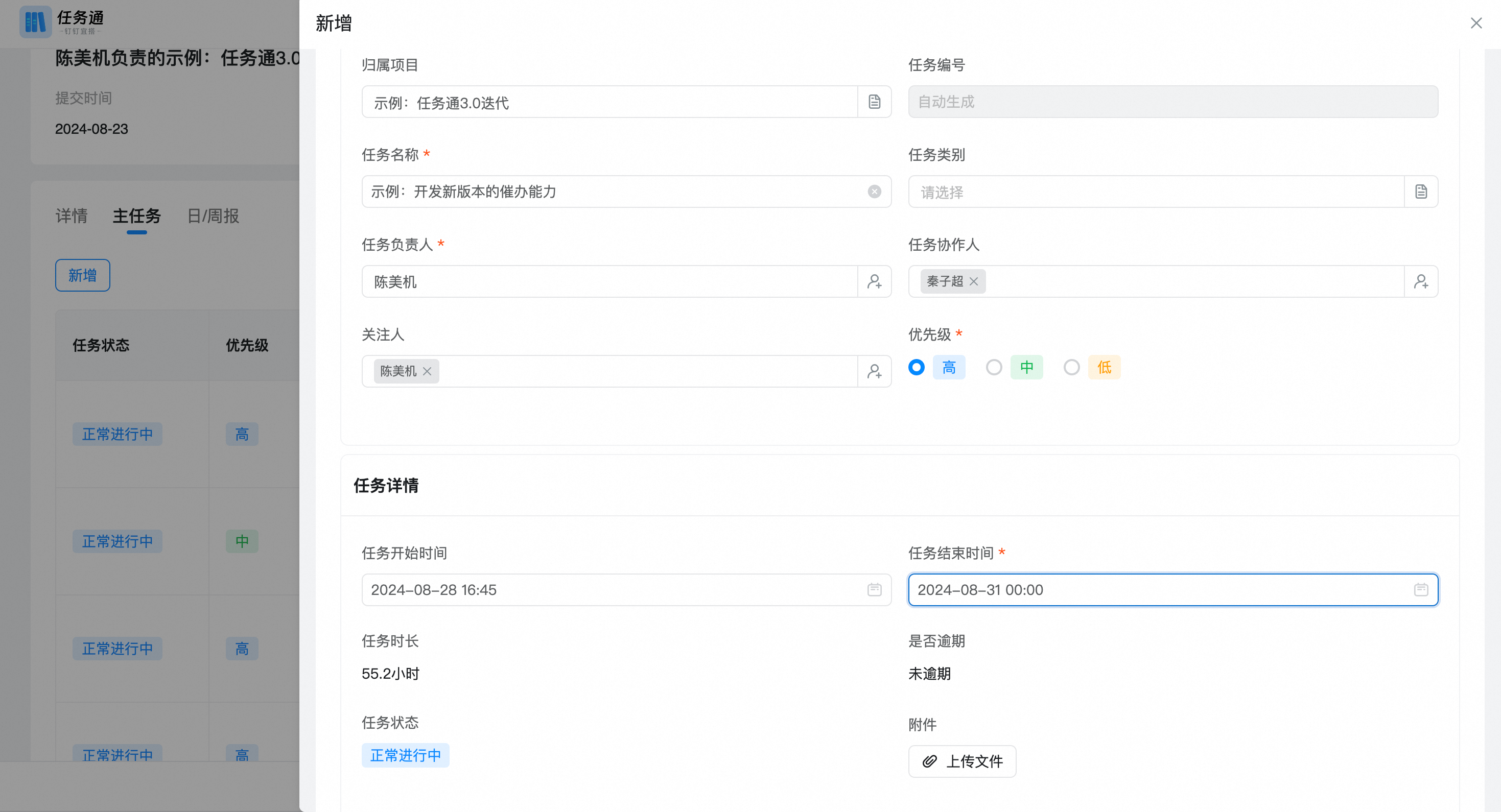
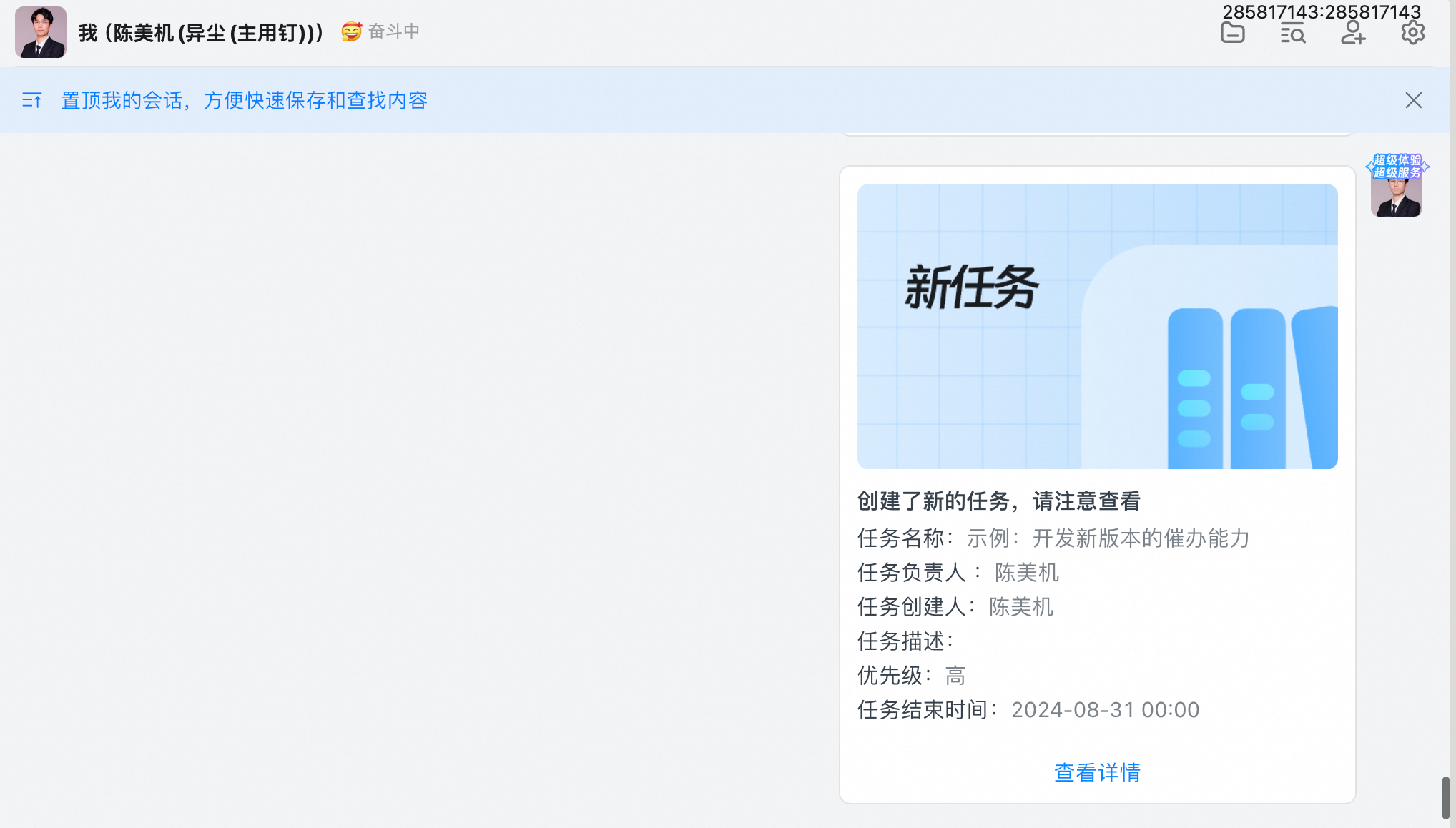
- After submission, the system will automatically notify the executor of the task.
- Some daily tasks can also be created directly without having to be adhesive hook stronger than the project.
5. View the project and task progress
- Through the supervisor workbench, you can clearly see the progress of the project and the progress of the task.
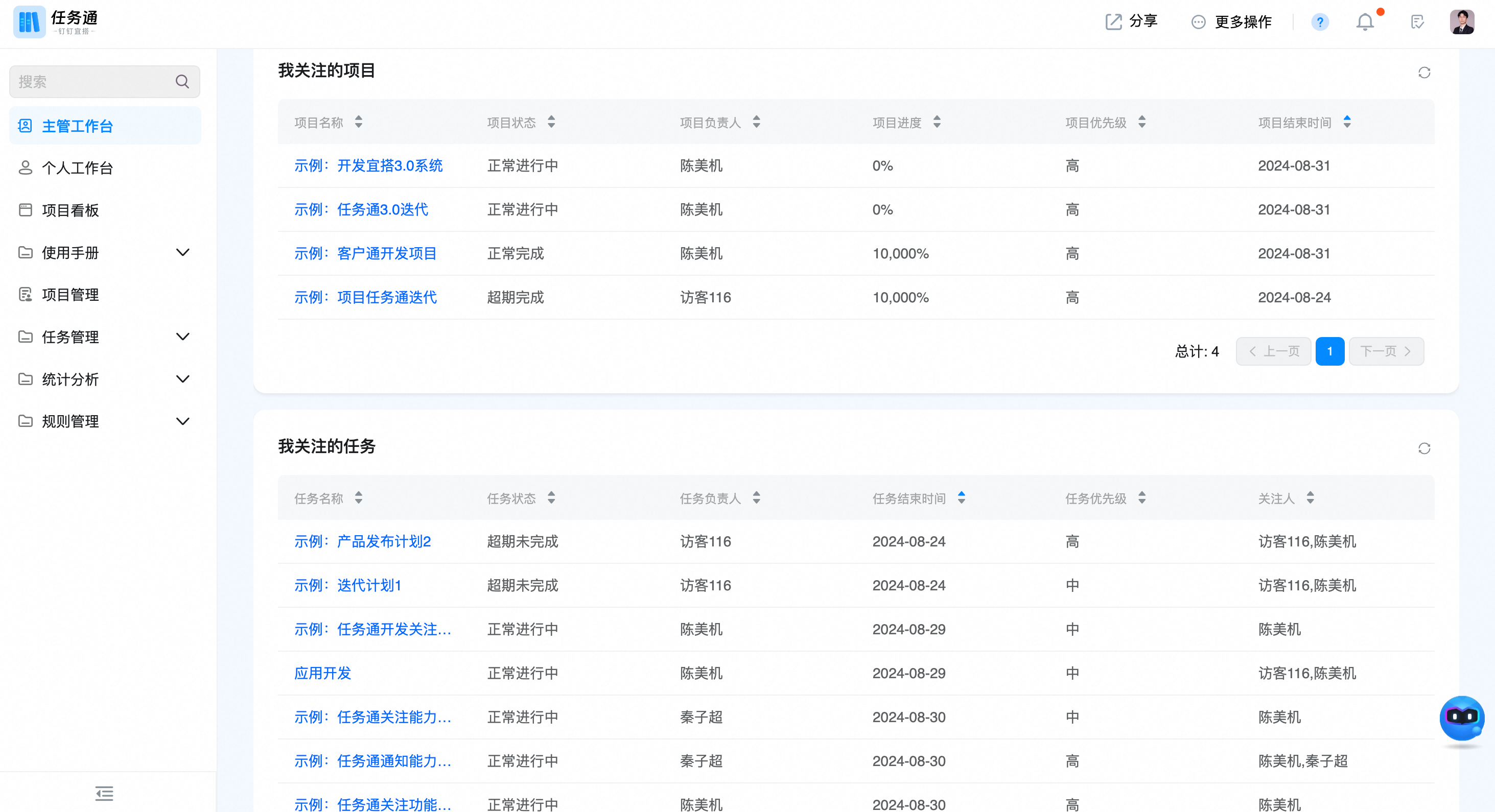
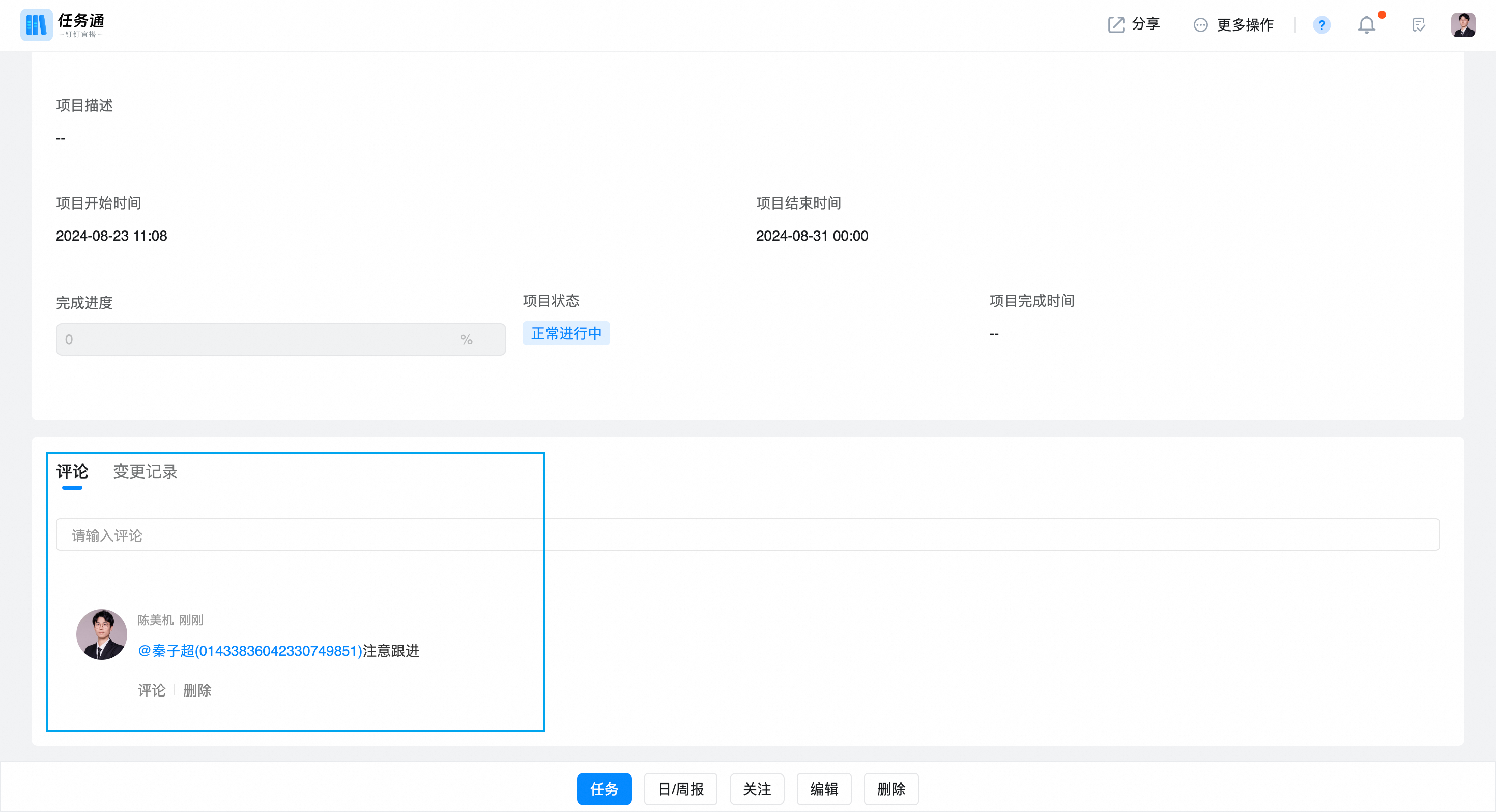
- Click the project or task name to view the project task progress details, and you can comment, urge, and add tasks.
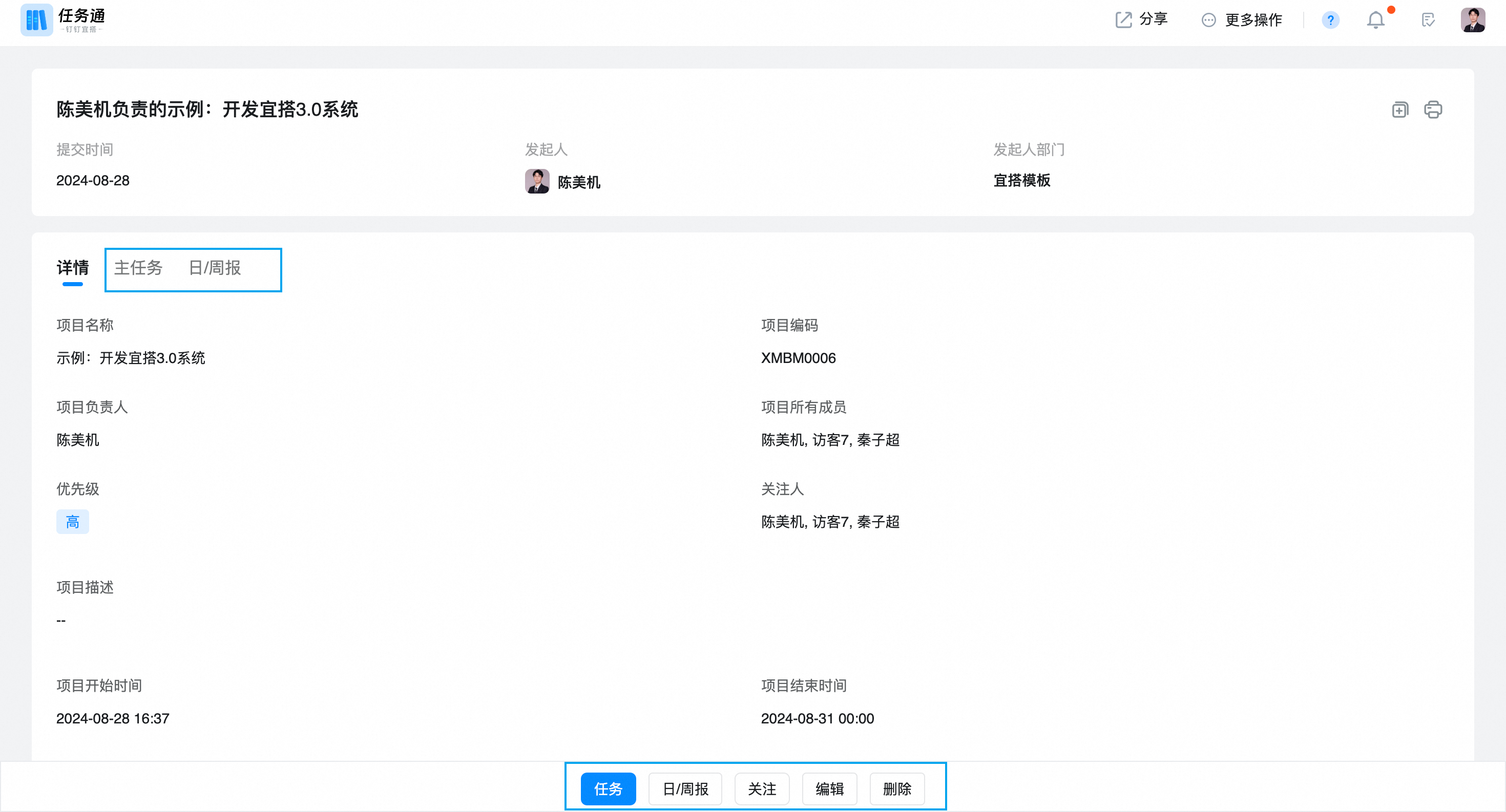
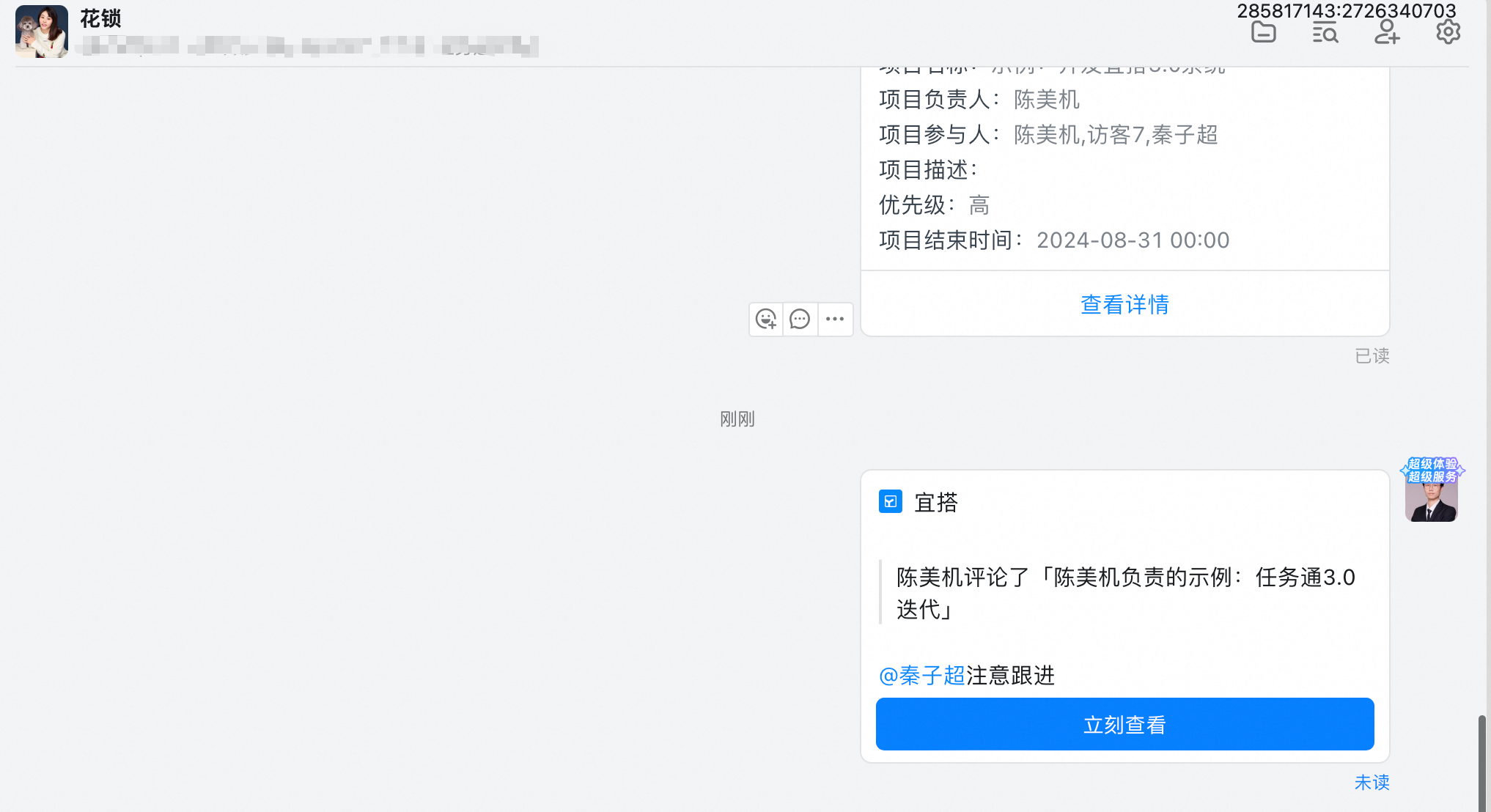
- Comments on items and automatic DingTalk notifications
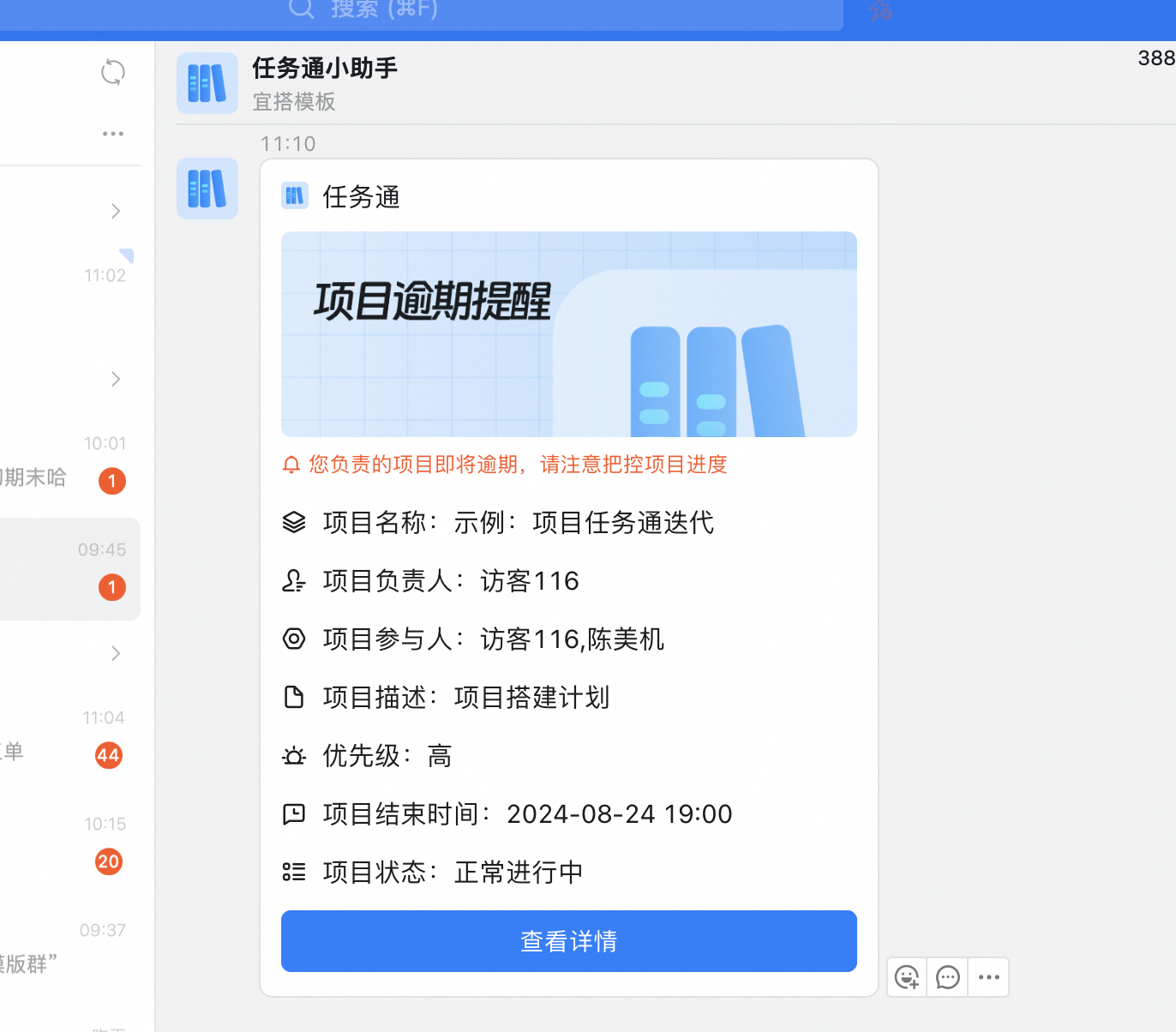
6. Automatic reminder for overdue projects
- Configure project overdue reminder days
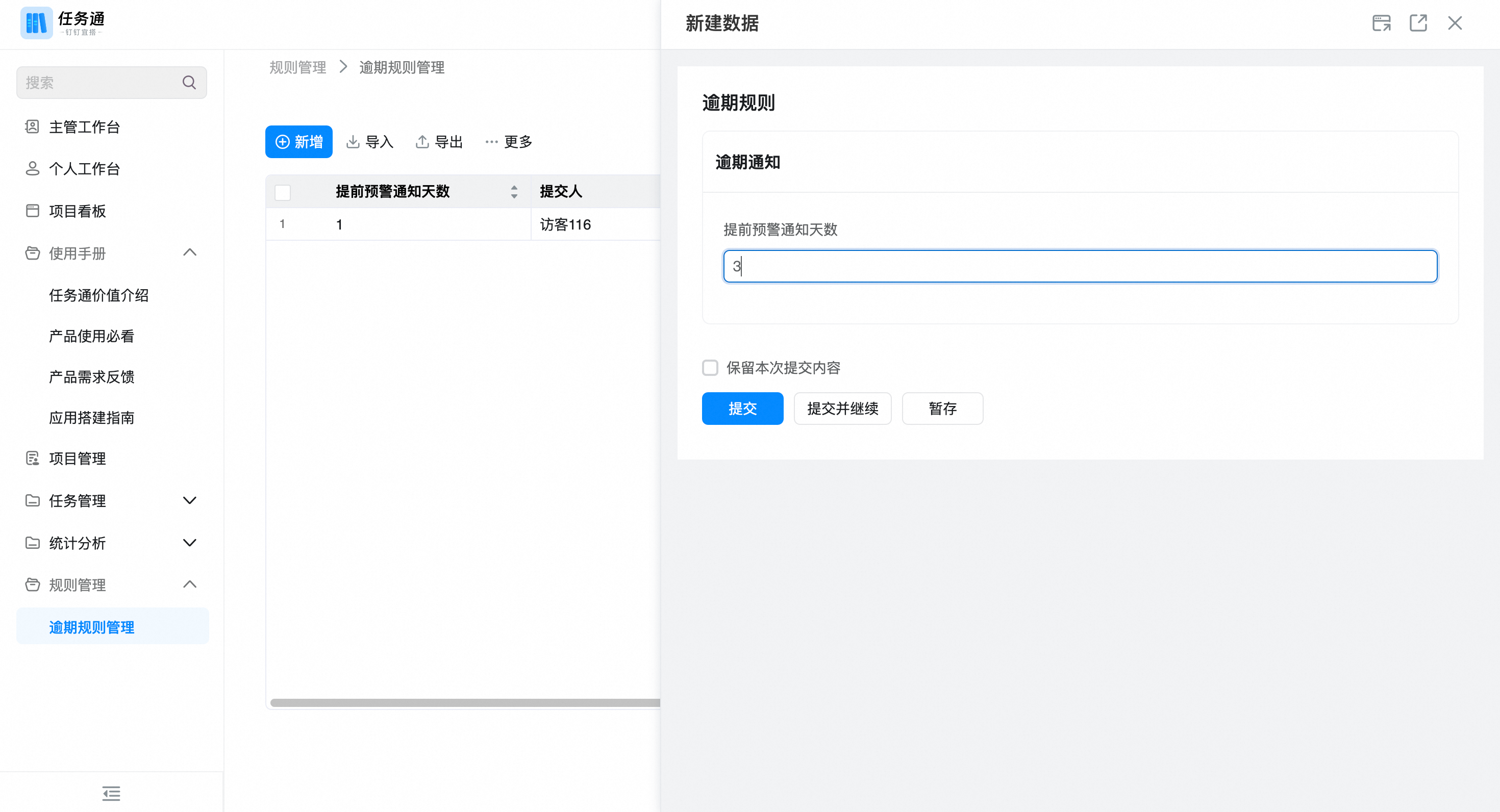
- Overdue reminder notification is automatically sent at 10 o'clock every day.
7. One-click reminder director
- Enter the task details and click one-click reminder
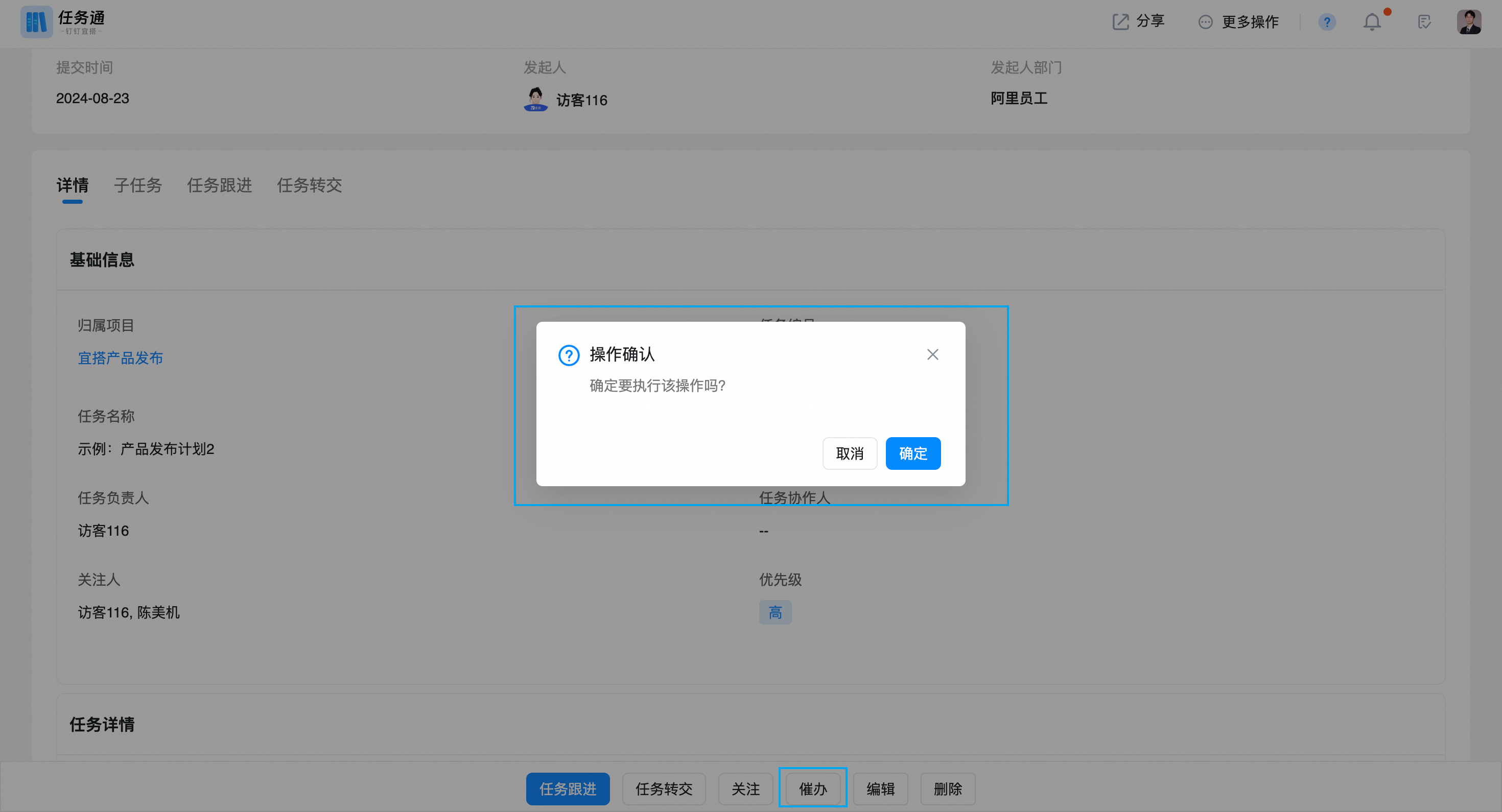
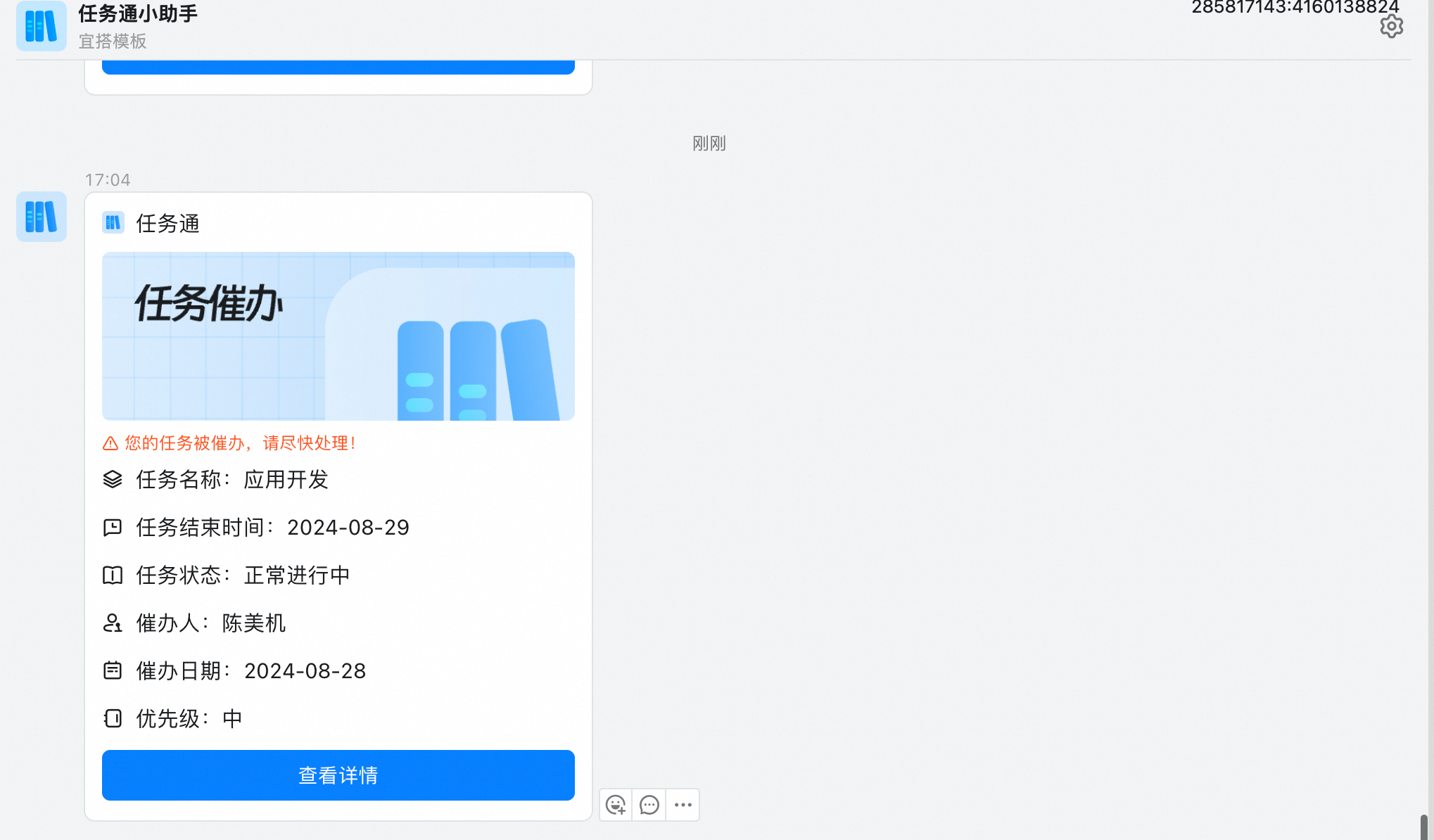
- Automatically send the reminder card to the task leader after the reminder occurs on DingTalk
8. Focus on projects and tasks
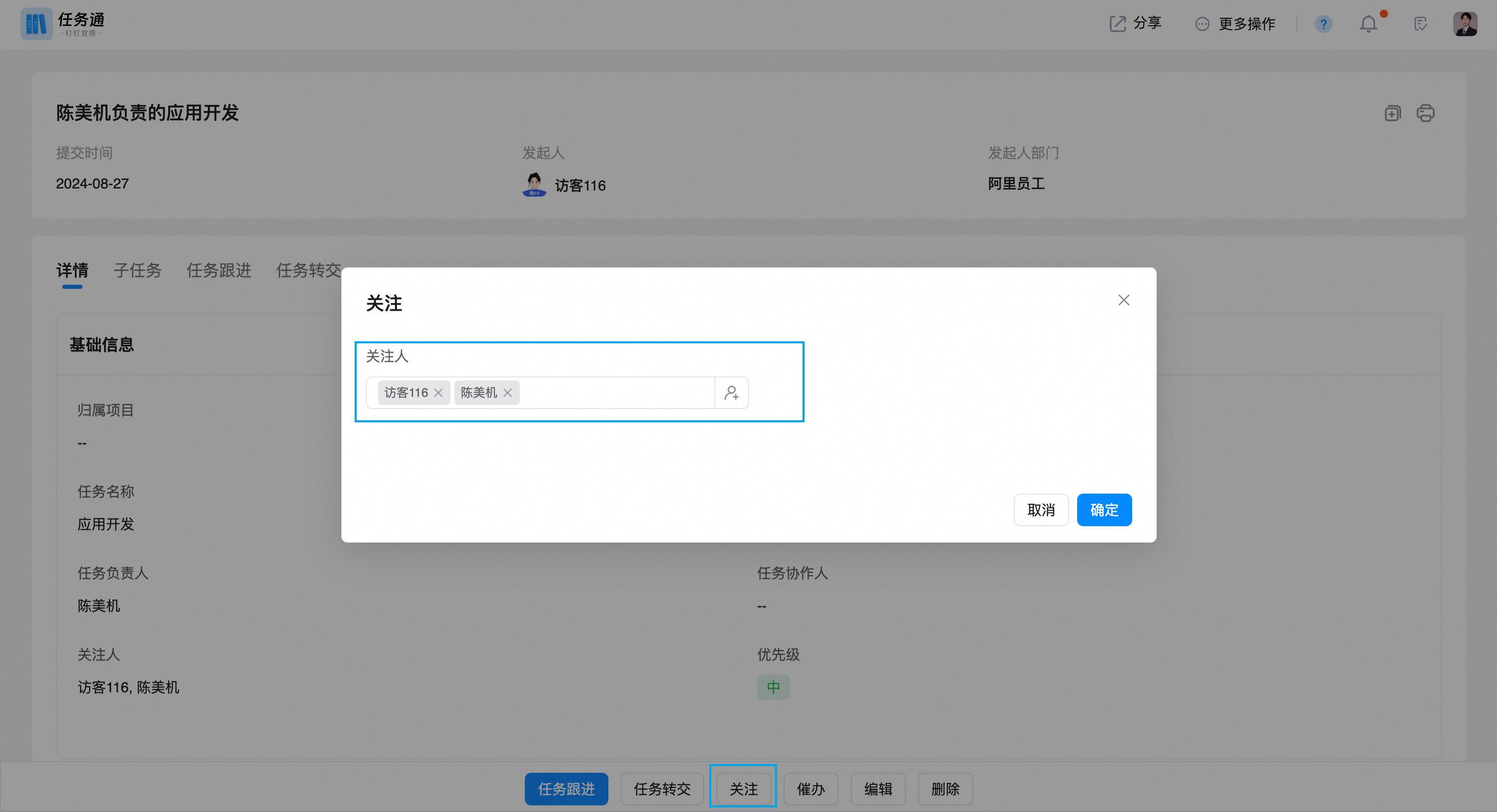
- The default project owner, Project creator, and project member are project followers. The default task creator, task owner, and task helper are task followers. You can also click follow to add attention projects and tasks.
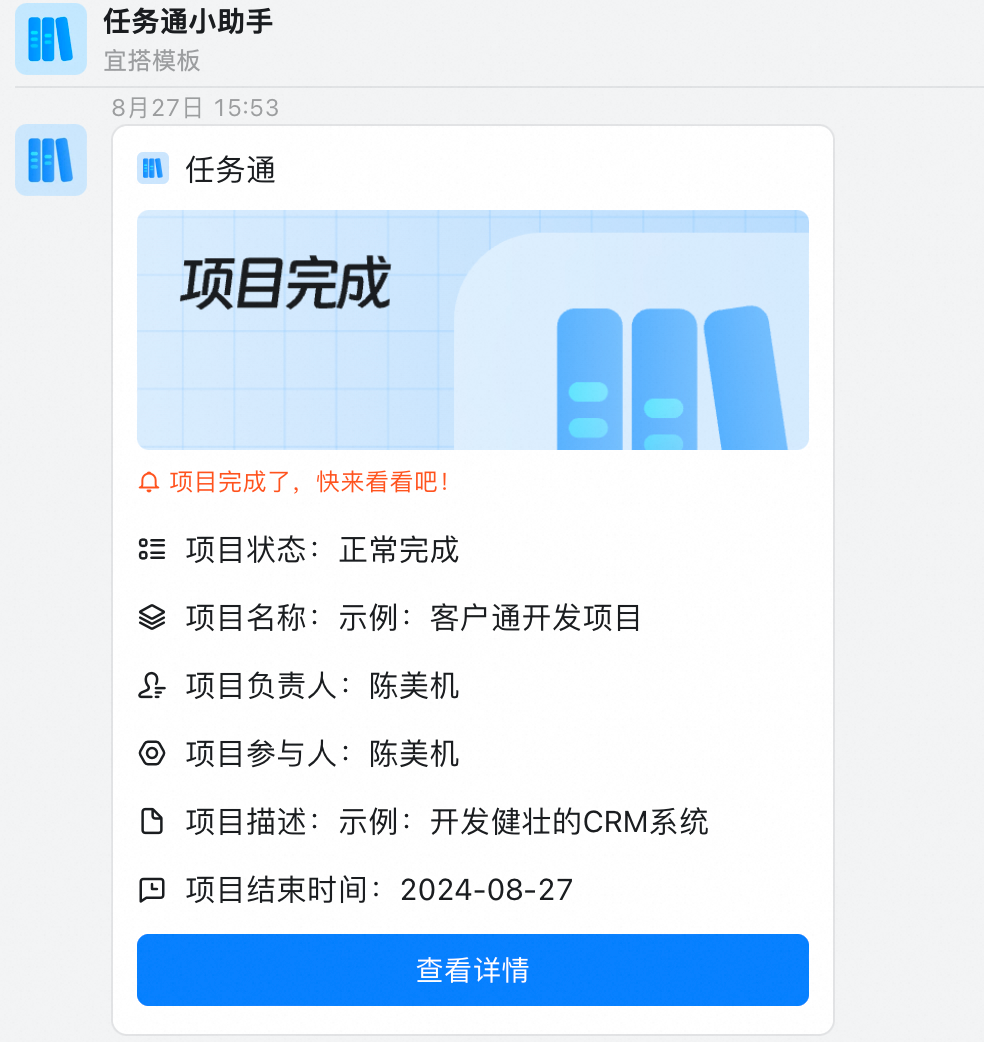
9. Project completion reminder
- When the project is completed, it will be automatically notified to the project leader, project follower, and project creator.
II. Personal use function
1. Enter the personal Workbench
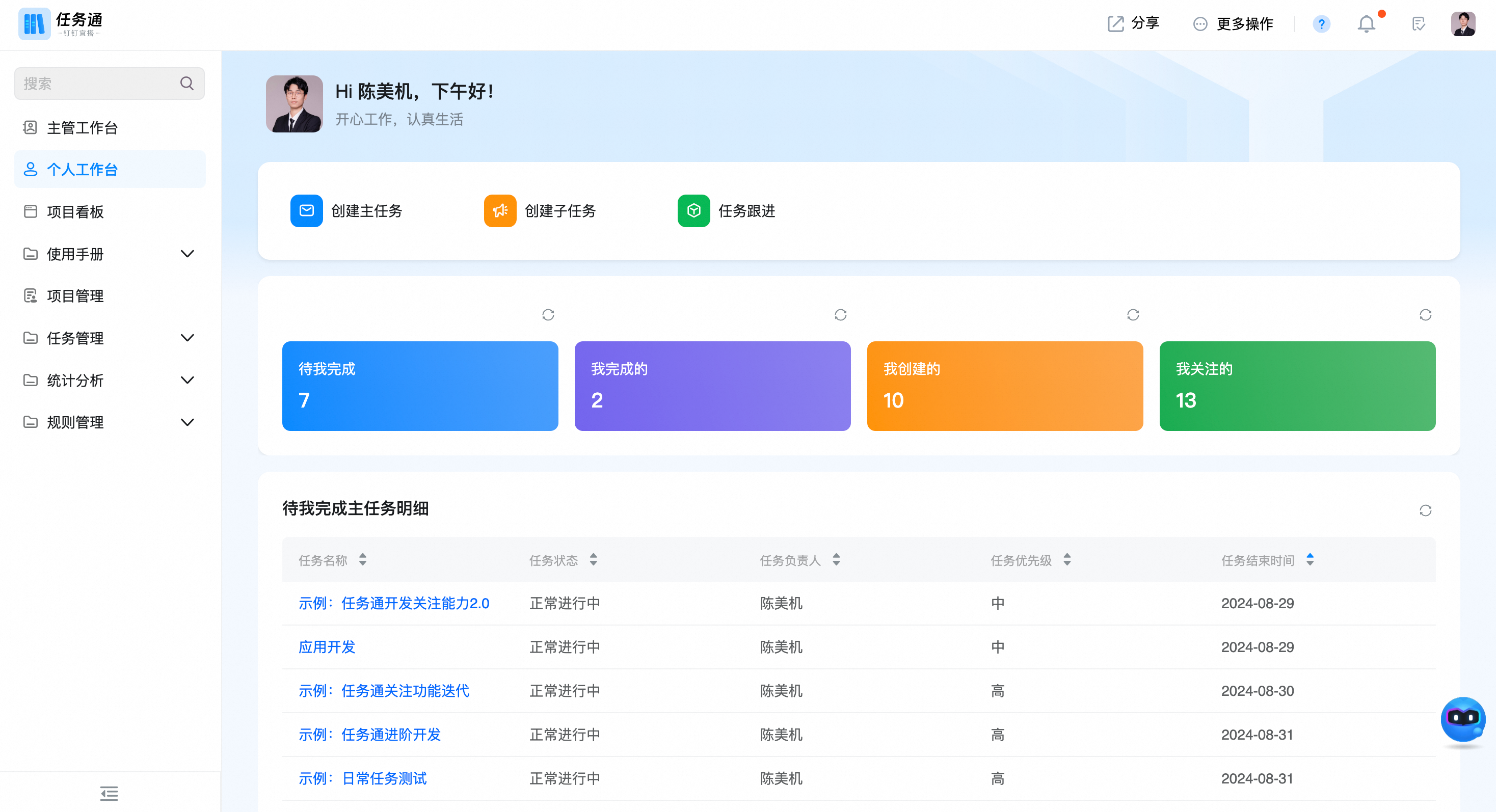
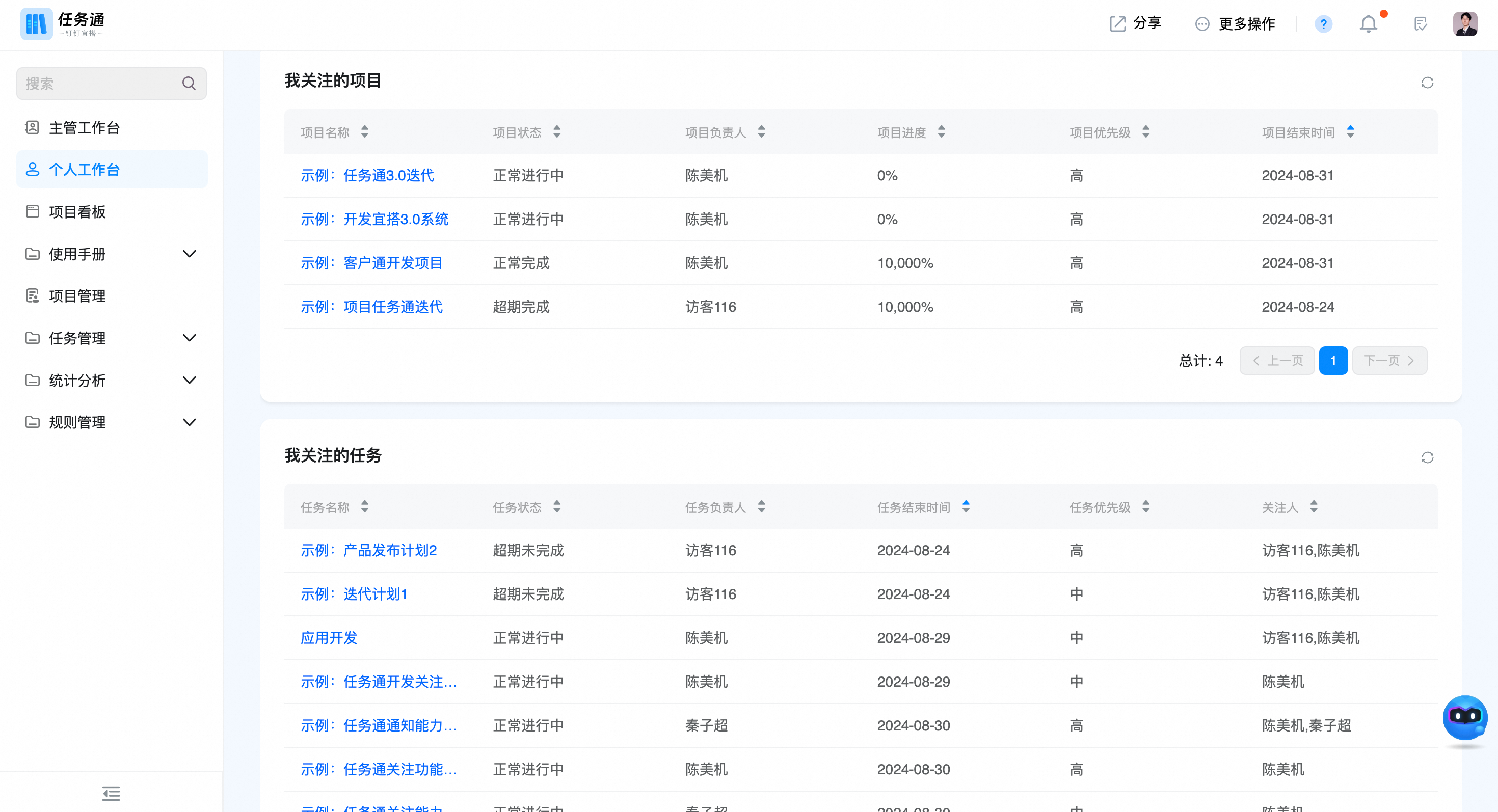
2. Check the director's affairs to be completed and follow up
- View the total number and task details to be completed
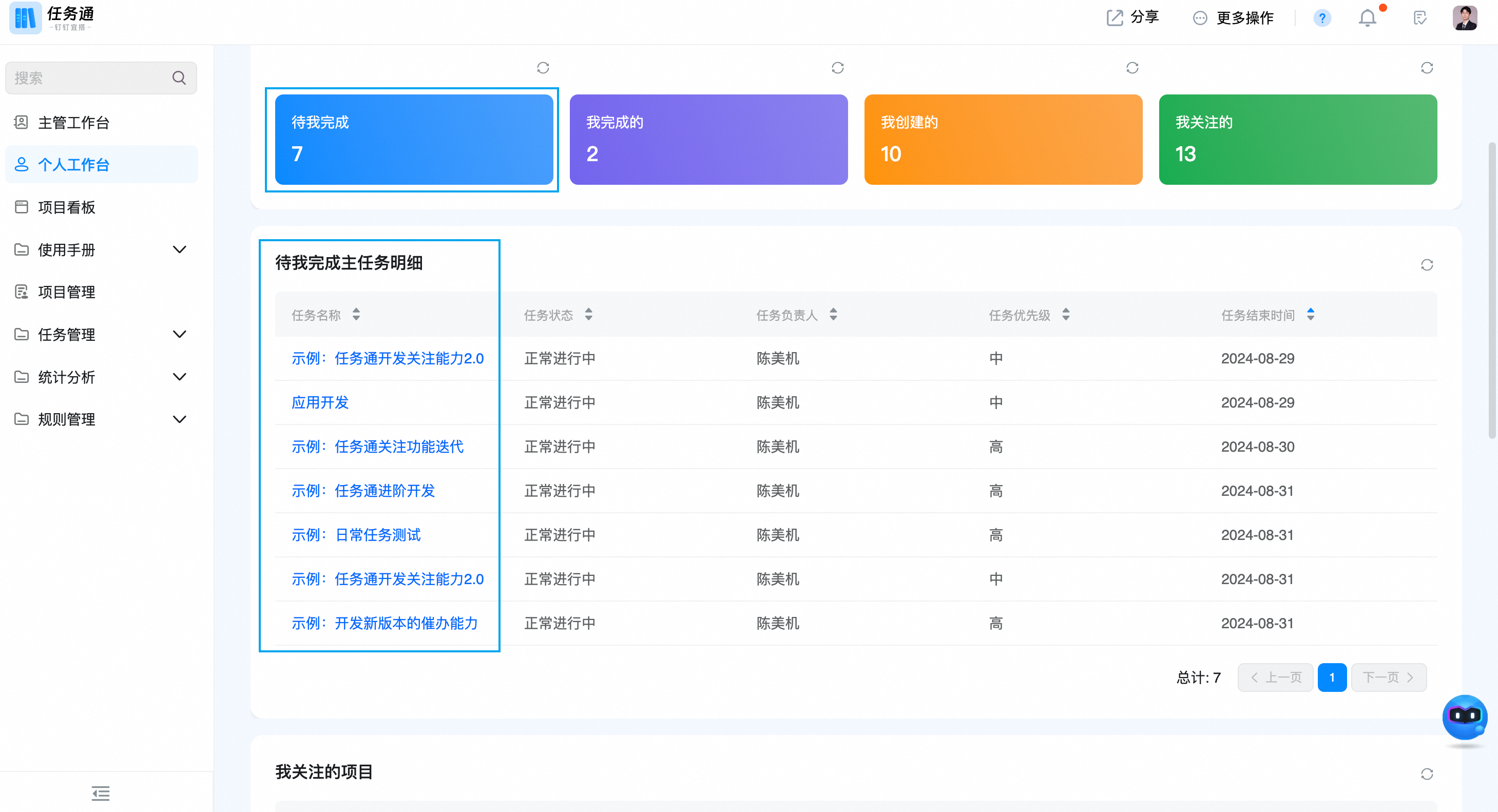
- Click the director name to enter the task details.

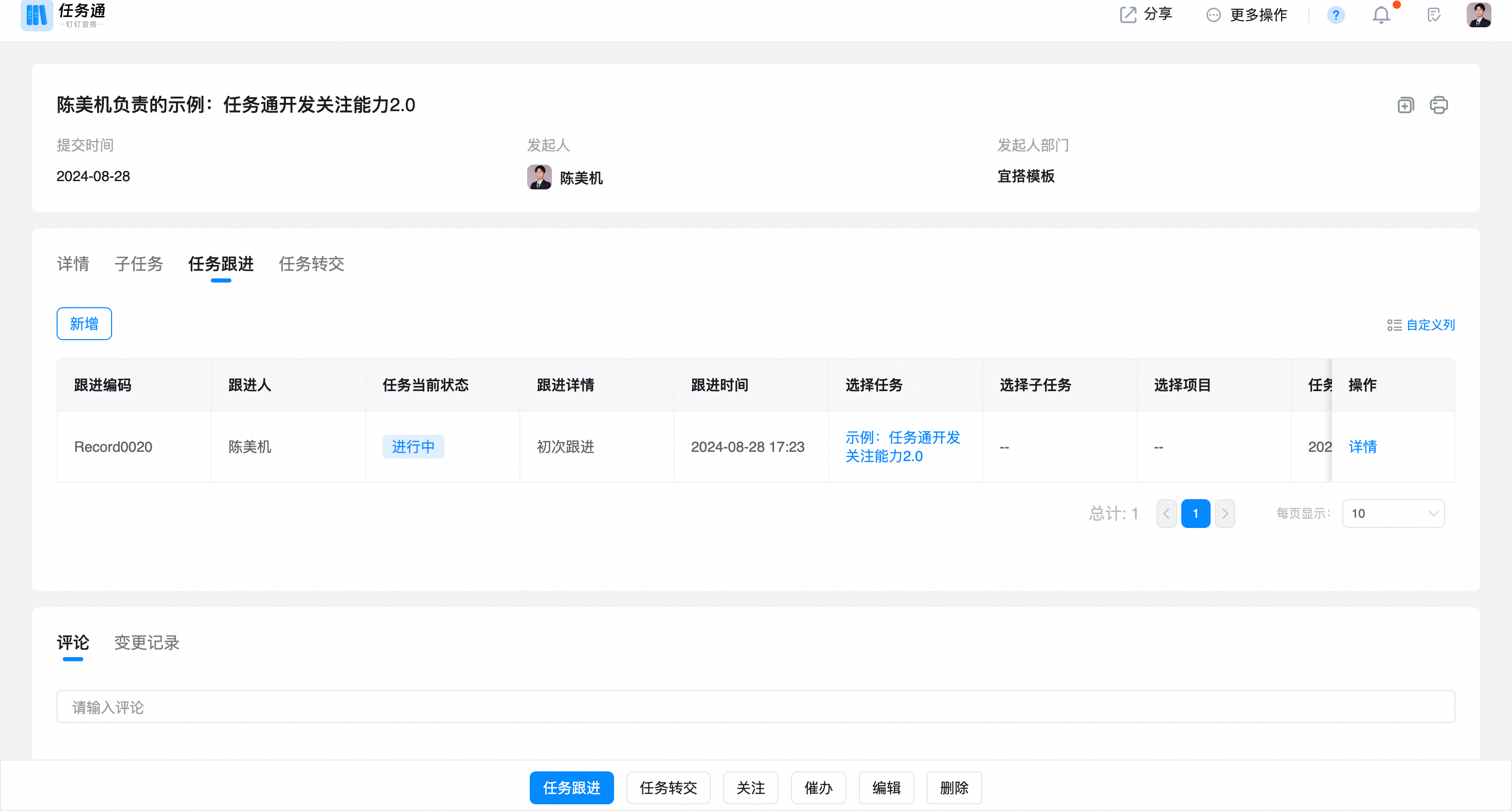
- Click follow-up to follow up the task

- Follow-up if the task status is selected to be in progress, only follow-up records will be recorded, and each follow-up will remind the followers of the task.
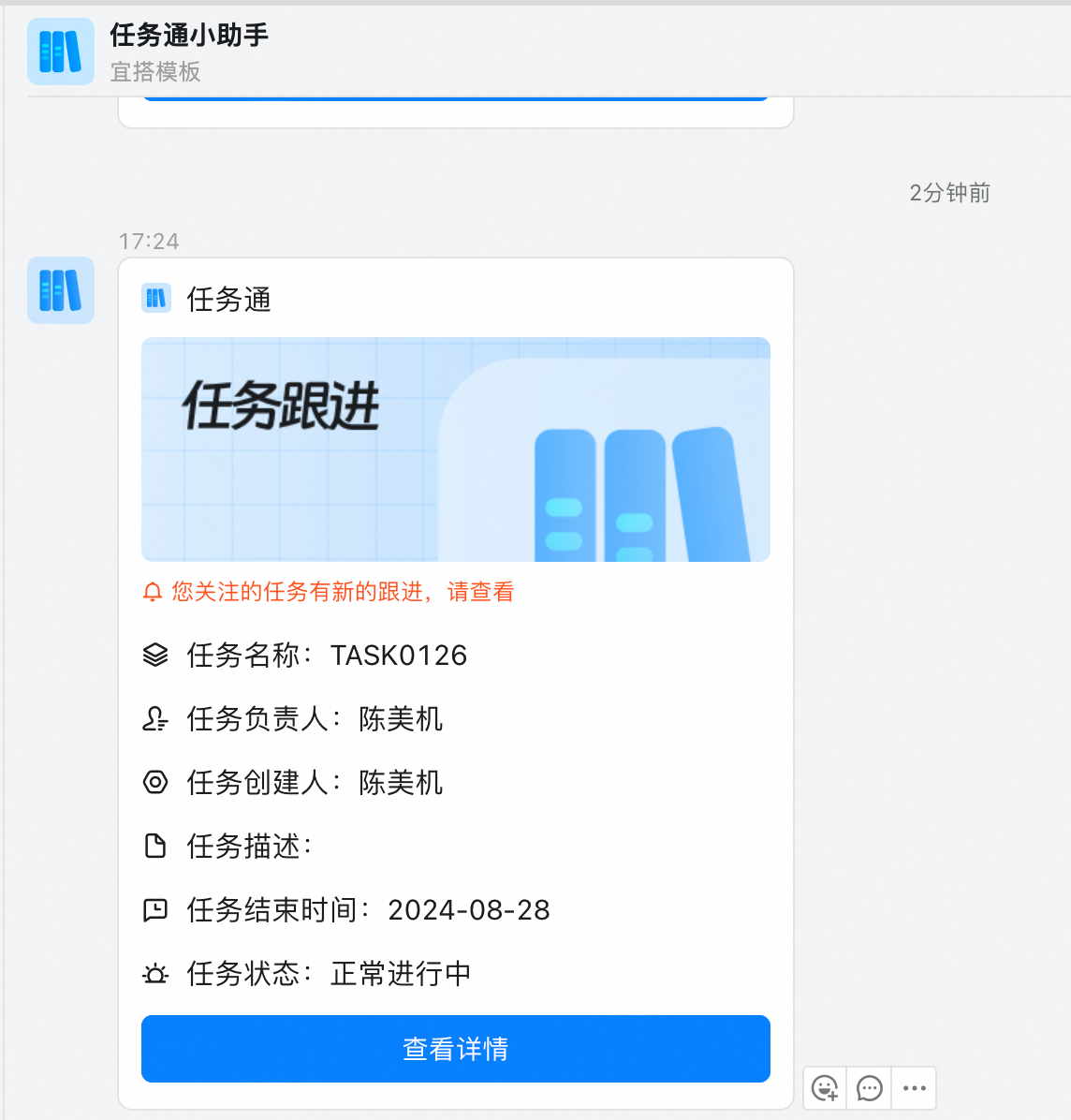
- If you select the task status as completed when following, the director status will be changed to completed, and the supervisor's attention will be reminded.
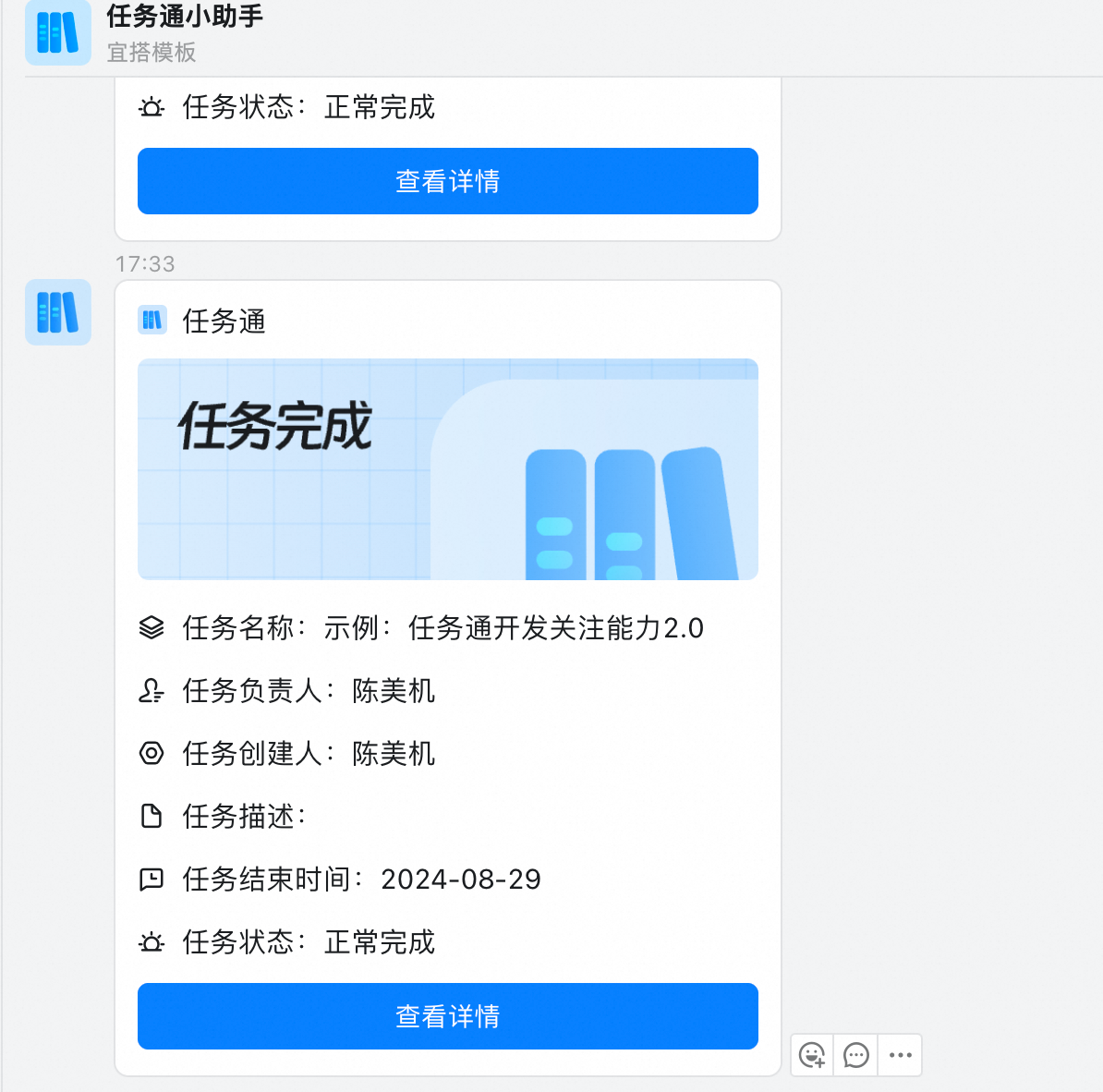
3. Transfer of director affairs
- Click task details to transfer the director to the new leader.
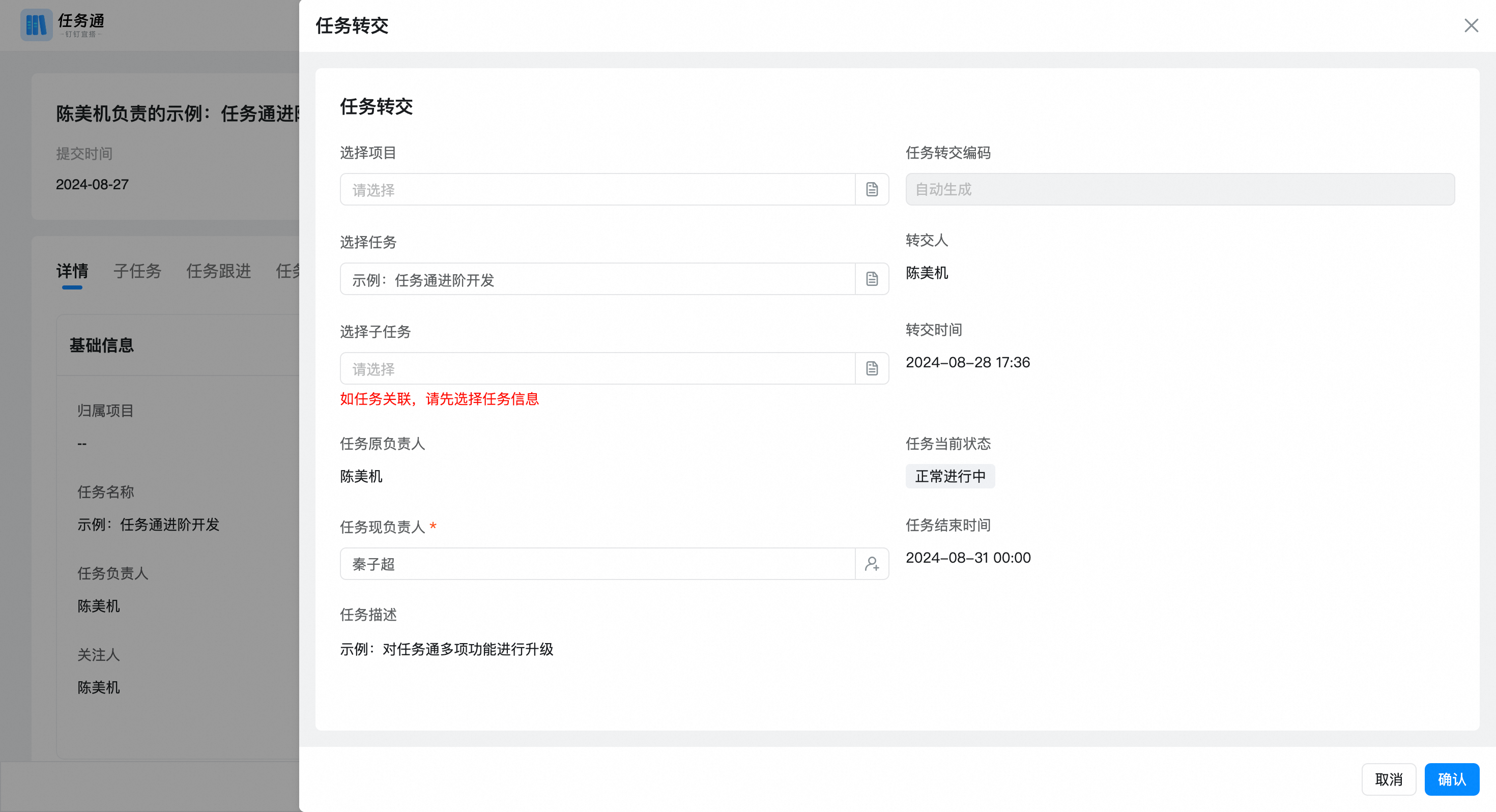
- After the transfer is successful, a notification card will be sent to the new person in charge and the old person in charge.
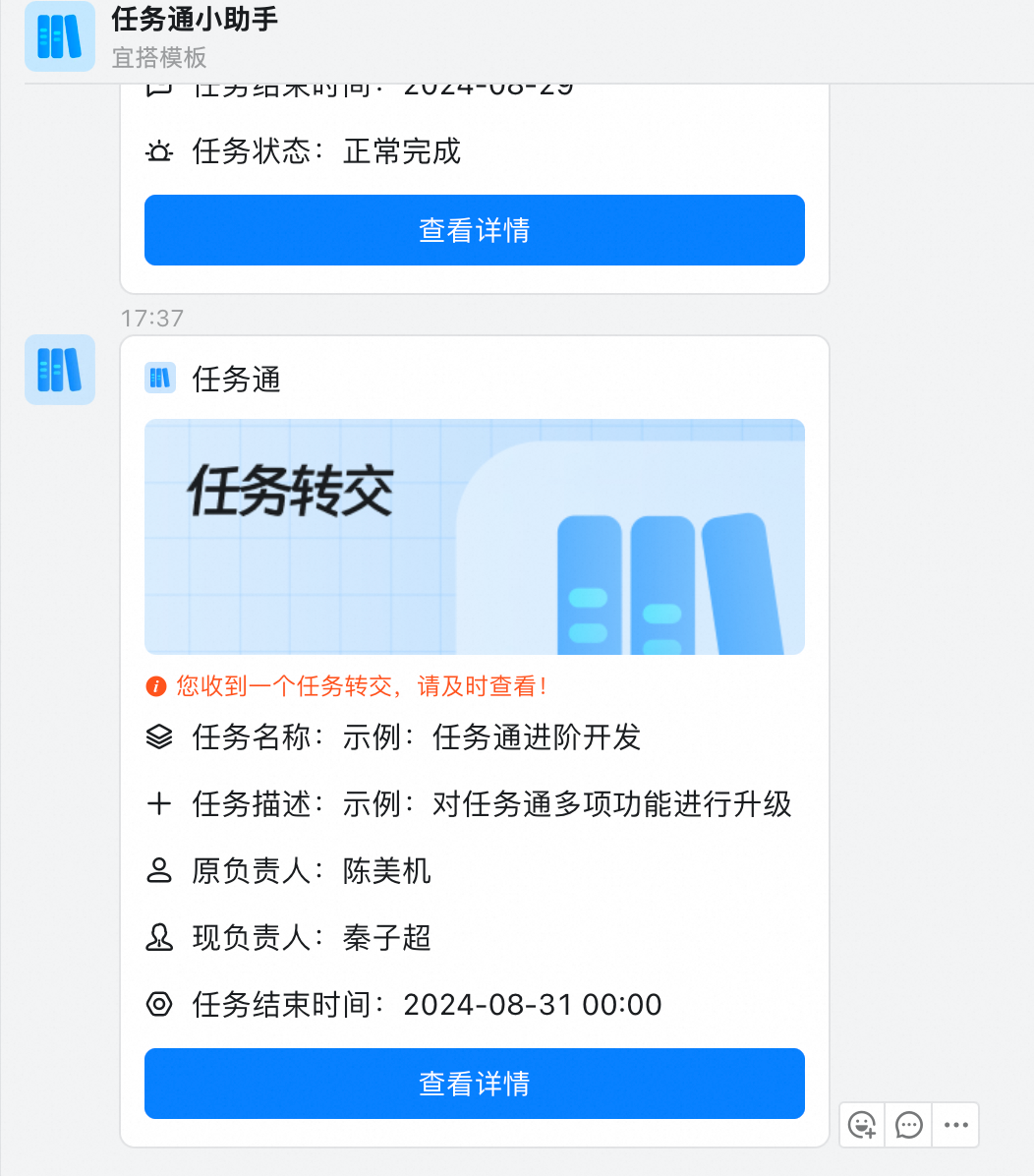
4. CREATe director affairs
- In daily work, we can create tasks based on projects or directly assign some daily tasks.
- Click director affairs to see all project director affairs, and click add to create director affairs associated with the project.

- Enter basic task information
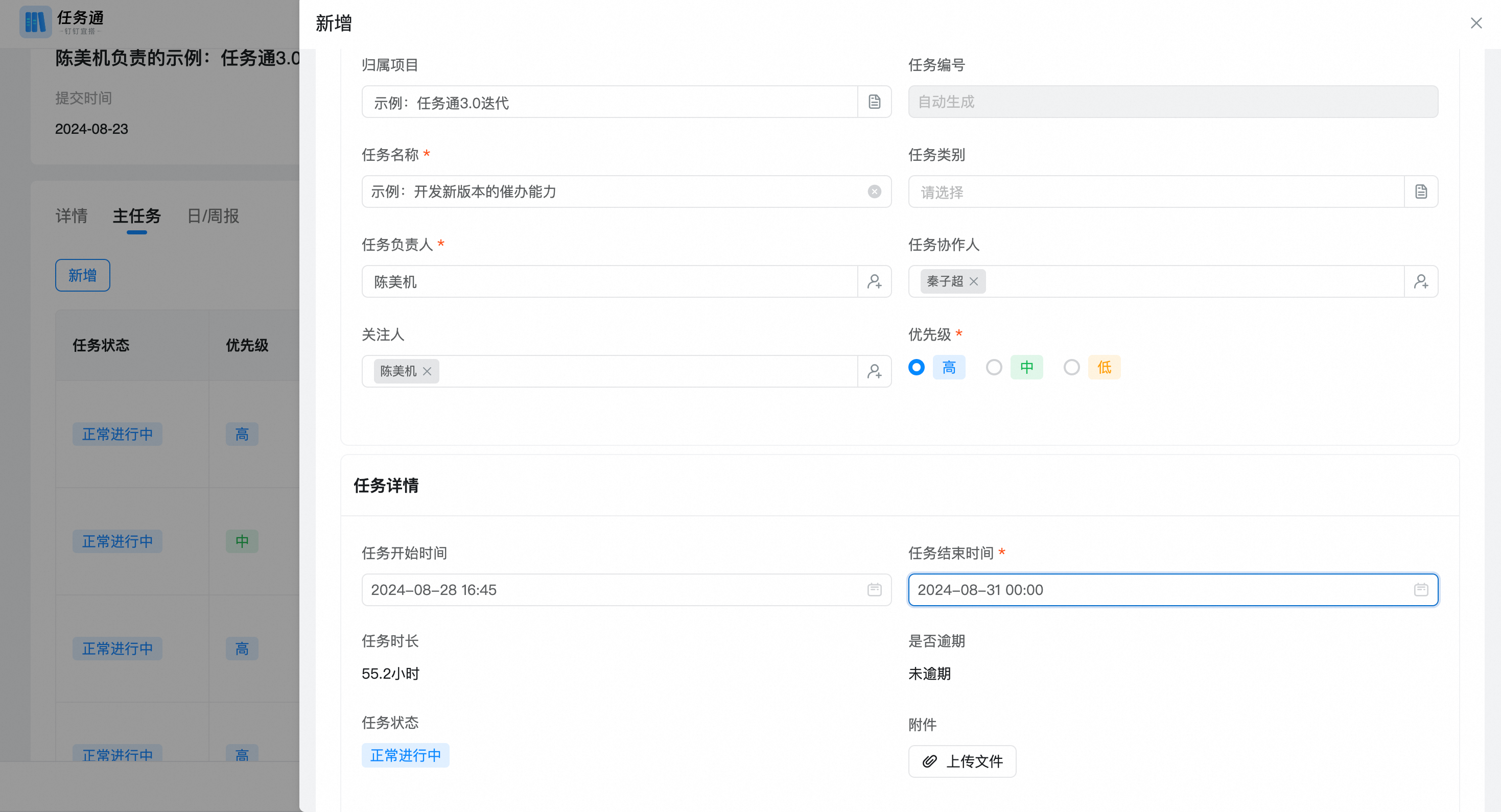
- After submission, the system will automatically notify the executor of the task.
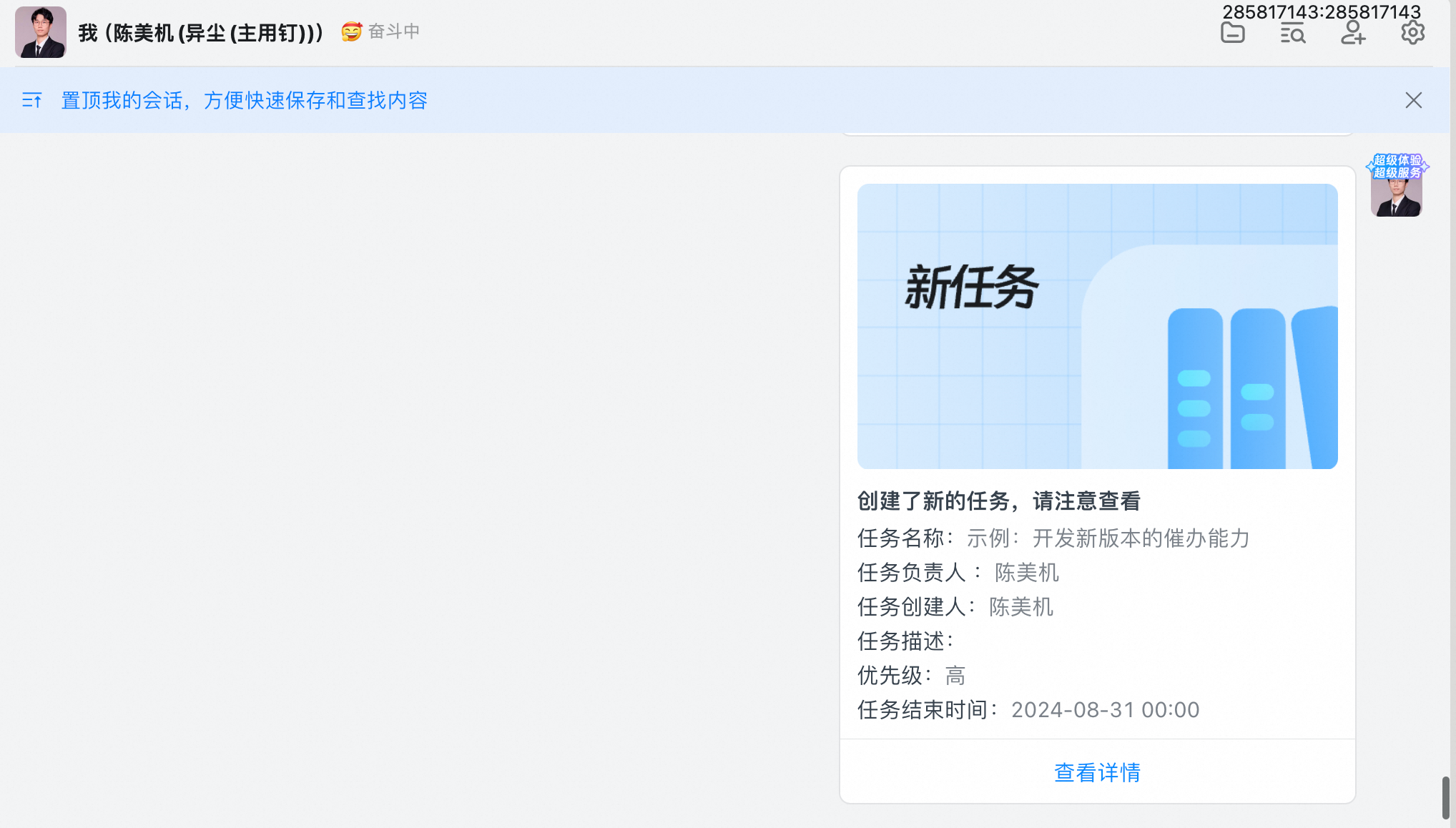
- Some daily tasks can also be created directly without having to be adhesive hook stronger than the project.
5. Director Intelligence reminder
- When the director service expires in x days, it will automatically remind the task executor and task creator, and automatically remind at 10 a.m. every day.
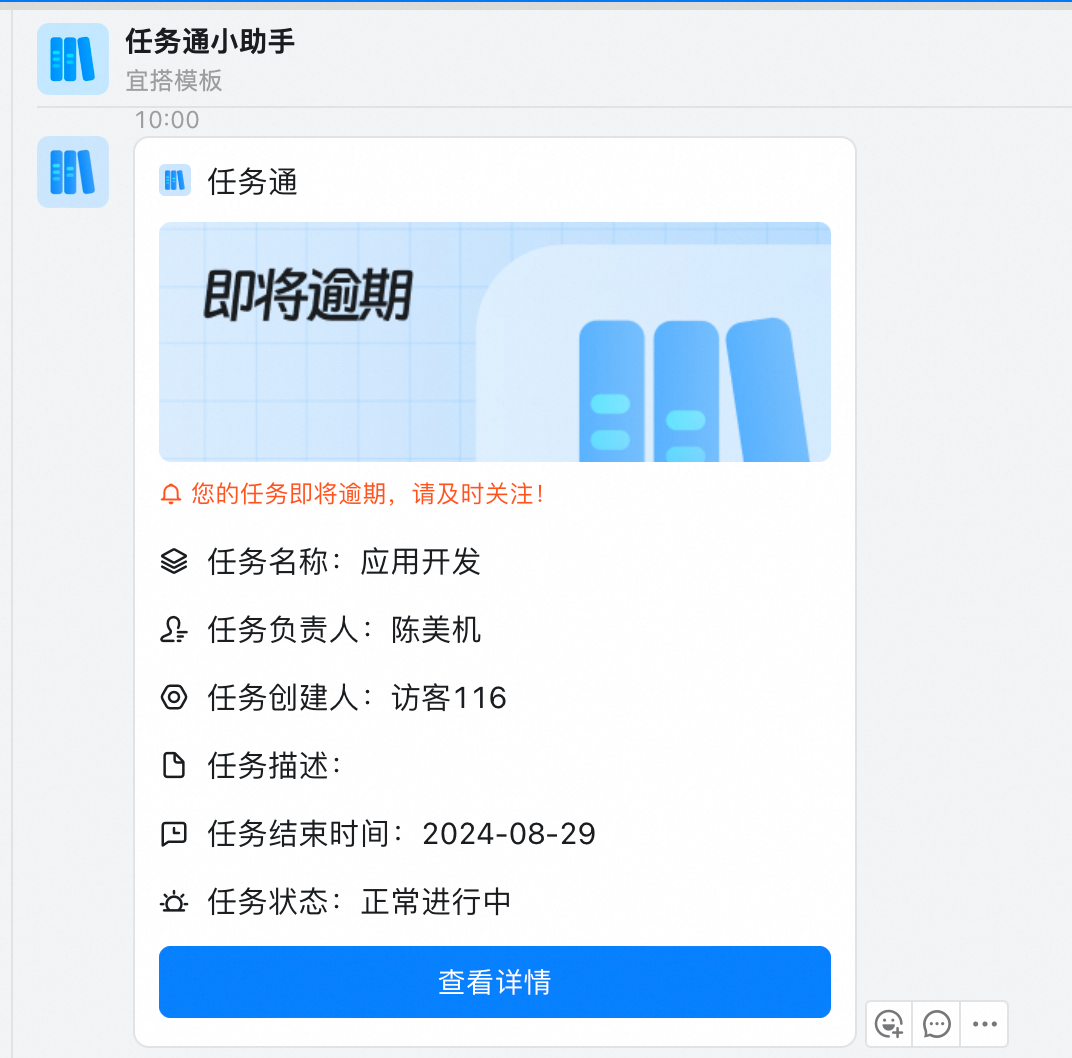
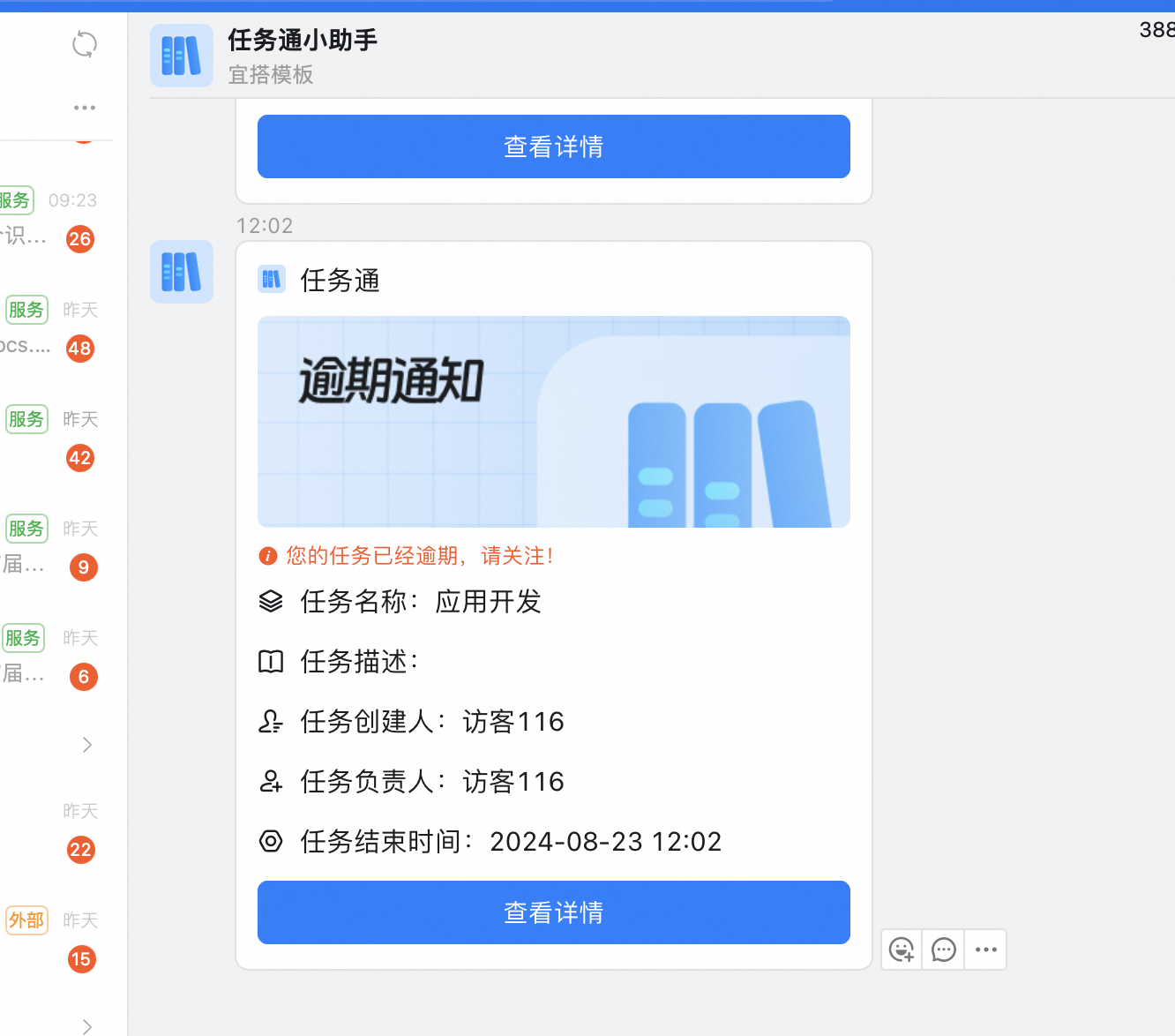
- If the task is not completed within the time limit, the task executor and task creator will be automatically urged every day.
III. AI task Assistant & mobile experience
1,AI task intelligence assistant
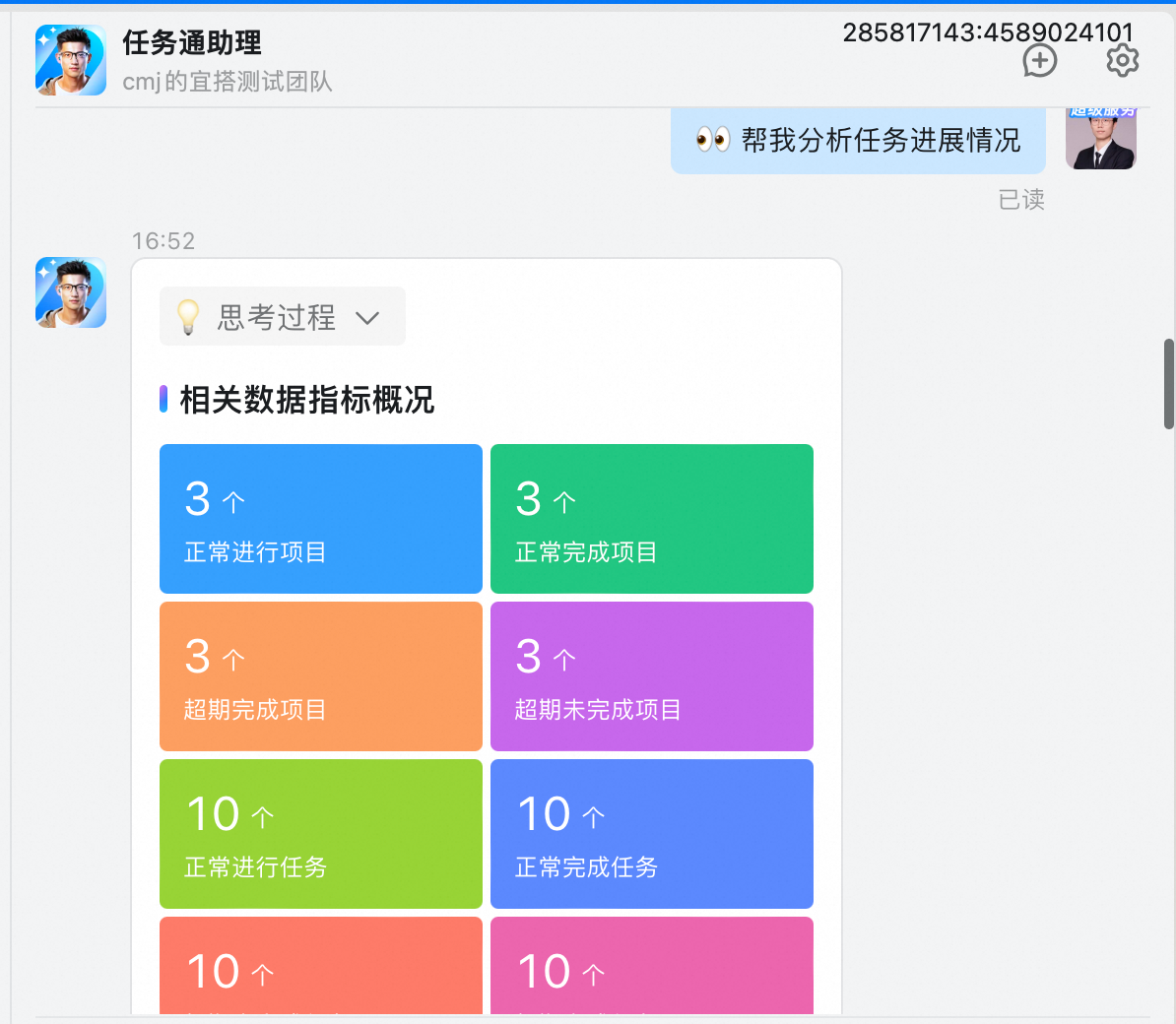
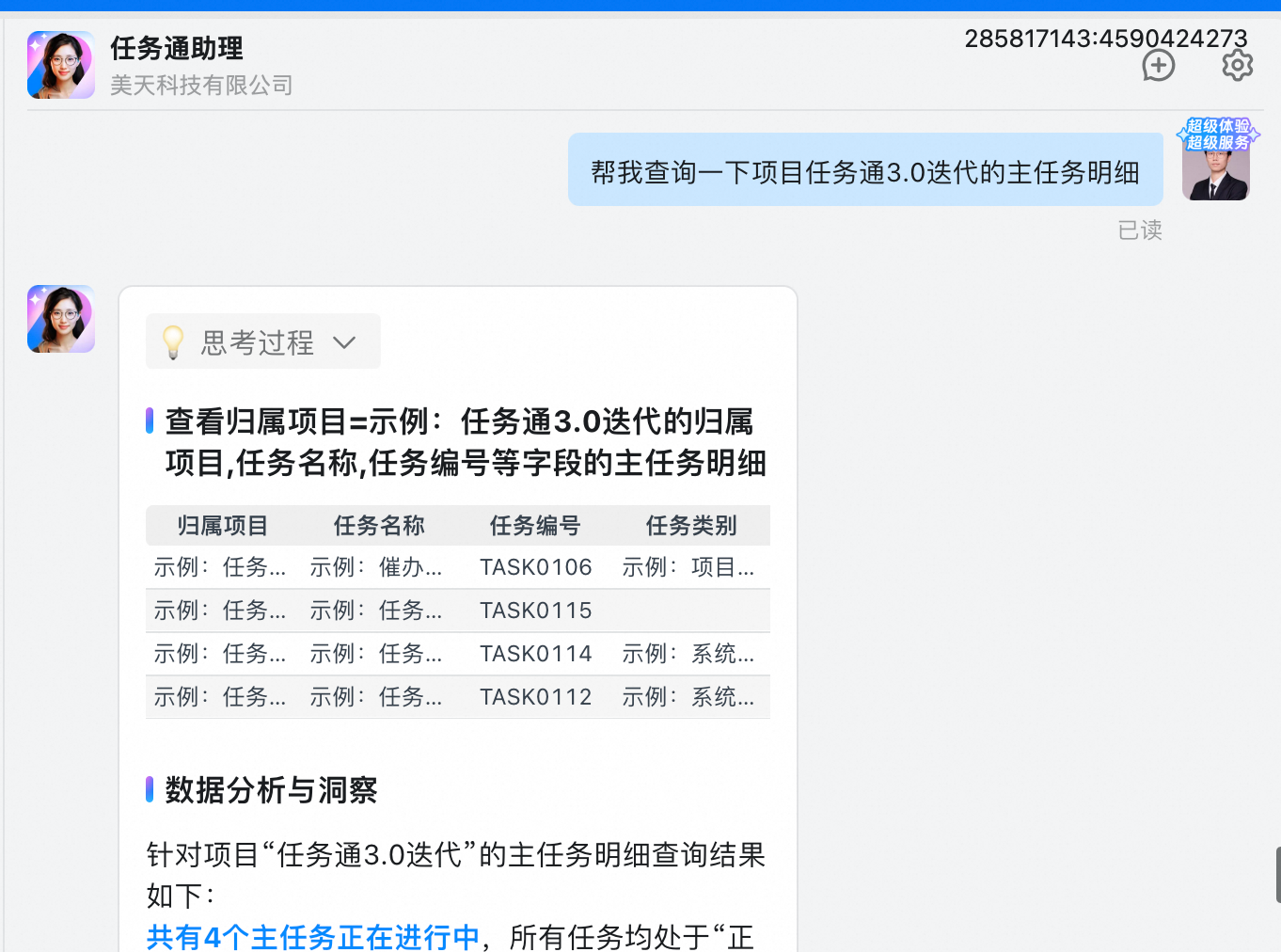
You can complete the overall control of projects and tasks by talking with the DingTalk AI assistant.
- Global Analysis of project and task progress
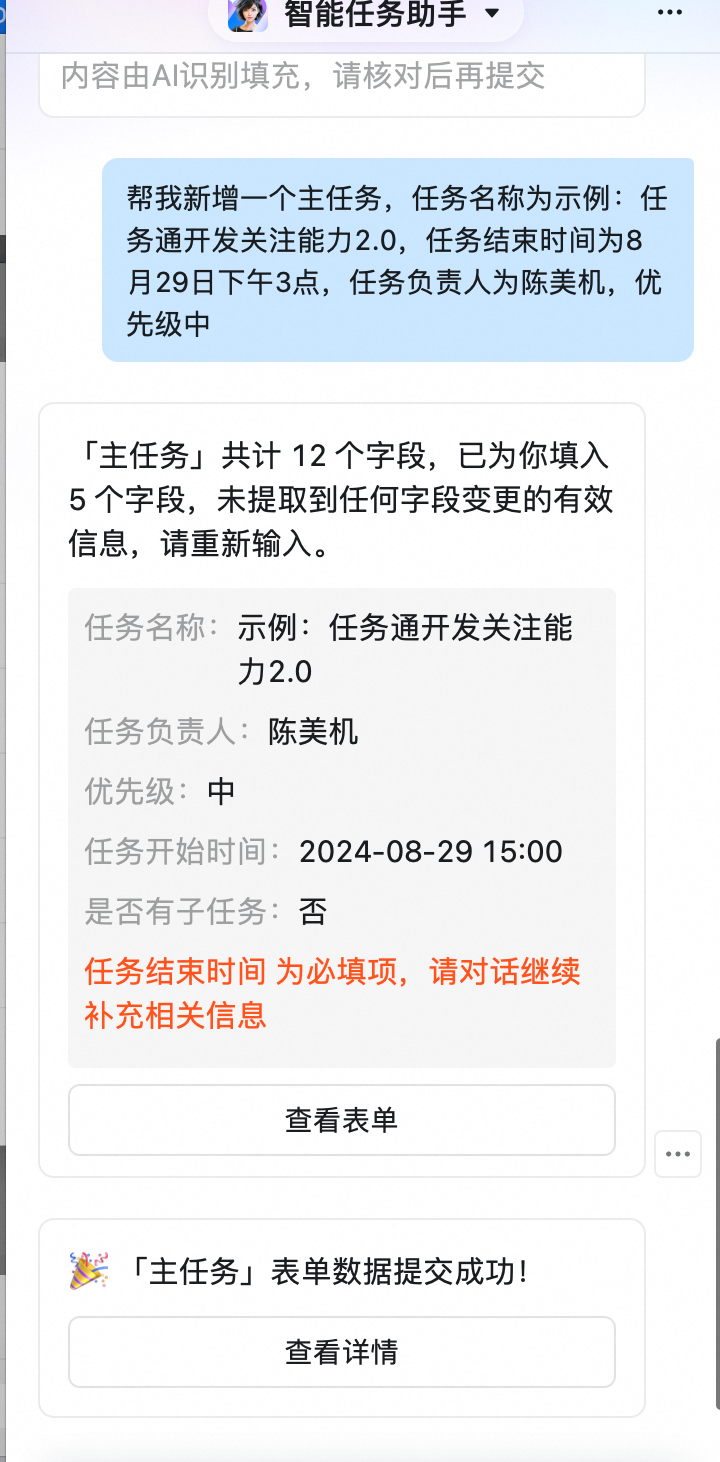
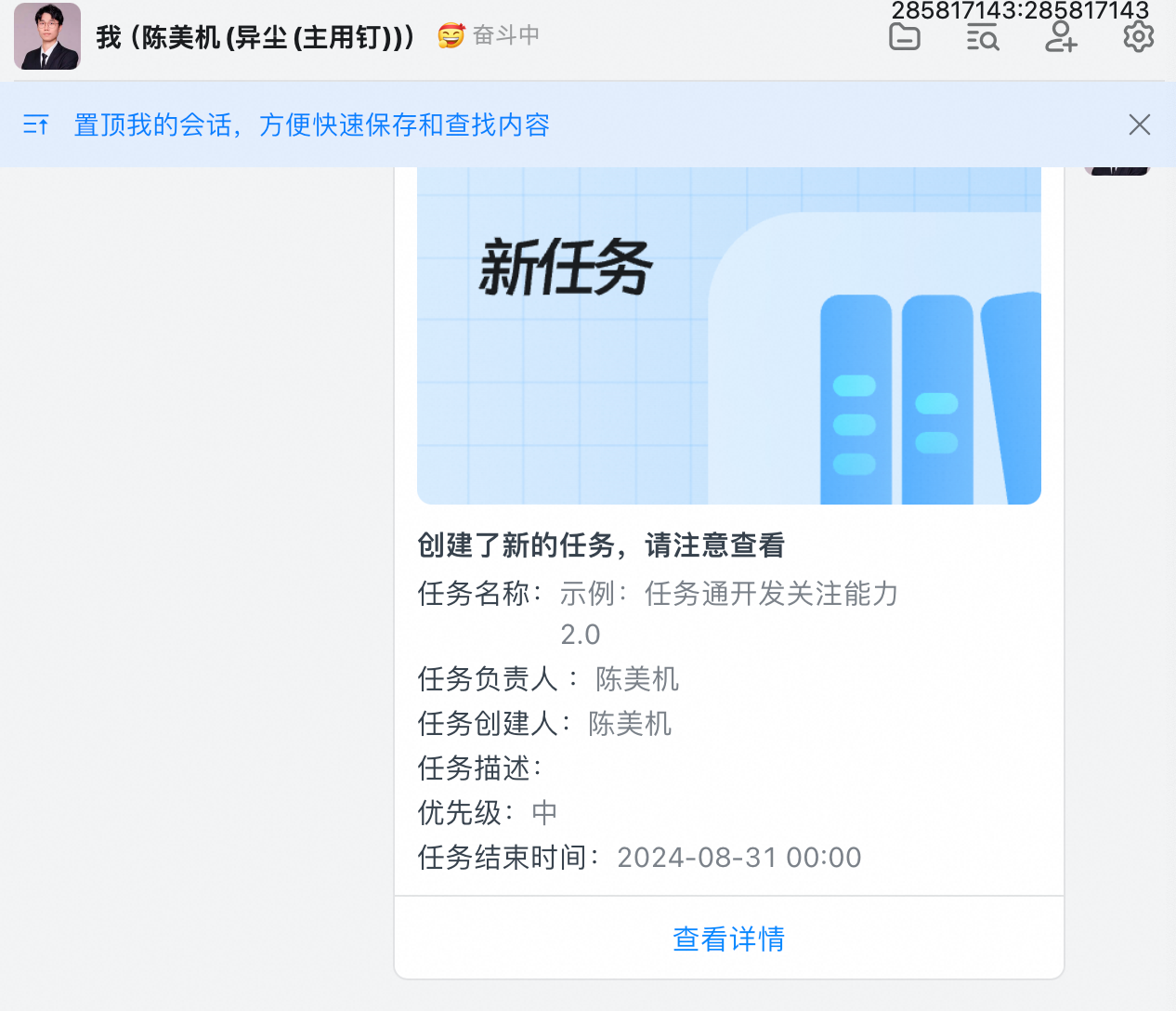
- AI task assignments
- AI data query
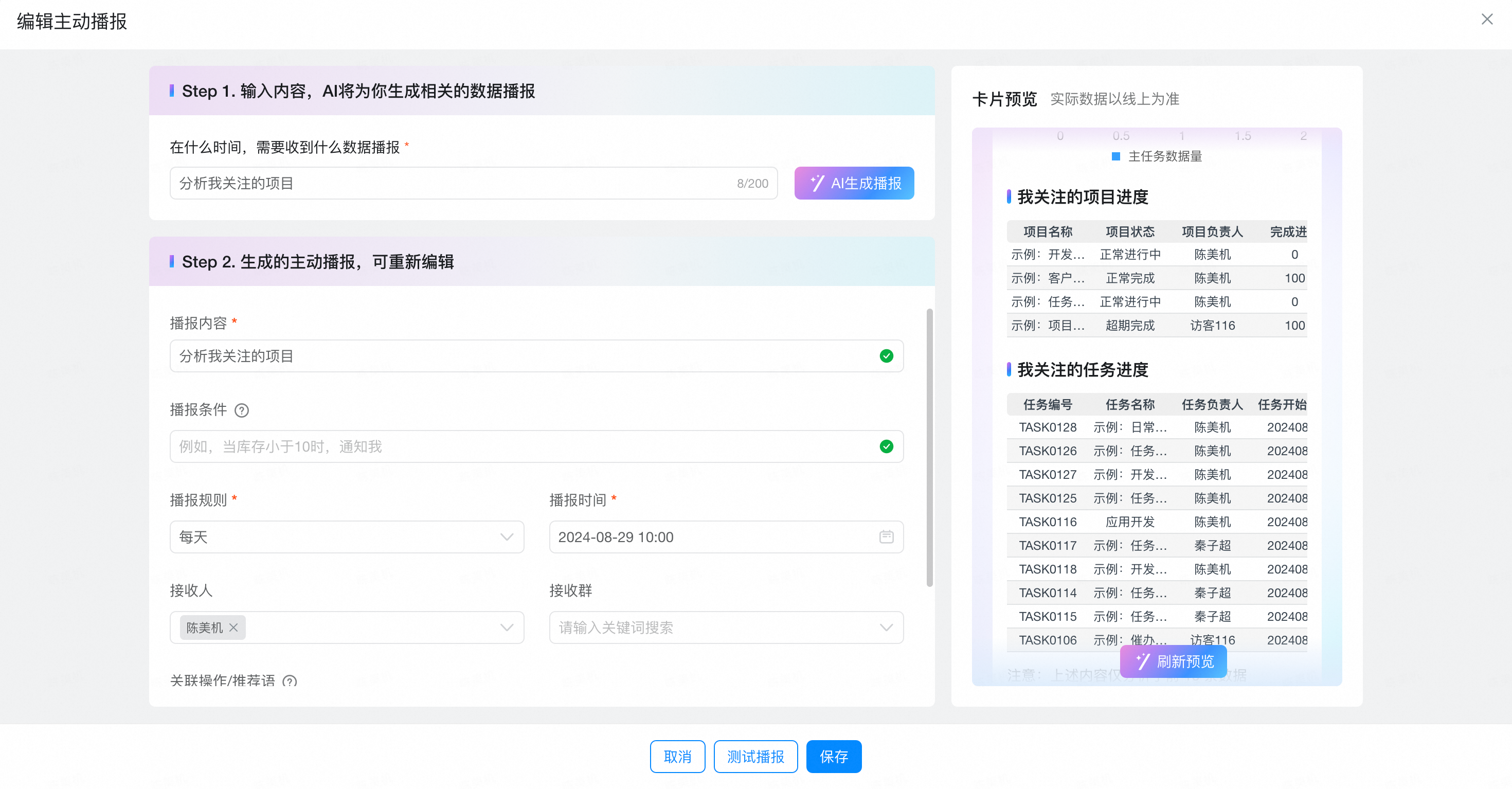
- Daily broadcast of projects, task progress and risks that I follow
2. Support mobile silky experience
Project management 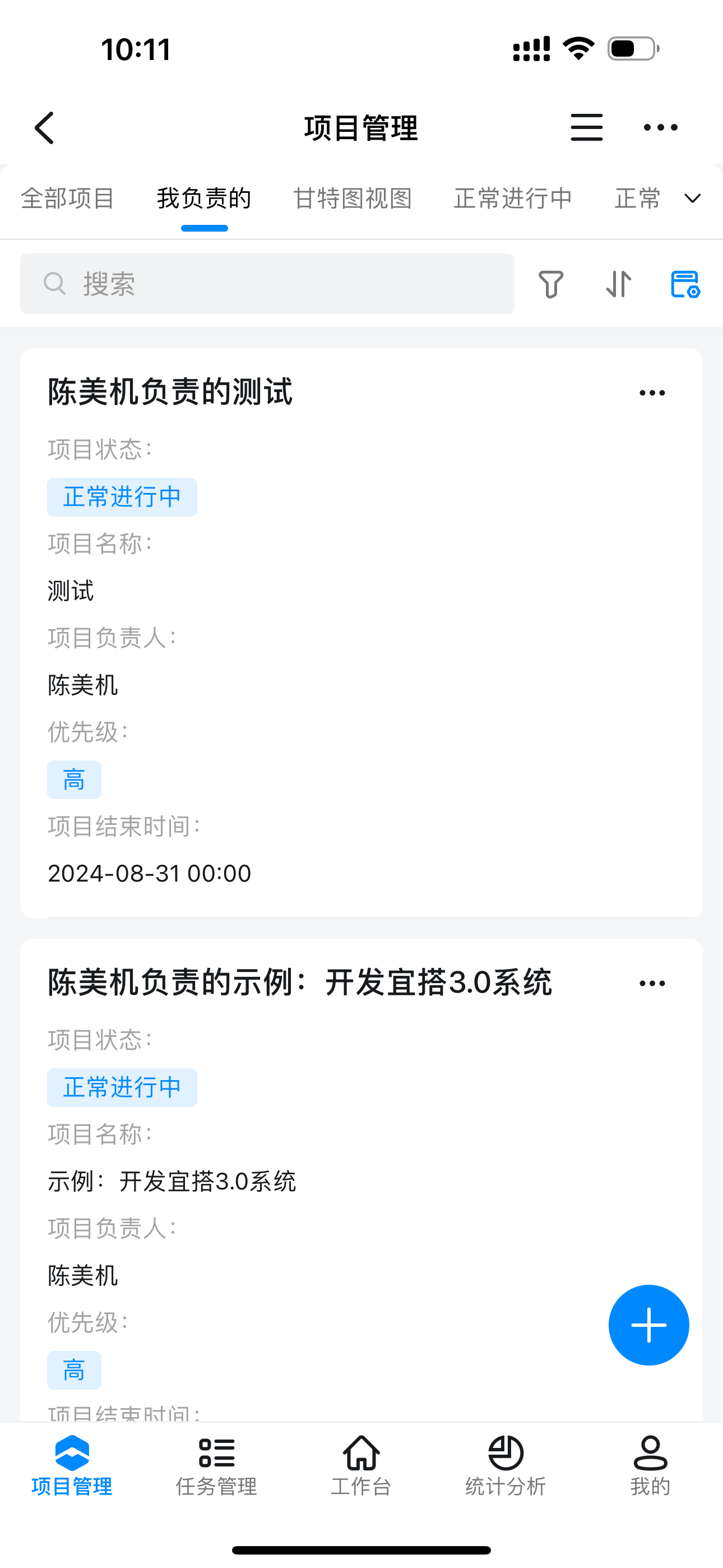 | Task Management 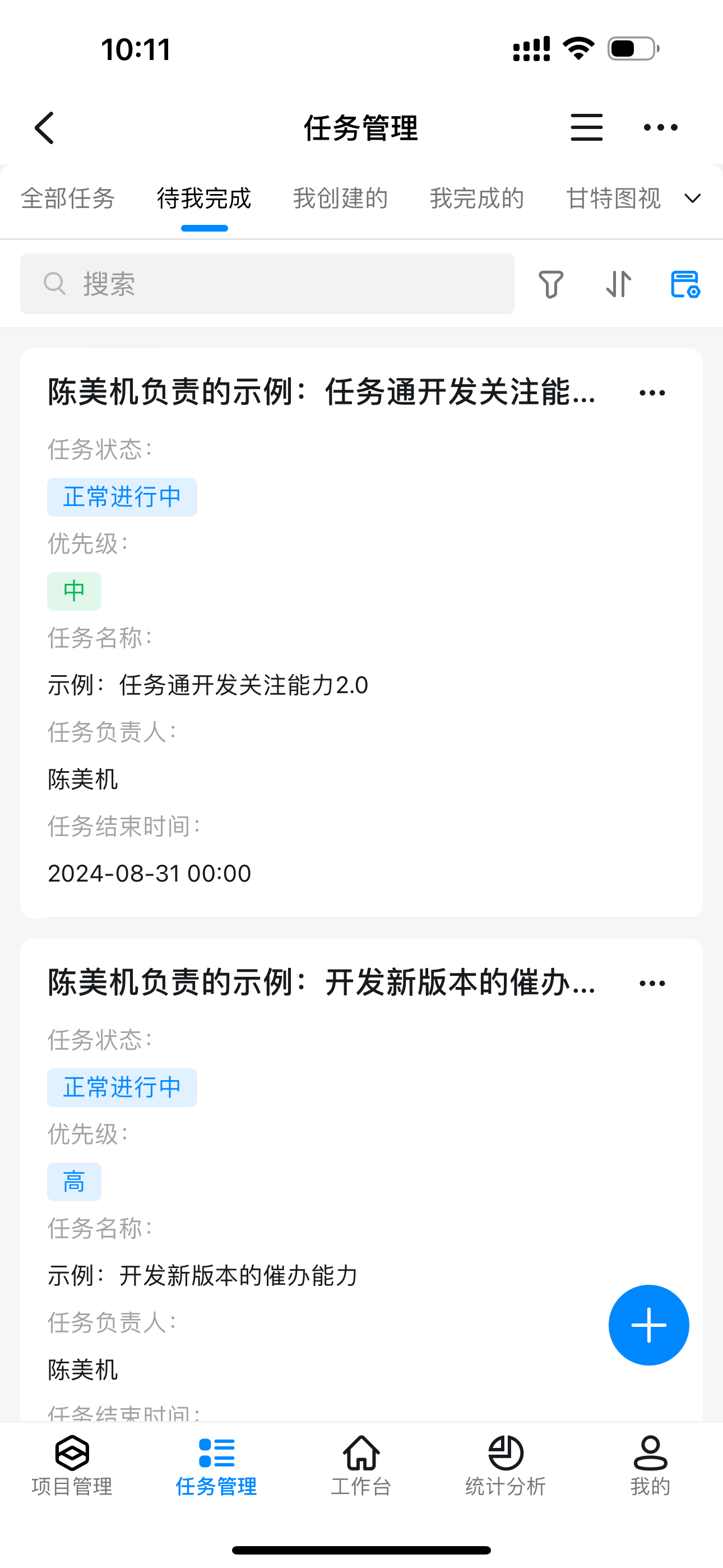 | Workbench 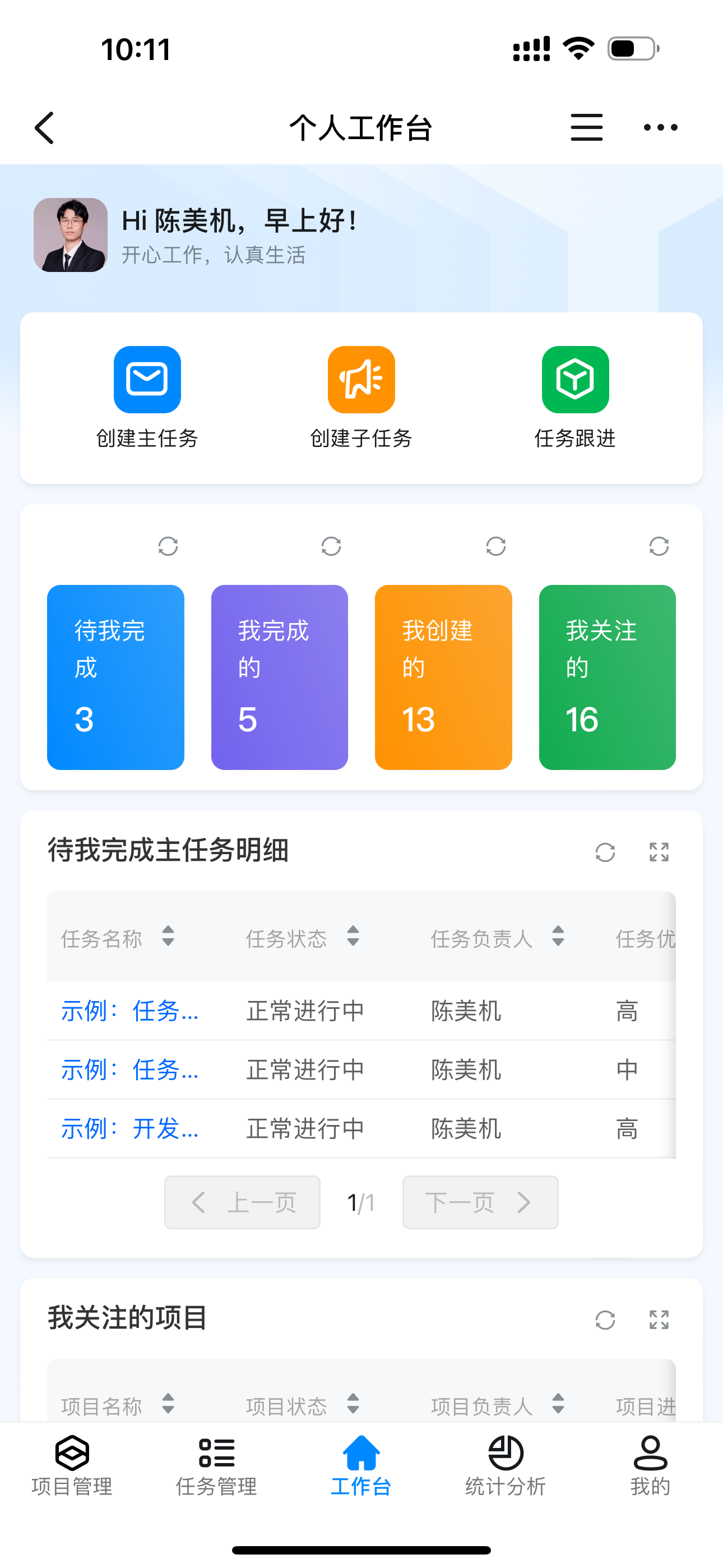 |
IV. All message notifications and configuration entry
Reminder type | Details | Reminder | Screenshot of the configuration item | Effect test |
Project creation | After the project is created, remind the project owner and project participants once when the project is created. | Project leader and project participant Reminder to group | 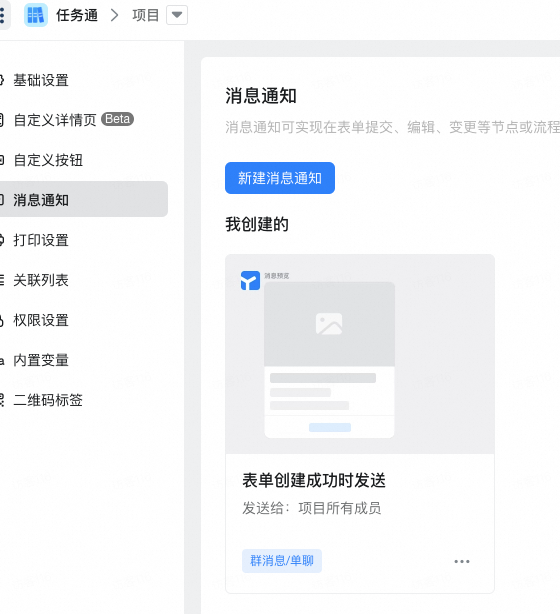 | 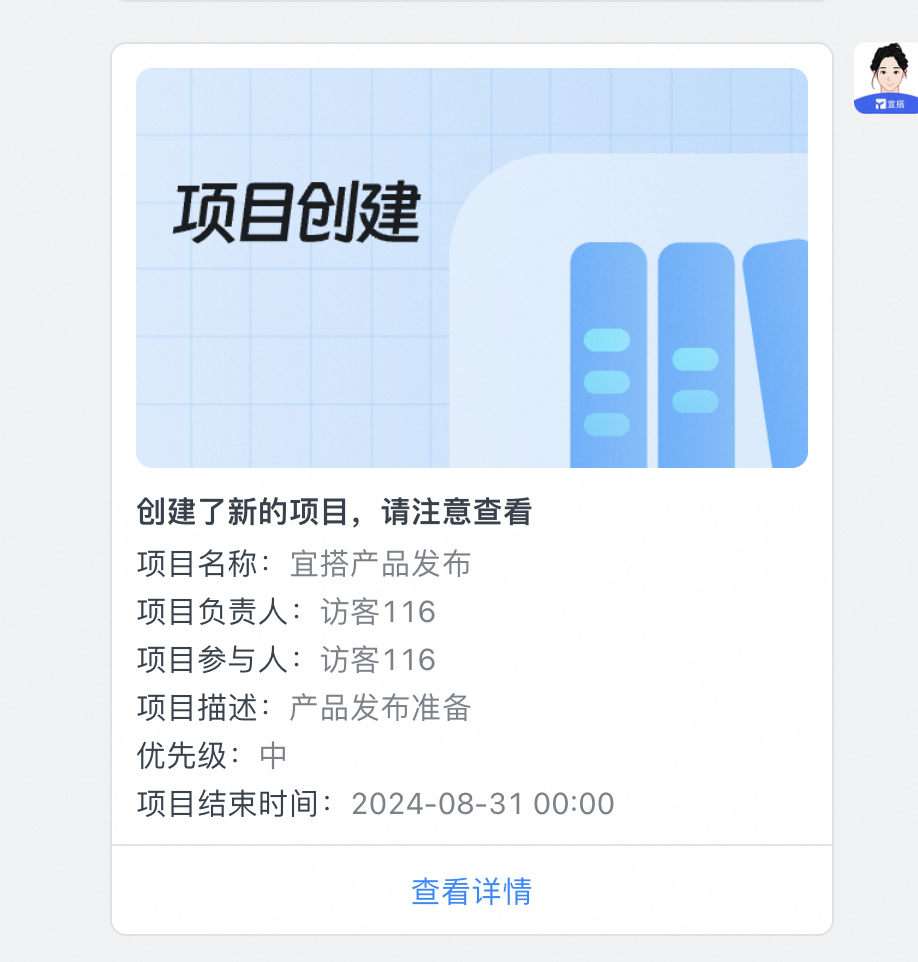 |
Reminder that the project is about to be overdue | When the project is about to be overdue for x days, remind the project leader once a day at 10 o'clock every day. | Project leader | 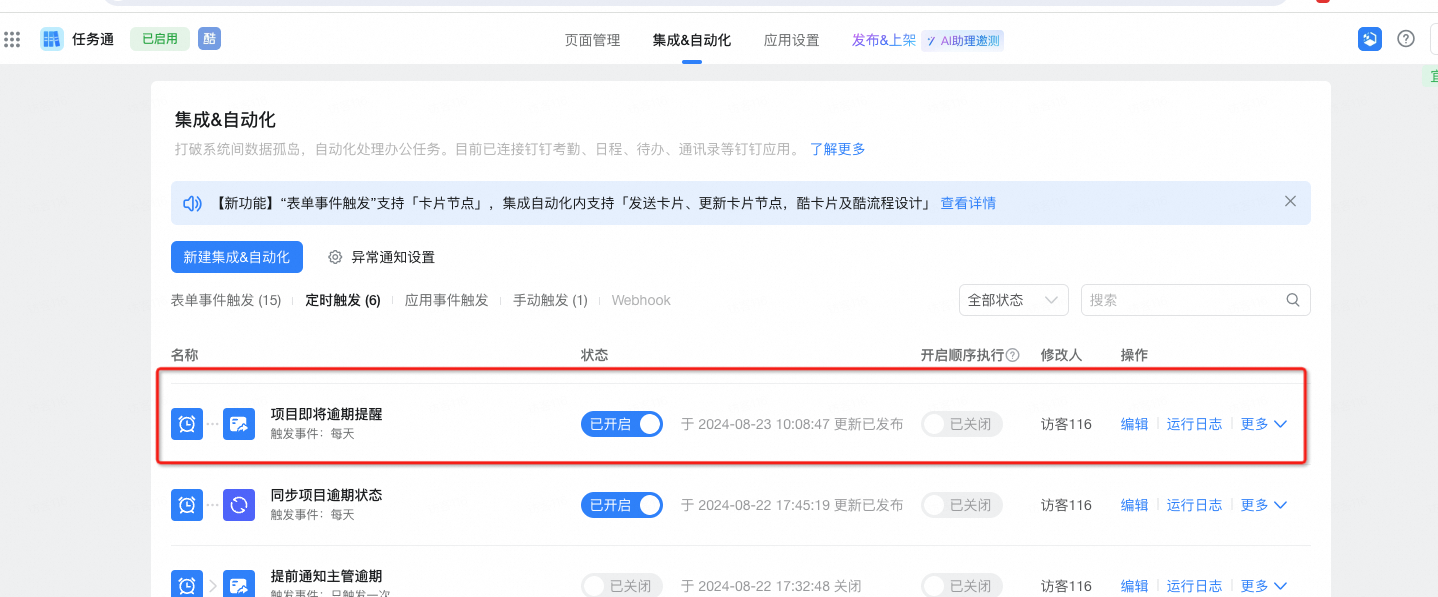 | 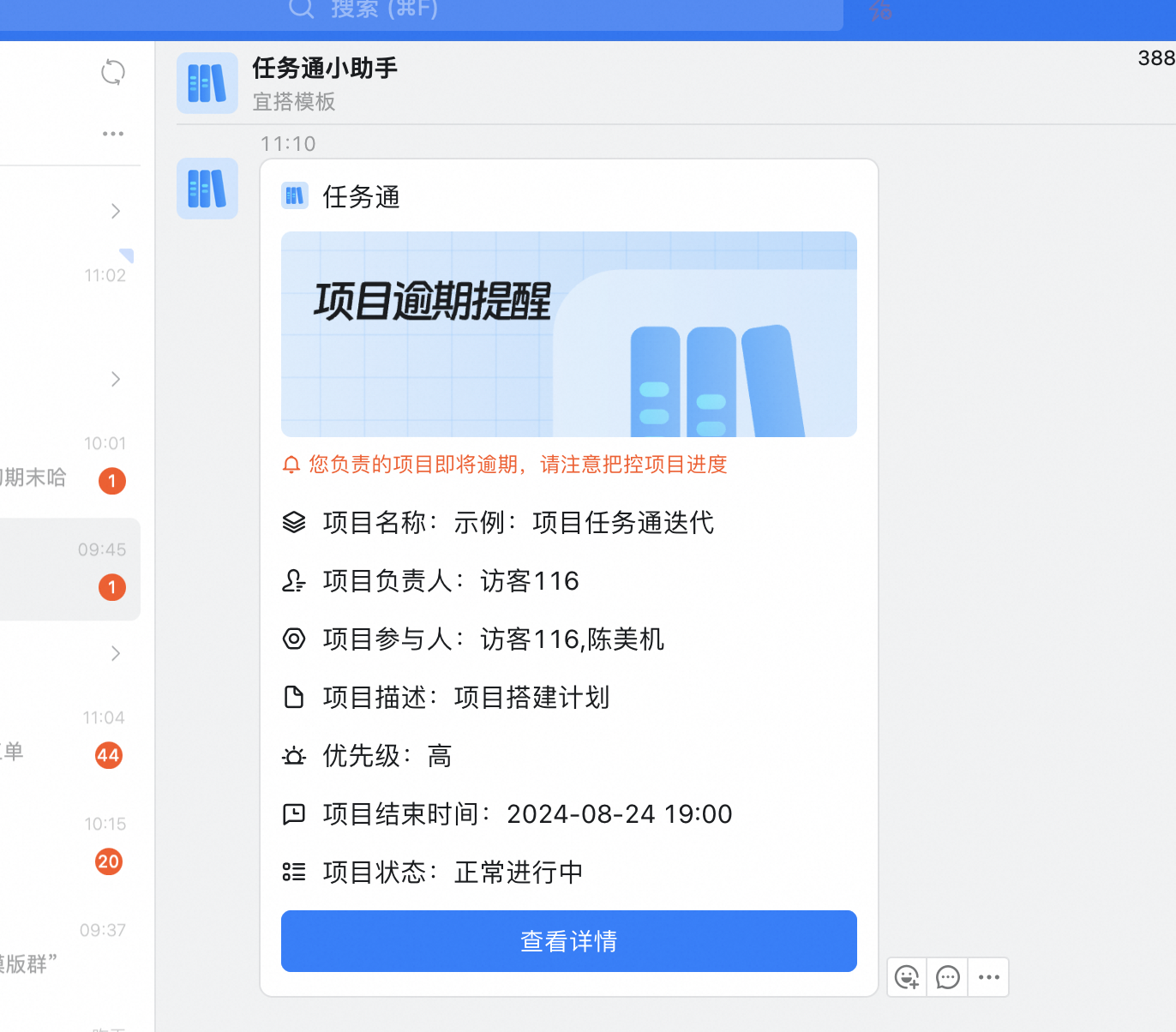 |
Project Completion reminder | Remind project leaders, project participants, and project followers after the project is completed. Reminder to group | Project leader, project participant, project follower Reminder to group |  | 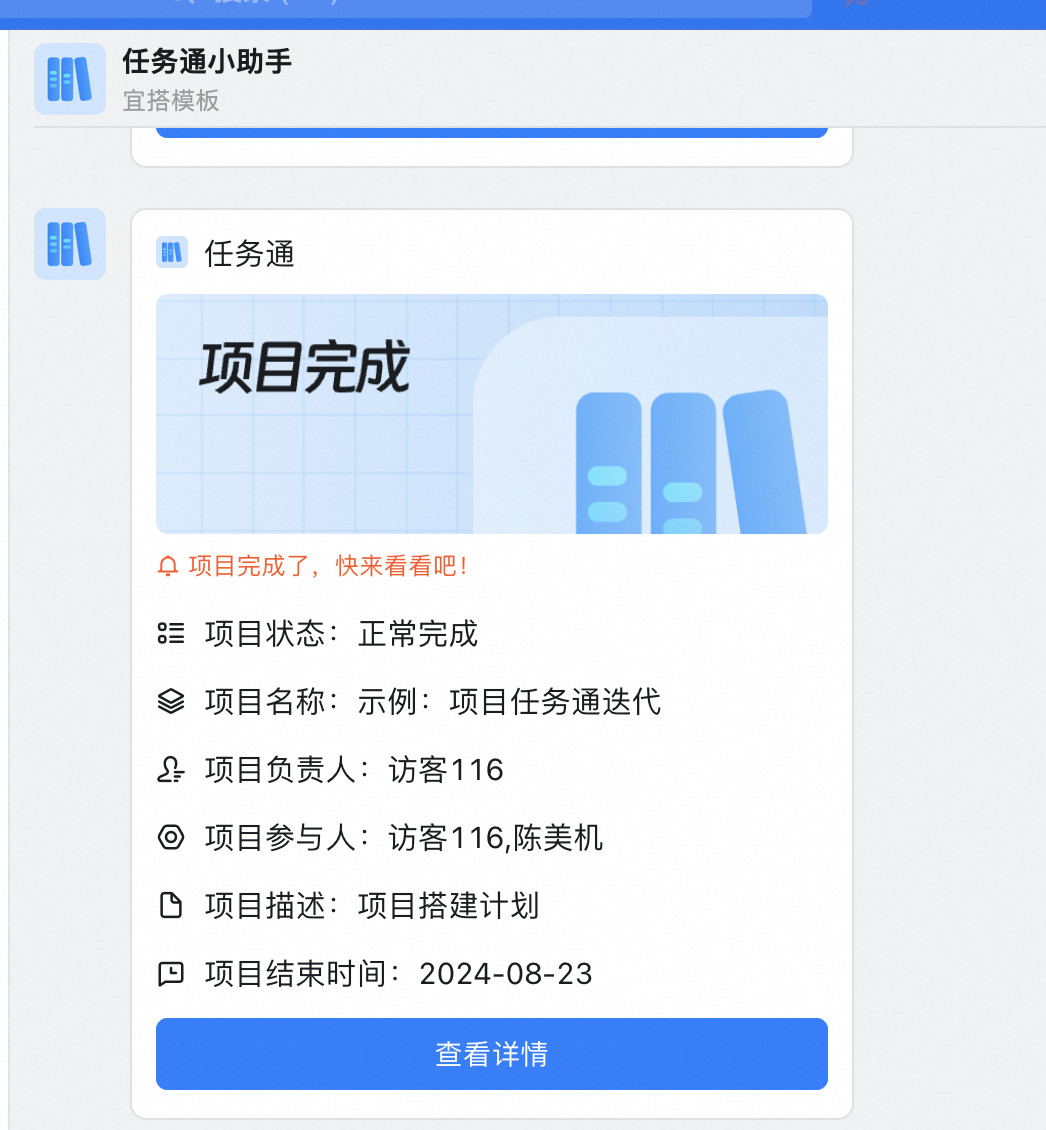 |
Task creation reminder | When the director and subtask are created, they are automatically reminded to the person in charge of the task and chat with LittleHelper through the group. | Task executor Reminder to group | 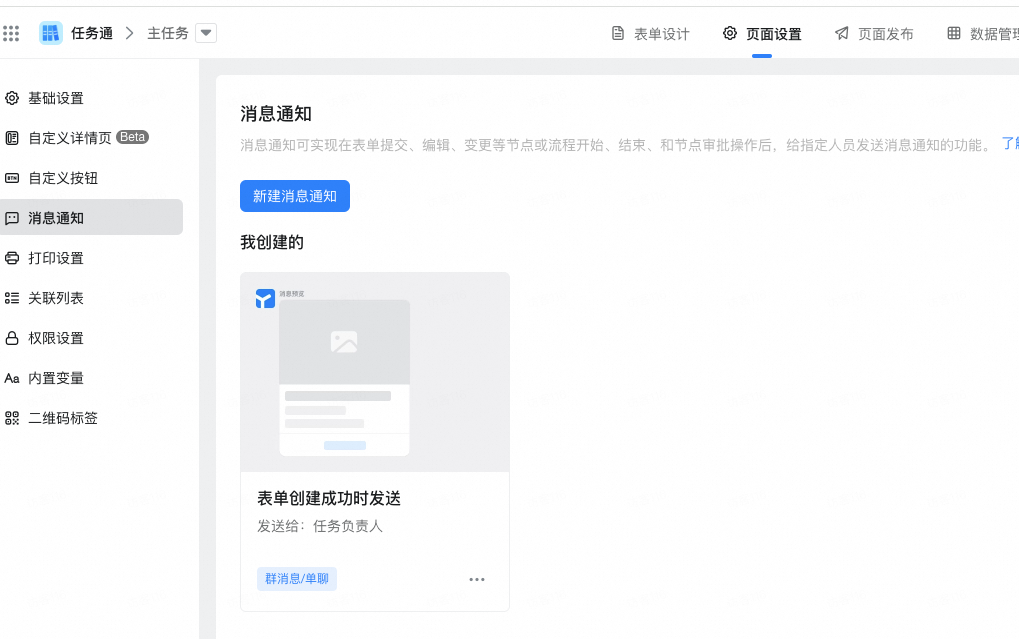 | 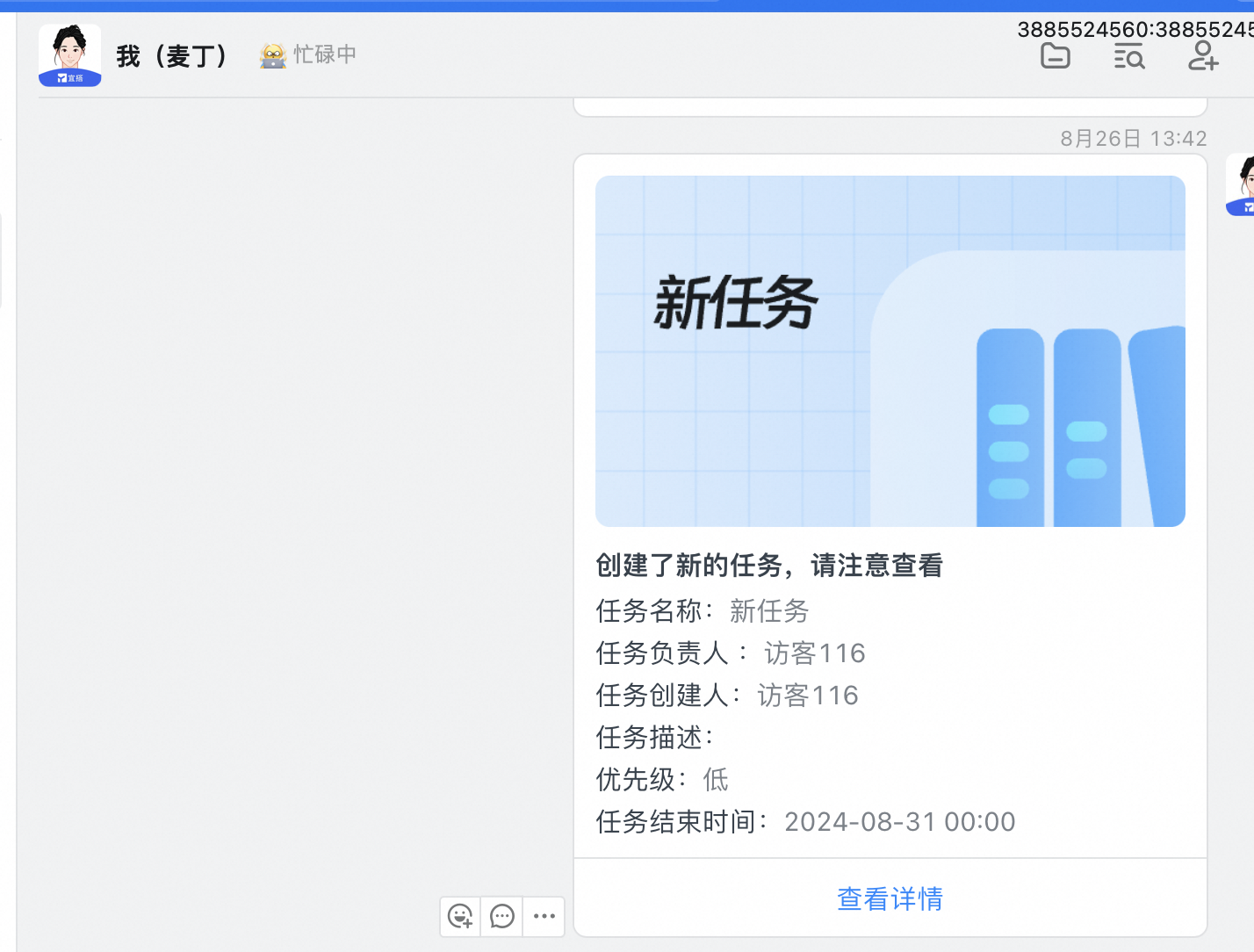 |
Task follow-up reminder | When the director affairs follow up, remind the followers of the task. | Task followers Reminder to group | 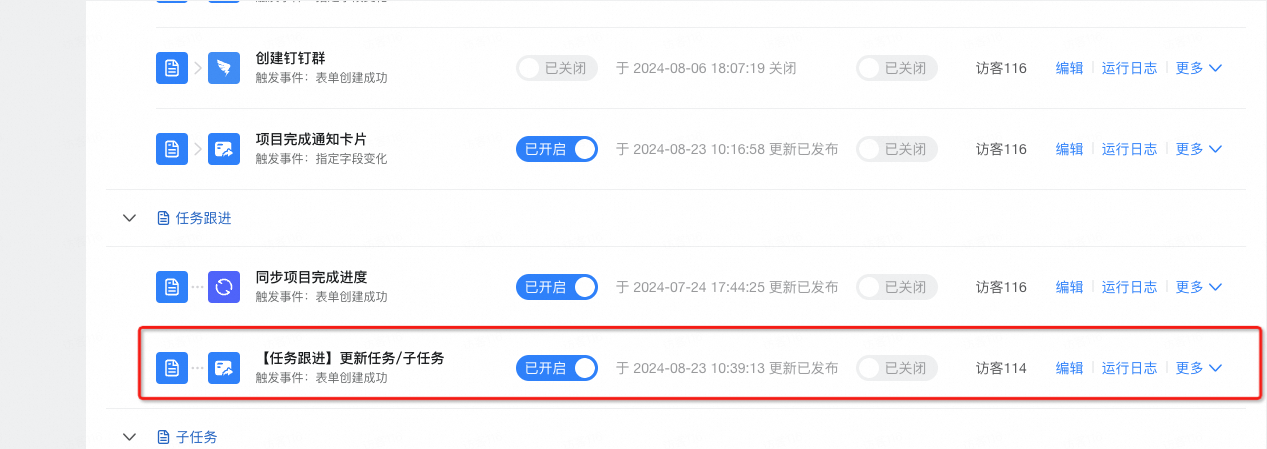 | 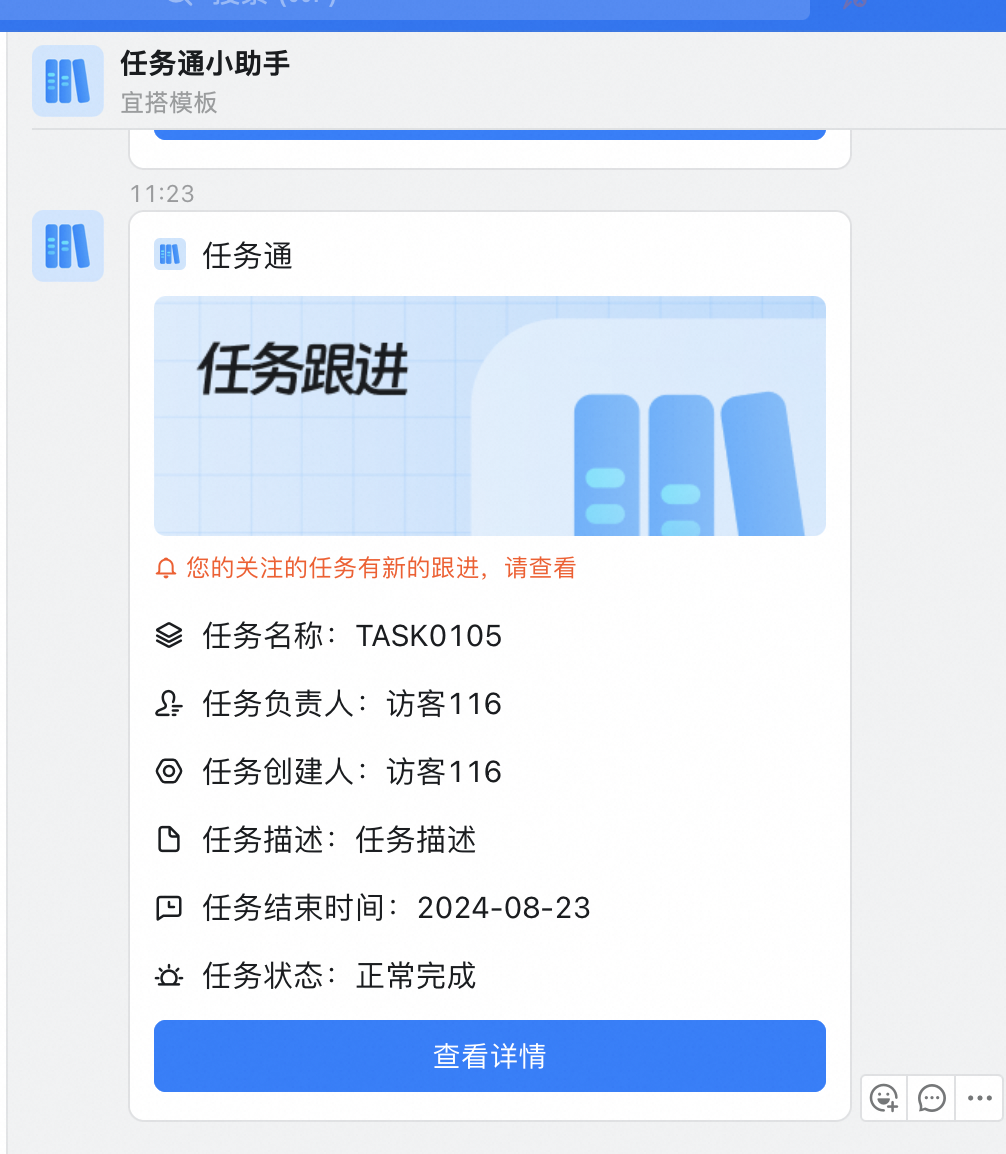 |
Reminder that the task is about to be overdue | The task is still overdue for x days, and the task executor and task creator are reminded once every morning at 10 o'clock. | Task executor and task creator | 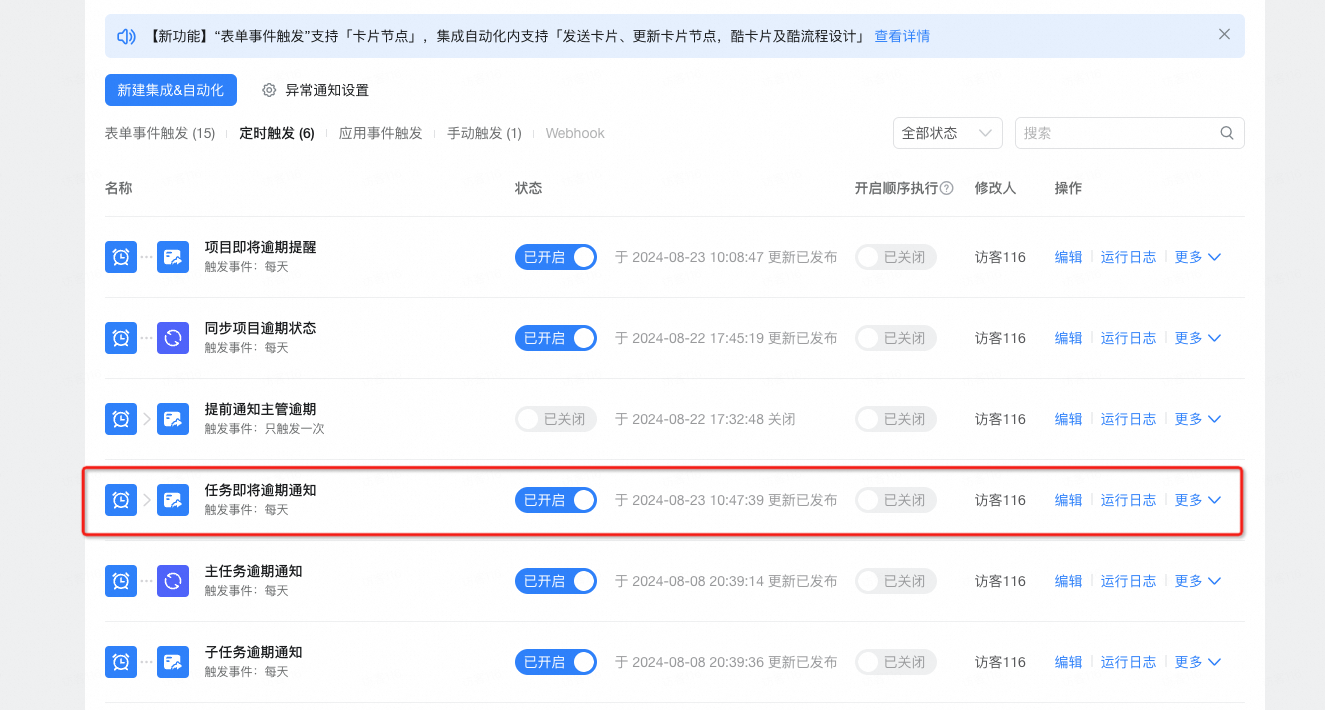 | 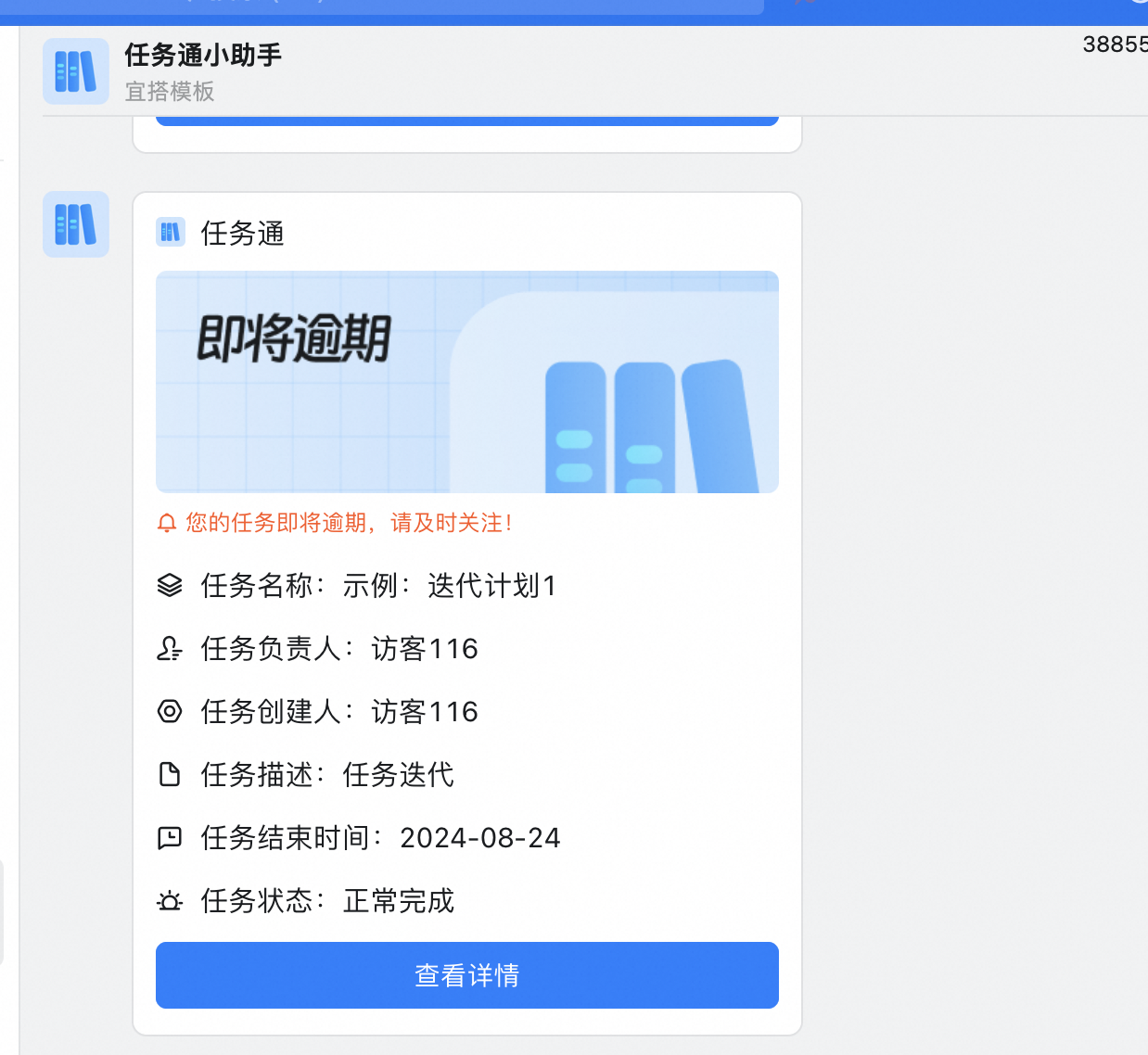 |
Task overdue reminder | If the task is overdue, remind the task executor and the task creator once every morning. | Task executor and task creator Reminder to group | 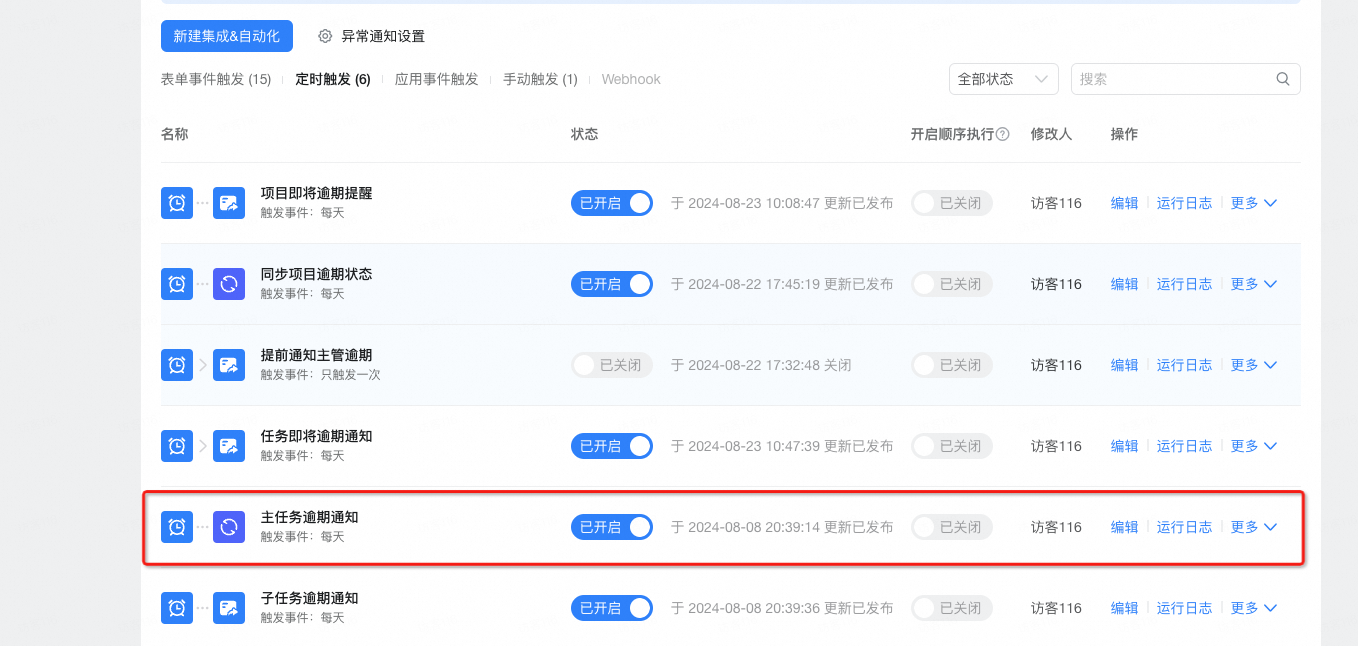 | 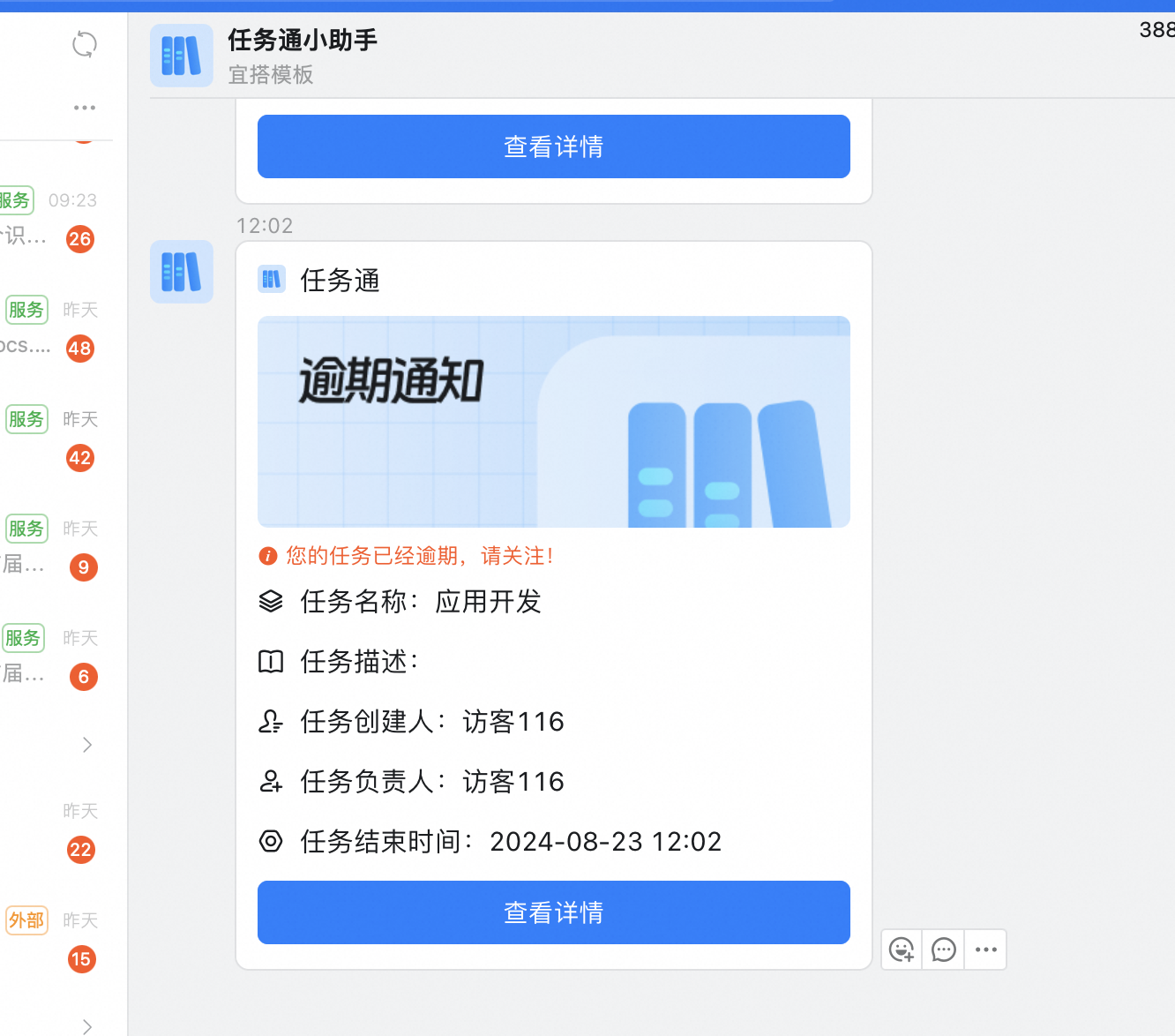 |
Task completion reminder | Remind the task creator once after the task is completed. | Director concern Reminder to group | 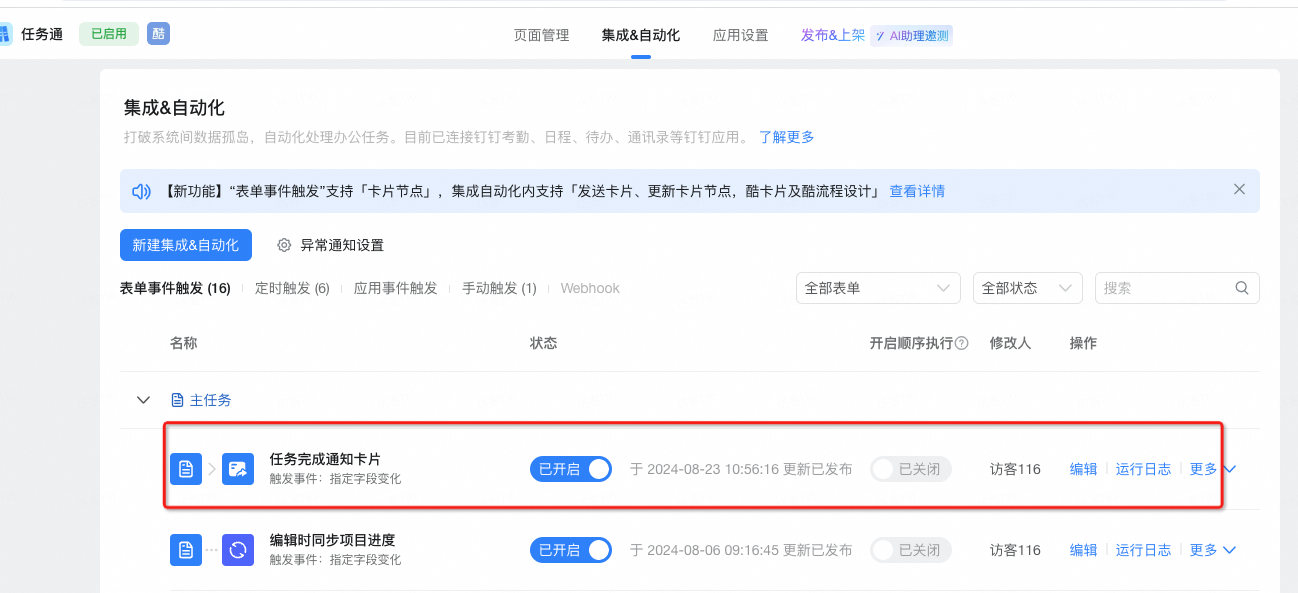 | 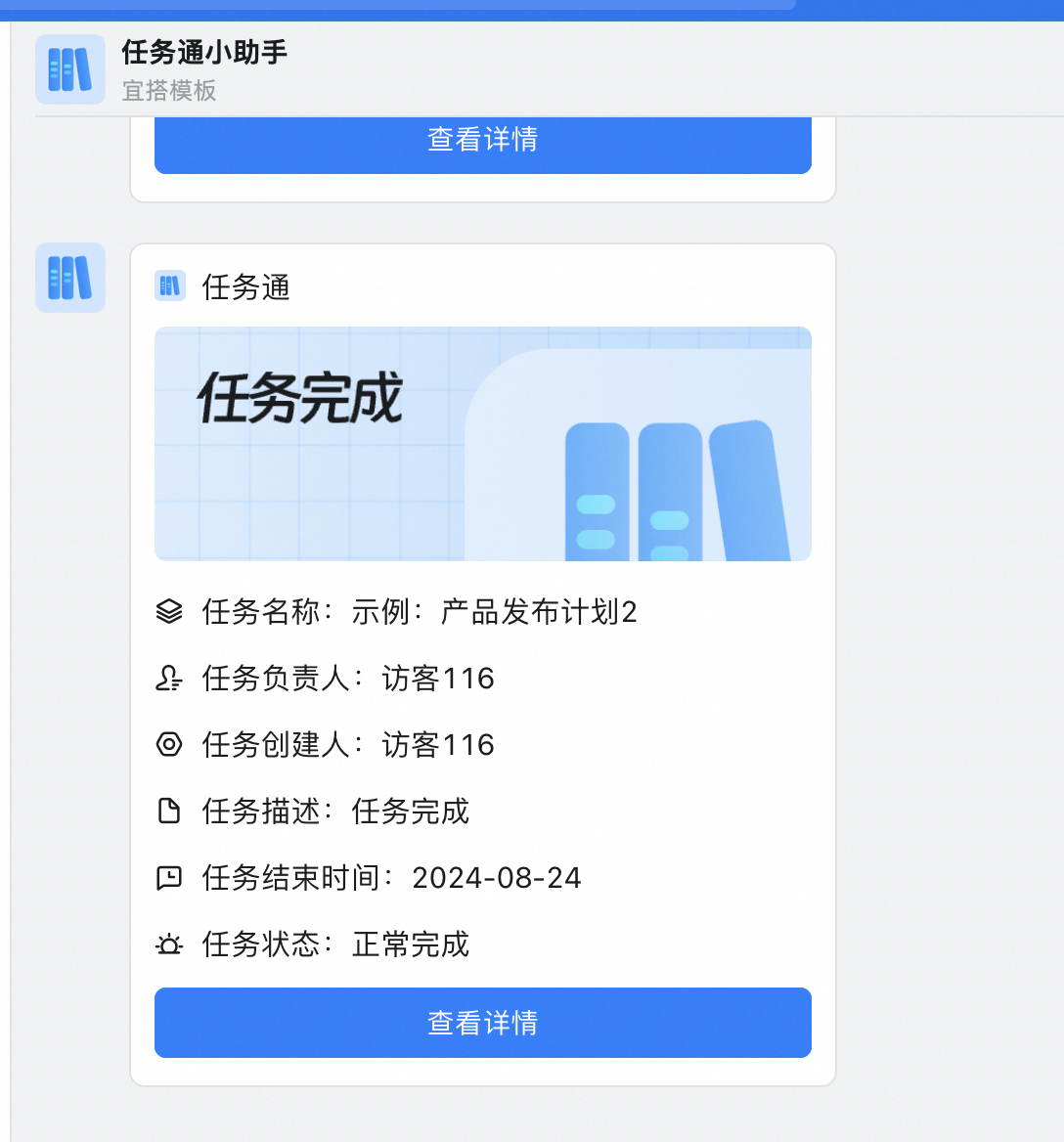 |
Task transfer reminder | After the task is transferred, remind the new task owner only once, and send it privately through the notification card. | The new person in charge of the task |  | 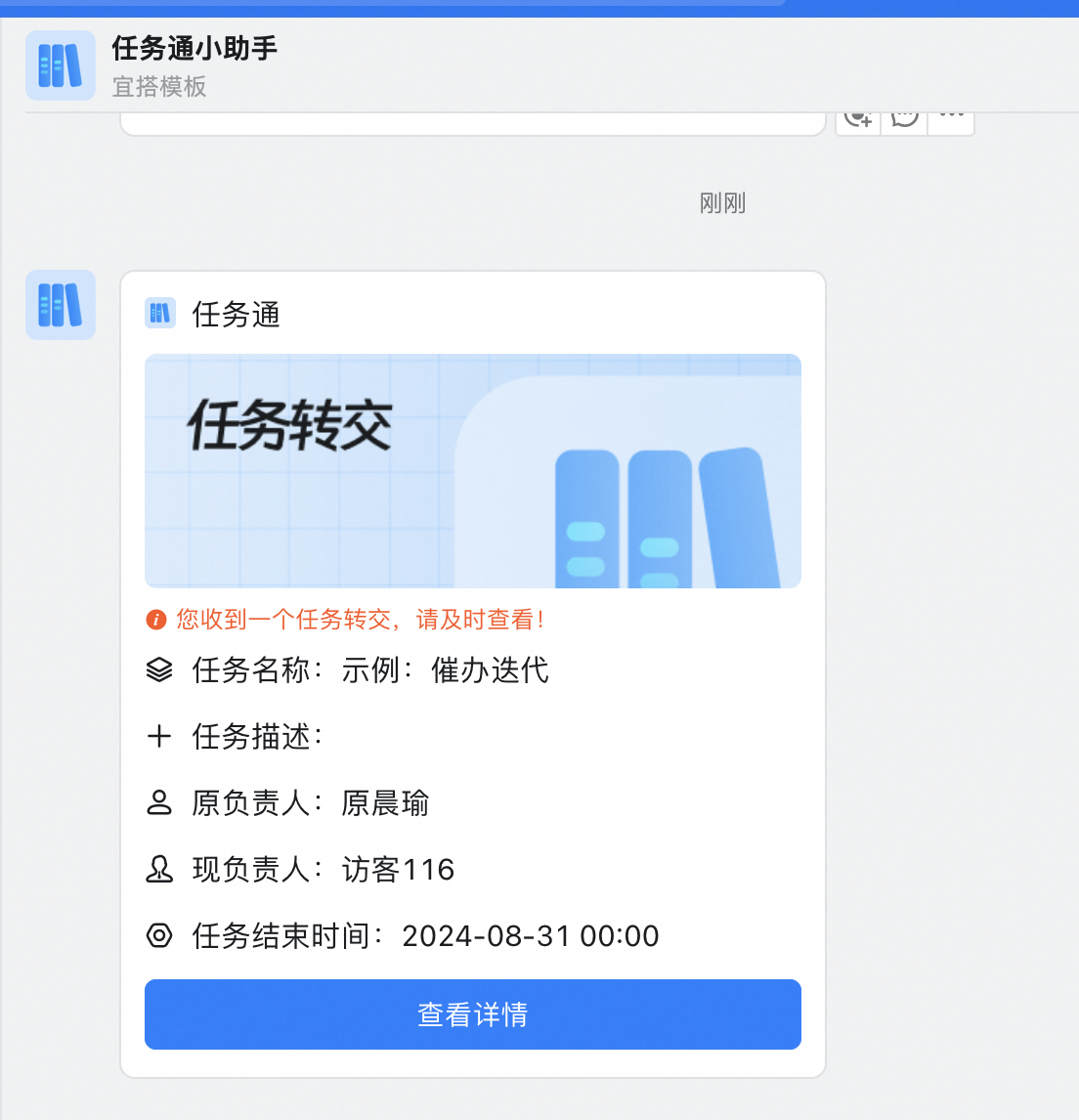 |
Sub-task overdue reminder | If the task is overdue, remind the task executor once every morning at 10 o'clock. | Task Leader | 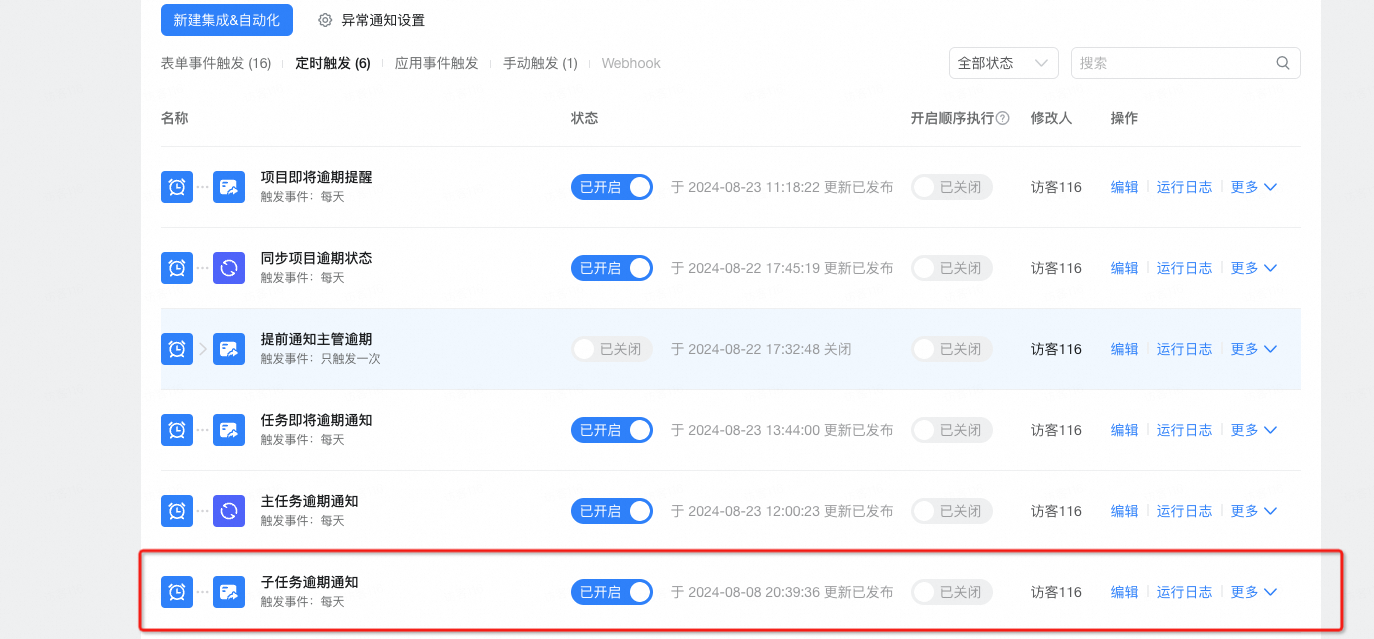 | 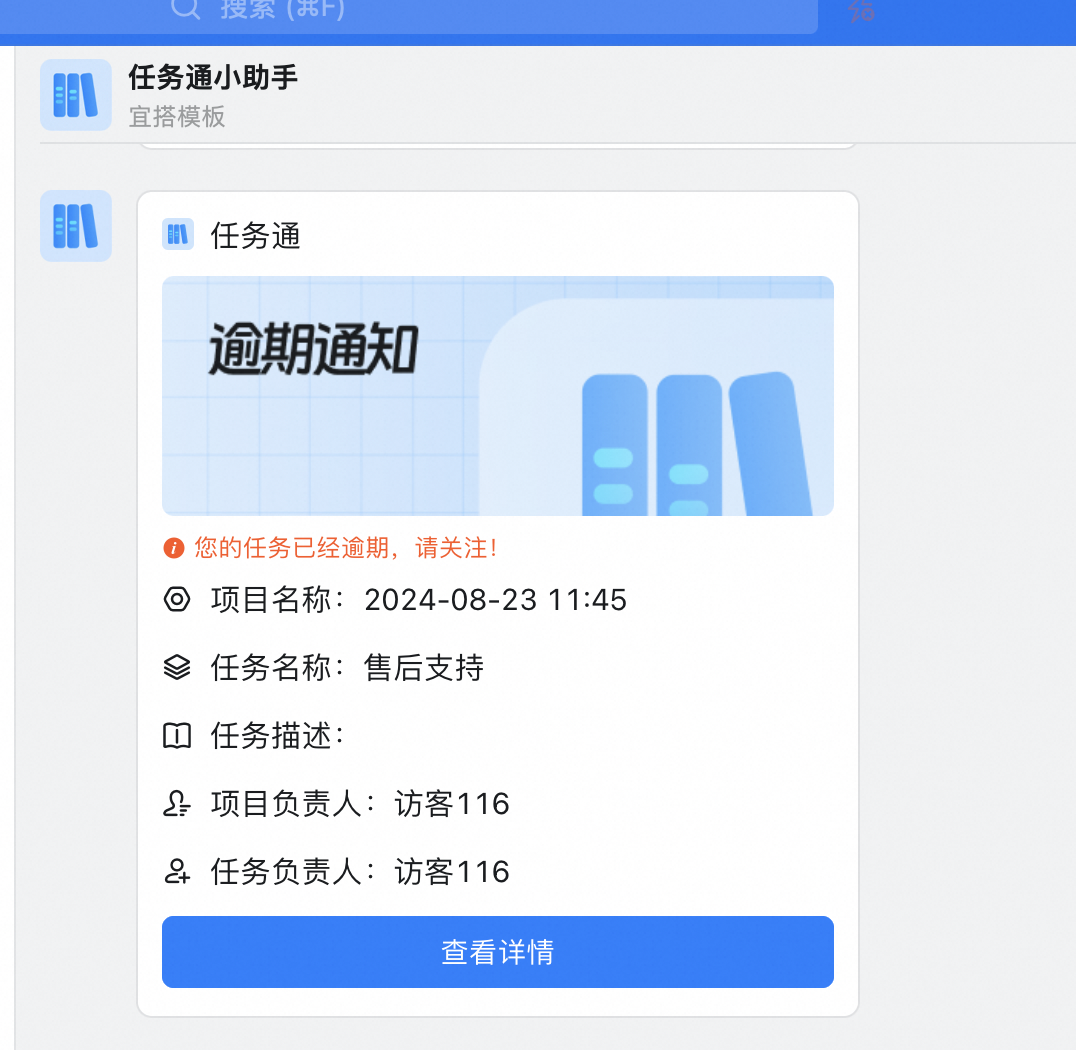 |
Sub-task creation notification | Notify the task owner when the creation is successful. | Task Leader | 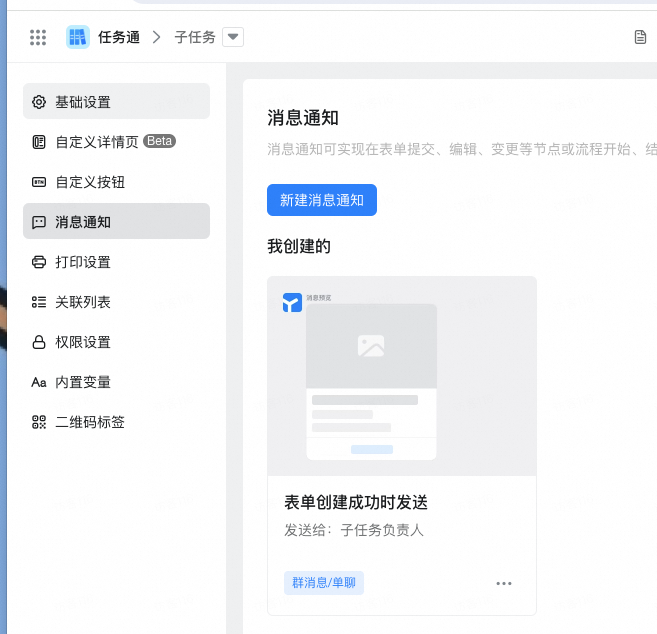 | 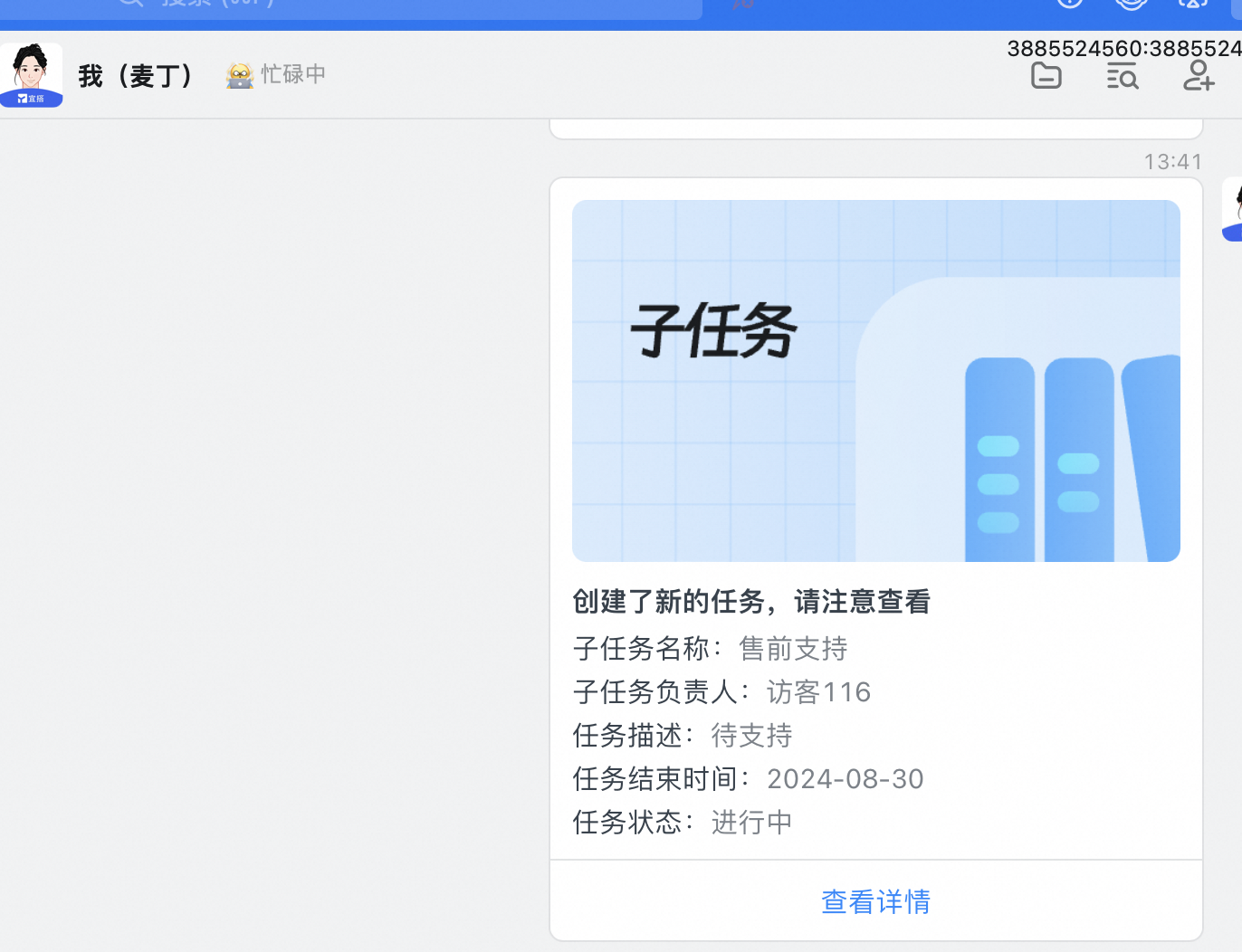 |
Subtask completion reminder | Remind the task creator only once after the subtask is completed. | Sub-task executor and sub-task creator |