Quick Start tutorial
1. Basic configuration
1. Quickly configure permissions through roles
- Go to the management background> Application Settings> Application roles and add corresponding role members
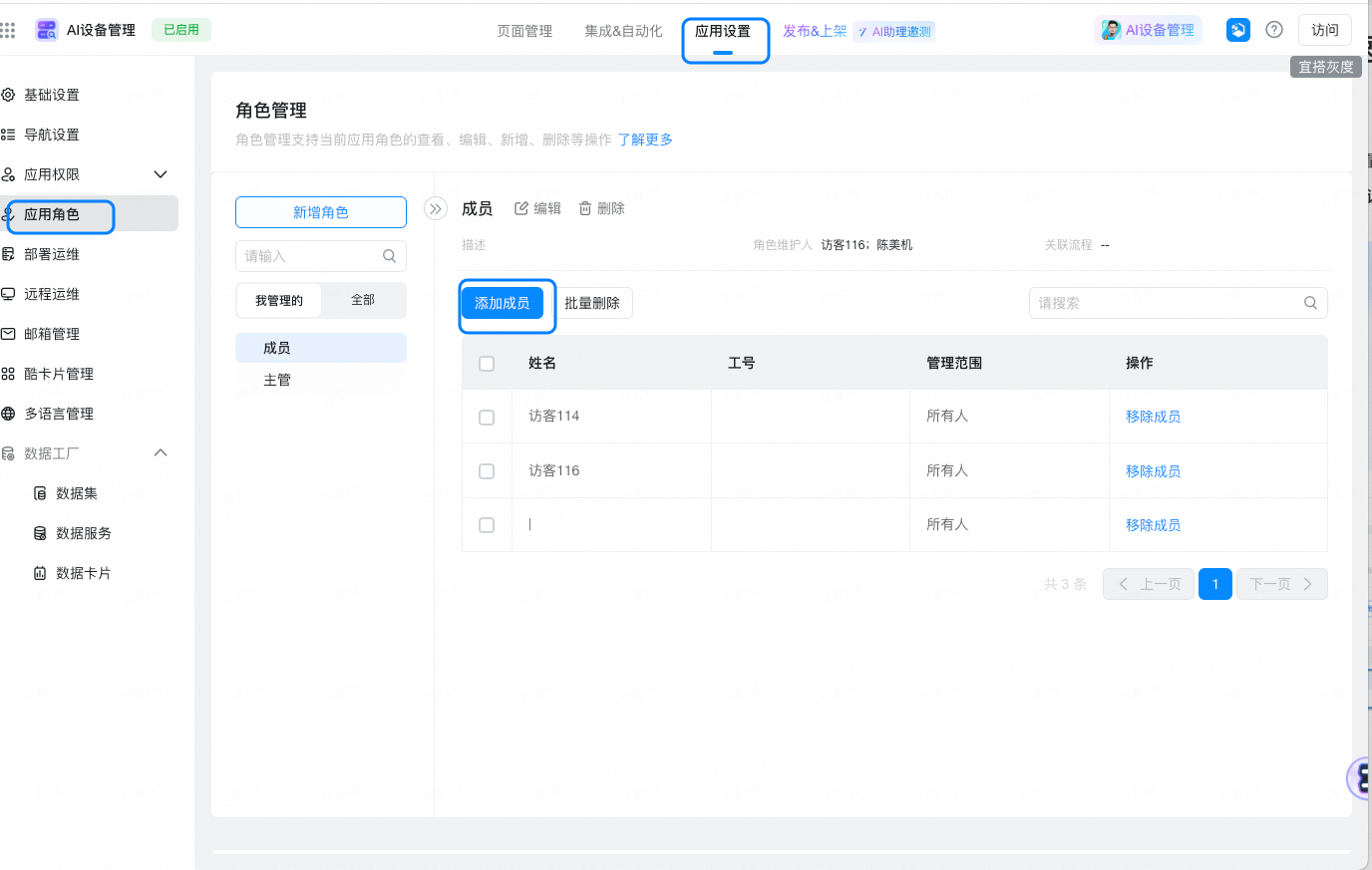
2. You can have the permissions of the corresponding role after the addition is successful.
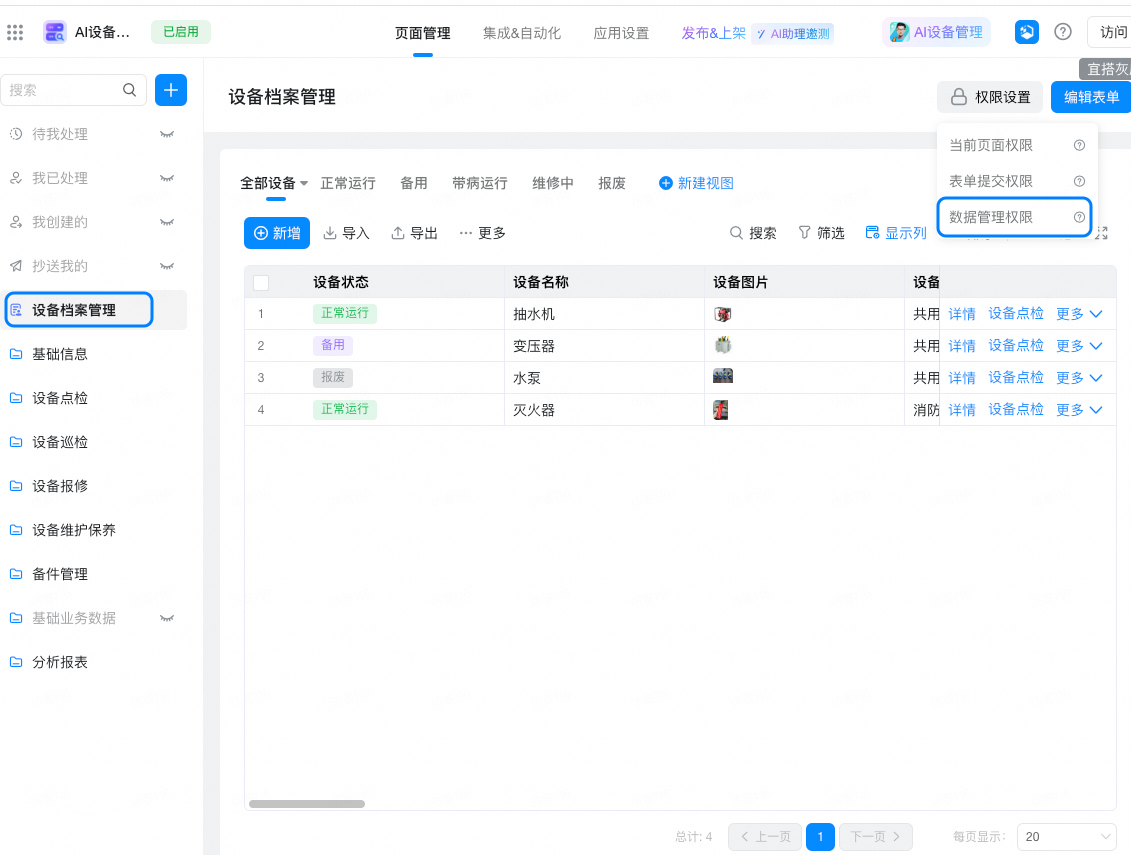
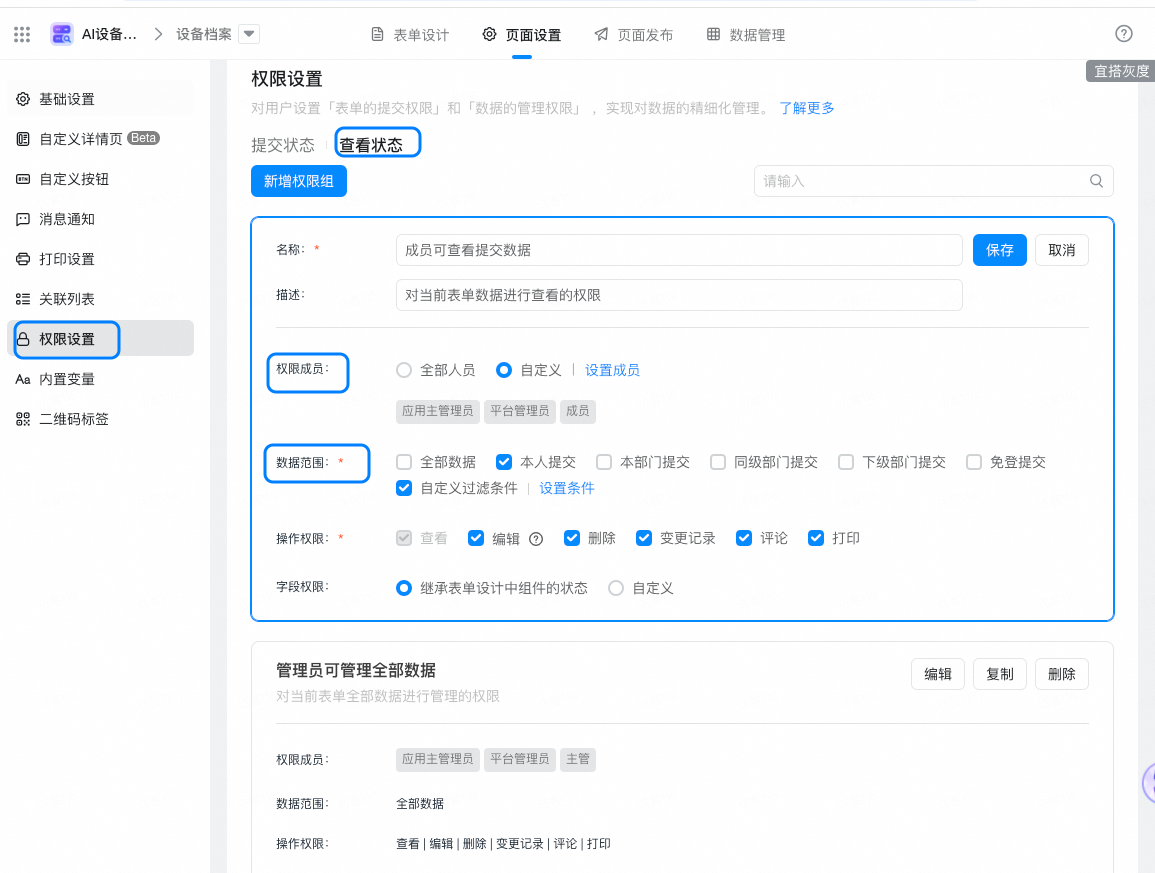
- Take device file permissions as an example. Members can only see the device file information that they are responsible for, and cannot see other device file information. The supervisor role can view all device files.
2. Process configuration
You can configure the approval process of equipment maintenance orders, equipment scrap orders, and equipment maintenance orders according to enterprise requirements.
- Click to enter the management background, open the "equipment maintenance order" in the equipment repair report, and click edit form-process design on the right.
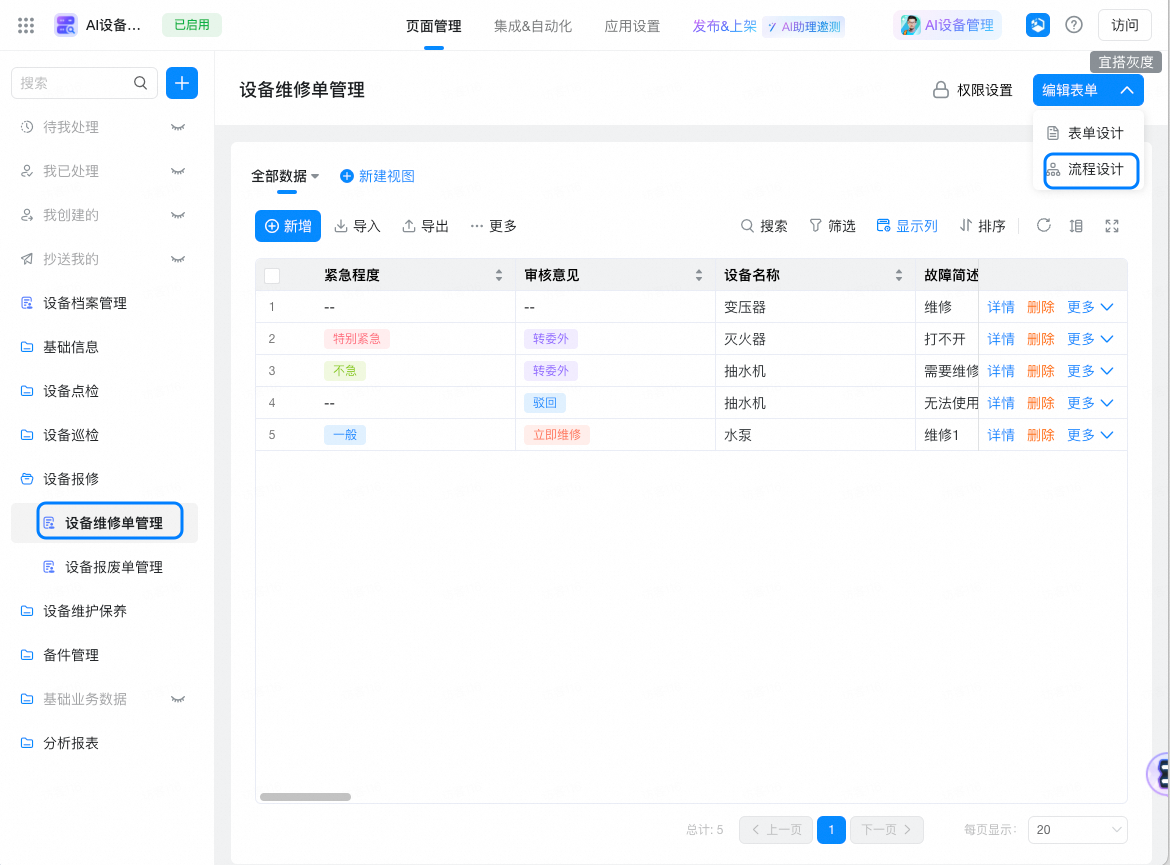
- Click Create New process on the right.
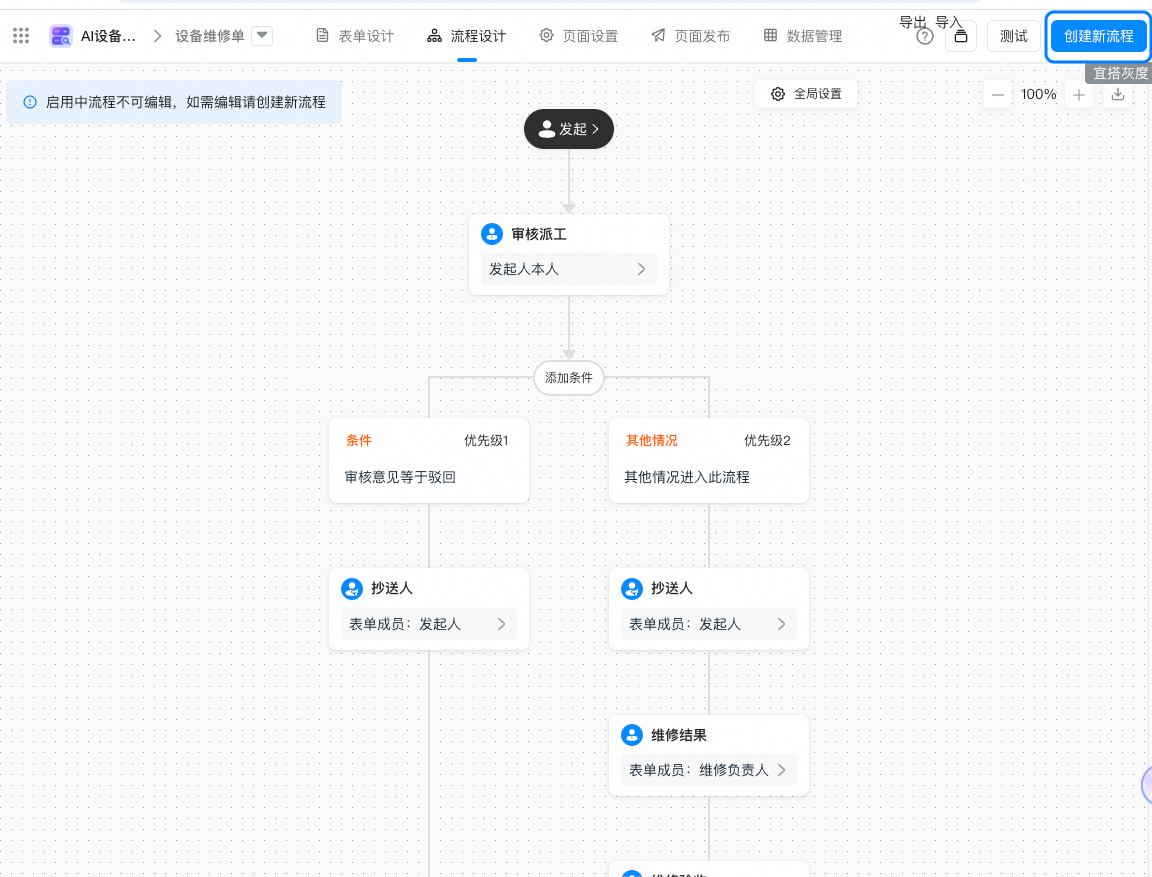
- In this case, you can go to the process Editing page in the equipment maintenance order, where you can customize the build process, such as creating new process nodes and configuring the owner of each node.
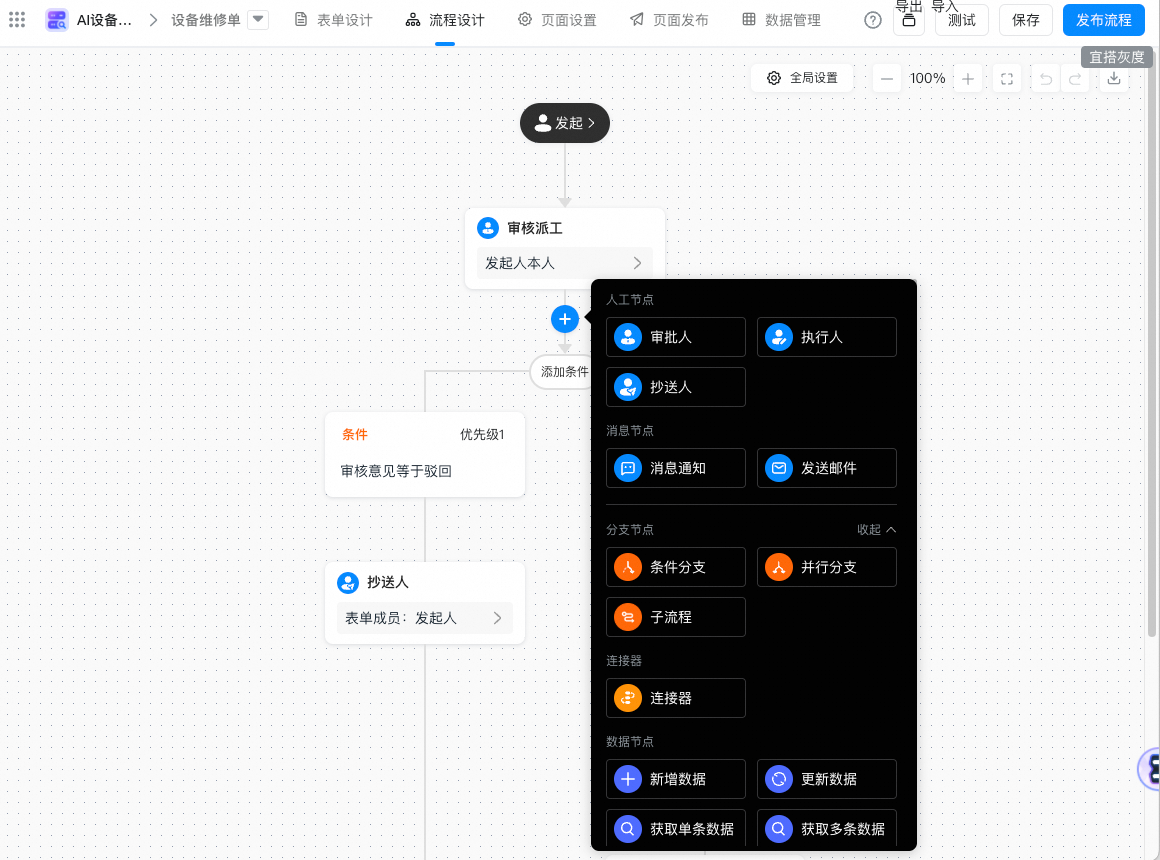
3. Release to DingTalk workbench and group
Next, we publish the AI device management application to the workbench or DingTalk group to achieve efficient business collaboration on the DingTalk workbench or DingTalk group.
1. Release to DingTalk Workbench
- Click publish on the top of the application, and click publish on the DingTalk workbench.
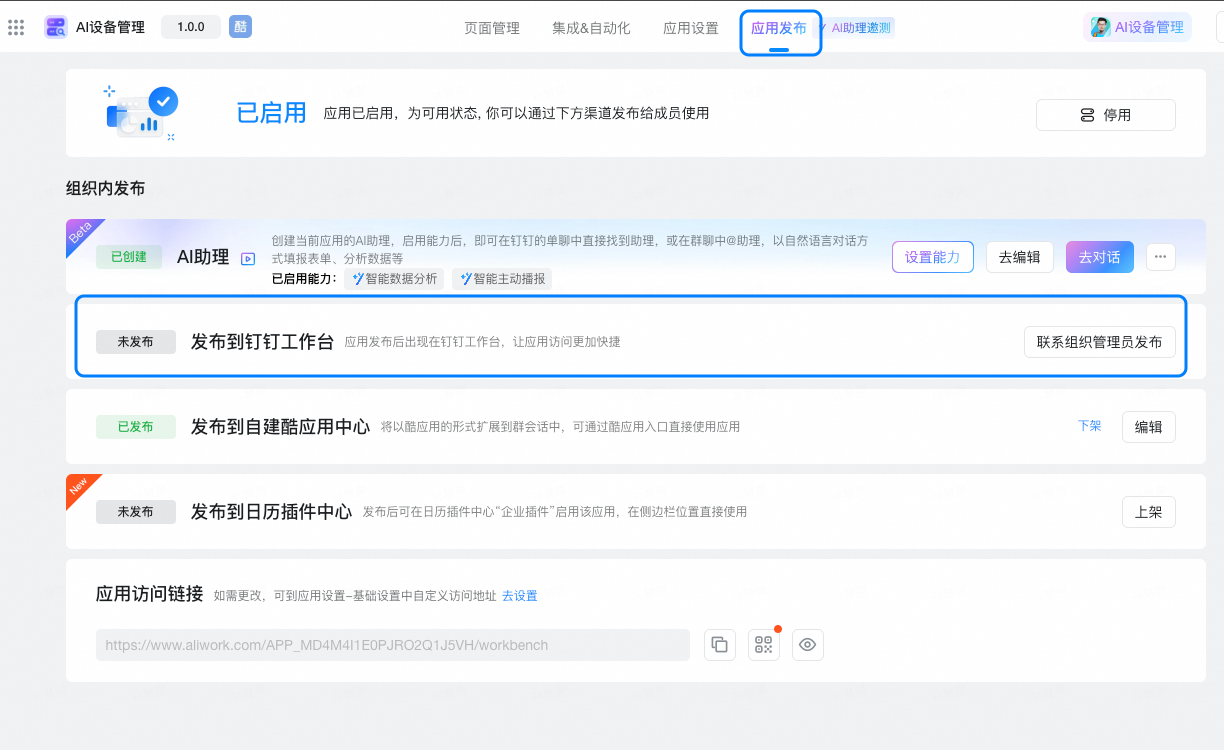
- Set Release settings as required. Generally, see the following to complete the configuration. Click Publish.
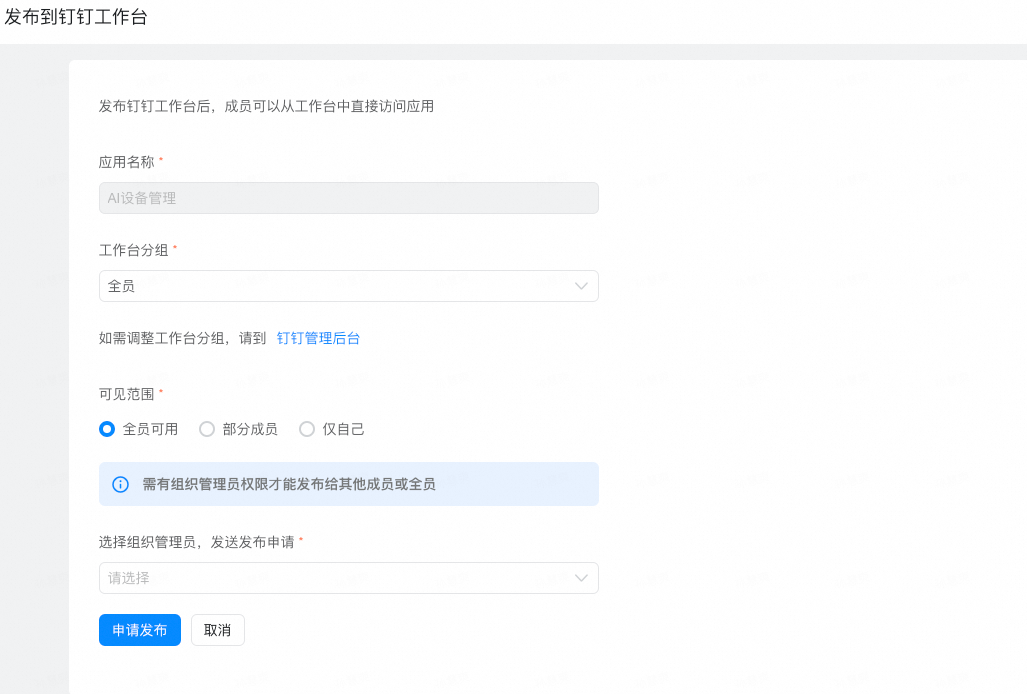
- After the release is successful, you will see the AI device management application in the DingTalk workbench.
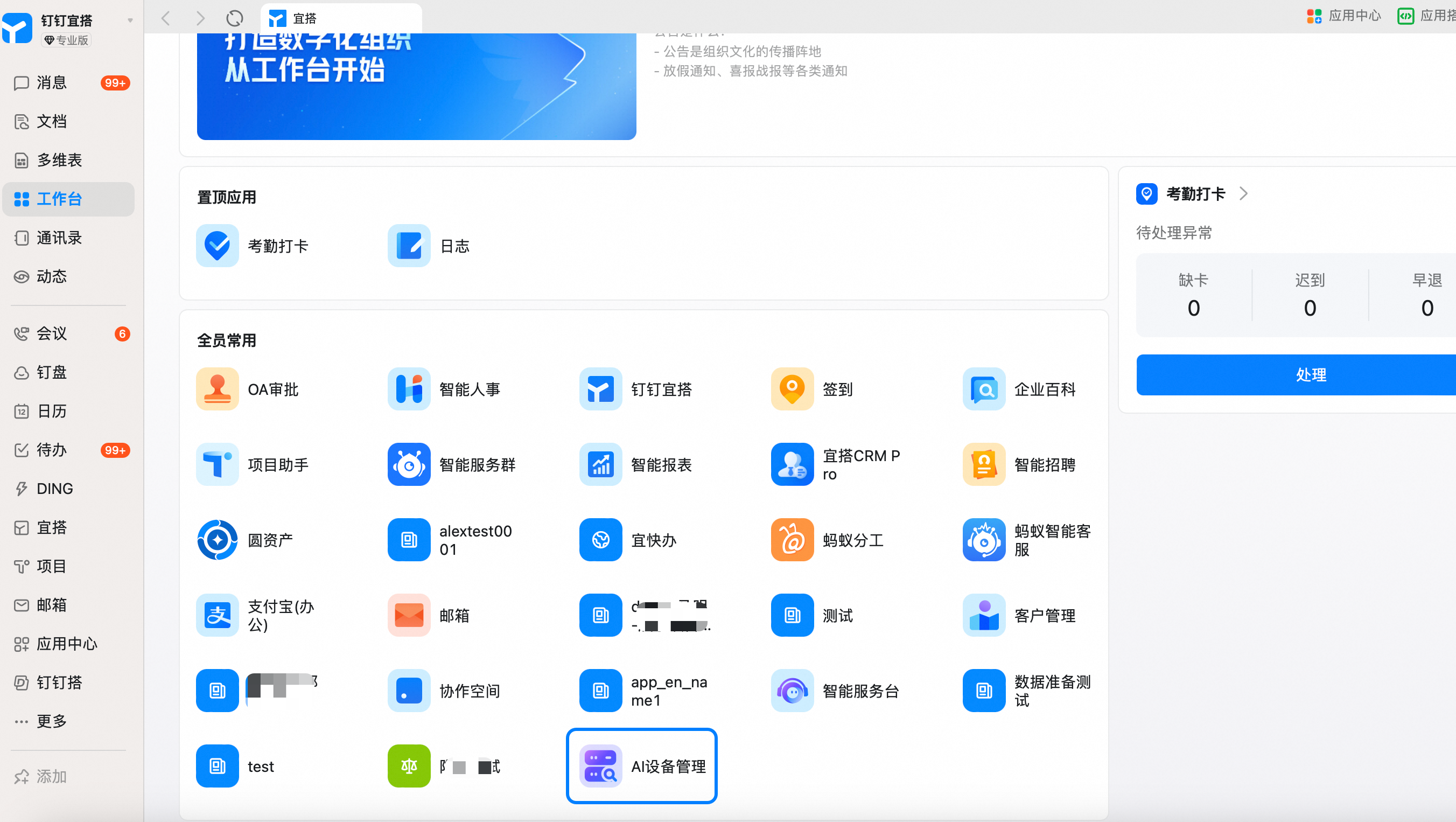
2. Publish to DingTalk Group
- Click publish in the upper-right corner and click Publish to self-built Cool App Center.
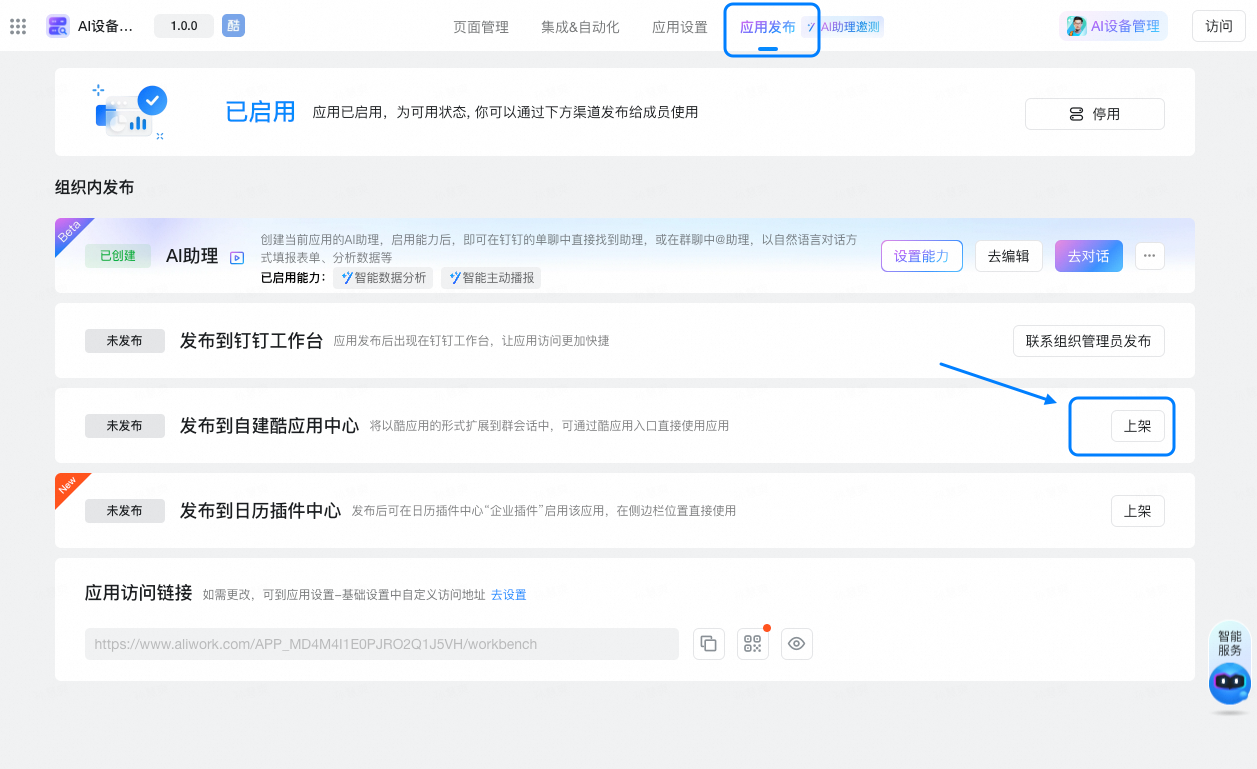
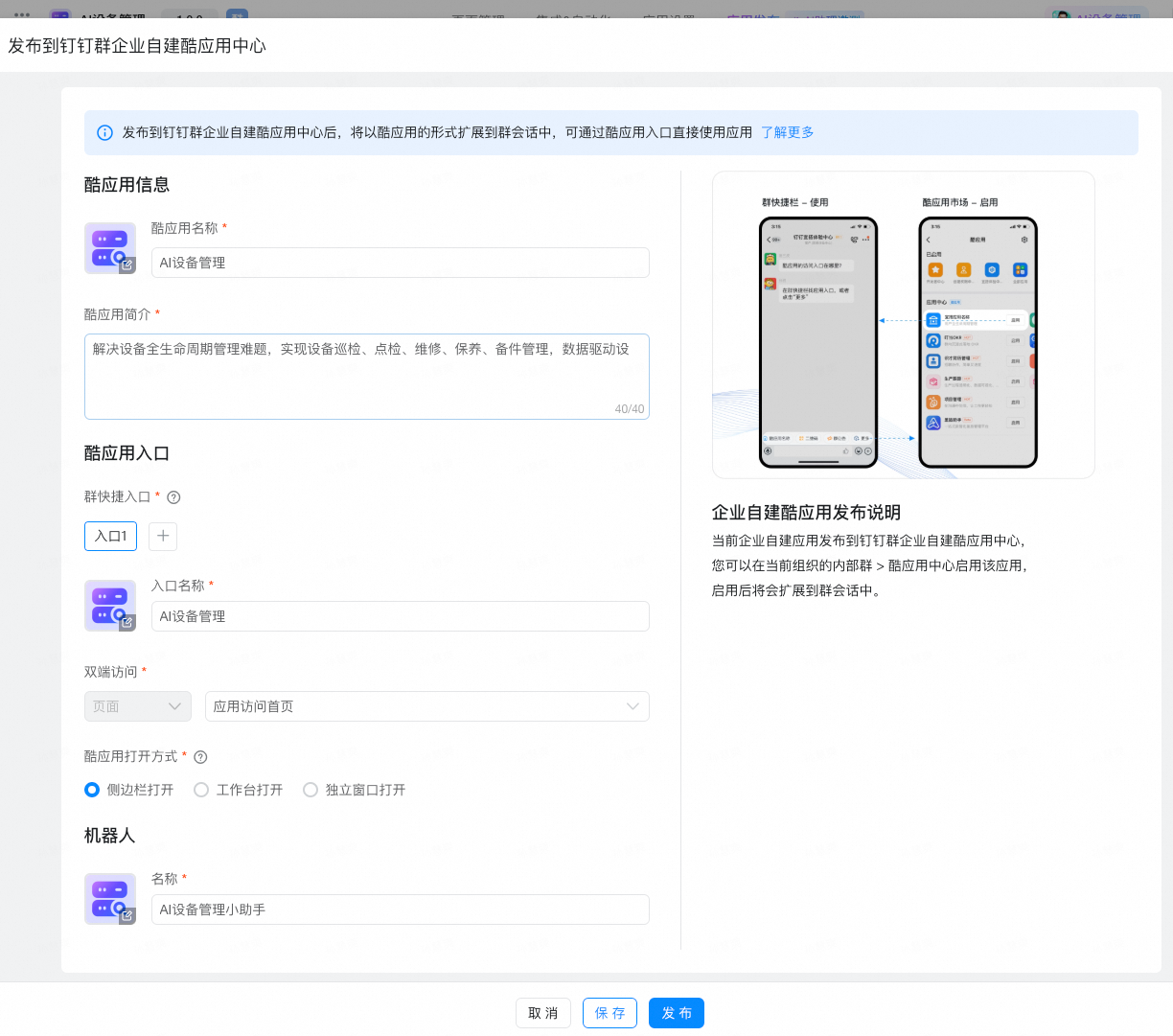
- Click edit to configure the shortcut entry in group applications, such as quickly filling in device files and viewing device analysis.
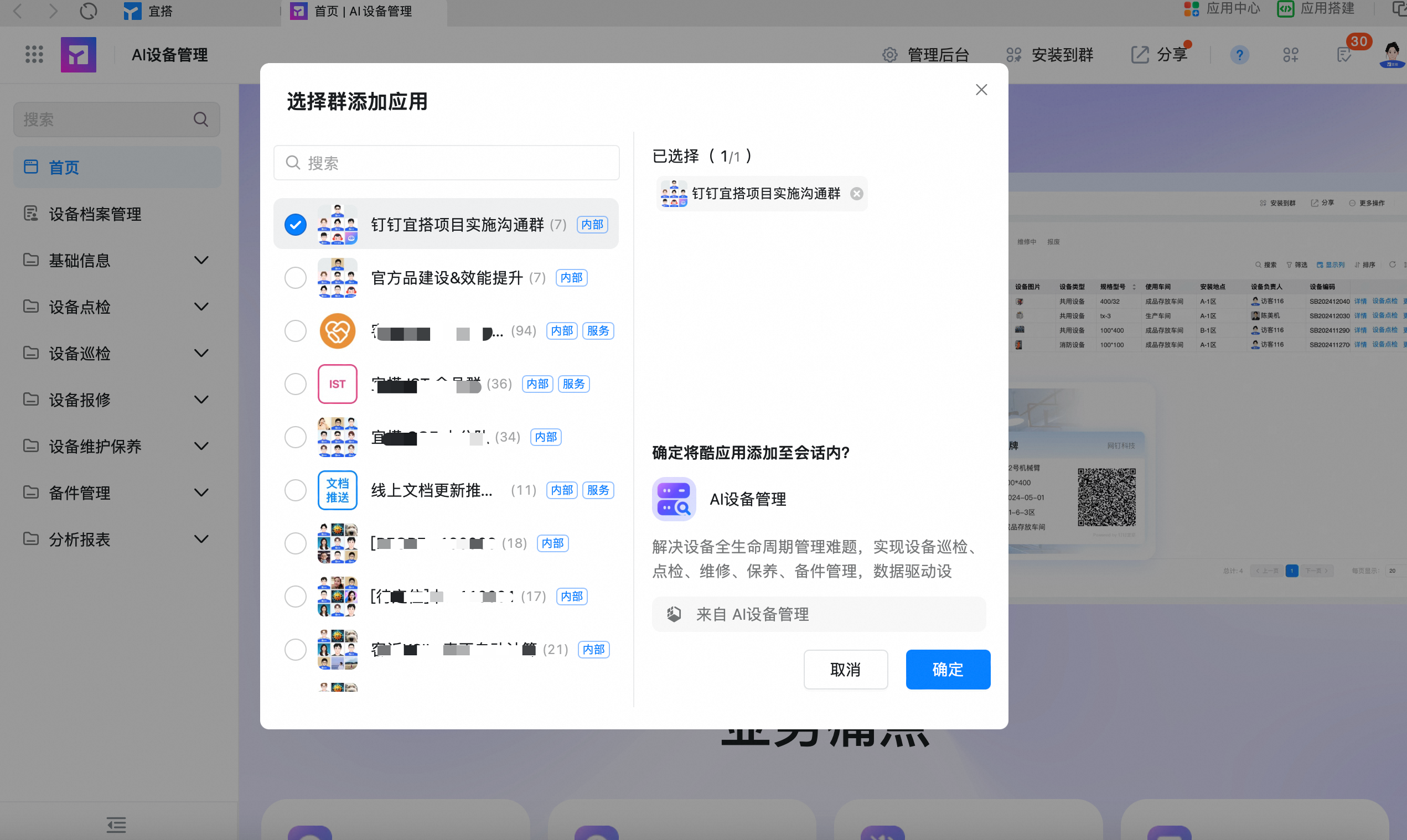
- Open AI task supervision on the DingTalk workbench and click install to group in the upper-right corner.
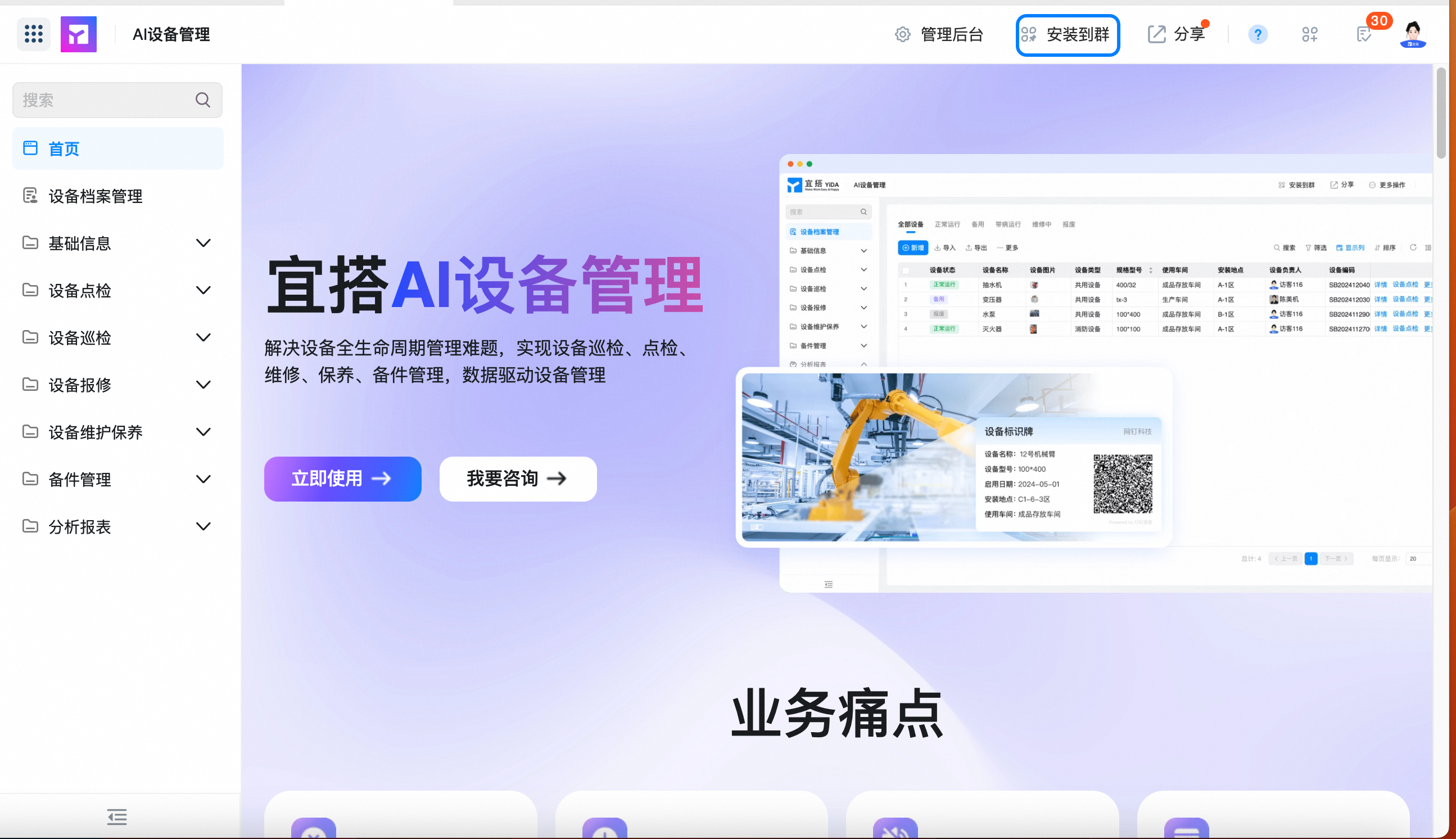
- Select the group chat to be installed, and click OK.
IV. Input of equipment file information
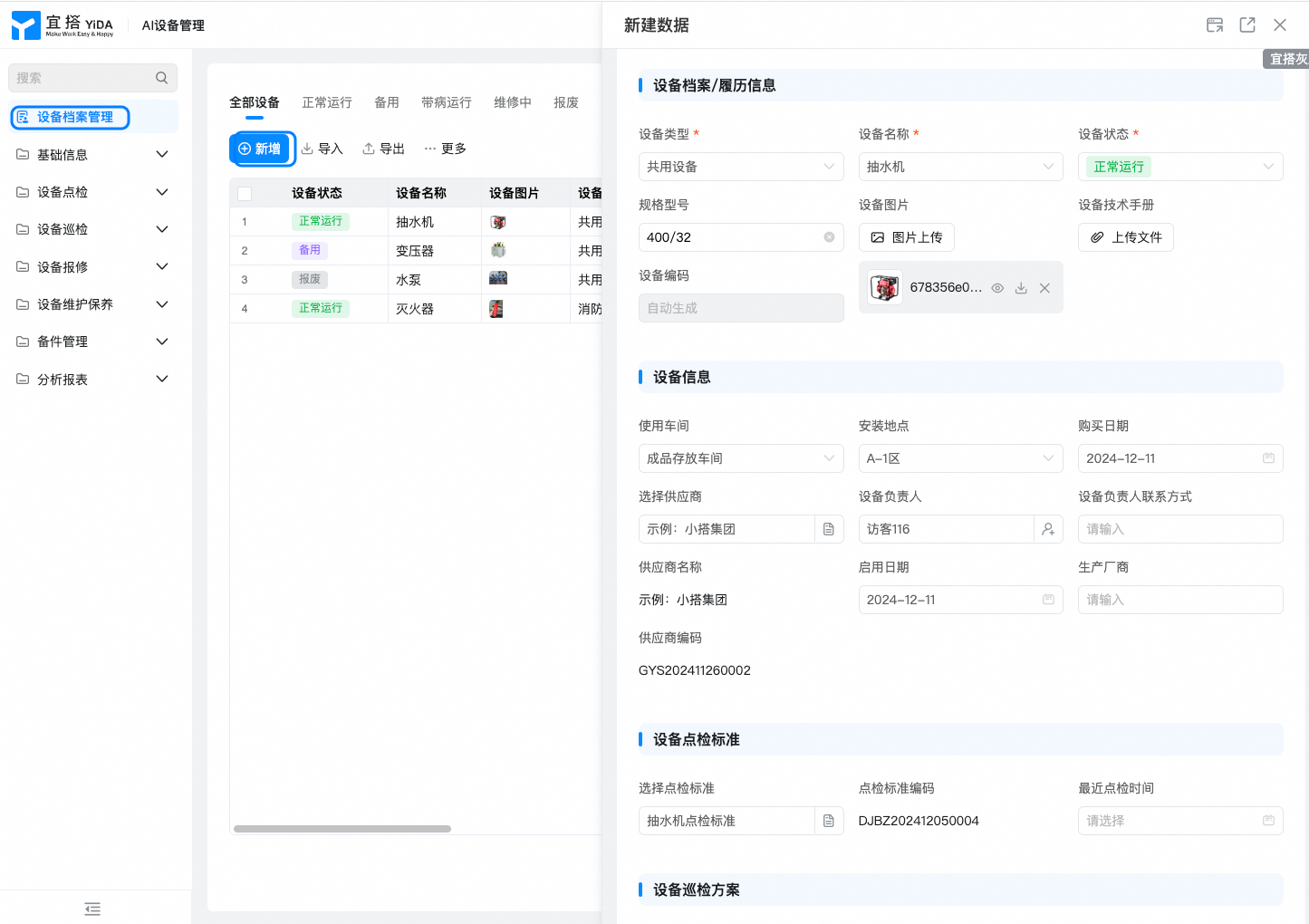
1. Select equipment file management and click add to fill in equipment files and equipment information, equipment point standards and inspection plans
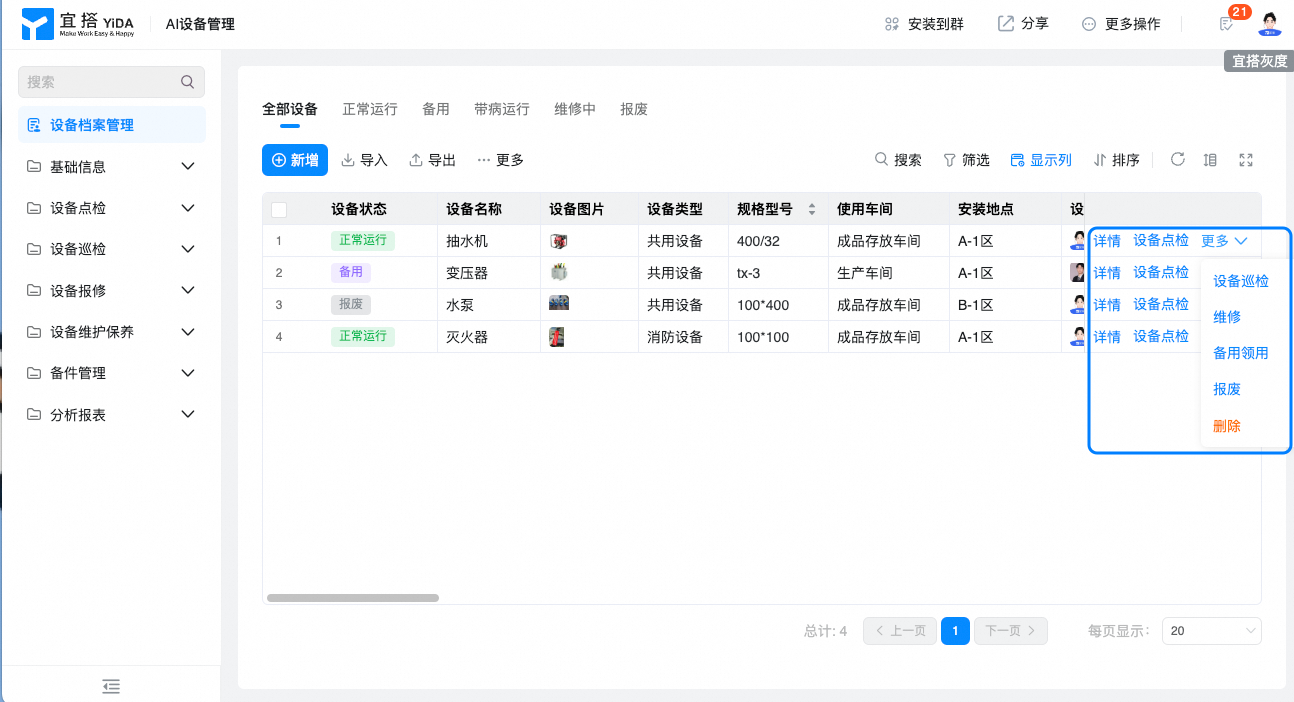
2. Carry out spot check, inspection and maintenance of the equipment later through the operation column of equipment file management
This doc is generated using machine translation. Any discrepancies or differences created in the translation are not binding and have no legal effect for compliance or enforcement purposes.
Is this document helpful?