User Manual
I. Overall architecture diagram
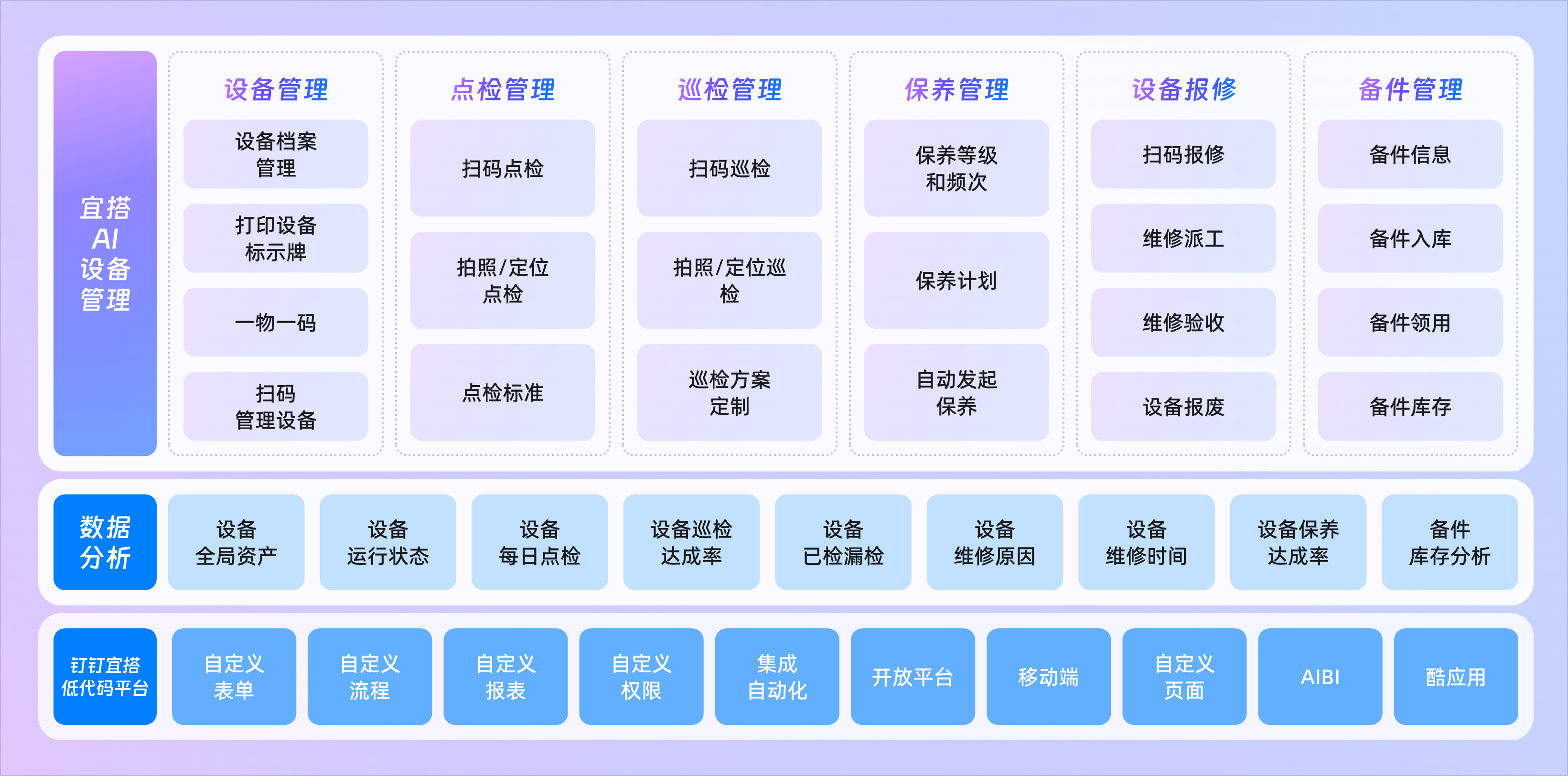
II,Brief introduction to organizing functional modules
Level 1 module | Secondary module | Function Point description |
Device Management | Equipment file management | Realize real-time online management of enterprise equipment assets. Includes information such as device status, name, and supplier. Supports batch import of device file information. |
Printing device nameplate | One-click printing device nameplate. After printing, you can scan the code to view the full-dimensional information of the device for inspection, warranty, maintenance, etc. | |
Equipment Analysis | Realize the global real-time management of the distribution, operation, inspection, spot check, maintenance and repair of equipment assets | |
Equipment spot check | Equipment spot check | Enter the device check record, modify the status of the current device after entry, and support positioning and photo-only upload. |
Spot check standard | Enter the point inspection standard module to realize standardized point inspection according to the point inspection standard during point inspection. | |
Spot check analysis | Realize the statistical analysis of the daily checked and unchecked equipment and view the overall survey situation. | |
Equipment Inspection | Equipment Inspection Sheet | According to the inspection scheme, scan the code to enter the inspection results of the equipment, and automatically synchronize the status of the equipment according to the inspection results. |
Inspection Scheme | Make different inspection plans for different equipment, including different inspection frequencies, daily inspection times and inspection items. | |
Equipment Inspection analysis | Realize global real-time analysis of inspection completion rate | |
Equipment Repair | Equipment maintenance order | Support code scanning, online launch of maintenance work orders, after the launch of online dispatch, maintenance, acceptance of the whole process management, support for subsequent implementation of maintenance hours statistics. |
Equipment scrap sheet | Implement online device scrapping approval, automatically modify the device status after scrapping, and keep scrapping records | |
Maintenance Analysis | Realize global analysis of key data such as the cause of equipment failure and the timely maintenance rate. | |
Equipment Maintenance | Equipment Maintenance sheet | You can automatically initiate equipment maintenance work orders according to the plan, and then transfer them to the maintenance person in charge for processing, and support intelligent reminder. |
Maintenance Schedule | Formulate the equipment maintenance plan. After the completion of the formulation, the maintenance equipment sheet will be automatically generated and transferred to the equipment maintenance person in charge for maintenance. | |
Maintenance plan | Support the formulation of different standard schemes and maintenance according to different frequencies and requirements. | |
Equipment maintenance date table | Grasp the achievement of equipment maintenance in real time | |
Spare parts management | Spare parts information | Basic information of spare parts, including specifications, manufacturers, etc. |
Spare parts receipt | Online storage of spare parts and automatic synchronization of spare parts inventory after storage | |
Spare parts receipt | Collect spare parts out of stock, and automatically synchronize spare parts inventory after out of stock | |
Spare parts inventory statistics | Calculate the current inventory value in real time, and realize inventory shortage warning broadcast and multidimensional inventory analysis. | |
Basic information table | Equipment type, equipment name, workshop, installation location, supplier, warehouse, spare parts unit | |
III. Data initialization
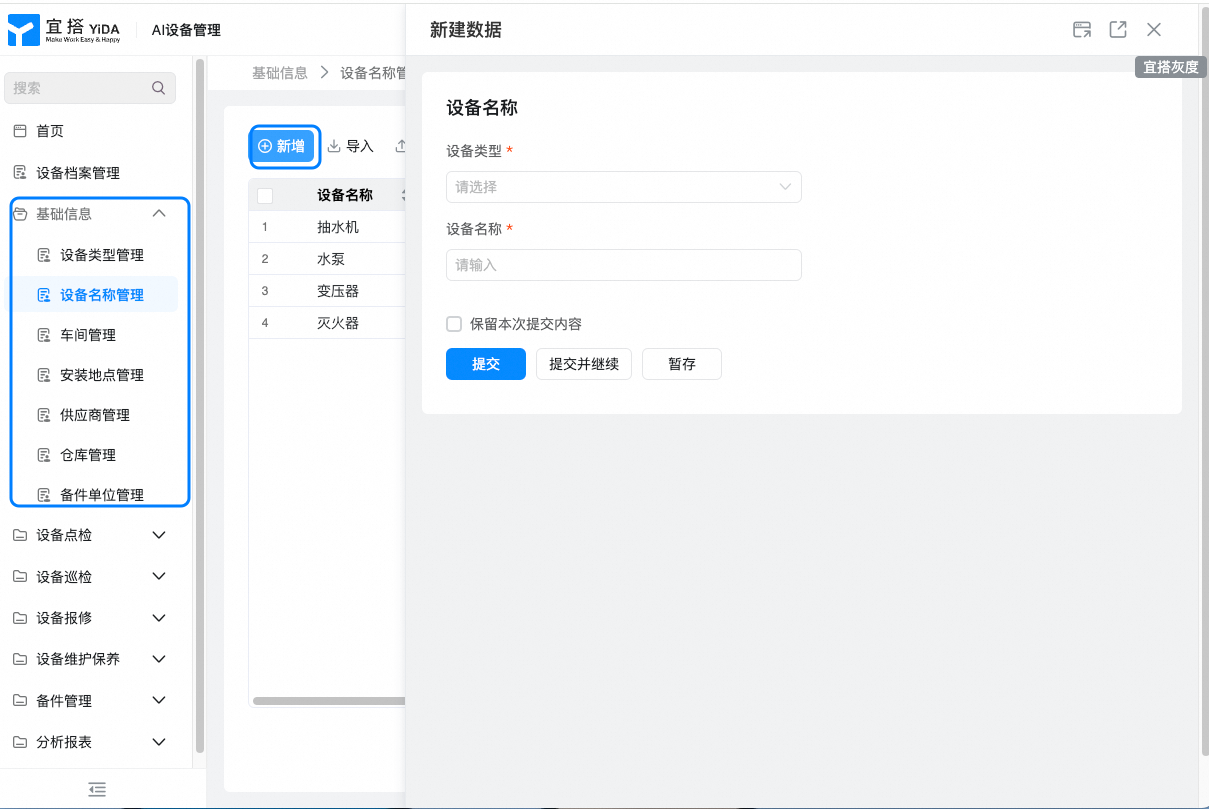
1. Initialization of basic information
- Enter the necessary basic data into the system. Include:
Form Name | Form function |
Device type | Used to select the device type in [Device file] and [Device Name] |
Device Name | Used to select a device name in [Device file] |
Workshop | For selecting Workshop Information in [equipment file] |
Installation location | For [equipment file], select the installation location. |
Supplier | For selecting supplier information in [equipment file] and [equipment maintenance order] |
Warehouse | Used to select warehouse information in [spare parts receipt form] and [spare parts delivery order] |
Spare parts unit | For selecting spare parts units in [spare parts information] |
Spare parts information | Used to select spare parts information in [spare parts receipt form] and [spare parts receipt form] |
Maintenance level and frequency | Used to select maintenance level and frequency in [maintenance schedule] |
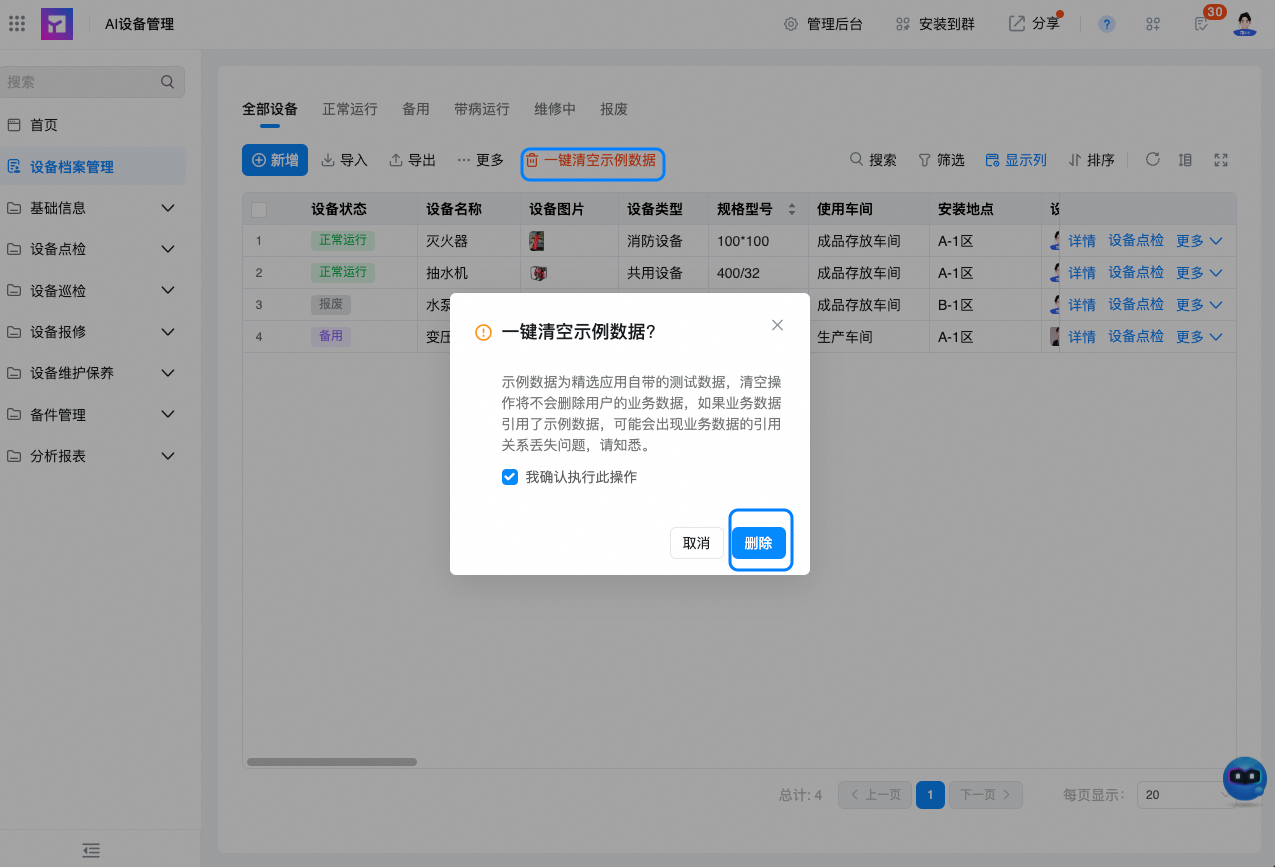
- Clear sample data with one click
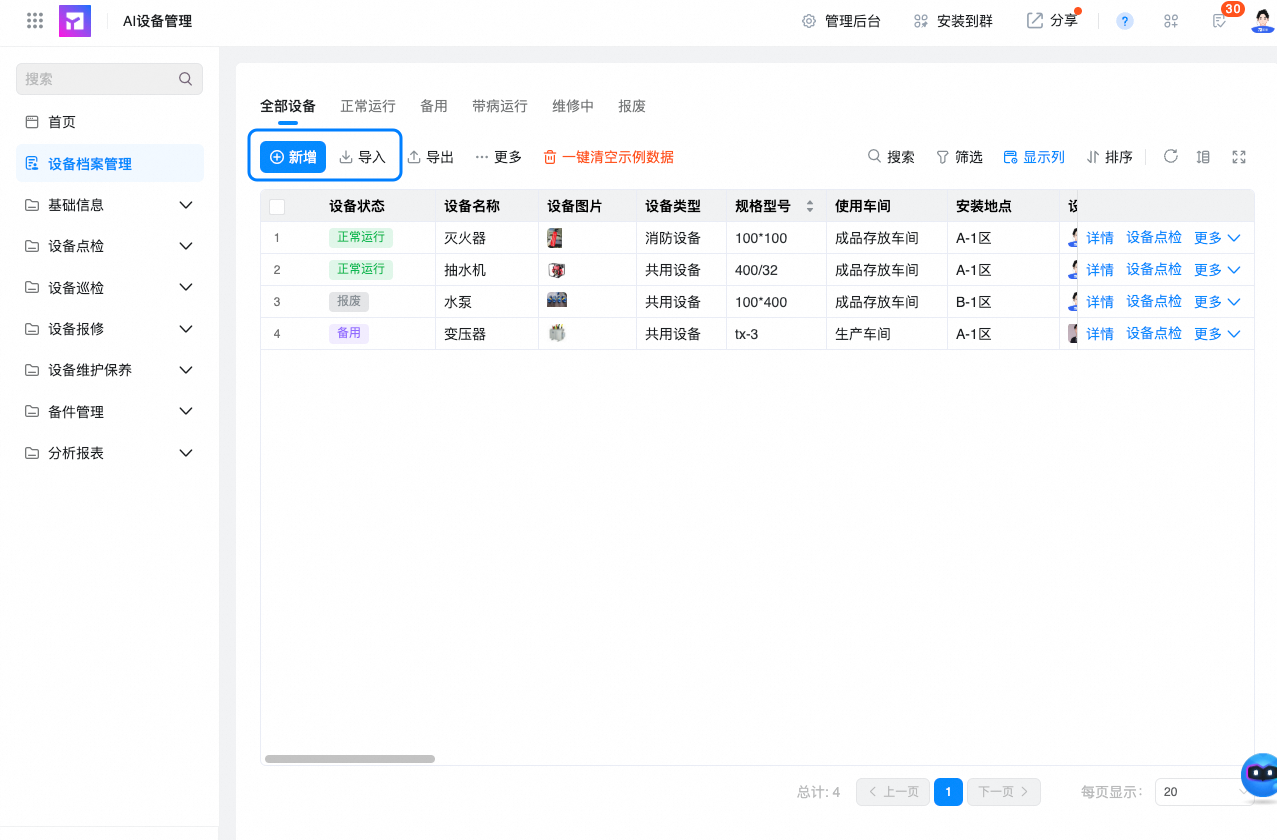
2. Device file initialization
- Before using application and device files, you must import data from existing devices to the system.
3. Initialization of equipment inspection standards
- Before using the equipment spot check, you need to enter the standard data of the existing equipment into the system.
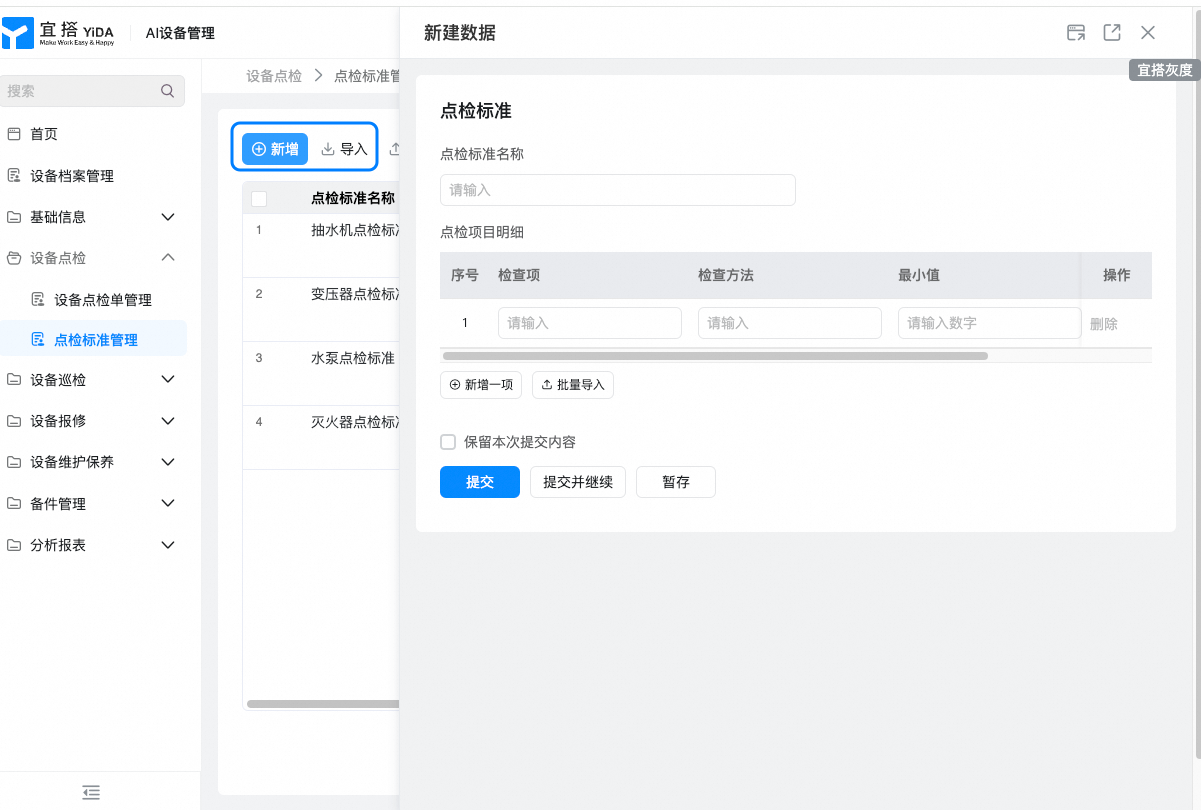
- The system will bring out the standard information of the equipment during subsequent equipment spot check.
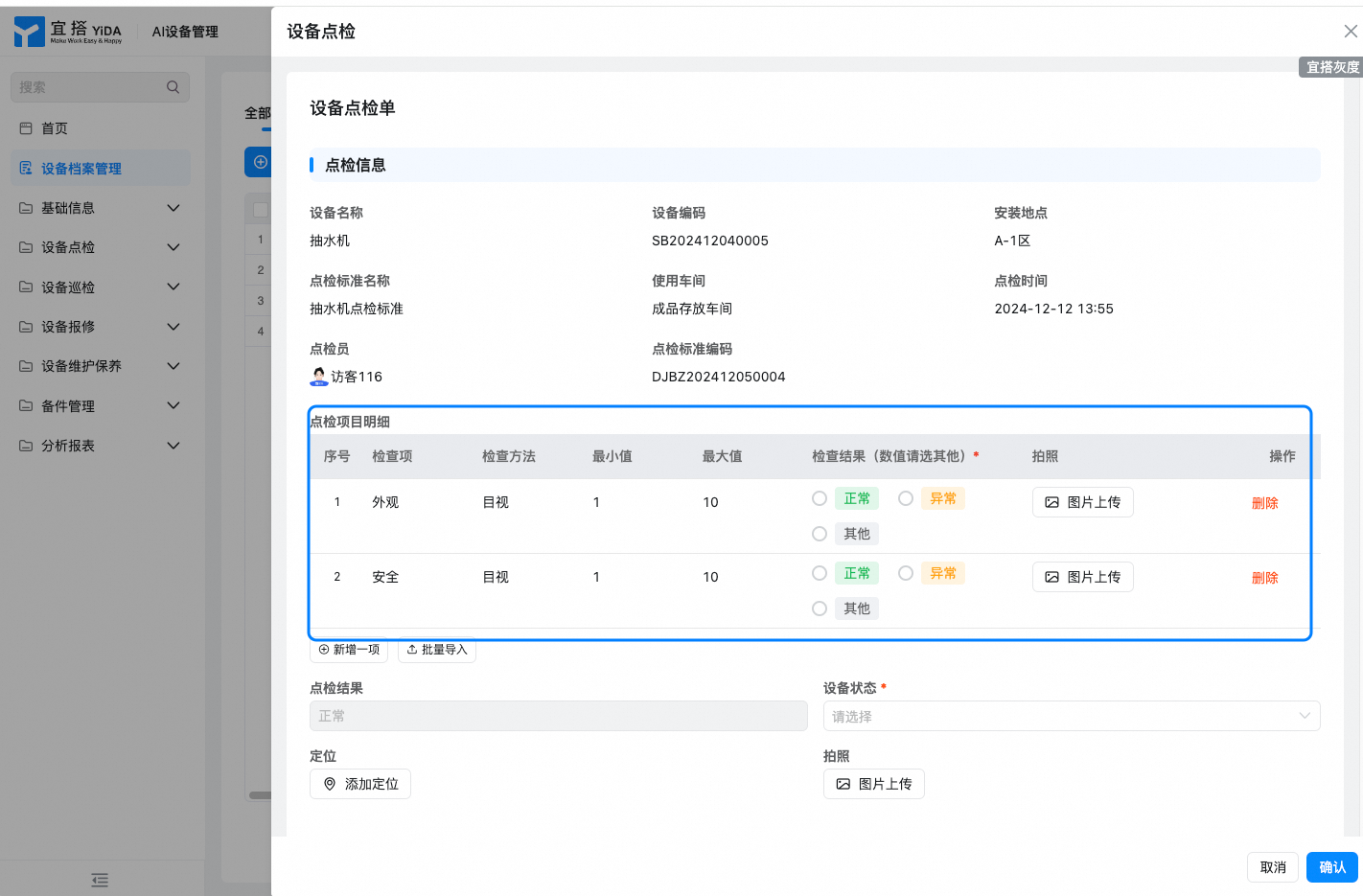
4. Equipment inspection initialization
- In the management background> Integration & automation> scheduled trigger> Enable "generate inspection data" and "synchronous Inspection Status", the system automatically follows 【Equipment Inspection Scheme] generate inspection date data and synchronize the current inspection status according to the inspection date
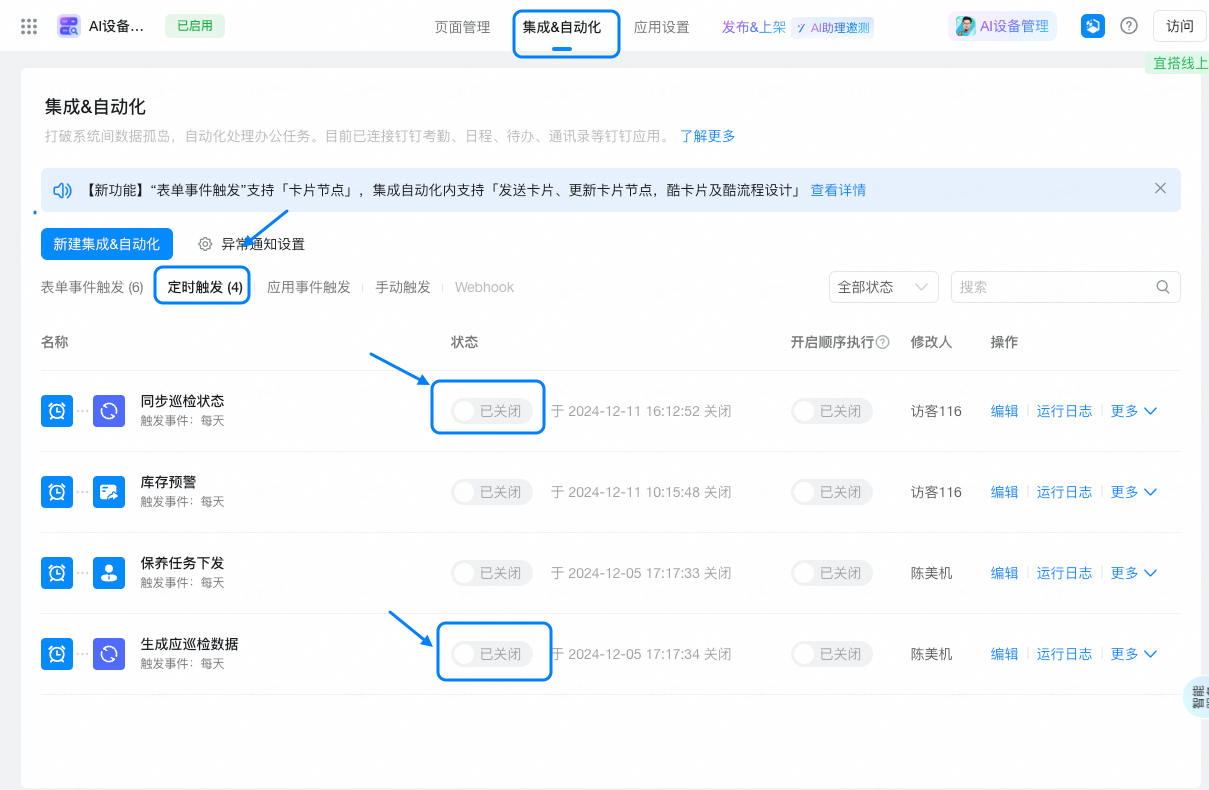
- Before using the equipment inspection, you need to enter the data of the existing inspection scheme into the system.

- That isFacilitate automatic system generationThe inspection date data is required, which is also convenient for the system to bring out the inspection standard information of the equipment itself during the inspection of the equipment.
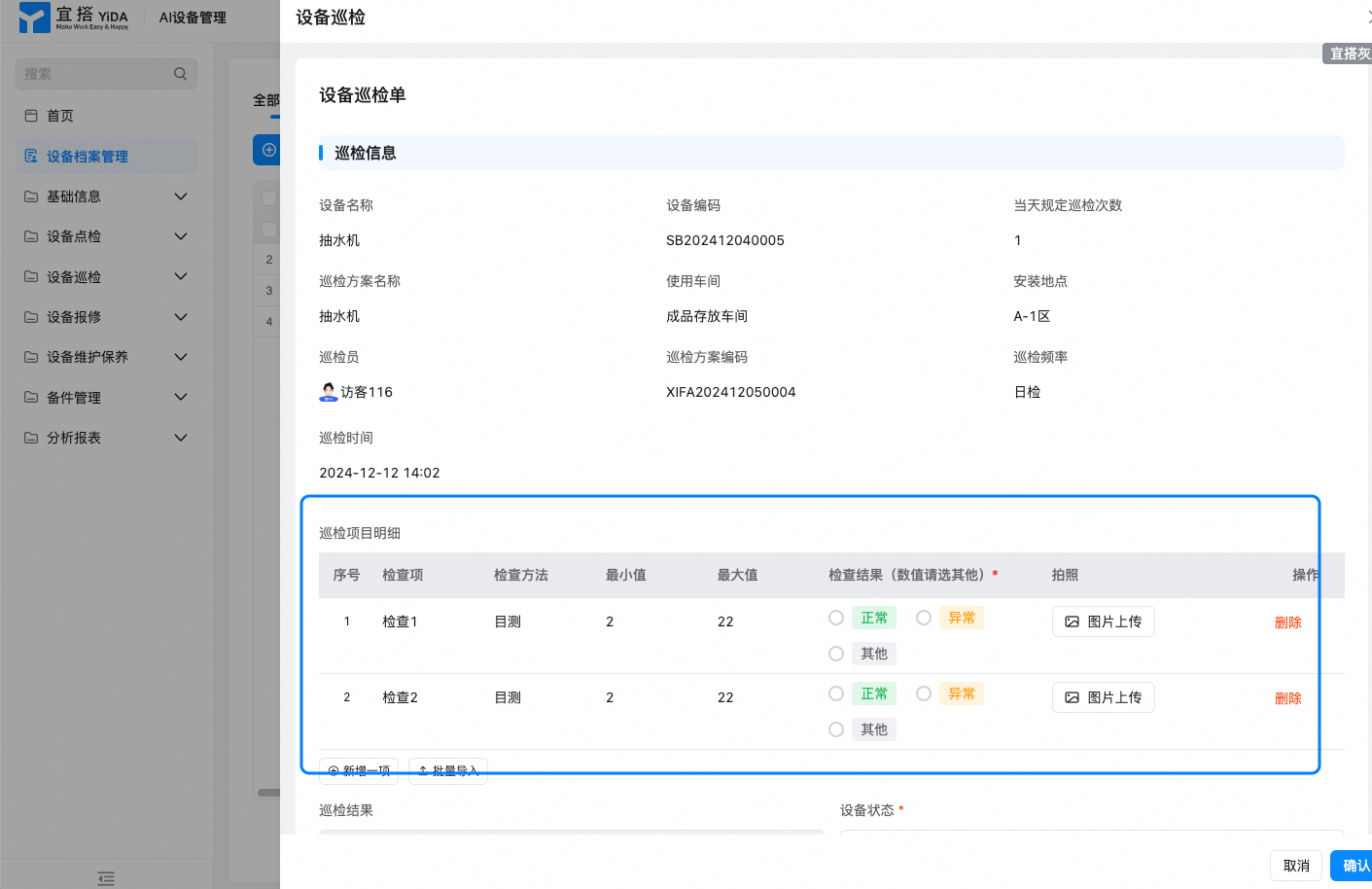
5. Equipment Maintenance initialization
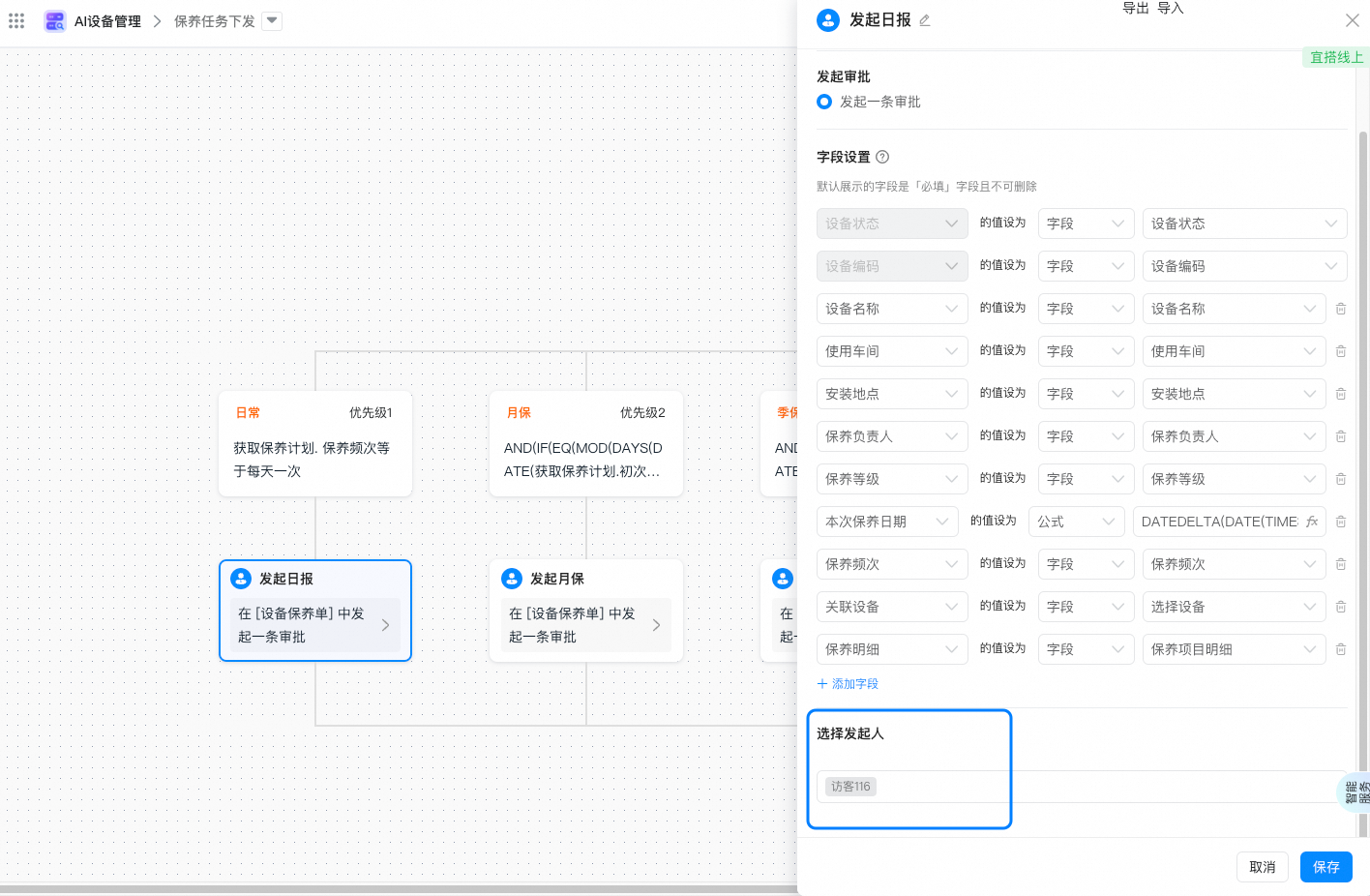
- In the management background> Integration & automation> scheduled trigger> enable maintenance task delivery, and edit and modify the initiator of the device maintenance order initiating approval node, the system automatically initiates the equipment maintenance process regularly according to the [maintenance plan]So as to carry out systematic equipment maintenance.
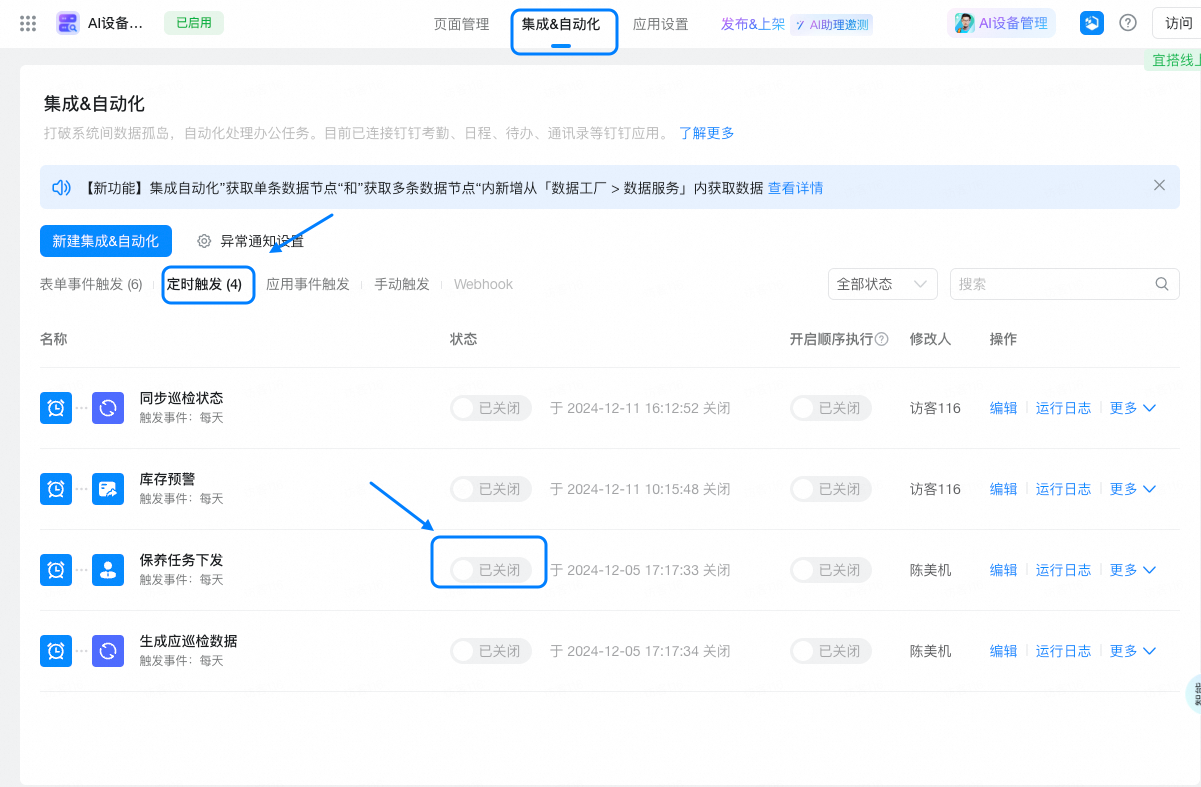
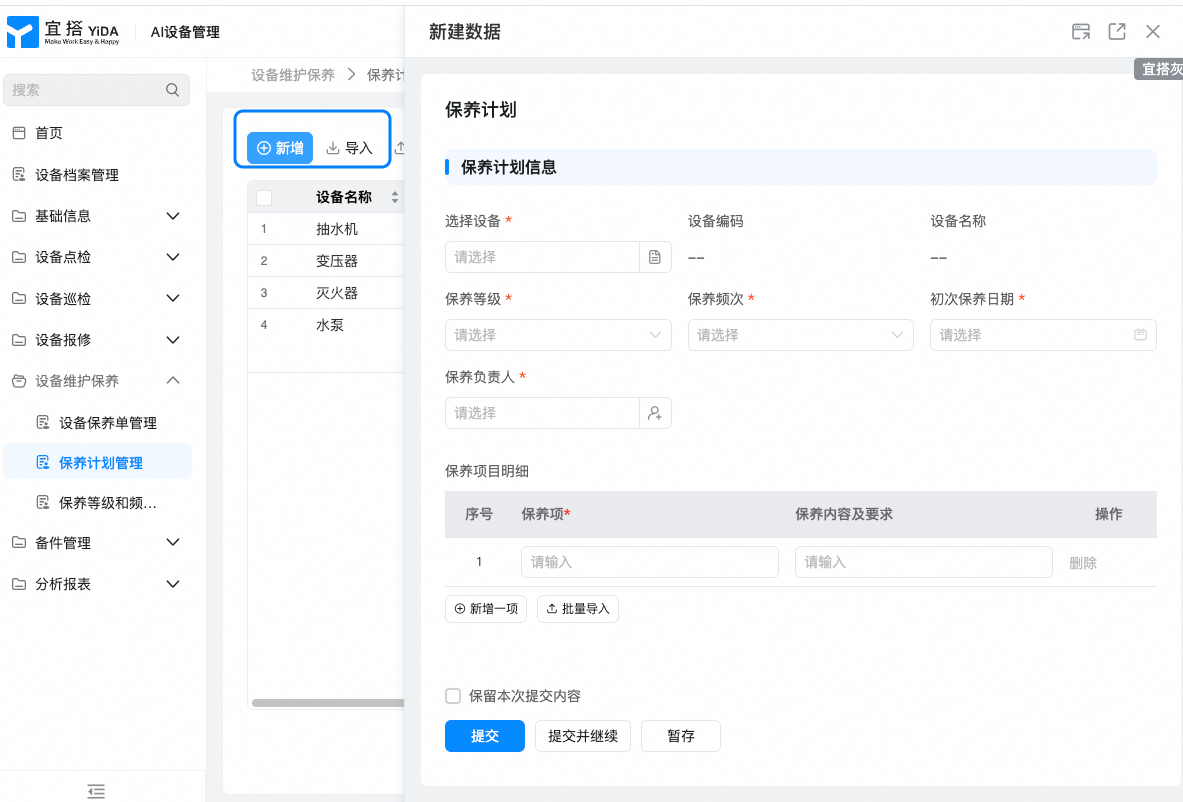
- Before using the equipment maintenance sheet,Data from existing maintenance plans must be entered into the system.
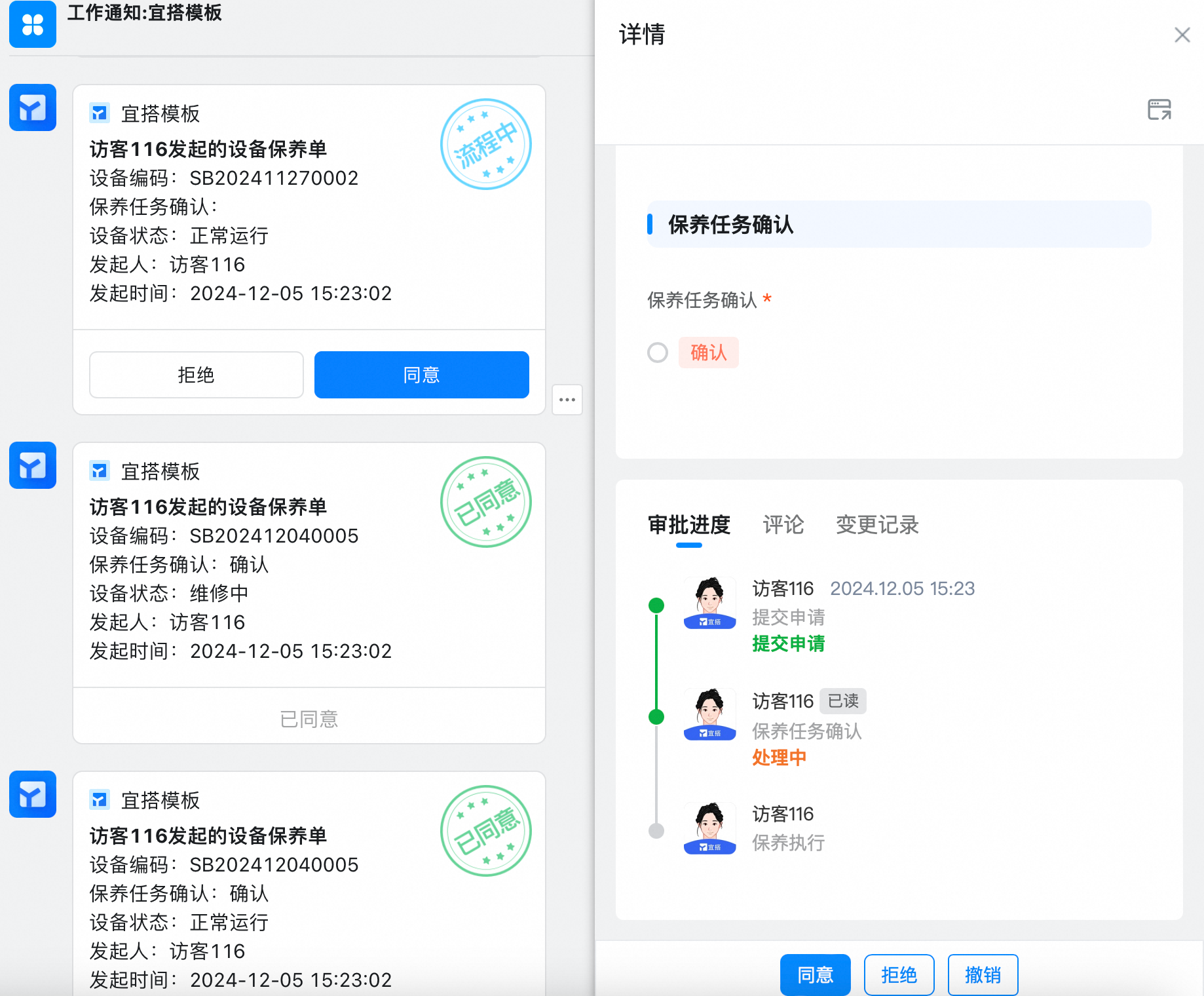
- The system regularly initiates the equipment maintenance order process according to the maintenance plan and notifies the maintenance person in charge.
IV. Permission configuration
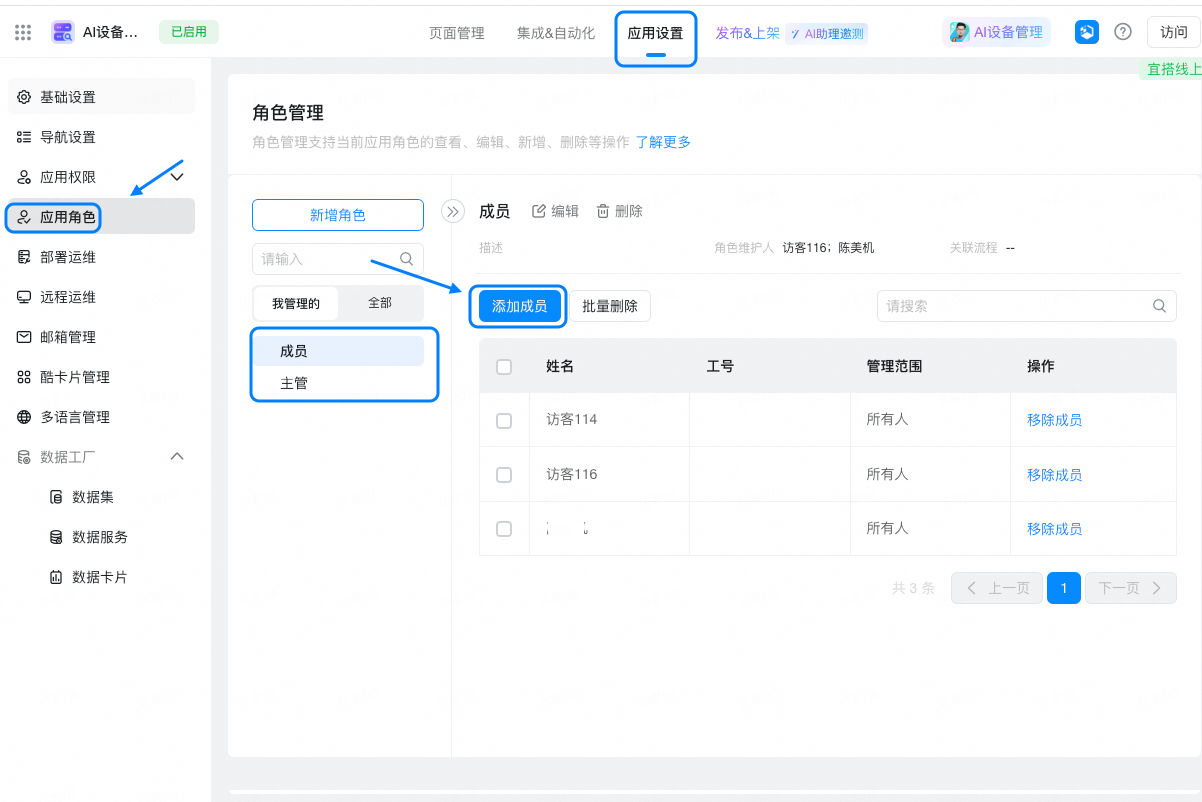
1. After the data initialization is completed, we can configure the permissions. The current application has configured the data permissions on each page. You only need to add the participating device managers in the current application role.
- Manage background> Application Settings> Application roles> add members
2. For more information about how to view permissions on a single page, see:
V. Printing equipment nameplate
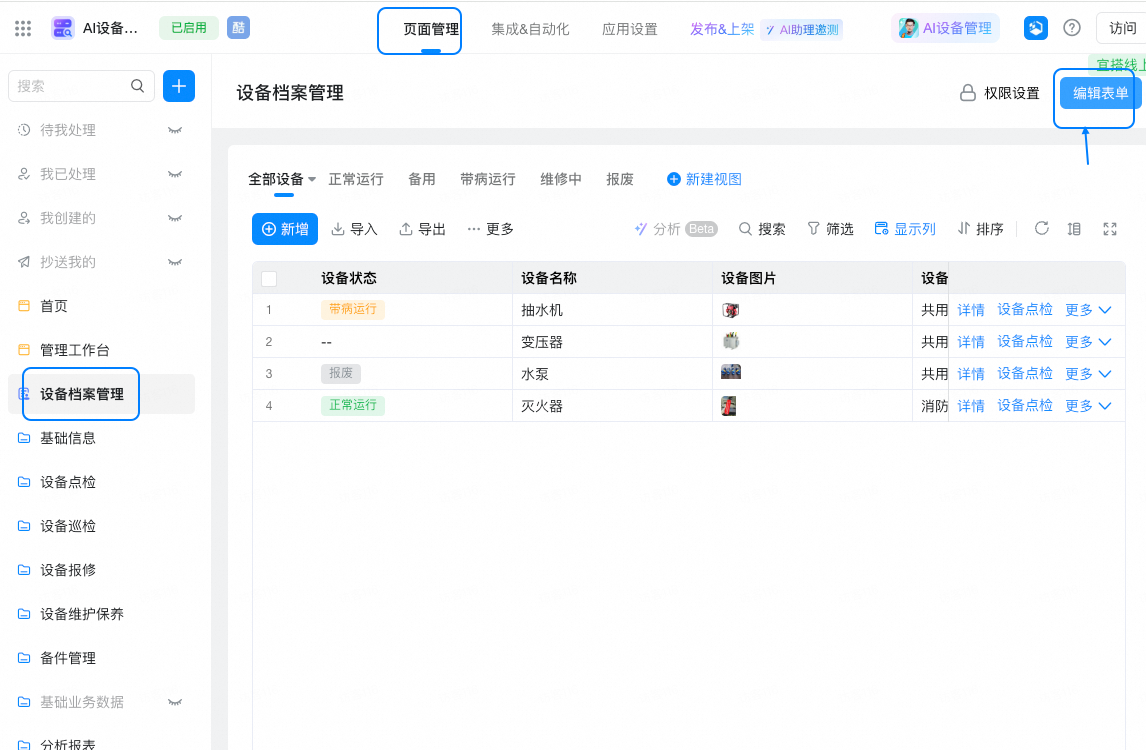
For factories with a large number of mechanical equipment, the functions, operation methods and maintenance requirements of each machine may be different. Each important device needs to be equipped with a detailed description label, and the YIDA each device can be printed directly at nameplate.
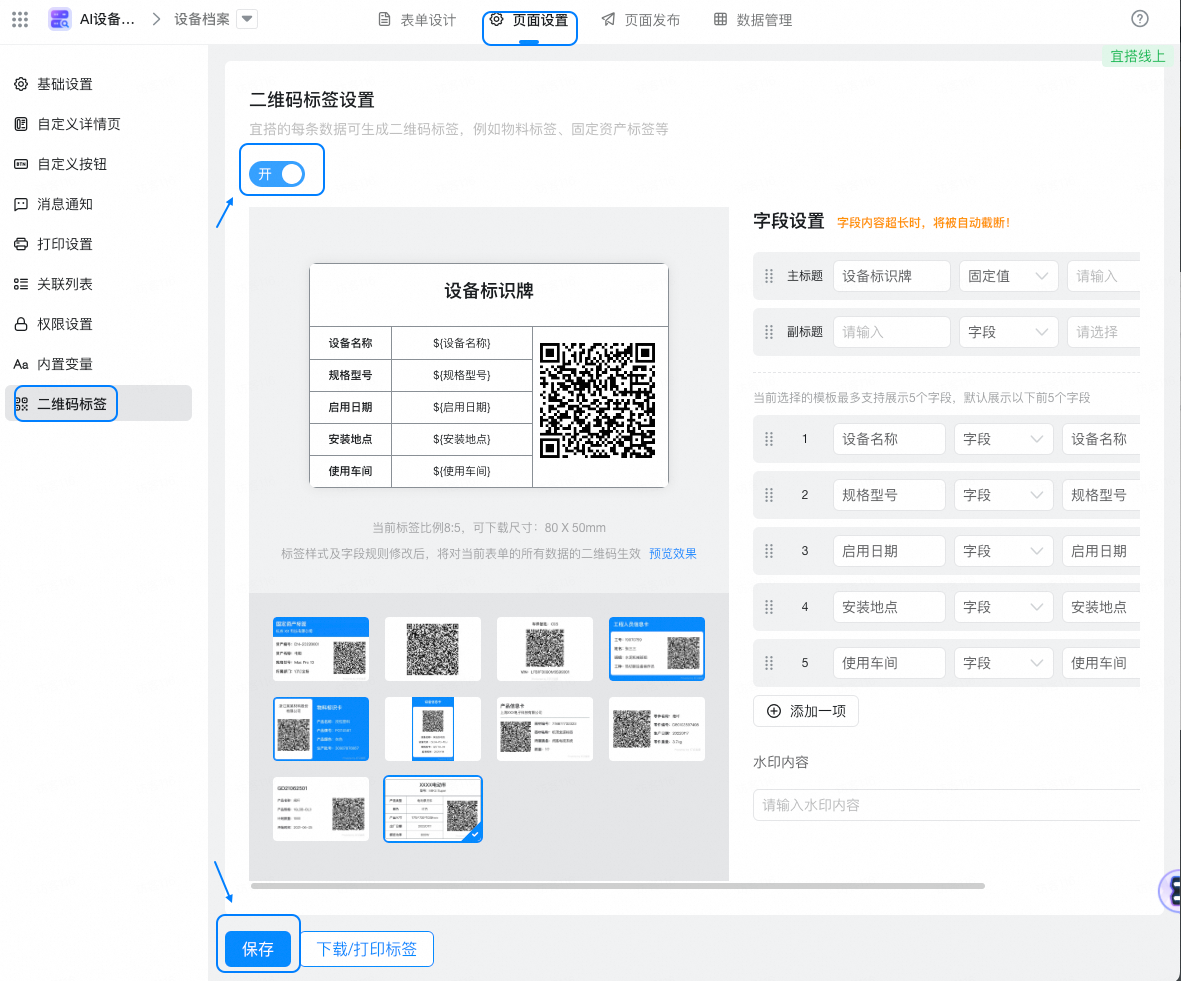
- First, go to the edit page of "equipment files" management. On the page settings-QR code label, open the QR code label settings. You can see that the QR code label has been set. You can also modify and adjust it by clicking edit,
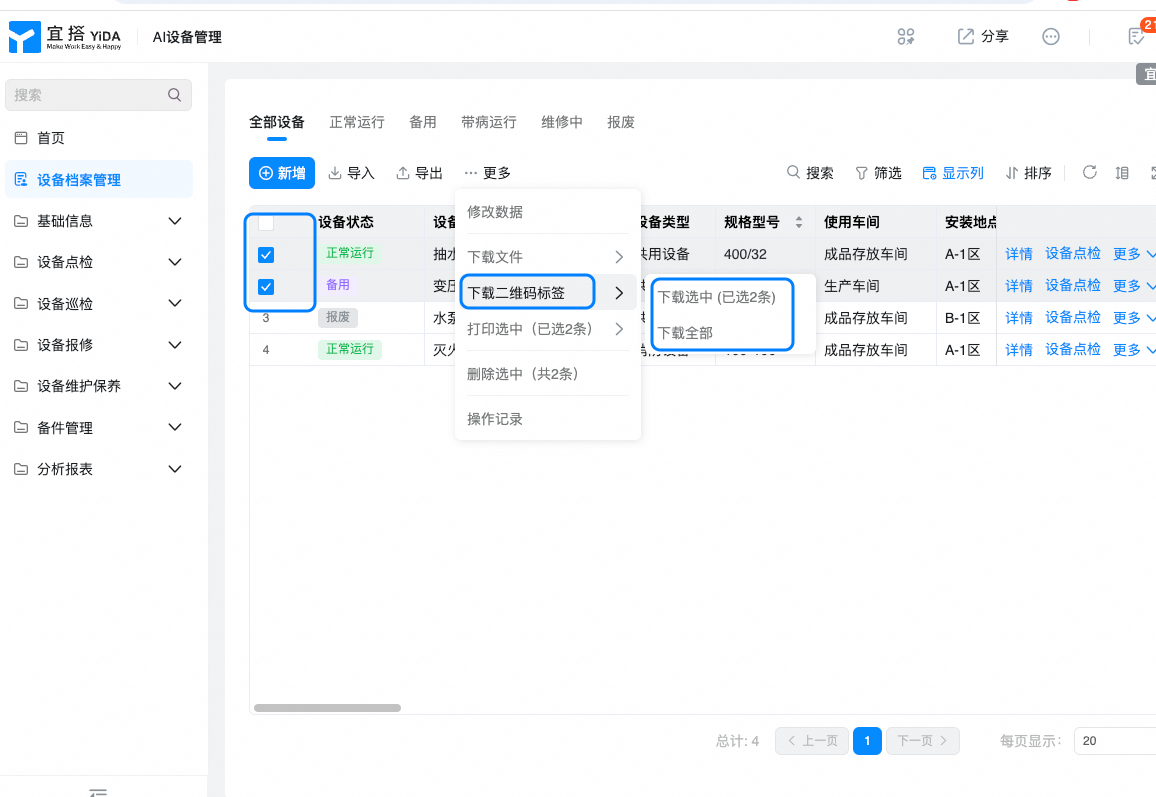
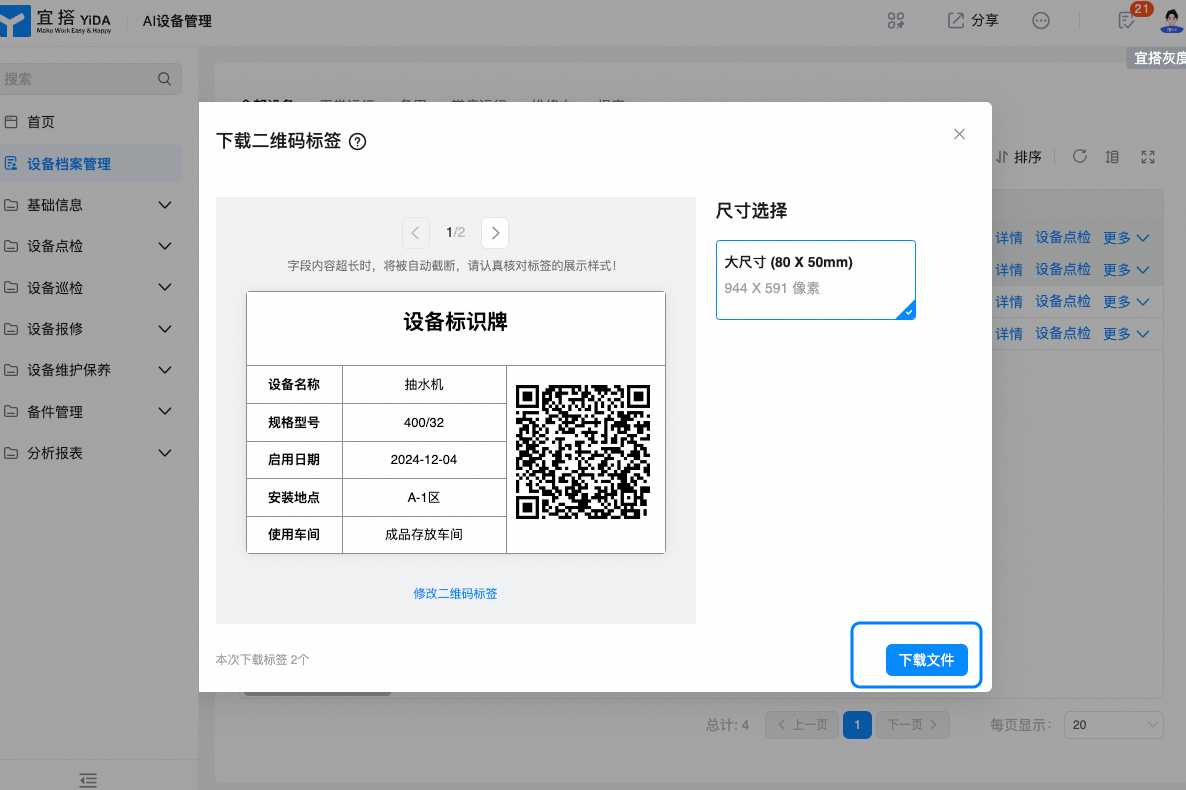
- Device file management> more> Download QR Code Label> Download the file, and print it by printer according to the downloaded file
VI. Equipment information entry
After completing the above operations, the device can be effectively managed later. For factories with a large number of mechanical equipment, it is very important to ensure the safe operation of each equipment. This not only directly affects the production efficiency, but also directly affects the safety of employees and product quality. Therefore, ensuring the stability and safety of machinery through efficient equipment management measures is the key to improving the overall operation level.
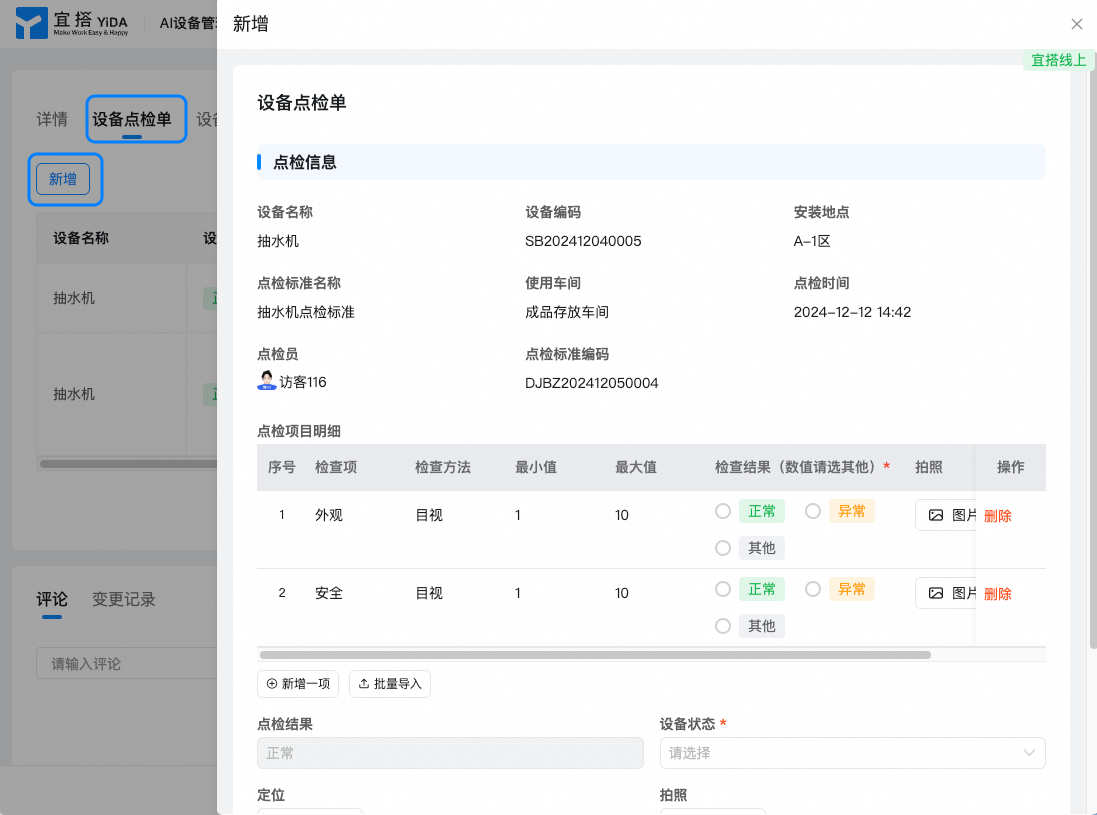
1. Scan the code to check
Scan code device nameplate, add device check entry check information
2. Scan code for inspection
Similarly, scan the code device nameplate, and add new equipment inspection input inspection information

VII. How to enable only taking photos and positioning
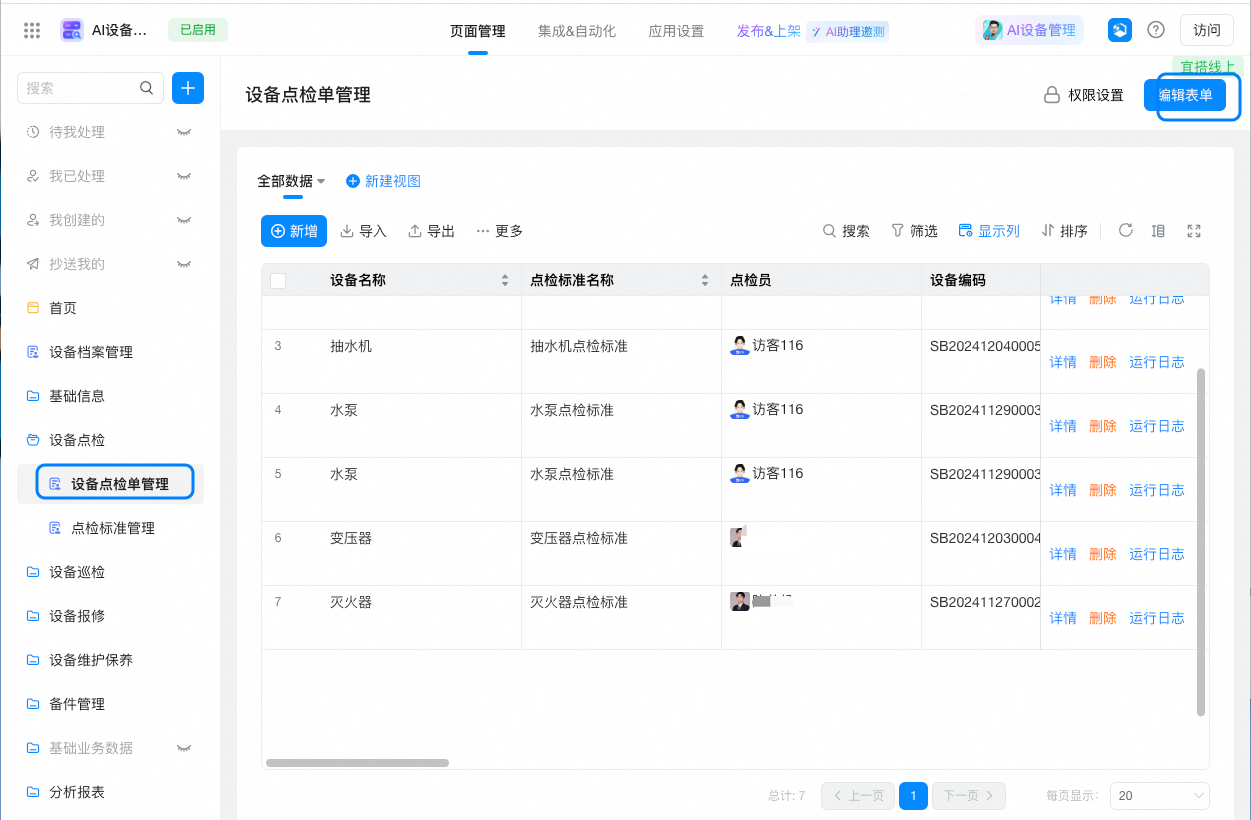
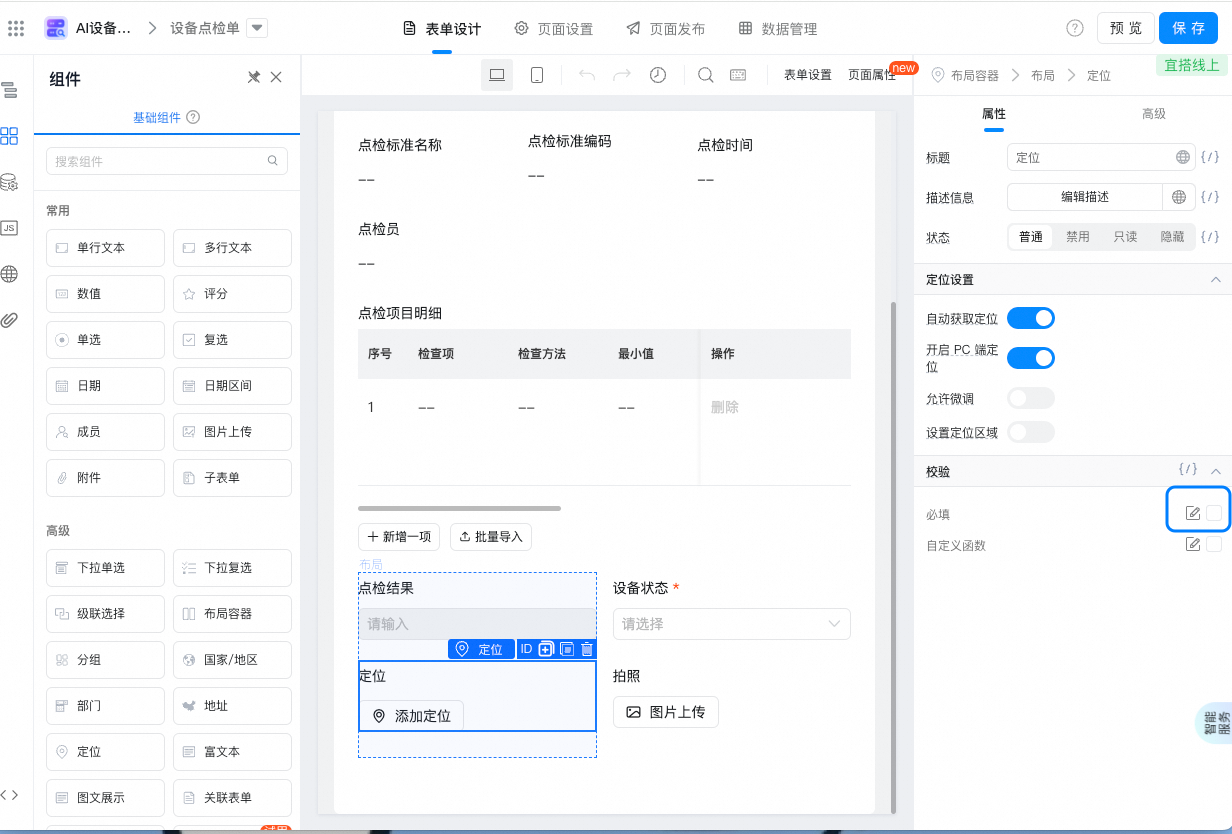
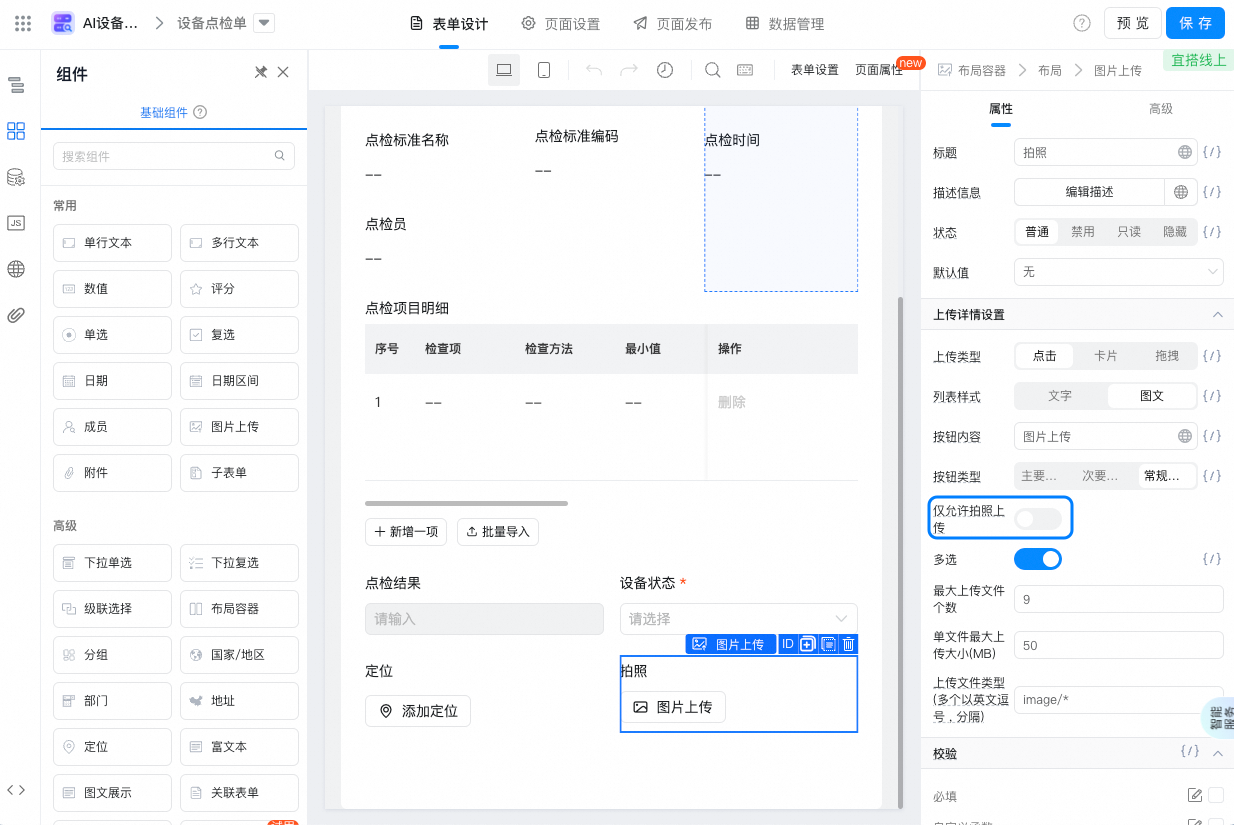
- Management background> device check list management> edit form> Select required for the positioning component. Only photos can be uploaded when the photo component is enabled.