Quick Start tutorial for task supervision
1. Basic configuration
Quickly configure permissions through roles
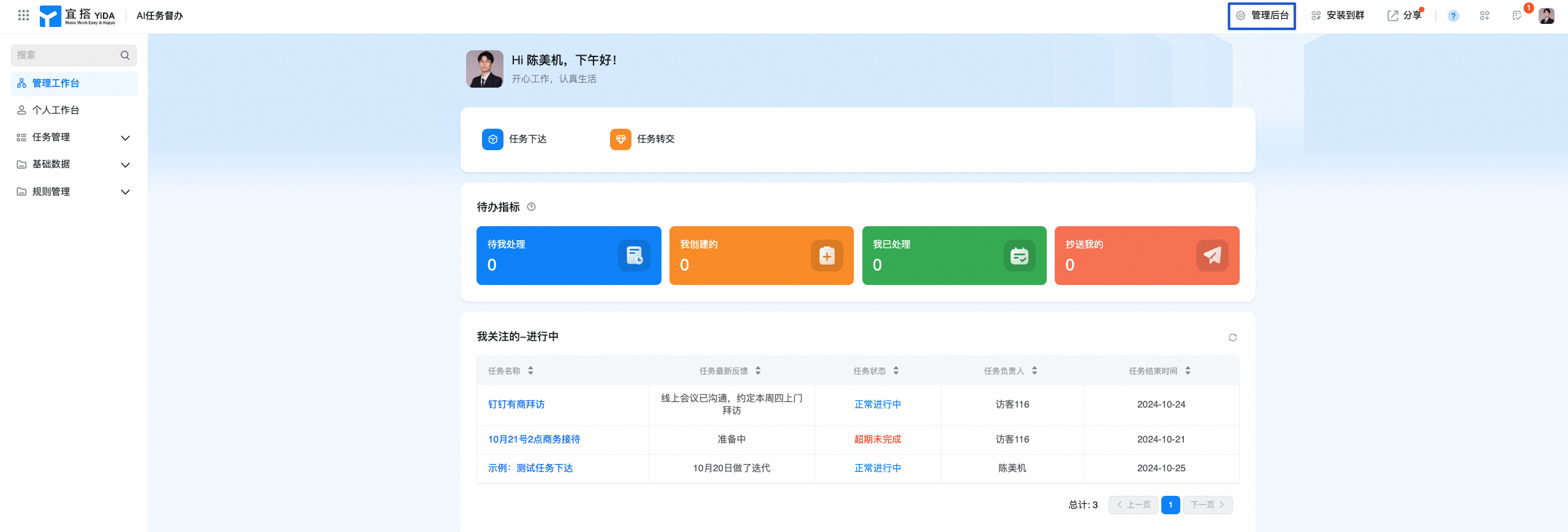
1. Go to the management background> Application Settings> Application roles and add corresponding role members
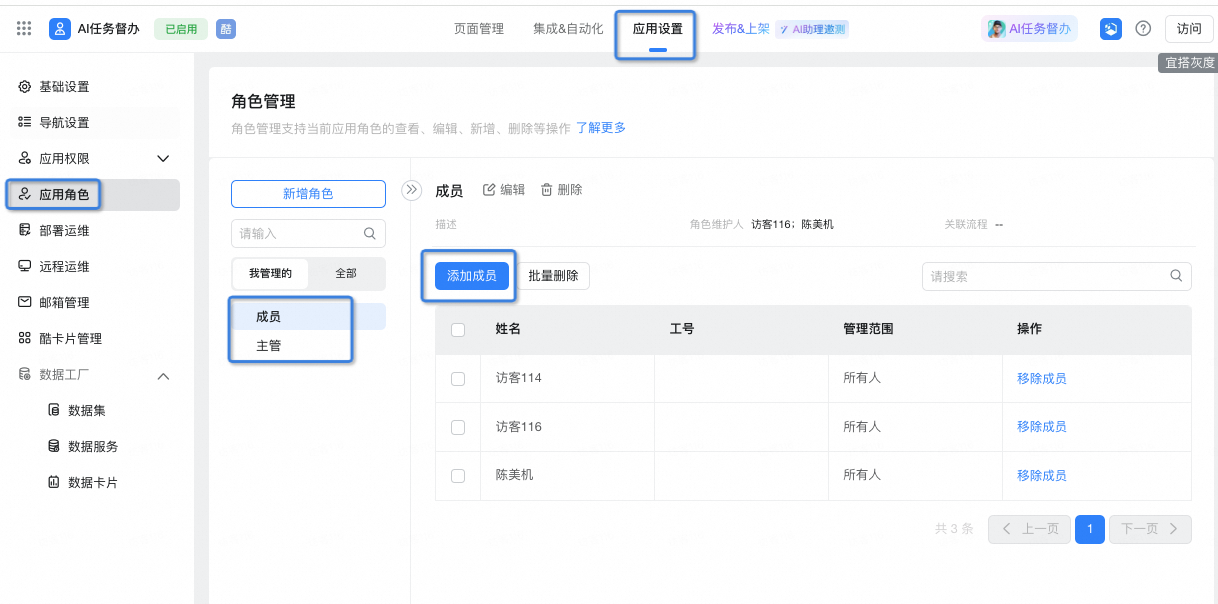
2. After the addition is successful, you can have the permissions of the corresponding role.
Take task permissions as an example. Members can only see tasks that are people of concern and cannot see other tasks.
The supervisor role can see all tasks.
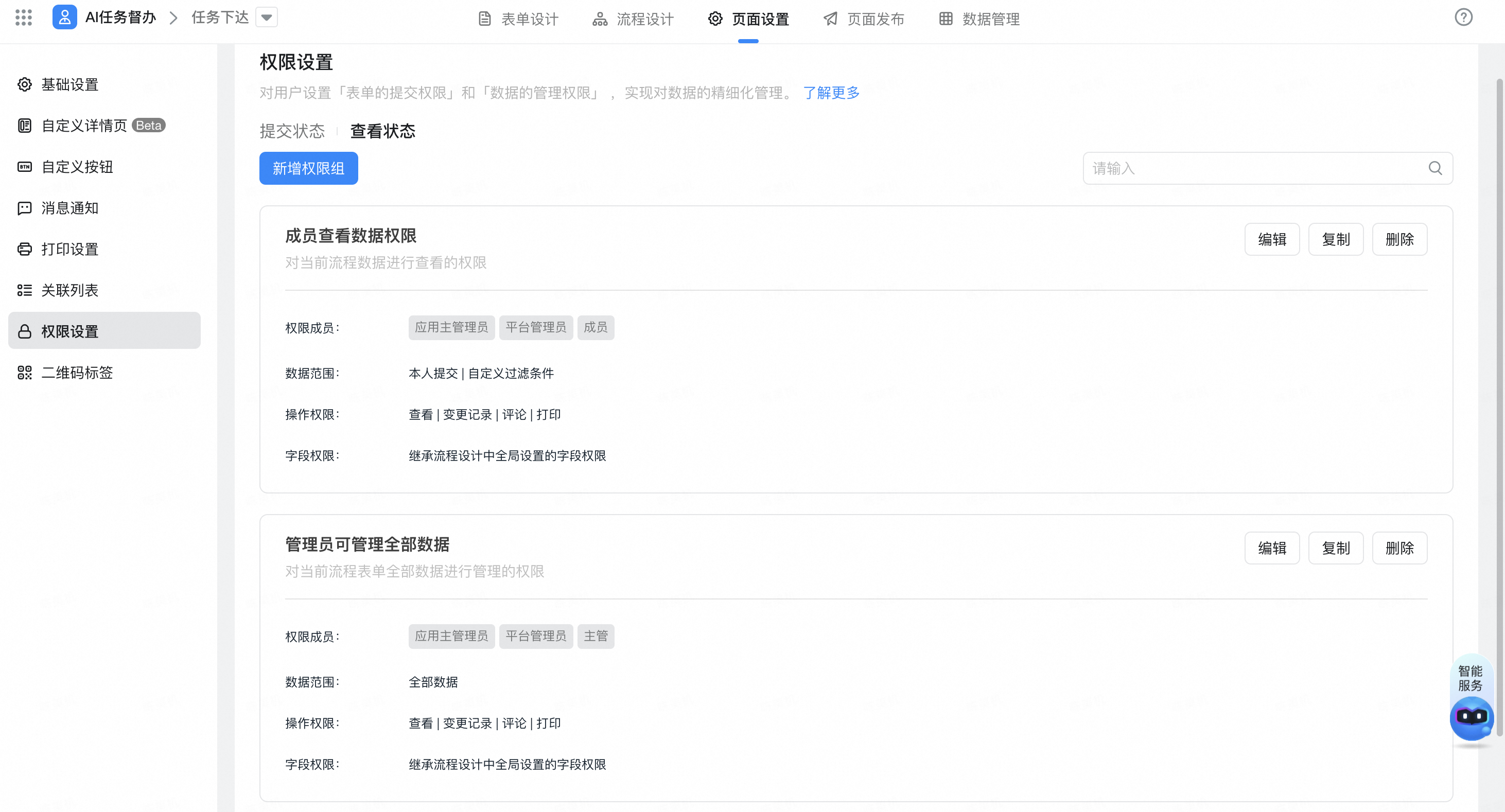
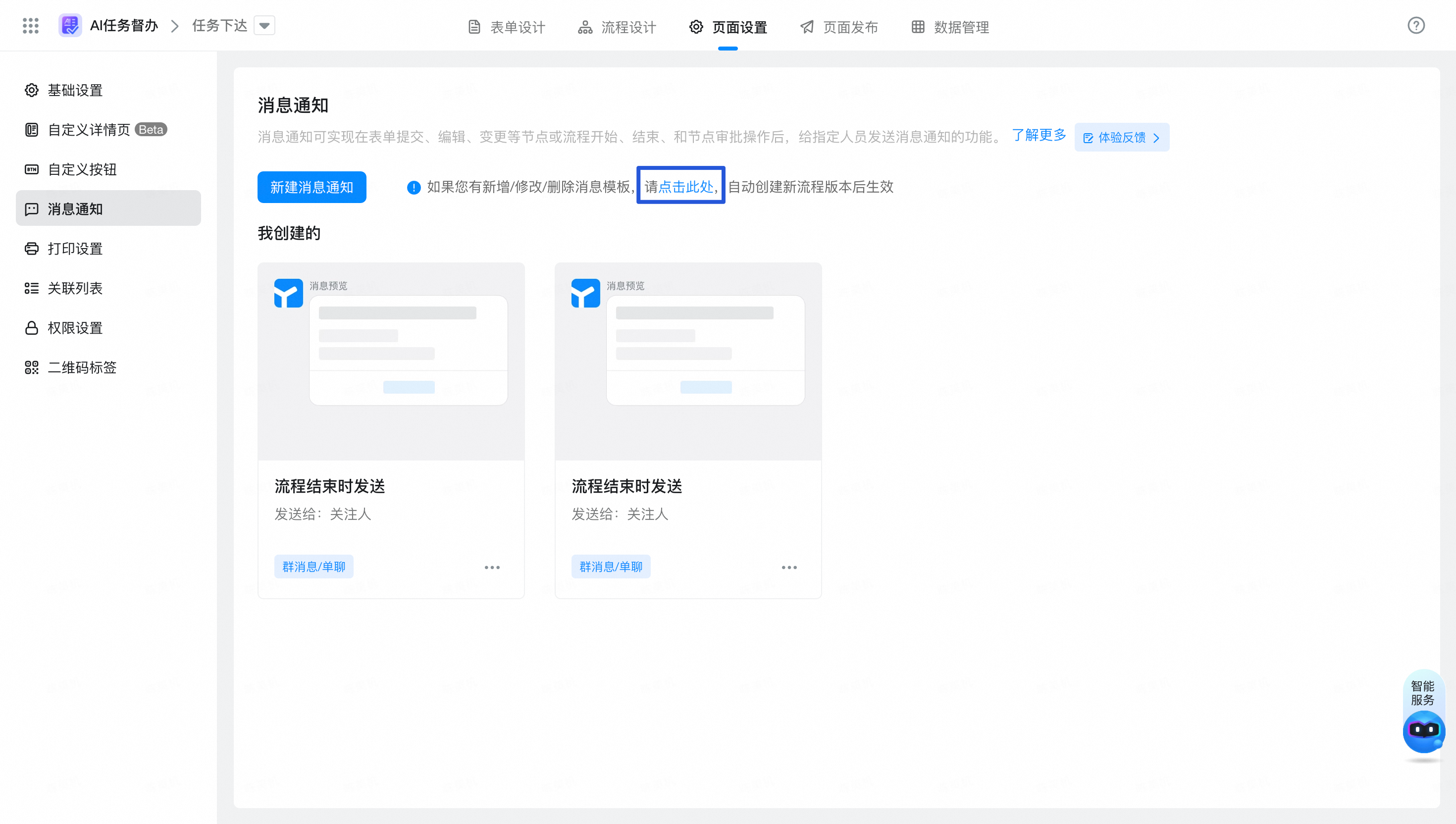
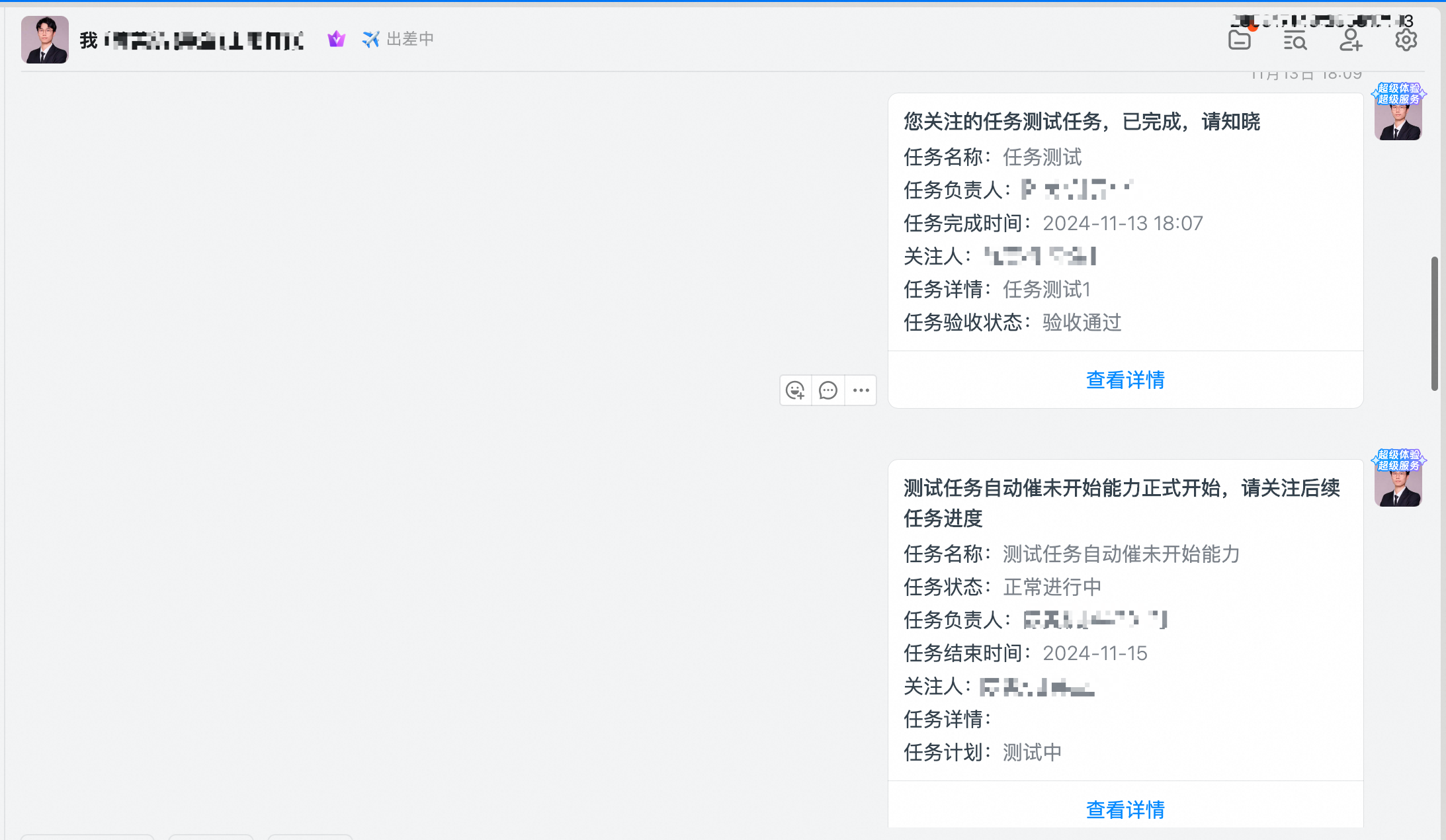
3. Enable message notification capabilities for task release, progress feedback, task completion forms, and
Click manage background, click task release form to enter form design, click page settings, click message notification, and click the box to open message notification.
For more information about progress feedback and task completion forms, see how to enable message notification.
2. Process configuration
You can configure the approval process of task release, progress feedback, task completion, and extension application according to enterprise needs.
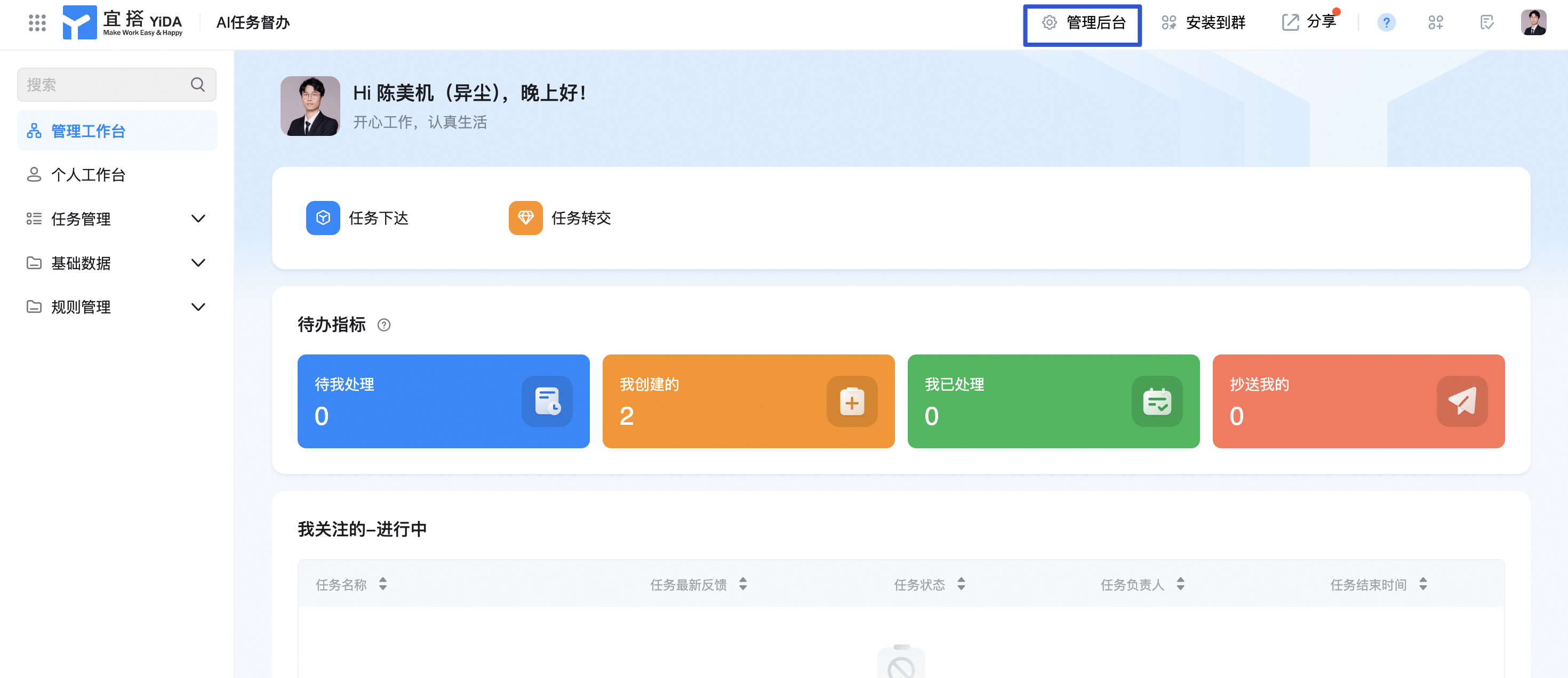
1. Click to enter the management background and open 「Task release", click edit form-process design on the right.
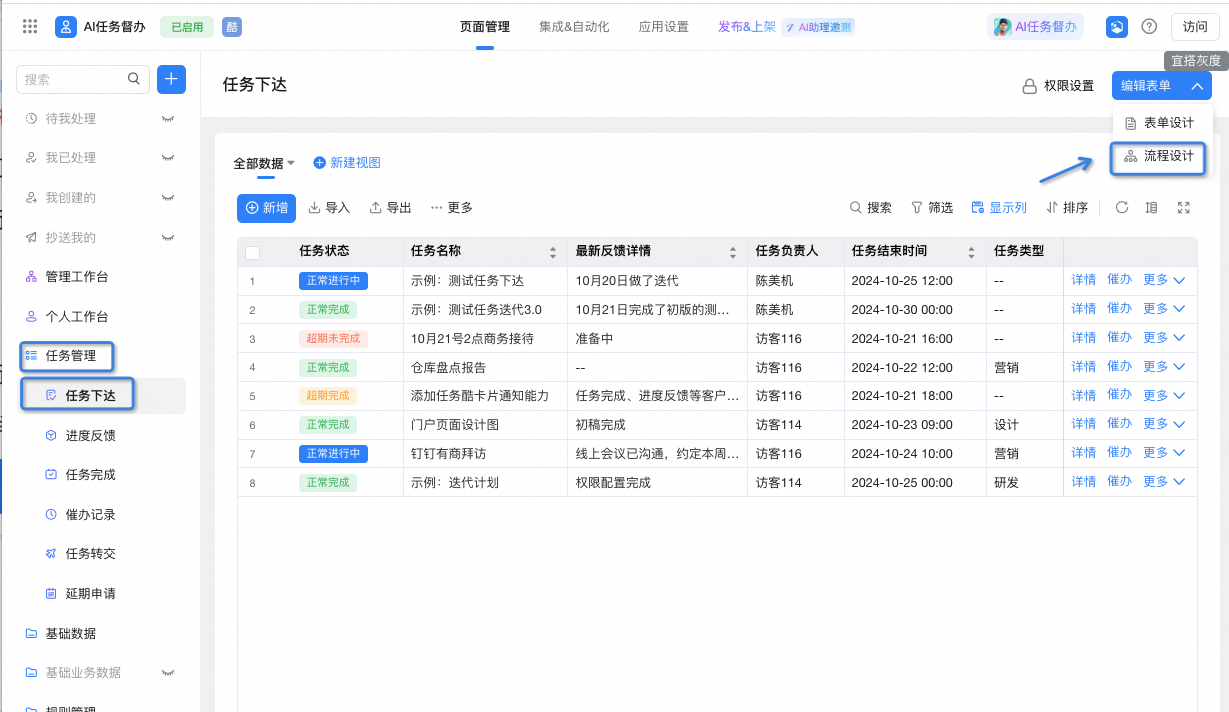
2. Click create new process on the right
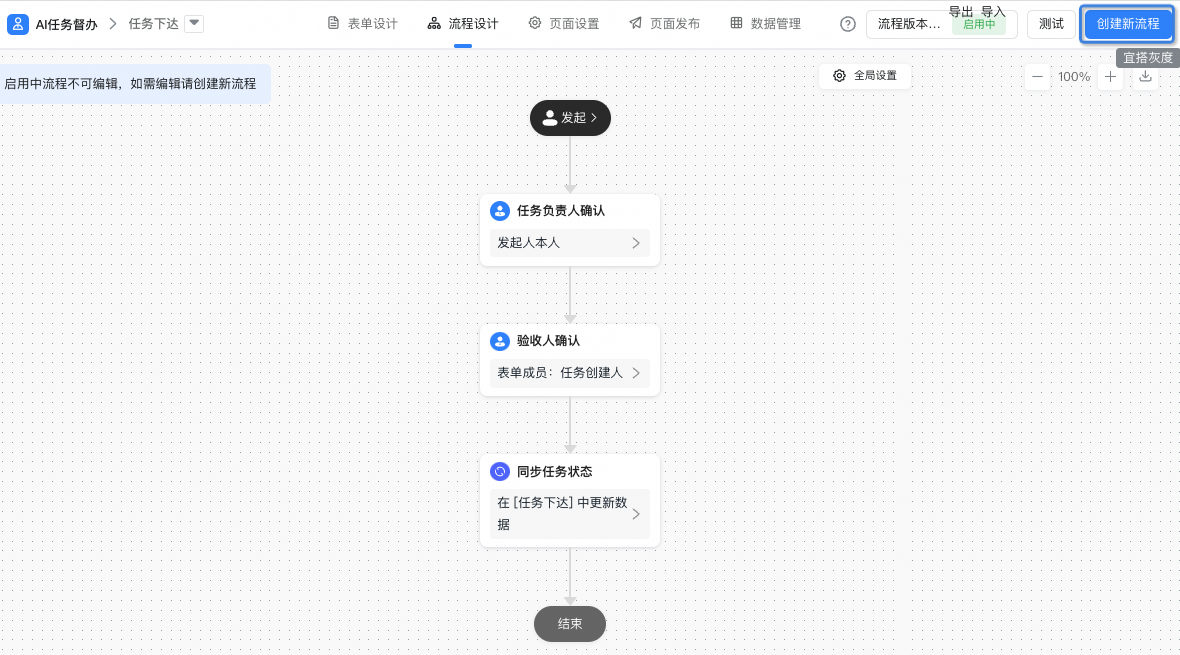
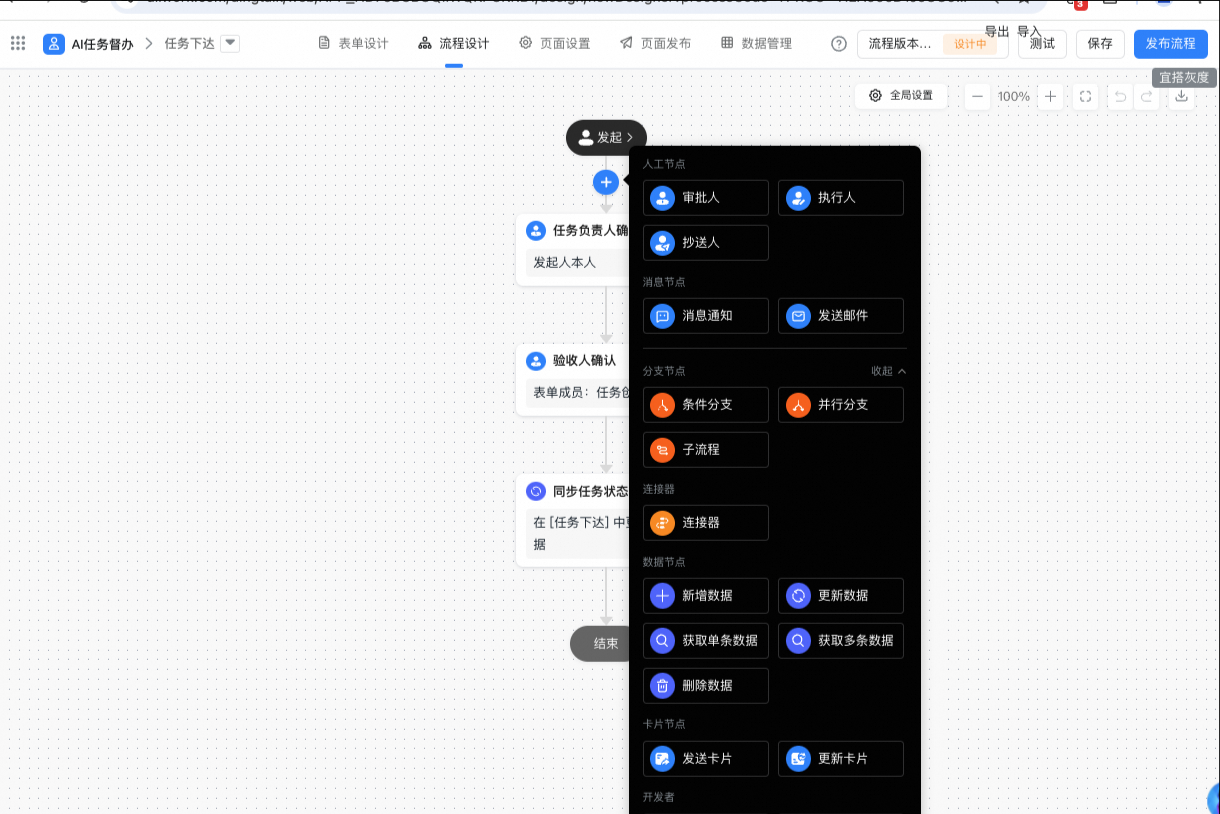
3. At this point, you can go to the process Editing page in task release, where you can customize the build process, such as creating a new process node,Configure the owner of each node, etc.
3. Release to DingTalk workbench and group
Next, we publish the task supervision application to the workbench or DingTalk group to achieve efficient business collaboration on the DingTalk workbench or DingTalk group.
1. Release to DingTalk Workbench
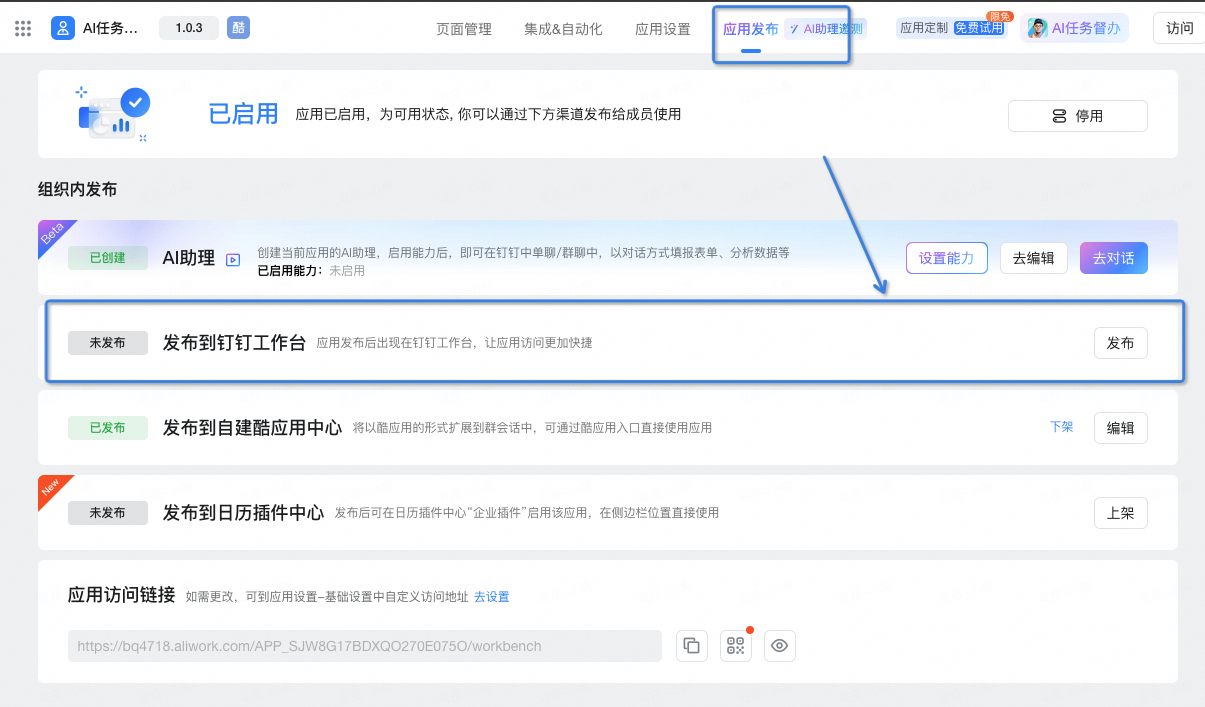
- Click publish on the top of the application, and click publish on the DingTalk workbench.
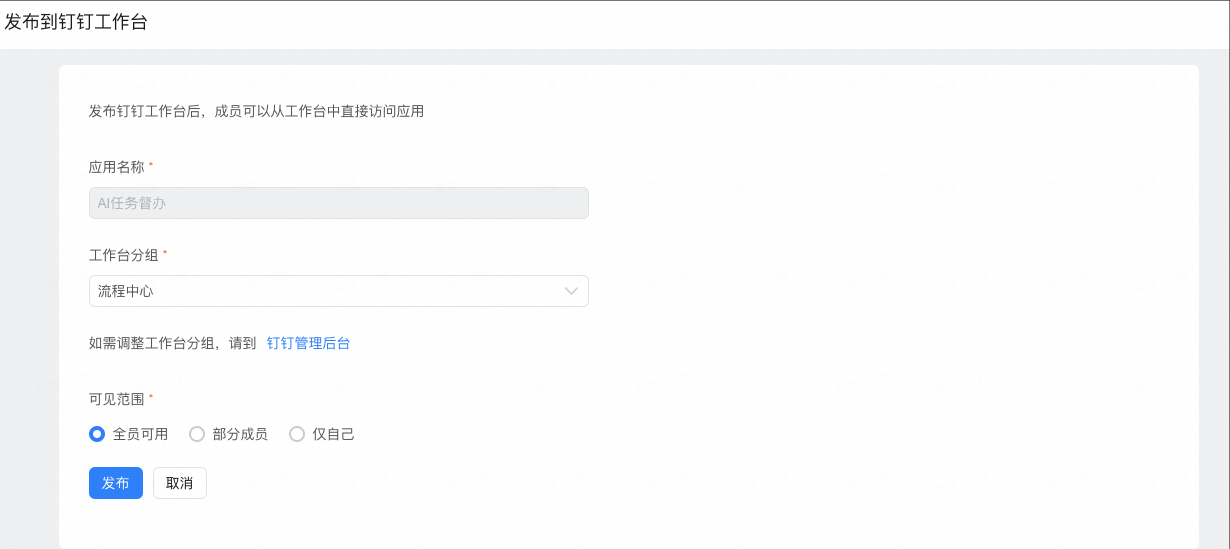
- Set Release settings as required. Generally, see the following to complete the configuration. Click Publish.
- After the release is successful, you will see the AI task supervision application on the DingTalk workbench.
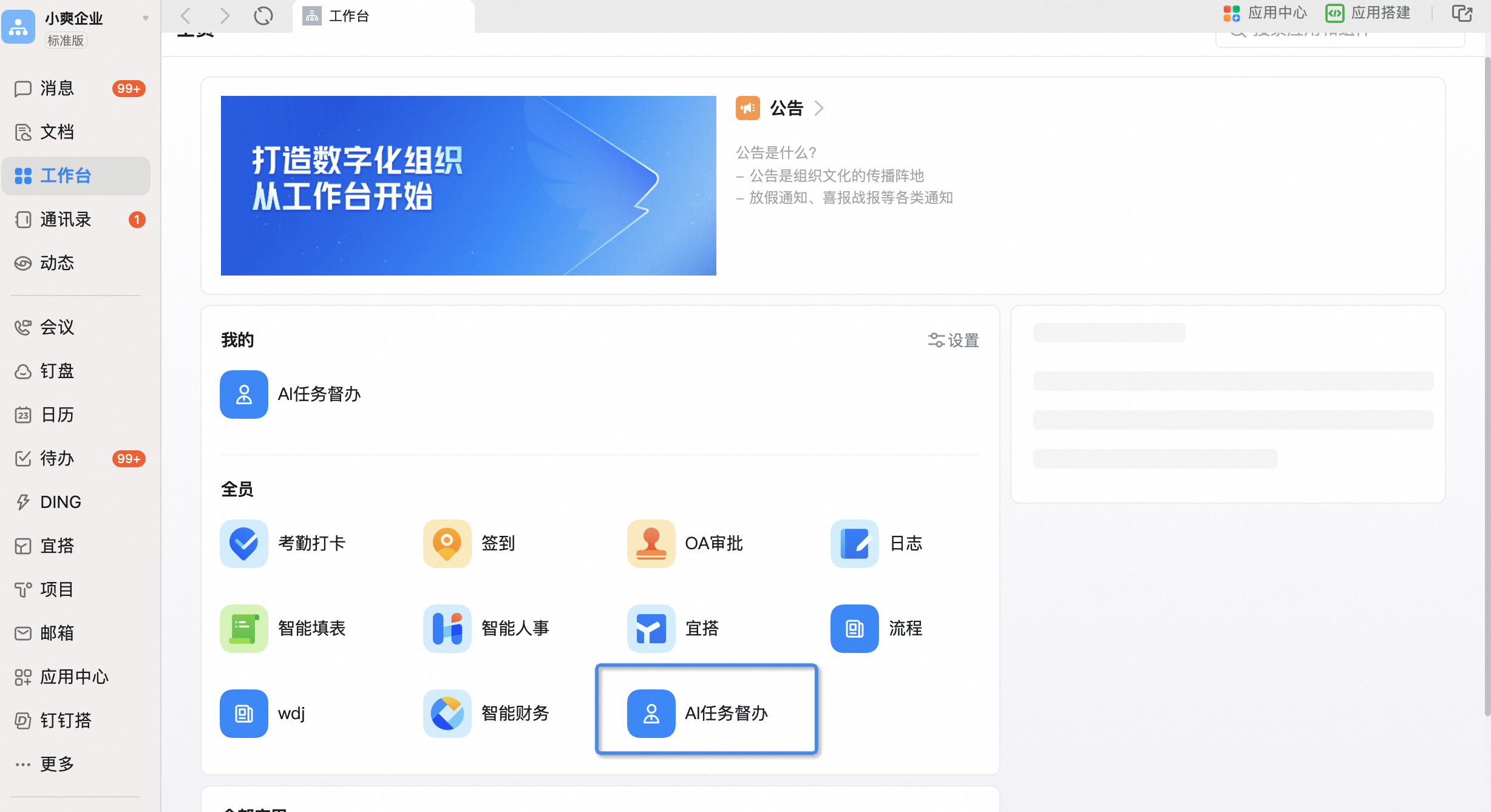
2,Publish to DingTalk Group
- Click publish in the upper-right corner and click Publish to self-built Cool App Center.
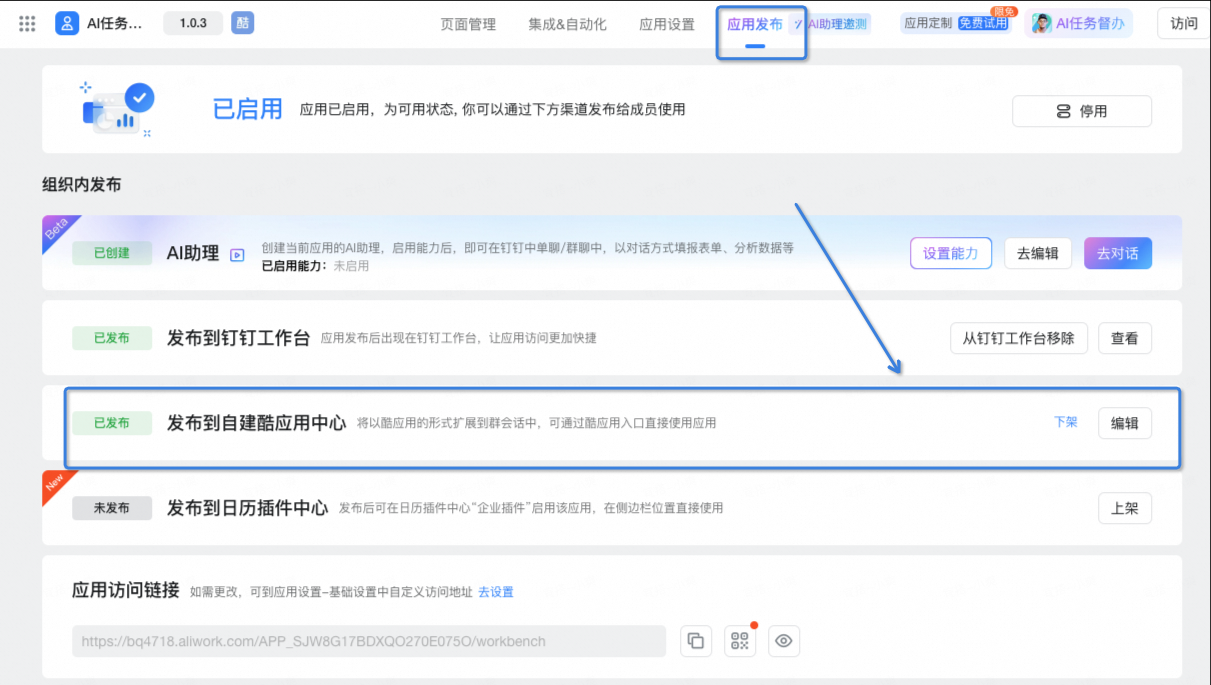
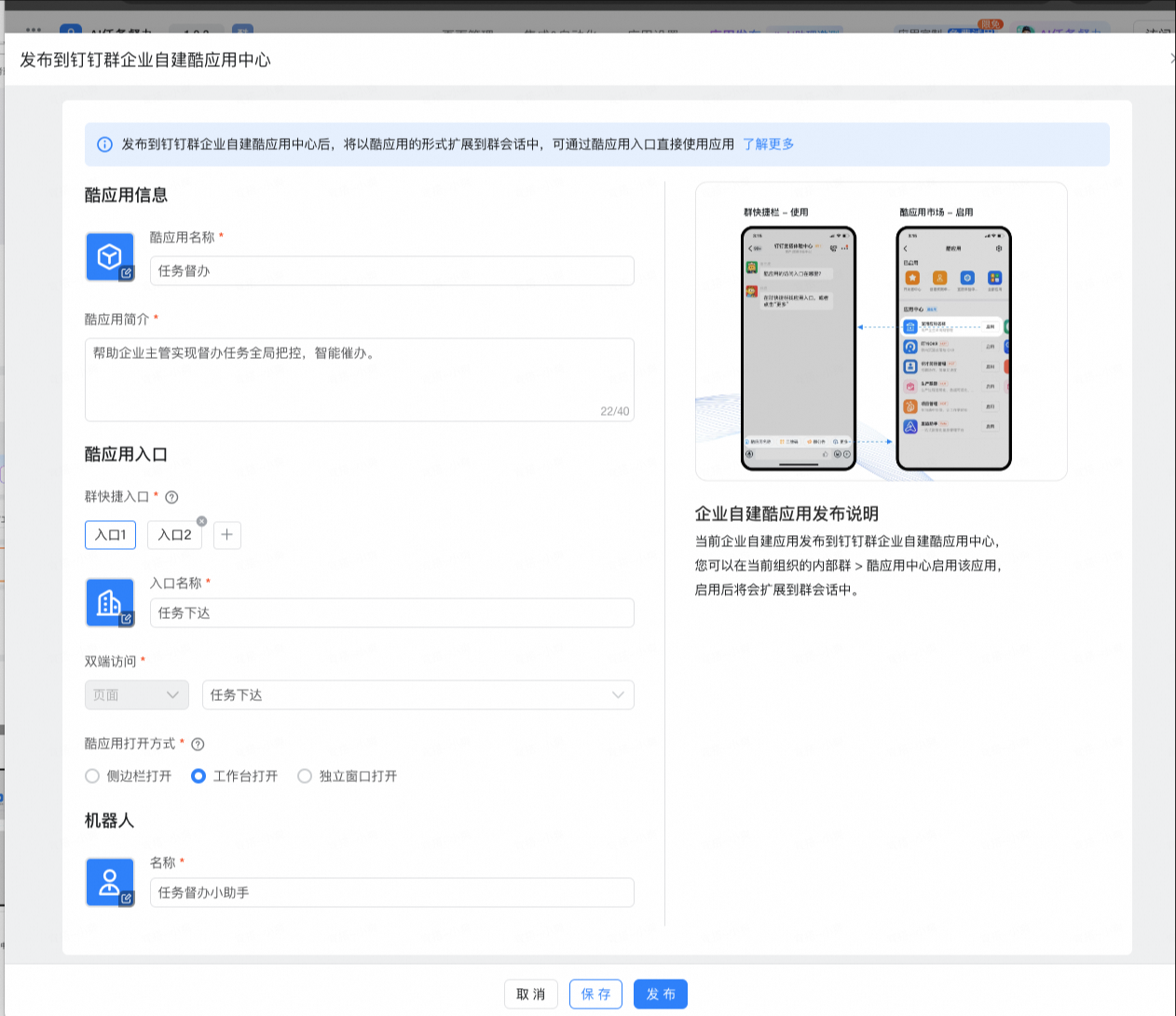
- Click edit to configure the shortcut portal in the group application, such as Quick Start task release, quick process progress feedback, etc.
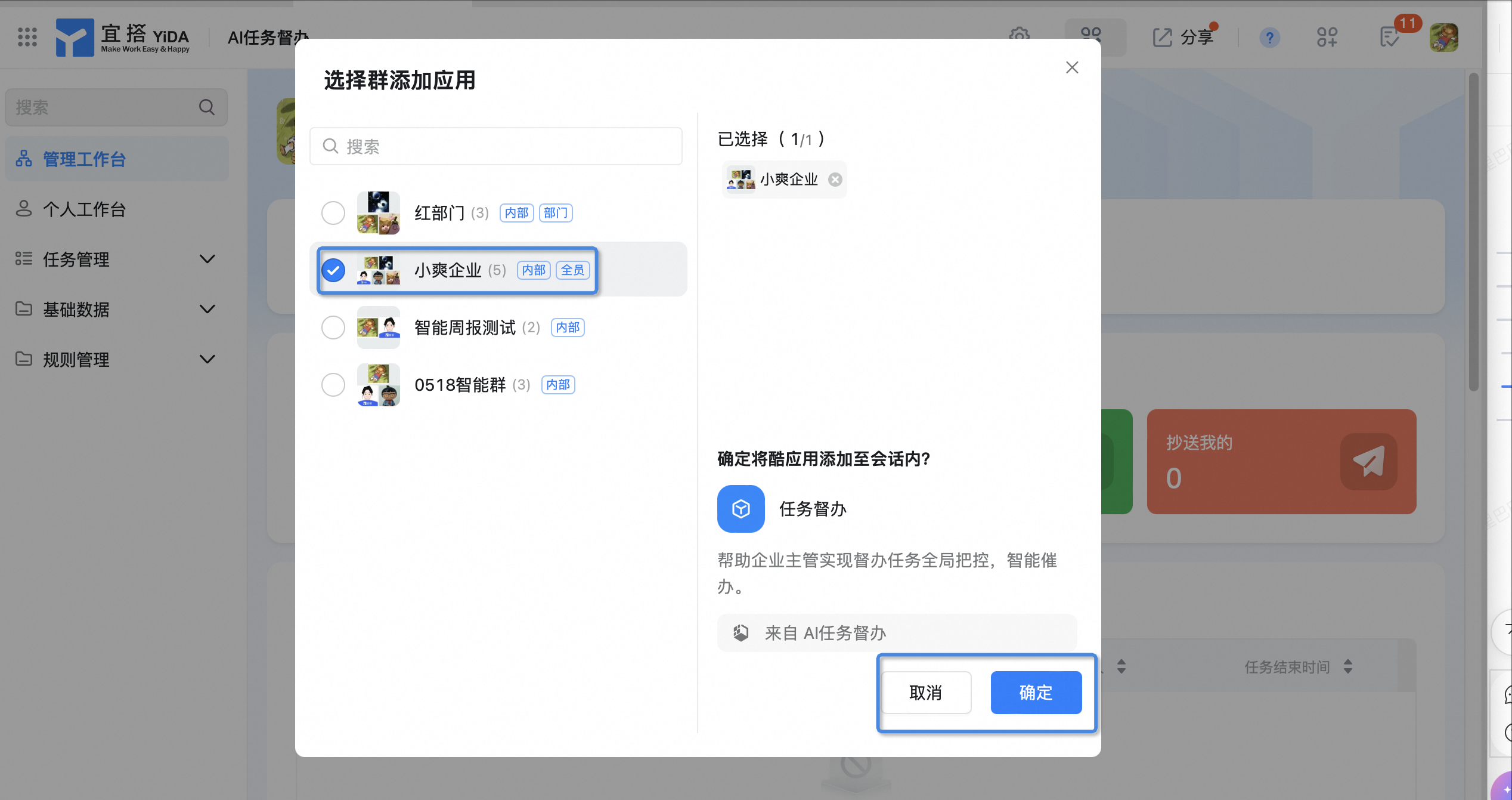
- Open AI task supervision on the DingTalk workbench and click install to group in the upper-right corner.
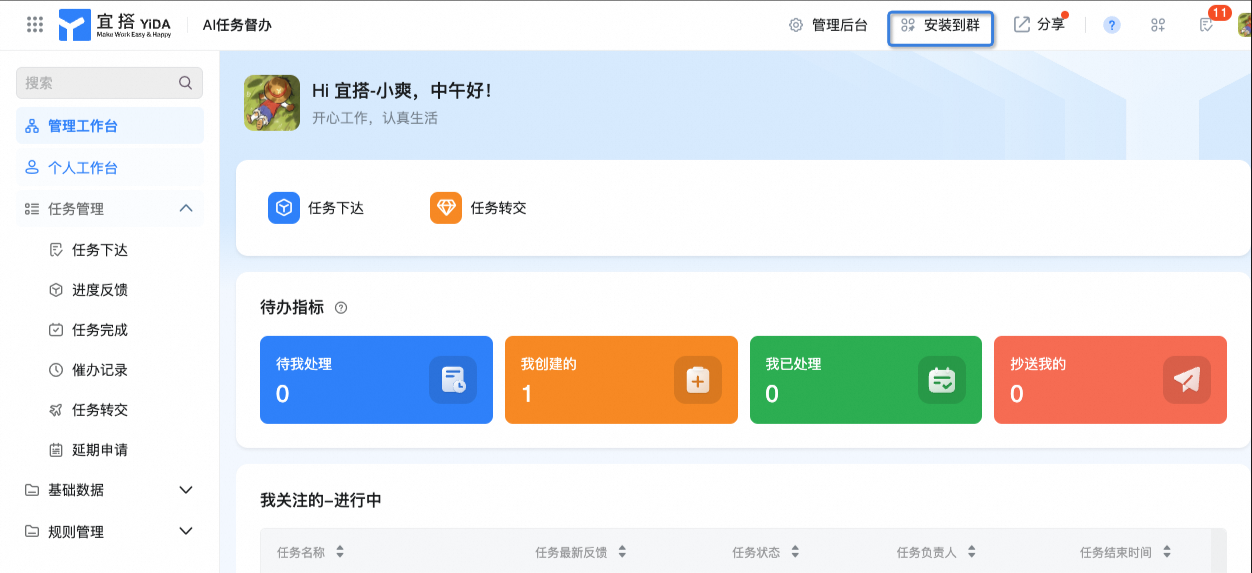
- Select the group chat to be installed, and click OK.
IV. Assign the first task
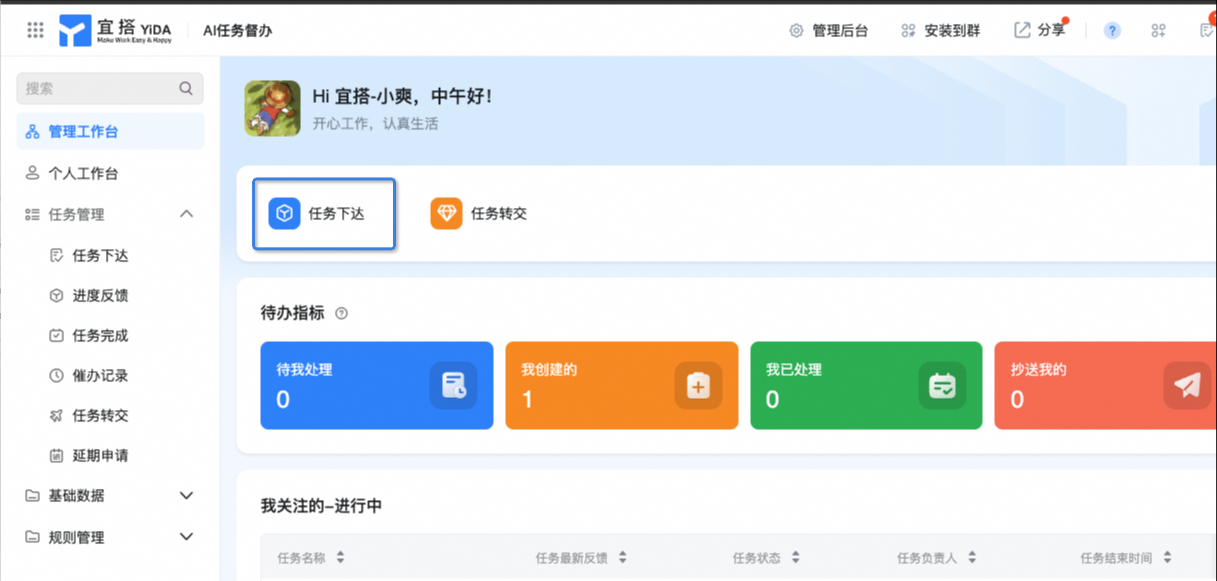
1. Click task release in the workbench to enter the task release interface.
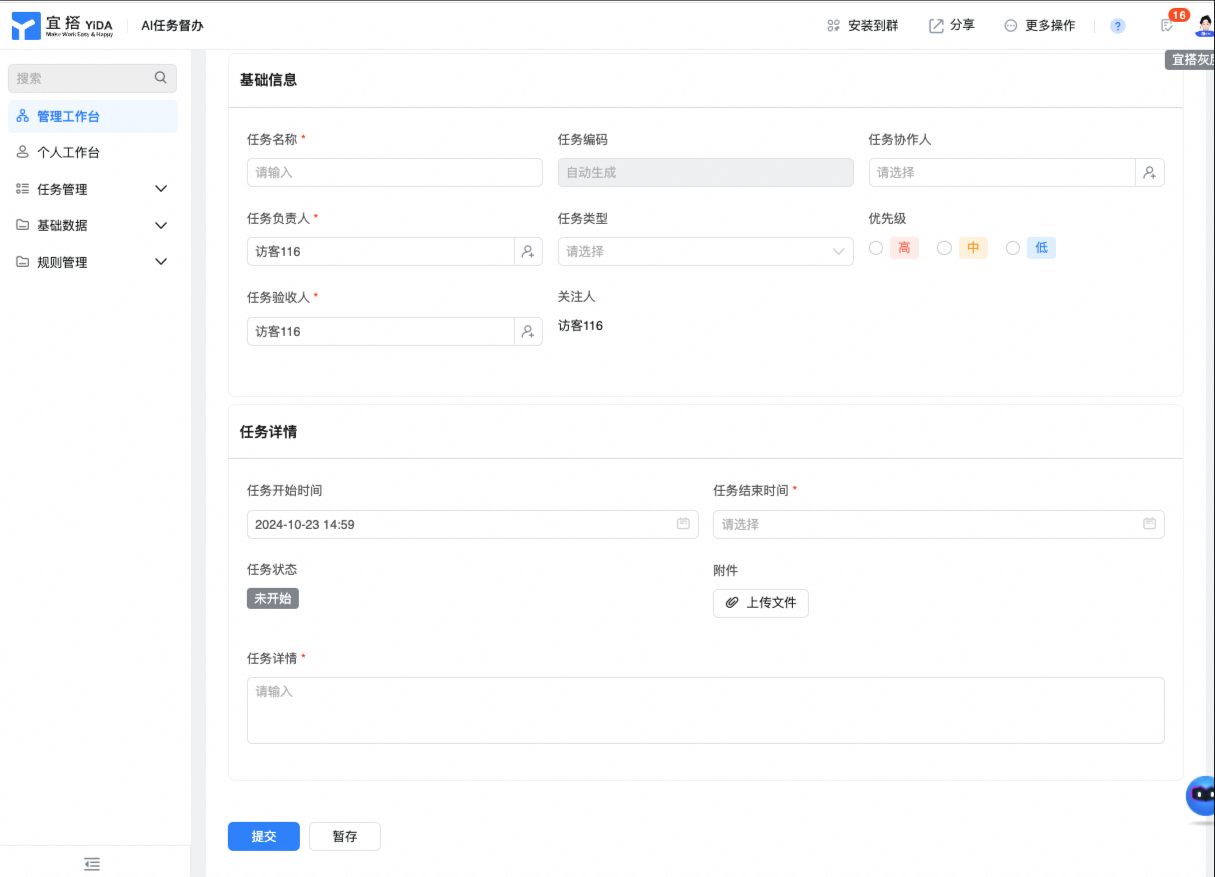
2. Fill in basic task information and task details for submission
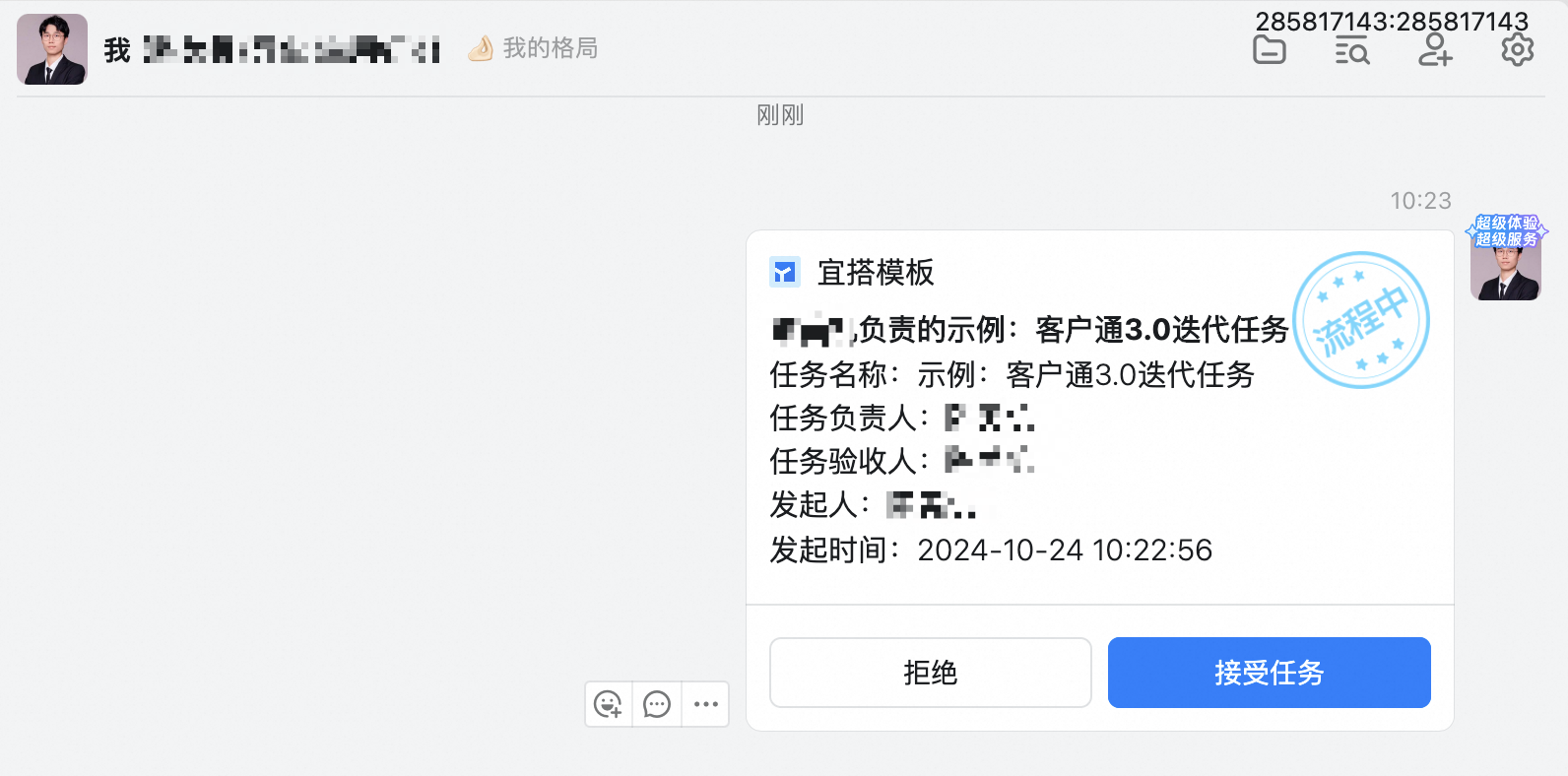
3. The task owner will be automatically notified of the DingTalk task to do list.