Task supervision function introduction
Level 1 module | Secondary module | Function Details |
Task release | Task release | The task can be assigned online with one click. After the task is assigned, the task is automatically assigned to the task owner and other relevant personnel through DingTalk to complete the task. And automatically notify all task stakeholders through DingTalk messages. |
Smart reminder | Periodic automatic release of progress feedback reminder | You can configure how many points per week to automatically issue the to-do list of progress feedback to all ongoing task leaders. You can repeatedly and intelligently urge the task to feedback the progress several times after the task is issued to realize automatic reminder and complete task progress collection. |
Overdue reminder smart reminder | You can configure the task owner to be automatically urged x days before the task expires. You can automatically remind task leaders and related persons within the time limit. | |
One-click task reminder | You can click one click to initiate a reminder. After the reminder is initiated, the reminder automatically sends a reminder to the task progress through the DingTalk to do list. After the reminder replies, the reminder automatically notifies the reminder through the DingTalk message, and the reminder records all the marks. | |
Progress feedback | Progress feedback | Support the task owner to feedback the task progress online at any time, and automatically carry out the next step according to the task feedback progress. For example, when the risk is feedback, the risk is automatically notified, and the task feedback is completed to automatically initiate the acceptance process. |
Task acceptance | Task acceptance | The task owner is supported to initiate task acceptance anytime and anywhere. After the task is initiated, the task is automatically transferred to the task acceptor through DingTalk. The task acceptance is automatically modified to complete. The task can only be completed after the acceptance is passed, cannot be modified at will. |
Task extension | Task extension | The task cannot be postponed at will. When the task leader needs to postpone the task, he/she needs to initiate a task extension application and then automatically transfer it to the task acceptor for approval, after the approval is passed, the system automatically modifies the latest required completion time of the task. |
Task transfer | Task transfer | The task cannot be transferred at will. When the task leader is to be transferred, you need to initiate a task transfer application, and then transfer it to the task acceptor for approval. After the approval is passed, the system automatically modifies the latest task leader. |
Workbench | Supervisor Workbench | Managers can view the progress of all tasks they are concerned about on the workbench, initiate reminders, etc. |
Personal Workbench | Individuals can view all task progress, feedback progress, and initiate acceptance at the workbench. | |
Task achievement analysis | Data-driven organization management can be realized by analyzing the overall situation, each department and each person's task completion based on data. | |
AI supervision | AI voice release task | Can support DingTalk AI assistant voice conversation task release Note: High-order separate payment capability |
AI proactively perceives dialog tasks | AI assistant can automatically recognize 1-to-1 message records and group messages, and then AI assistant completes the task | |
AI active broadcast task progress + one-click reminder | AI assistant can automatically broadcast the progress of all tasks every day and every week. Click to urge | |
Nail fusion | Deep integration with DingTalk | DingTalk to-do connection, automatic notification of DingTalk messages, automatic release of DingTalk messages to groups, support initiating tasks in groups, etc. |
I. Function of supervisor
1. Enter the supervisor Workbench

2. Task release
- Fill in basic task information and task details

- After the task is created, the task leader confirms and fills in the task execution plan. Finally, the acceptor confirms that the task is officially started.

3. View the progress of the task that you are followingDetails
- You can clearly see the task progress details and task status analysis through the supervisor workbench.
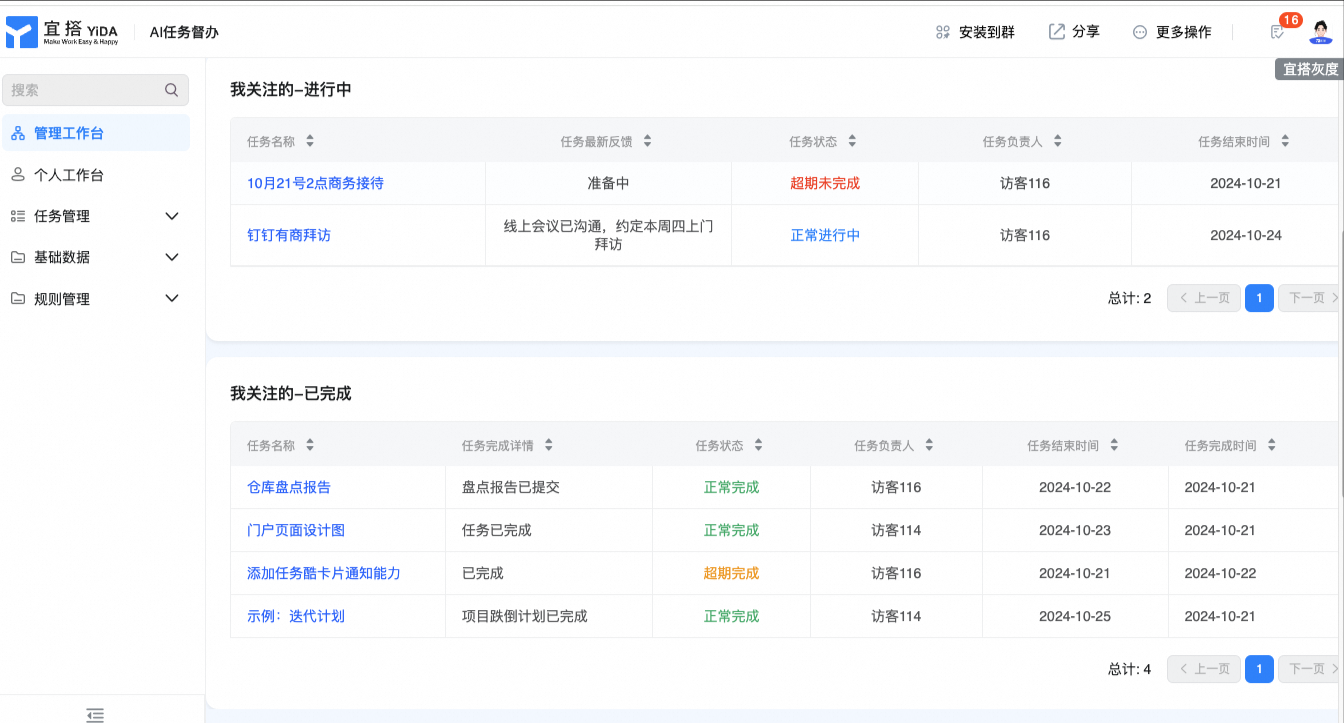

- Click the task name to view the task progress details, and you can perform actions such as comments, reminders, and progress feedback.

4. Automatic reminder for overdue tasks
- Configure the number of days that a task is overdue.

- 10 o'clock every dayAutomatically send overdue reminder notifications
 |  |
Note: you must first enable scheduled triggering.
Step: manage the background> Integration & automation> scheduled trigger

5. Reminder task
- Go to the task details and click the reminder button to initiate the reminder process.


- After the reminder, the task leader will be automatically notified of the occurrence of work on DingTalk, and the feedback content will be filled in.

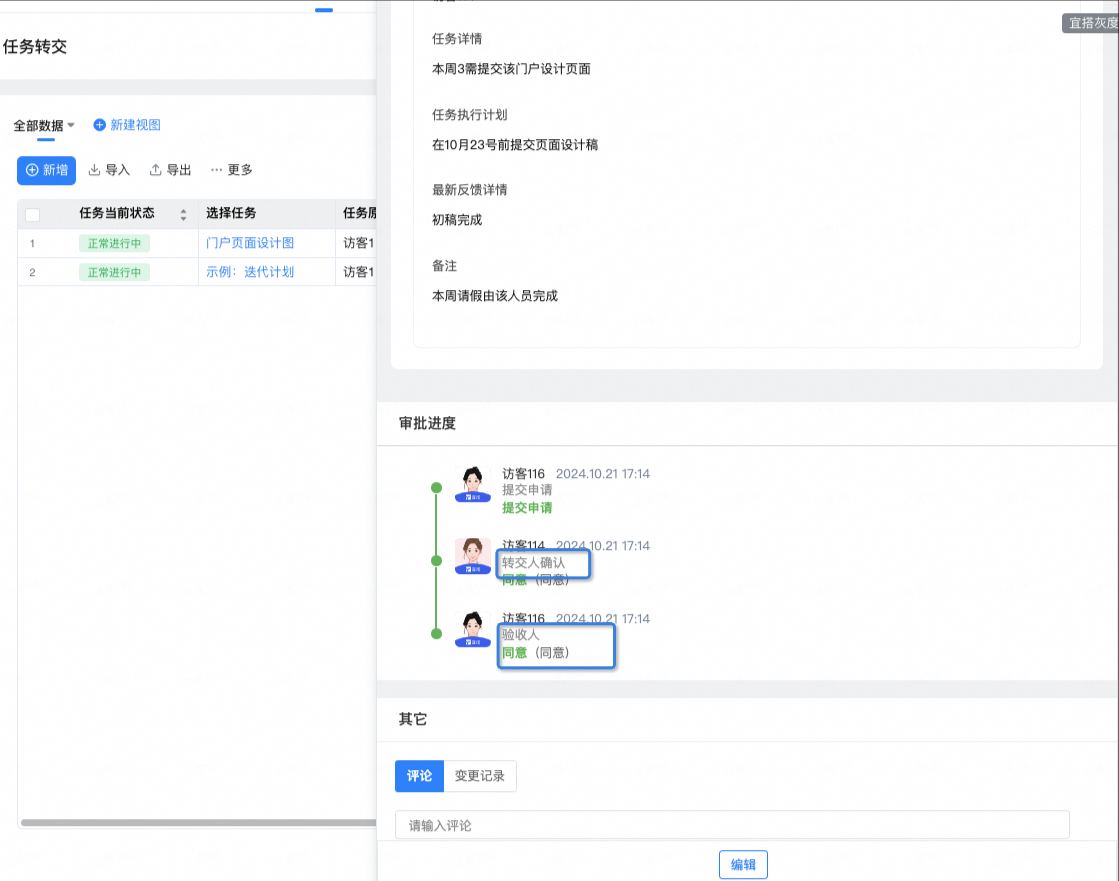
6. Task transfer
Click task transfer. The task owner can transfer the task to the new task owner.

- After submitting the task, it shall be confirmed by the transferor and the acceptor, and transferred to complete the task.
II. Personal use function
1. Enter the personal Workbench

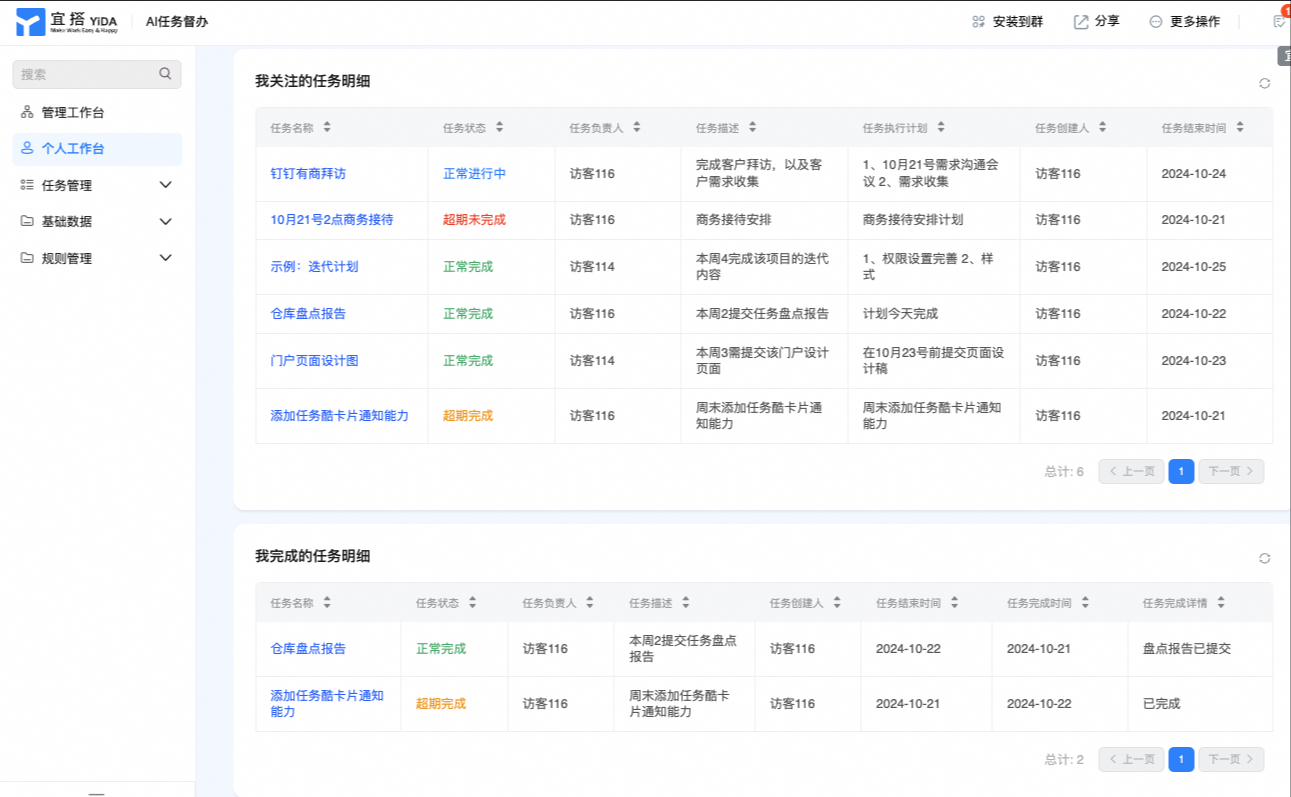
2. Check the tasks to be completed and follow upFeedback
- View the total number and task details to be completed

- Click the task name to enter the task details.
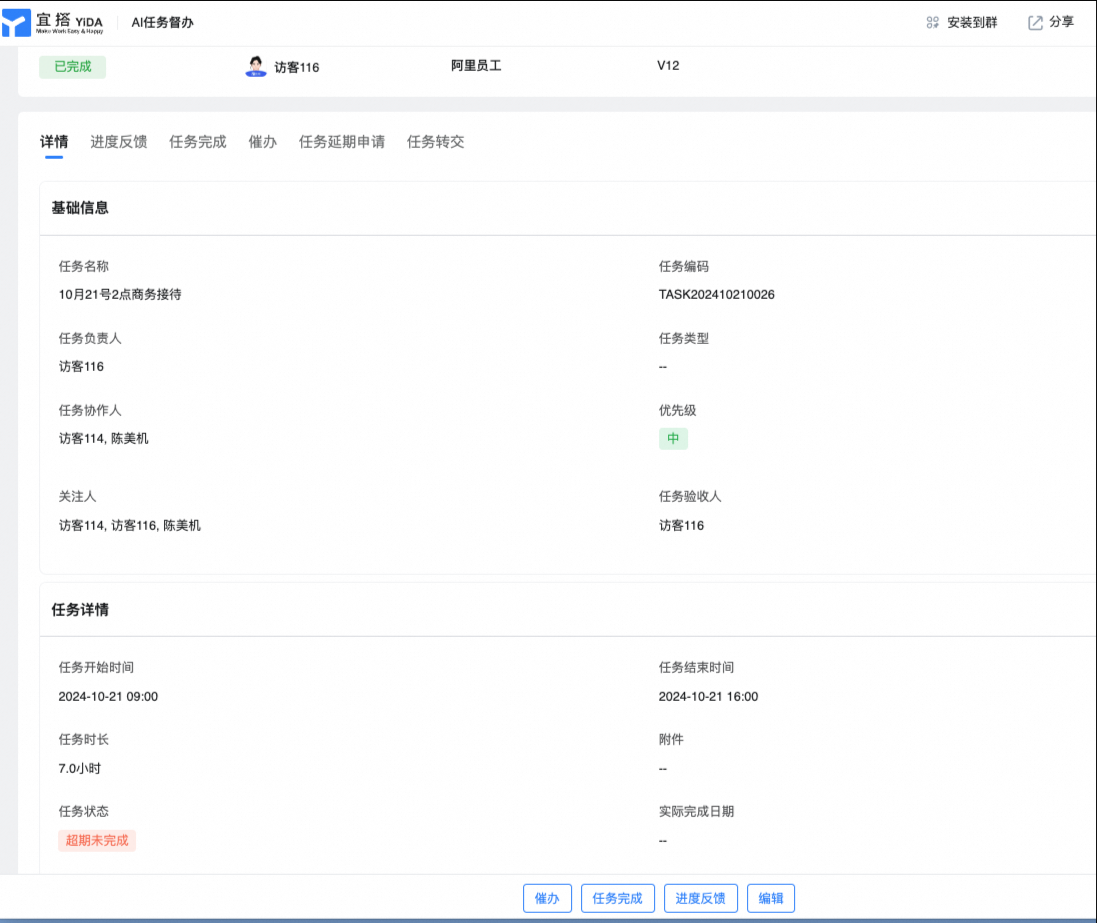
Click progress feedback to follow up the task and send a progress feedback card to the current group.


- When the follow-up status is risk, a risk notification card will be sent to the task acceptance personnel and the current group.

3. Submit the task to complete
- Click task completion, submit the task completion process, and the acceptance personnel will complete the acceptance.
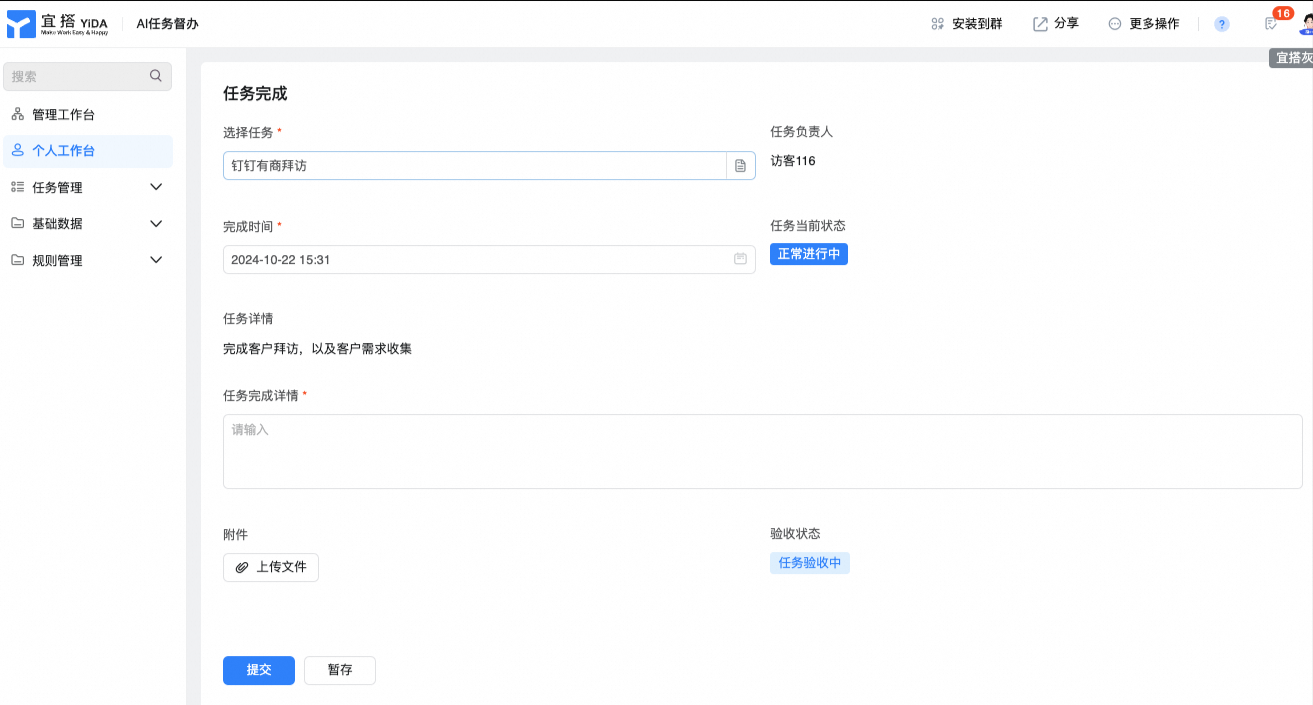
- After the acceptance personnel approves and agrees, synchronize the task completion status and send the task completion notification card to the current group.
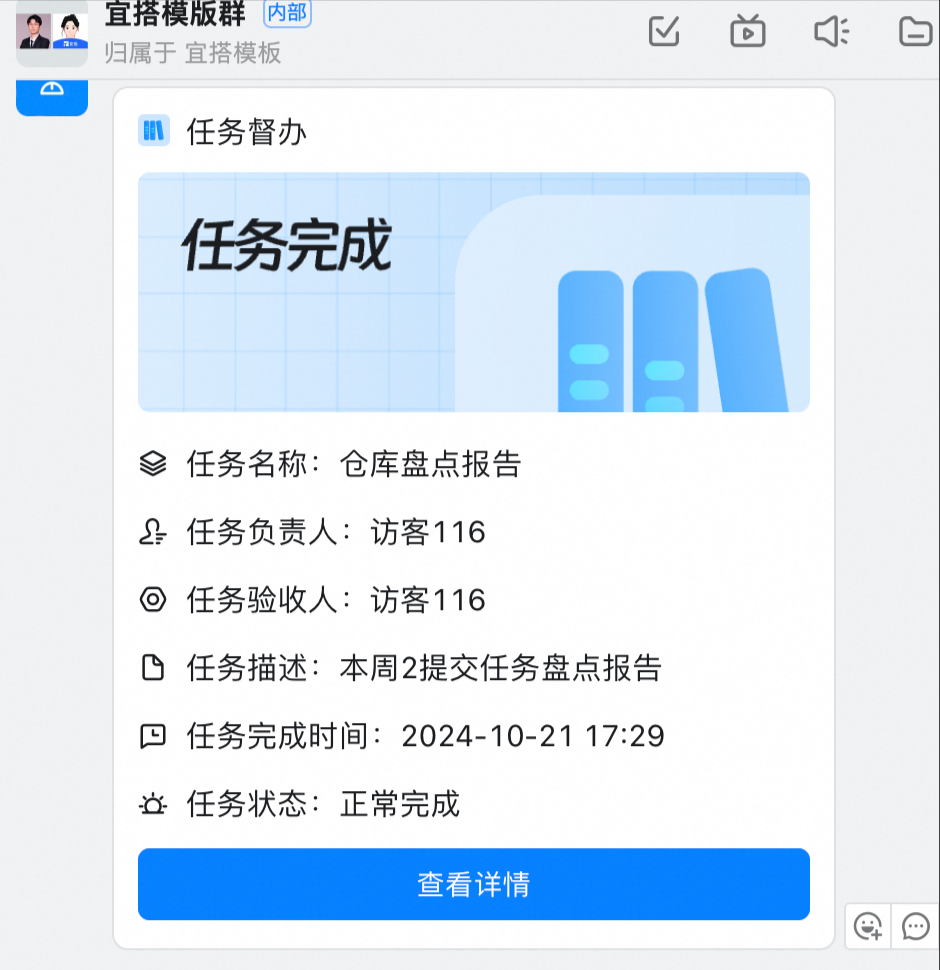
4. Task transfer
Click task transfer. The task owner can transfer the task to the new task owner.

- After the task is submitted and transferred, it shall be confirmed by the transferor and the acceptor, which is to complete the task transfer.

5. Submit a delayed application
- Submit an extension application, the task owner can apply for an extension of the task completion time.

- Notify the acceptance personnel of the work notification for approval, and modify the end time of the new task synchronously after the approval is passed.

6. Task intelligence reminder
- When the director service expires in x days, it will automatically remind the task owner, the current group and @ task acceptor. It will automatically remind you at 10:00 every morning.
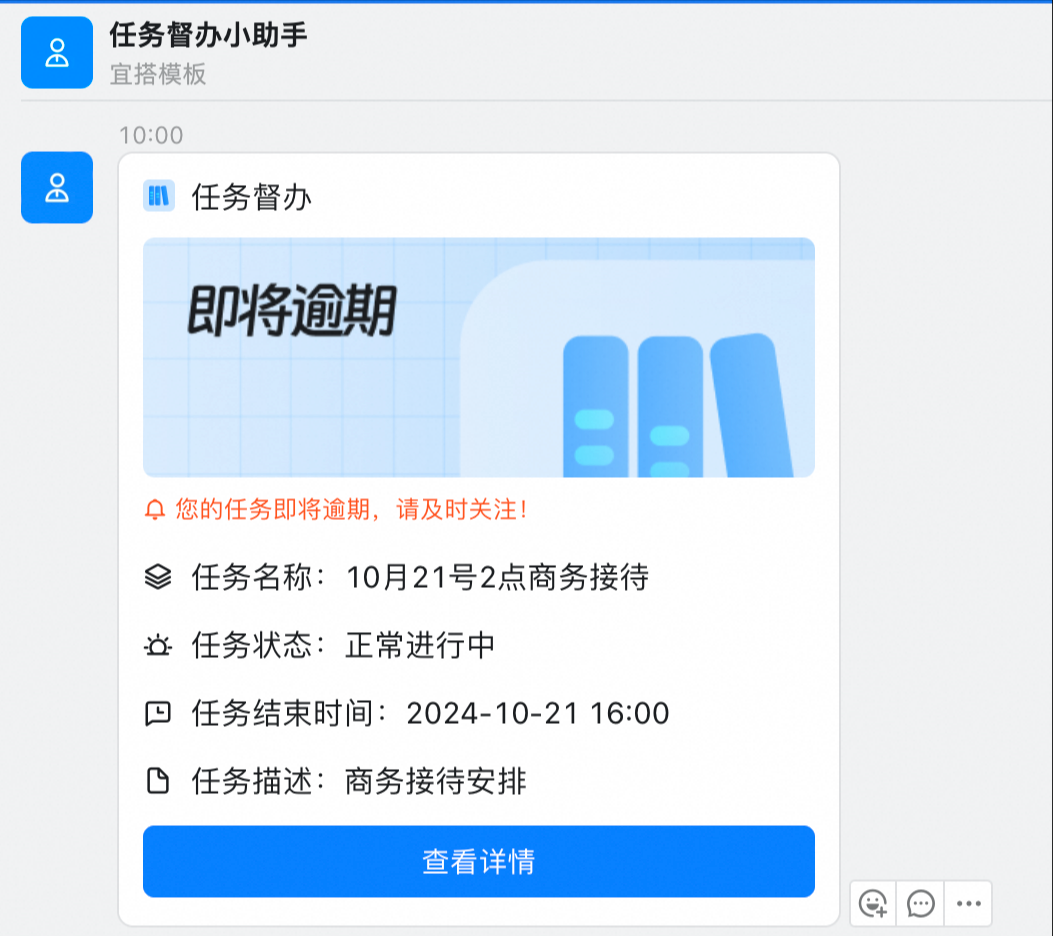
If the task is not completed within the time limit, the task owner, current group and @ task acceptor will be automatically urged every day.

III. All message notifications and configuration entry
Page | Details | Reminder | Screenshot of the configuration item | Effect test |
Task transfer | Send task transfer card when data approval is approved | Current task leader |  |  |
Task Completion | Send task completion card when data approval is approved | Current group |  |  |
Progress feedback | Send progress feedback card when data approval is agreed | Current group |  |  |
Progress risk feedback | Status when data is submitted = send risk notification card when risk occurs | Synchronize to task creator |  |  |
Task overdue reminder | Send a task overdue notification card based on the task end data (triggered every day) | Synchronization task owner, current group |  |  |
Reminder that the task is about to be overdue | Send a task overdue card according to the notification time point of the task submission (triggered every day) | Synchronization task owner, current group |  | 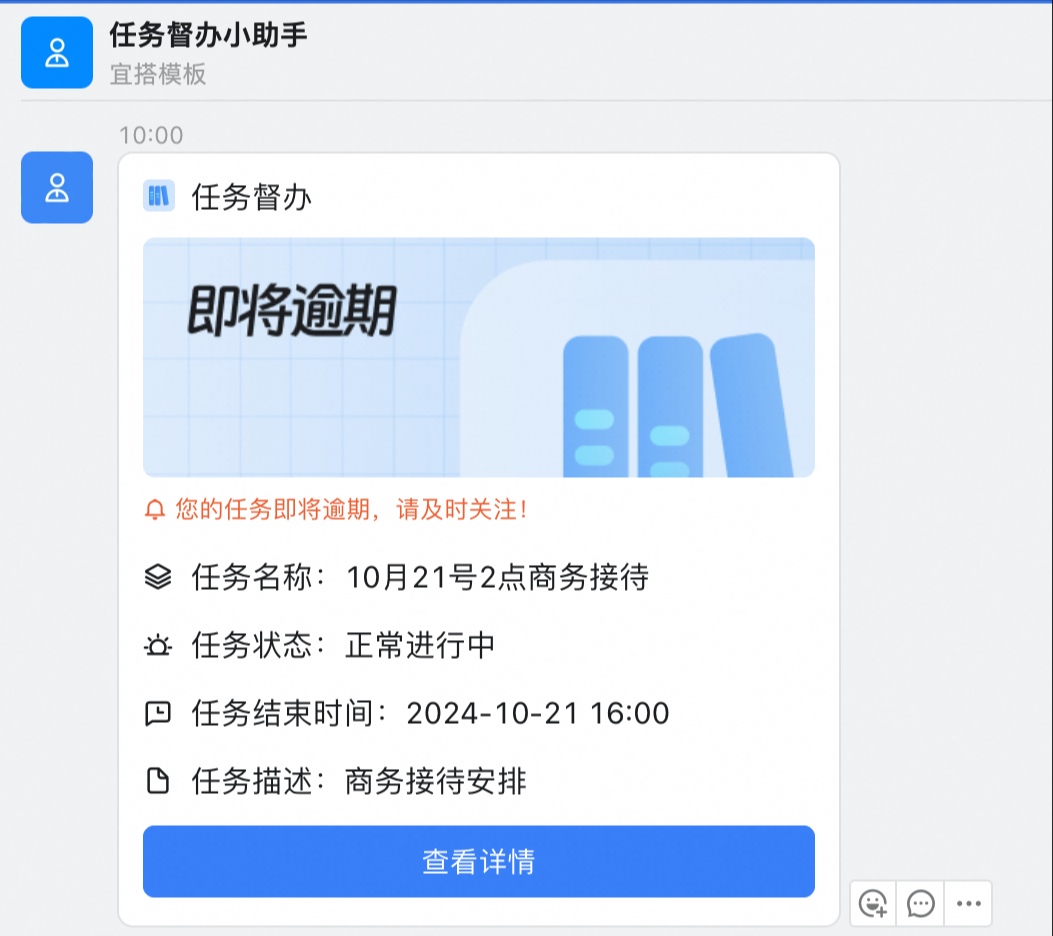 |