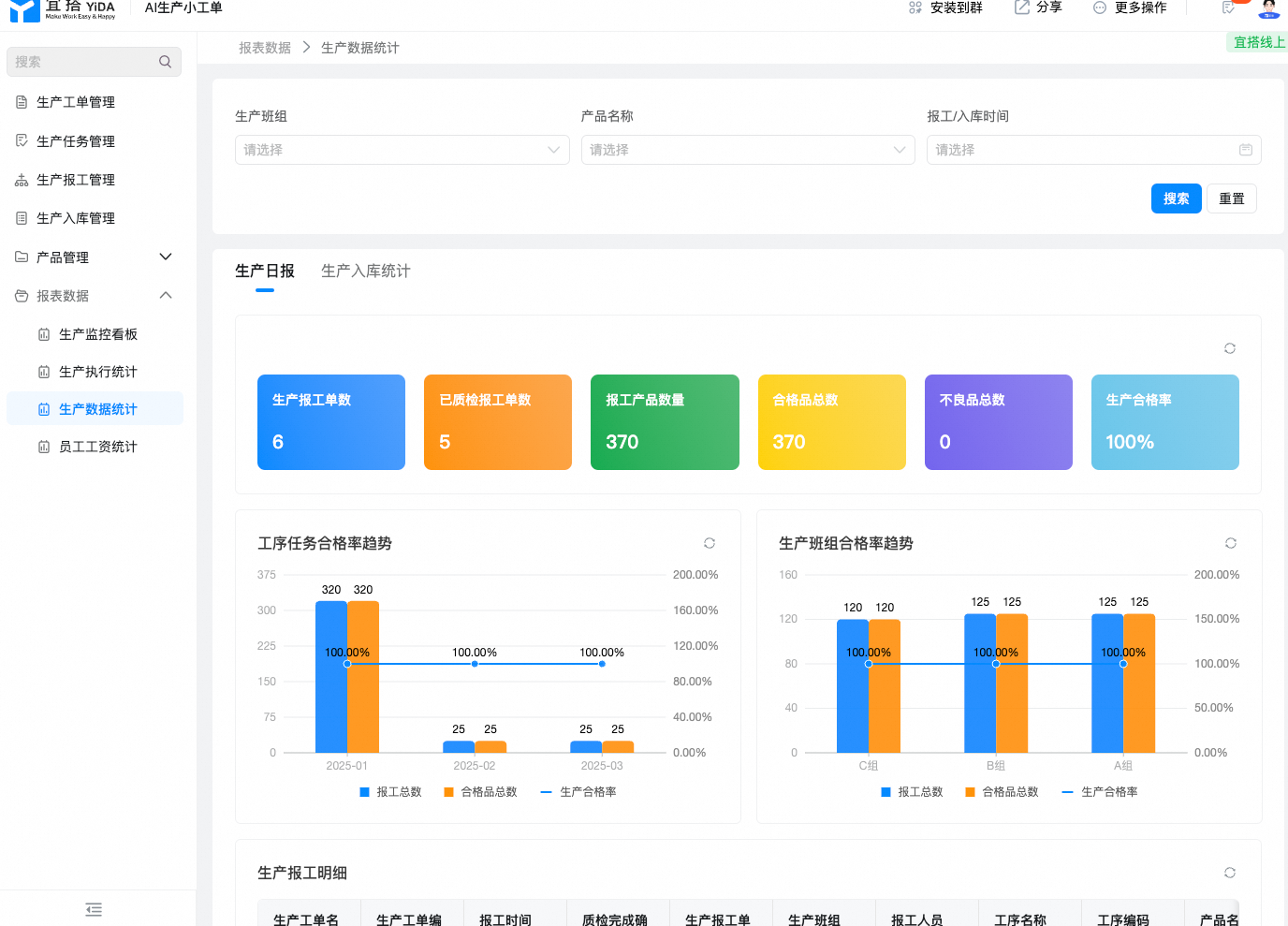
User Manual
I. Overall architecture diagram
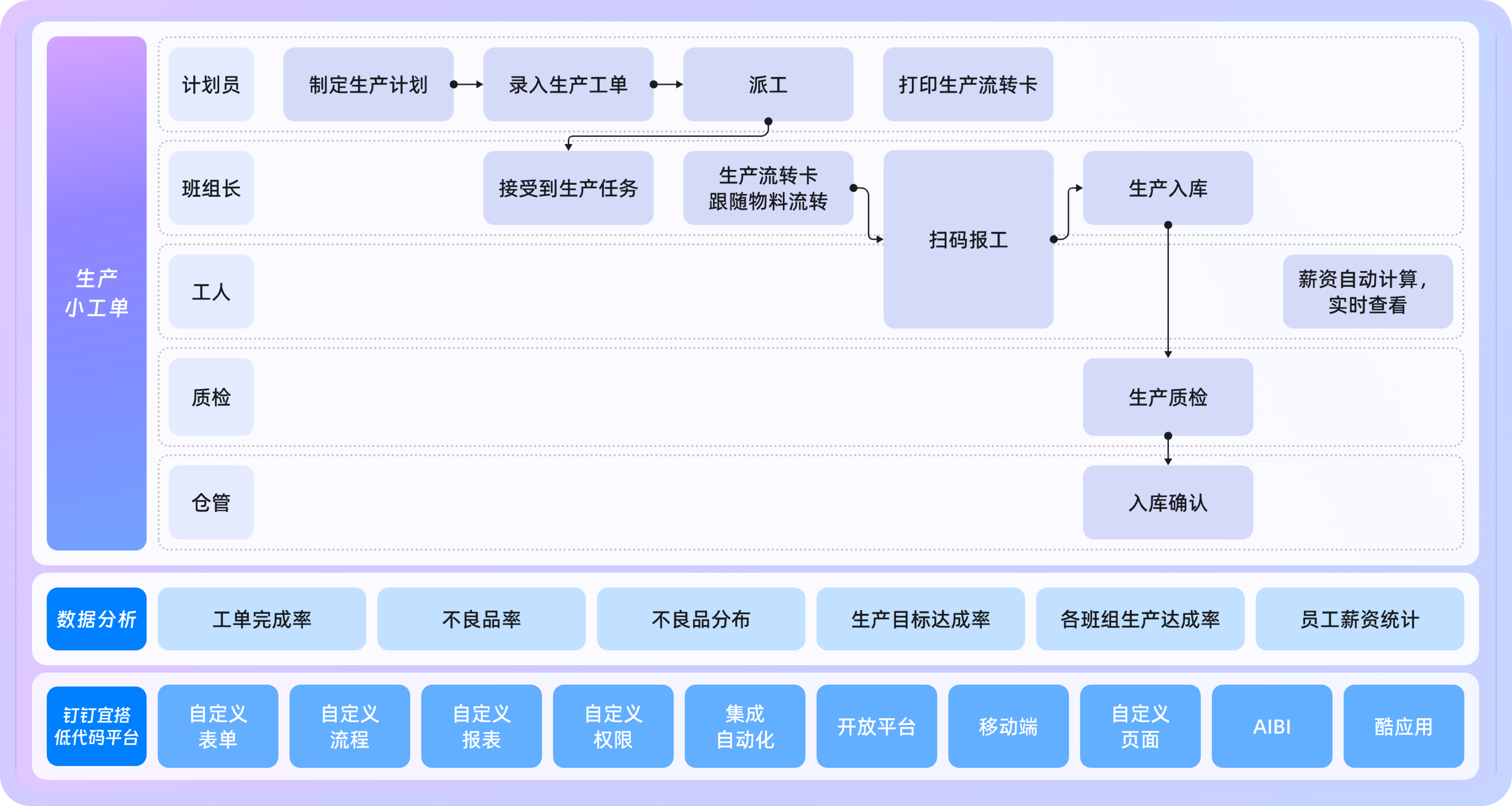
2. Brief introduction of sorting function modules
Level 1 module | Secondary module | Function Point description |
Production Management | Production ticket entry | Production ticket entry |
The planner enters the production ticket online. After the entry is completed, the planner can track the completion of the ticket online. | The planner enters the production ticket online. After the entry is completed, the planner can track the completion of the ticket online. | |
Automatic dismantling production process | Automatic dismantling production process | |
Enter DANHOU of the production worker and automatically disassemble the production task of the corresponding production process according to the product process. | Enter DANHOU of the production worker and automatically disassemble the production task of the corresponding production process according to the product process. | |
Automatic dispatch | Automatic dispatch | |
After clicking dispatch, the task will be automatically dispatched to the corresponding team leader. | After clicking dispatch, the task will be automatically dispatched to the corresponding team leader. | |
Print Production transfer card | Print Production transfer card | |
Data analysis | Production monitoring | |
Production execution | ||
Production data | ||
Employee salary | ||
Basic information table | Product information, production process, product classification, production team | |
III. Data initialization
1. Initialization of basic information
First, you need to clear the sample data of the current system and enter the necessary basic data into the system.
● clear sample data with one click

● enter the necessary basic data into the system.
Data analysis | Production monitoring |
Product Classification | Used for product category selection in the [product information] table |
Production team | For selecting team information in the [production process] table |
Production process | Used for selecting production process information in the [product information] table |
Product Information | Product information selection for the production ticket and production warehousing tables |
IV. Permission configuration
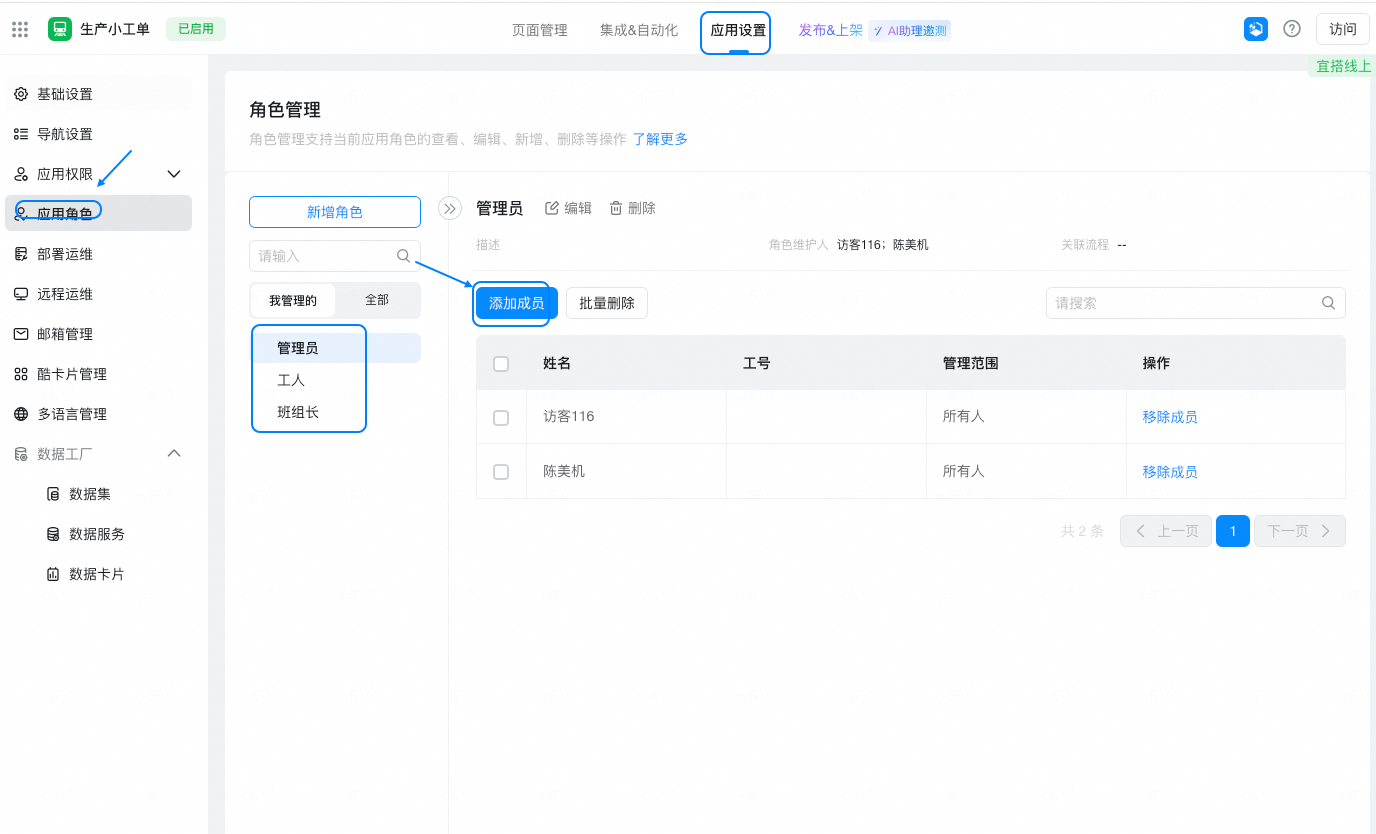
1. After the data initialization is completed, we can configure the permissions. The current application has configured the data permissions on each page. You only need to add the participating device managers in the current application role.
● manage background> Application Settings> Application roles> add members
2. For more information about how to view permissions on a single page, see:

5. Procedure
After completing the basic configuration, you can begin to experience the complete production business process:
1. Enter a ticket
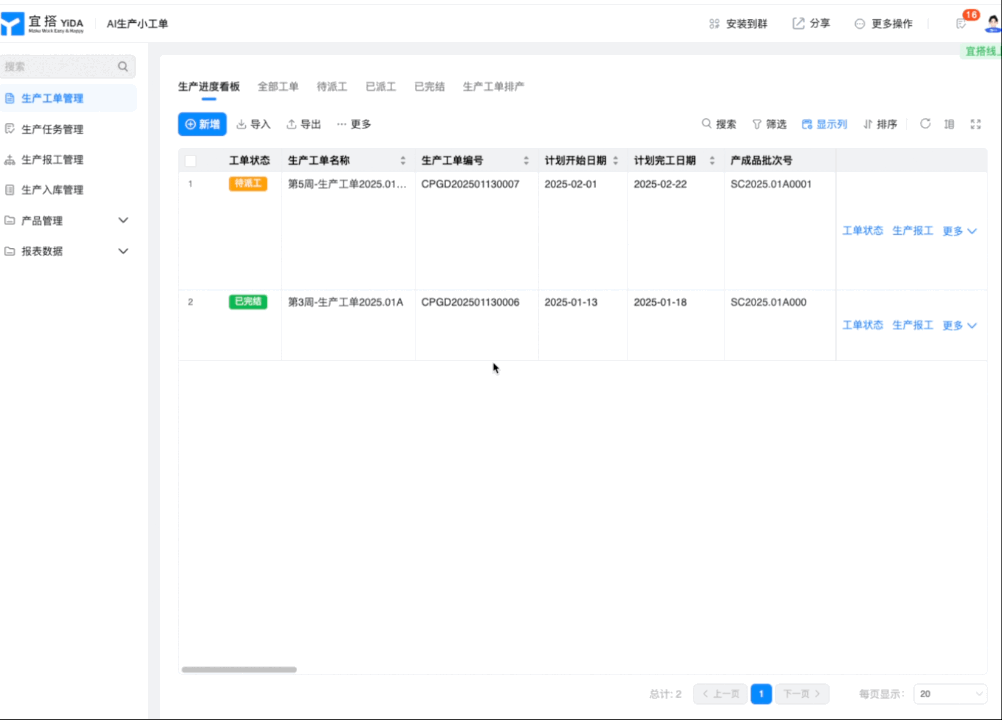
In the production work order management, enter the basic information of the production work order. The system automatically calculates the production process task according to the process route in the product information and click process confirmation.
2. Task distribution
On the production work order management page, in the playground bar, click the work order status to change the task to be dispatched to the assigned task to automatically complete the task distribution:

The assigned task is automatically written to the production task management page through the system:
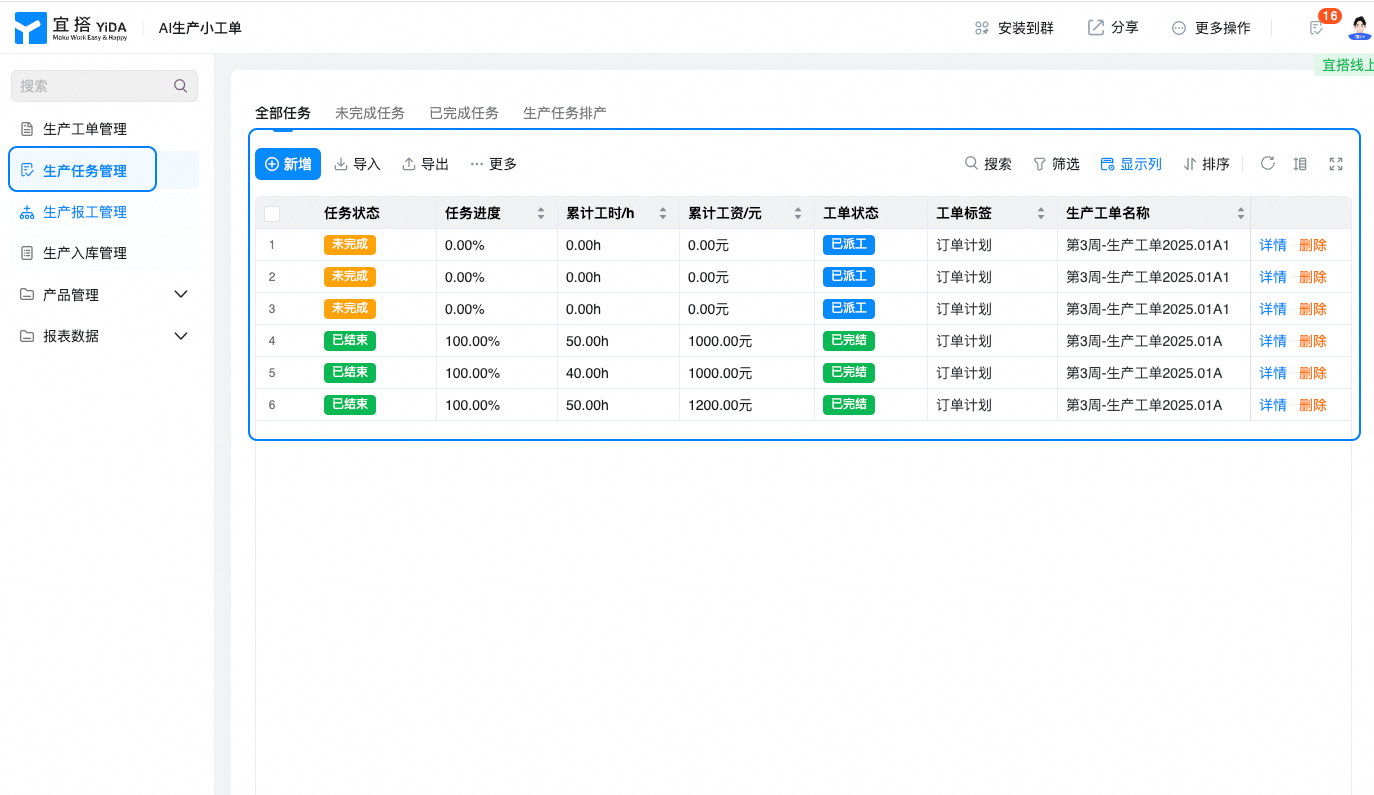
For subsequent work reporting, the task in the production task table is also selected for work reporting.
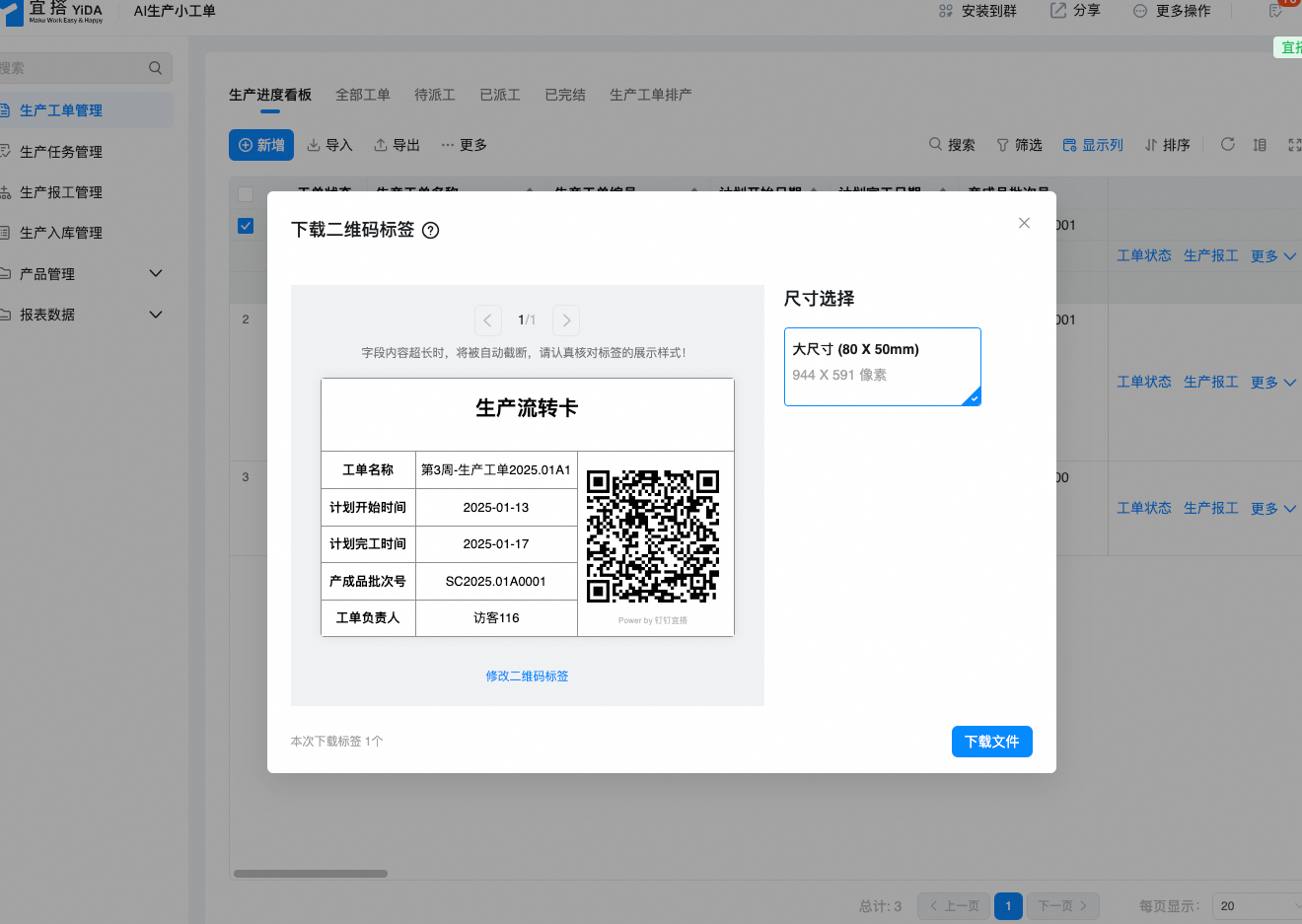
3. Print Production labels
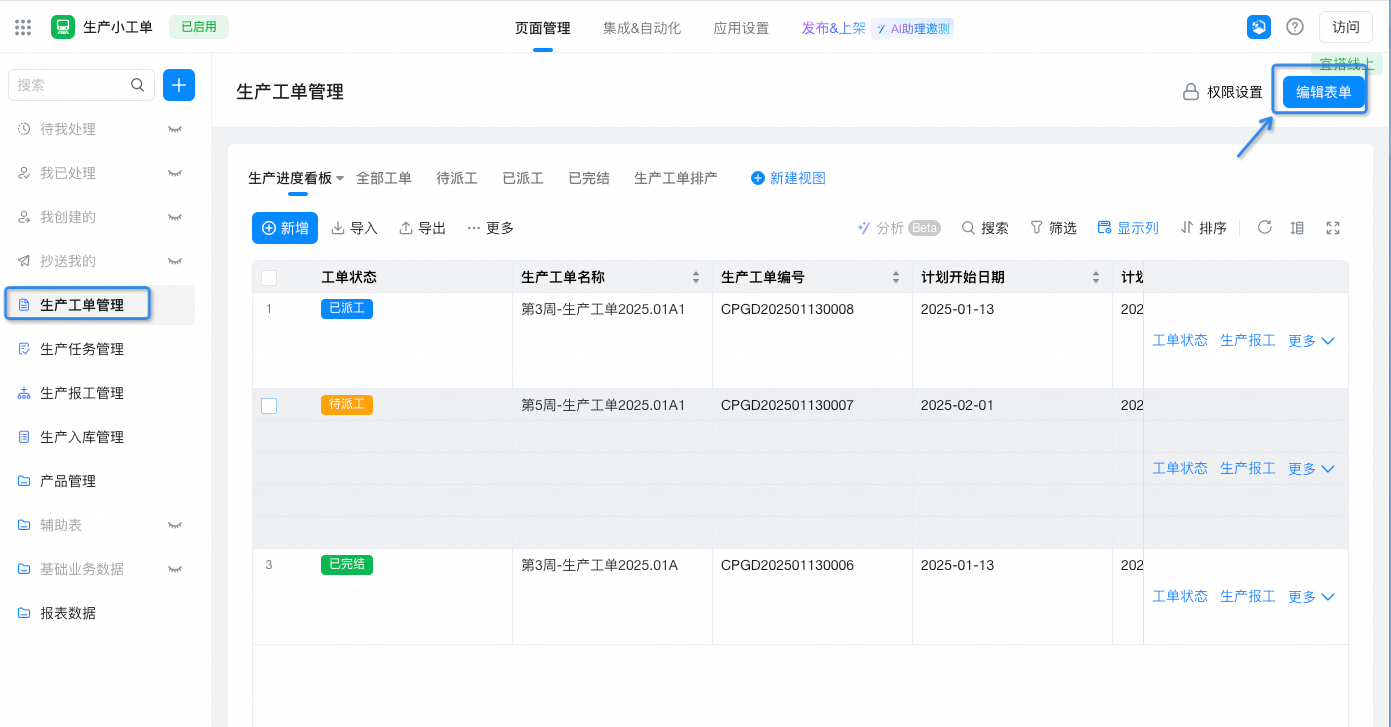
Go to the edit page of "production work order" management. On the page settings-QR code label, you can see that the QR code label has been set. Click edit to modify and adjust it:
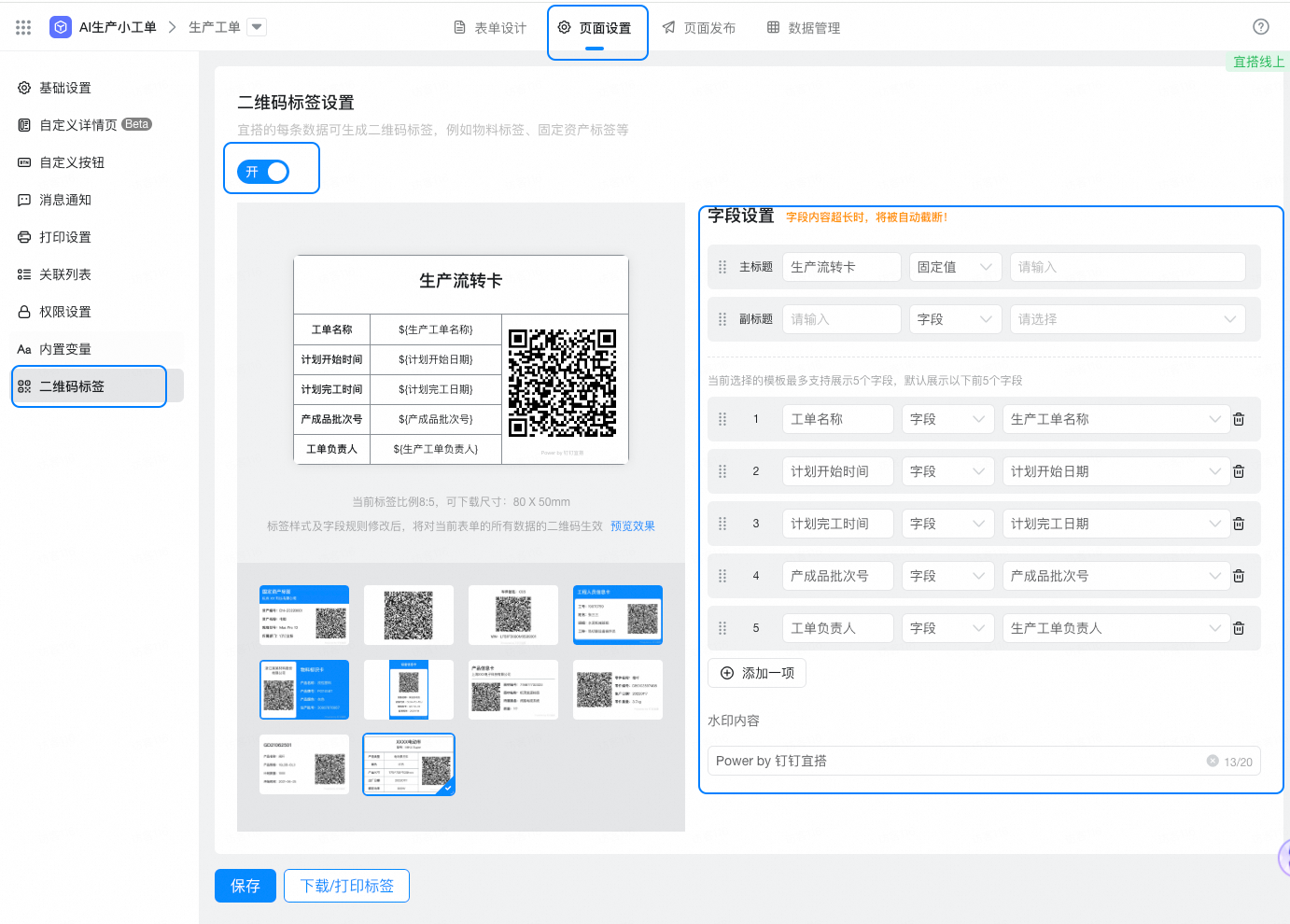
After adjustment, print out the QR code labels of each work order in batches, enter the production work order management page, and click more to download the QR code labels.
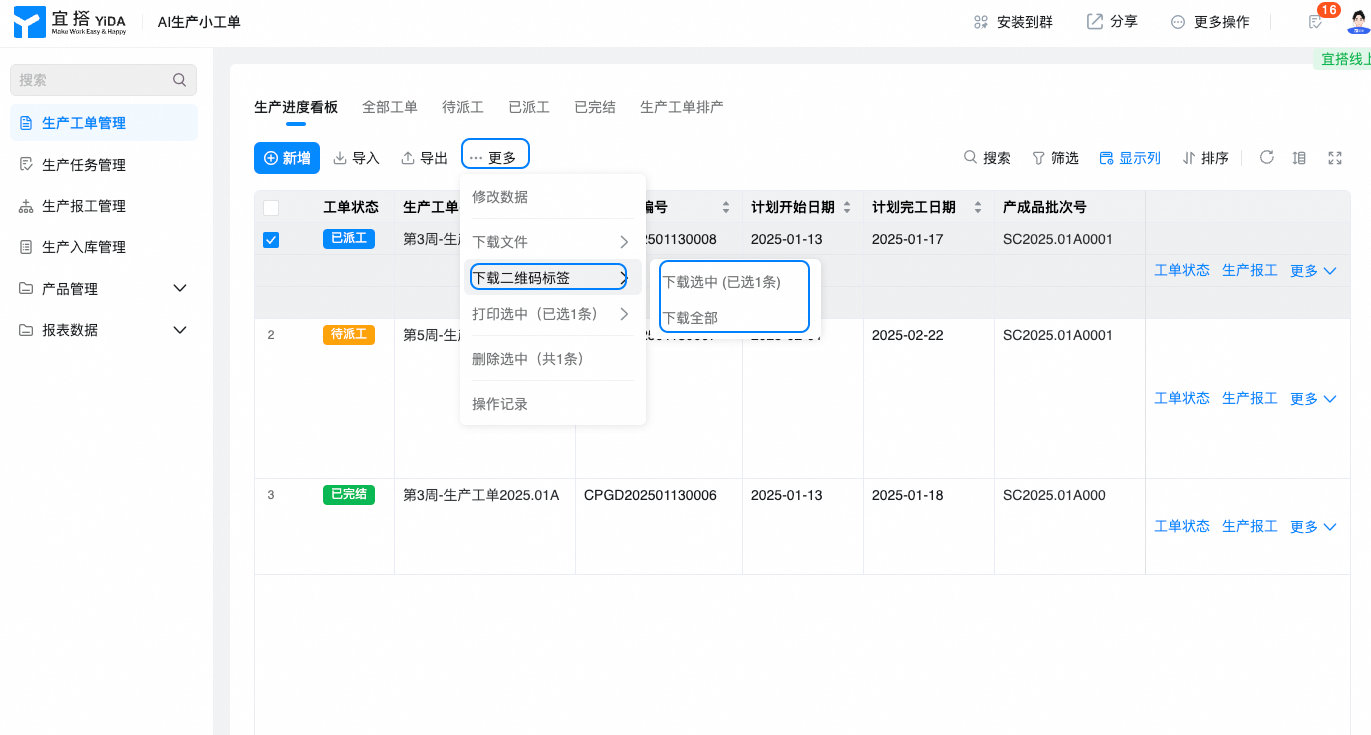
The two-dimensional code of the printed work order can be posted near the production workshop team to facilitate the production team to report to work:
4. Production report
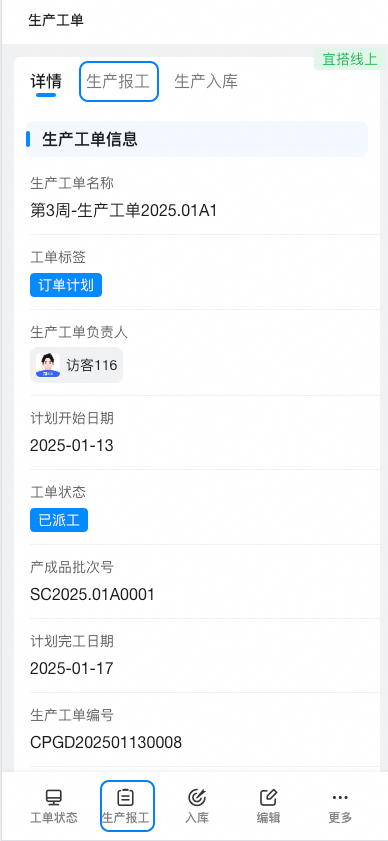
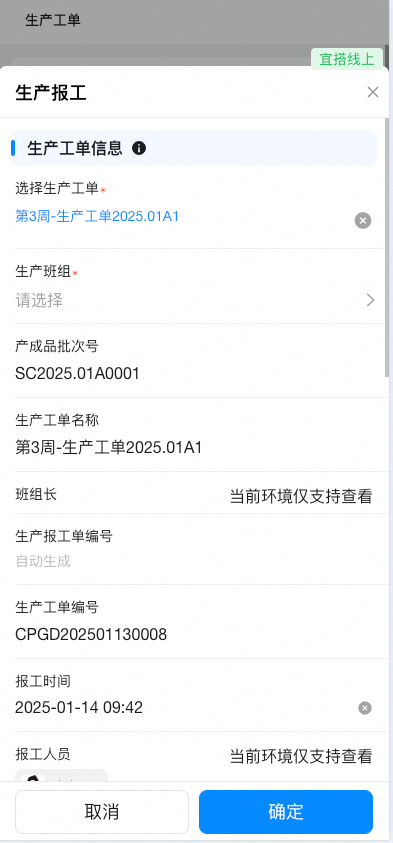
The employee scans the QR code of the ticket from the mobile terminal and enters the ticket data details page. Click the production report button, add data to report work, select the team information of the report work, enter the production task and the corresponding working hours and quantity, and submit the report work data:
 |  |
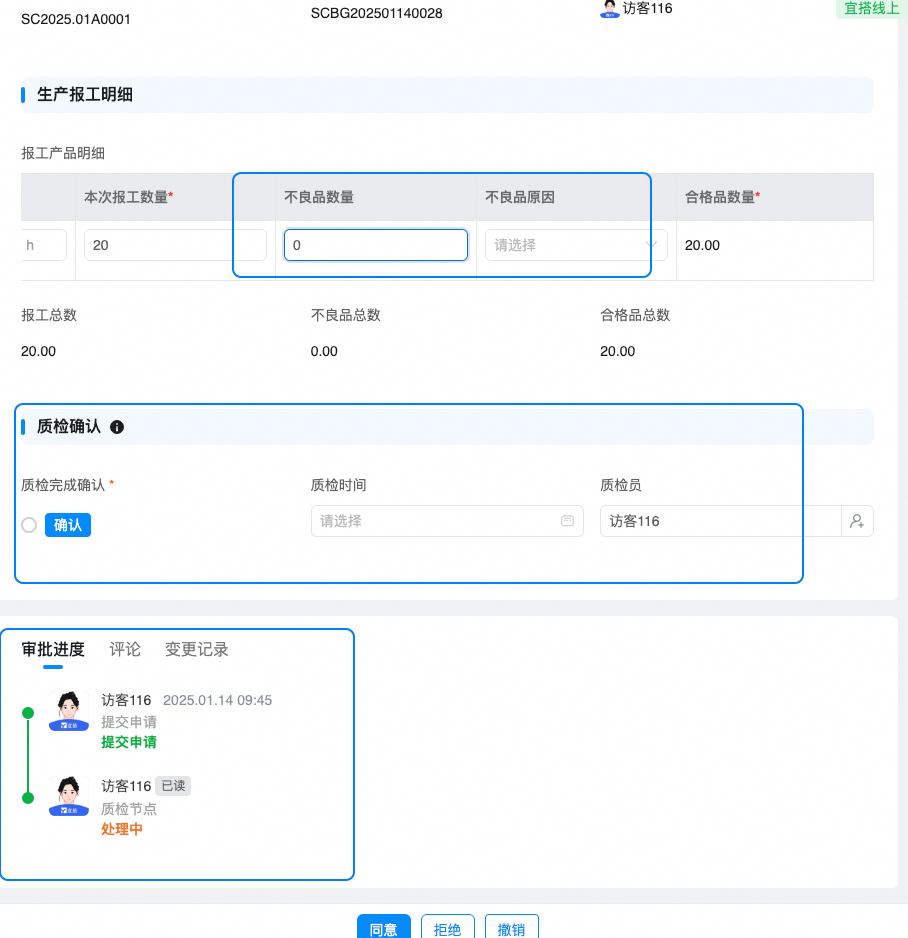
After submission, the quality inspector receives the work approval process, completes the quality inspection of the reported products, and enters the quantity of defective products and salary type:
5. Production warehousing
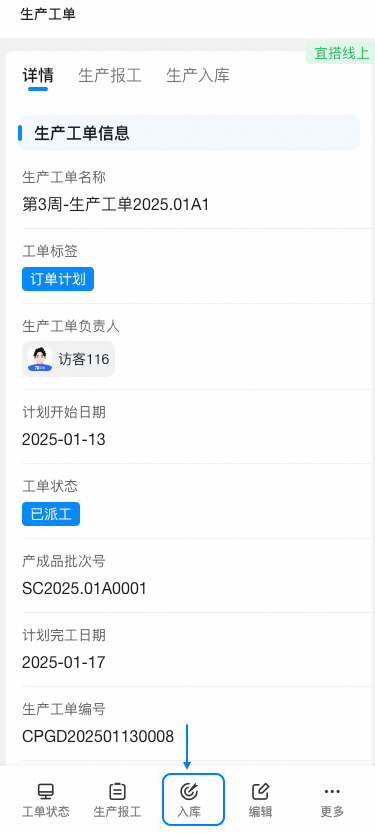
After the production report is completed, scan the QR code of the production work order, click the production storage button, add data to report the work, click add data to enter the production storage page, select the team information, enter the warehousing details and quantity. After the quality inspection confirmation and warehousing confirmation are completed, submit the warehousing data:
 |
6. Data Report
The input production data will be automatically updated and displayed through the data report. The team leader or boss can view the production situation of the production workshop in real time and know the production progress at any time.