カスタムページは、モバイル端末の下部ナビゲーションを実現します
このケースは三者開発者「jing」から来た
1. 使用シーン
モバイル端末の下部にtabbarタブバーが必要な場合。
2. 機能を実現する
2.1. カスタムページの作成
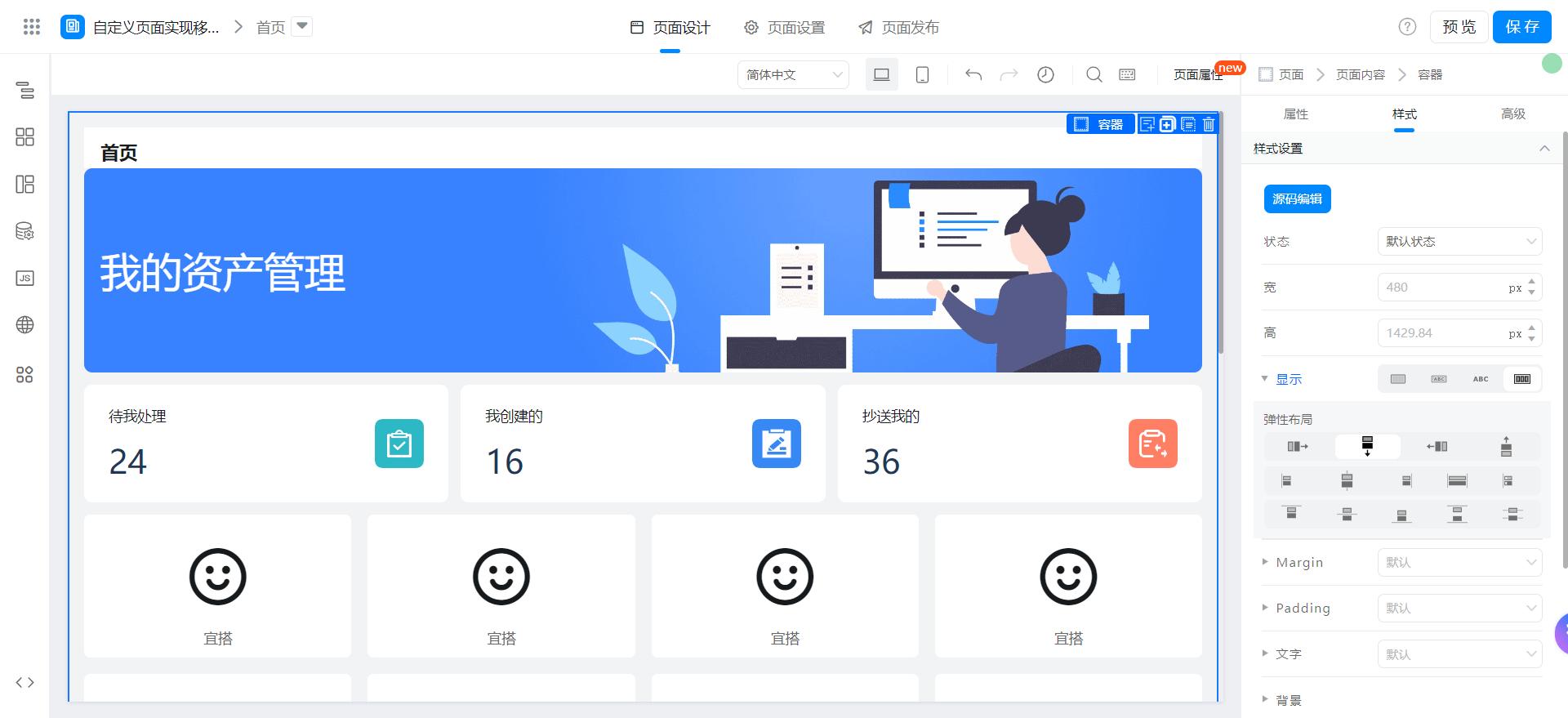
2.2. カスタムページの設定
2.2.1. ページ構造
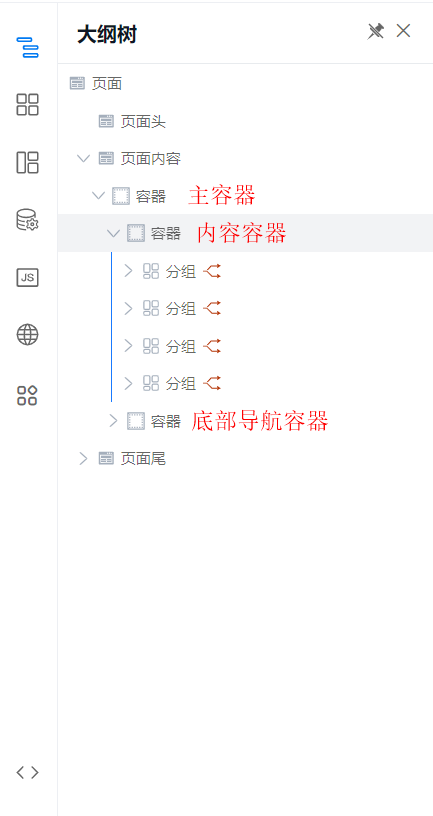
2.2.2. メインコンテナのスタイル設定
「一意のidをdom idとして使用」をオンにすることに注意してください。
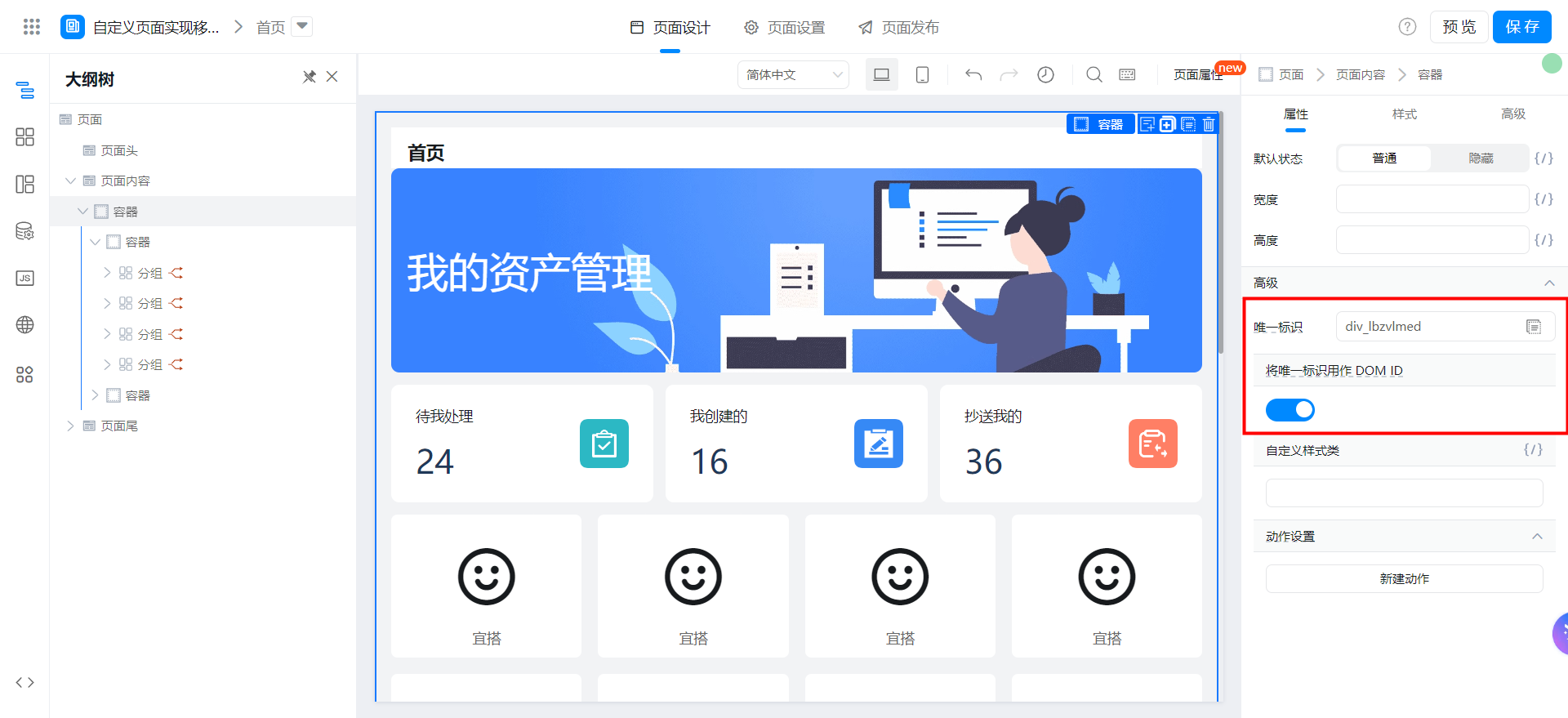
:root {
  display: flex;
  flex-direction: column;
}
次のコードをページにコピーして、メインコンテナの高さを画面いっぱいに設定します

// 设置容器高度为一屏
export function setFullScreenHeight(contentId = '') {
  const headerDom = document.querySelectorAll('.next-shell-header');
  const contentDom = document.querySelector(`#${contentId}`);
  const headerDomHeight = headerDom.length ? headerDom[0].offsetHeight : 0;
  const contentDomHeightCssStr = `calc(100vh - ${headerDomHeight}px)`;
  contentDom.style.height = contentDomHeightCssStr;
}
Didmountで呼び出されます。関数をパラメータに入れて、メインコンテナの一意のidに変更することに注意してください

export function didMount() {
  this.setFullScreenHeight('div_lbzvlmed');
}
2.2.3. コンテンツコンテナのスタイル設定
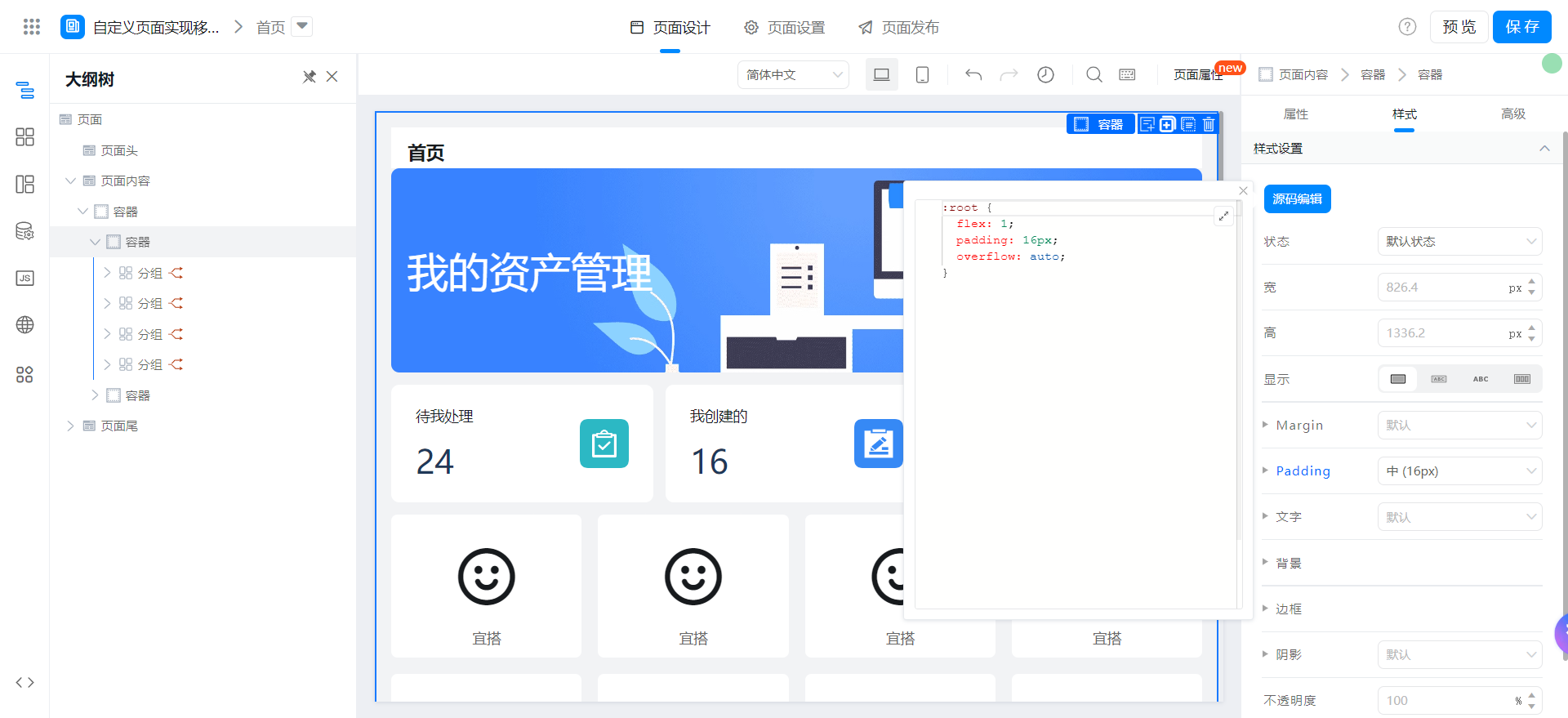
:root {
  flex: 1;
  padding: 16px;
  overflow: auto;
}
2.2.4. 下部ナビゲーションコンテナのスタイルを設定します
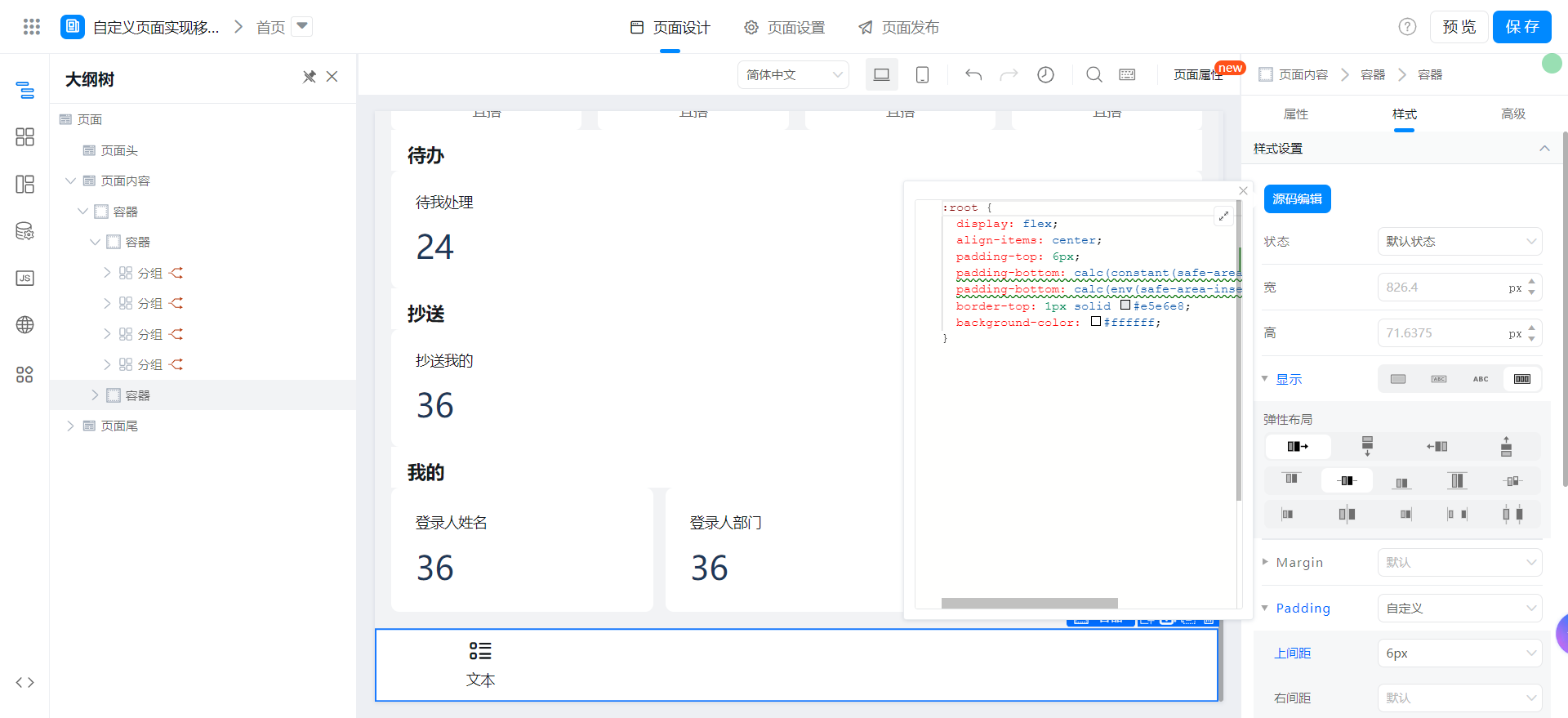
:root {
  display: flex;
  align-items: center;
  padding-top: 6px;
  padding-bottom: calc(constant(safe-area-inset-bottom) + 6px);
  padding-bottom: calc(env(safe-area-inset-bottom) + 6px);
  border-top: 1px solid #e5e6e8;
  background-color: #ffffff;
}
3. 効果を実現する

4. オンラインで試遊する
この文書は機械翻訳により生成されています。翻訳により生じた齟齬や相違点は拘束力を持たず、コンプライアンスや執行目的において法的効力はありません。
このドキュメントは役に立ちましたか?