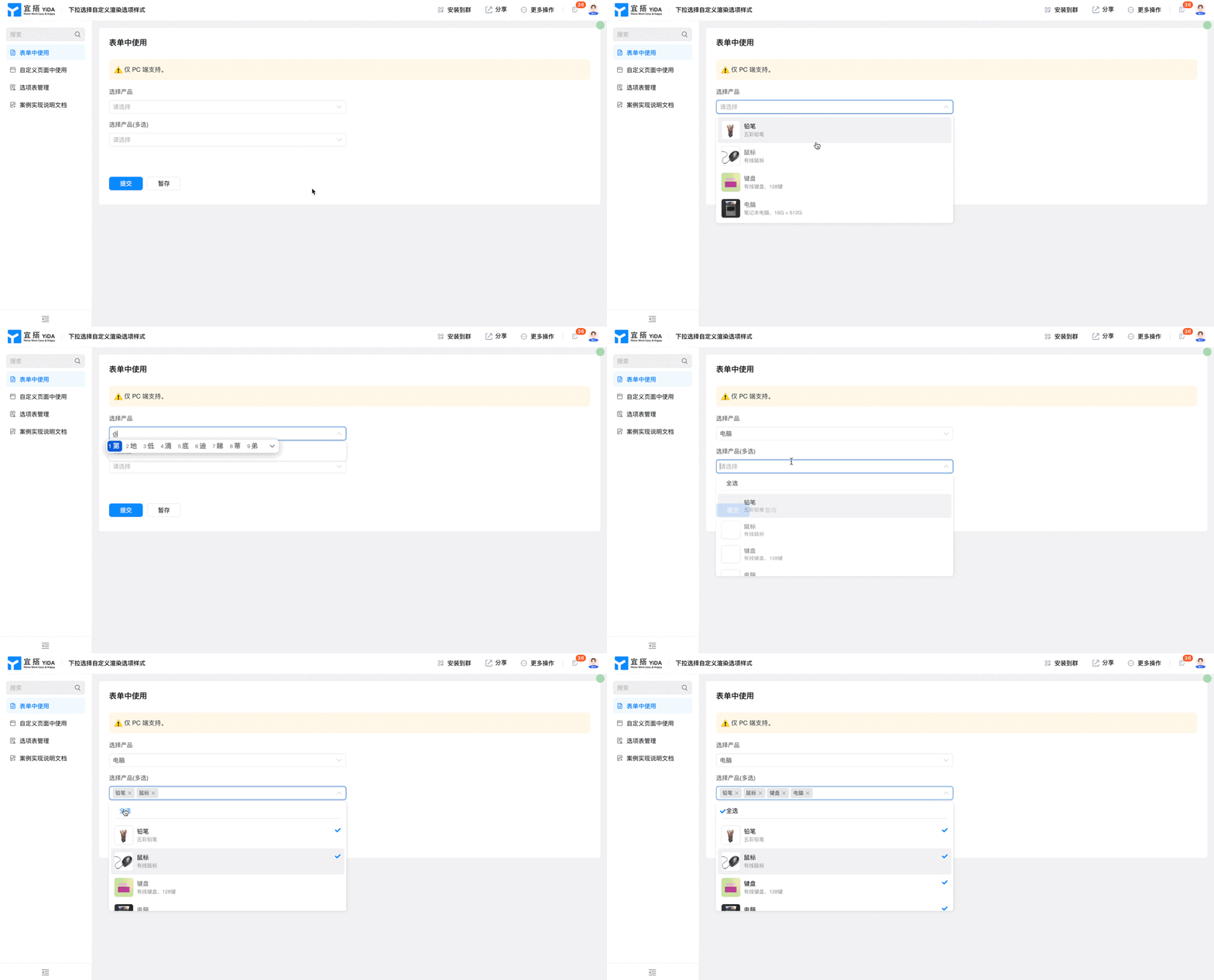
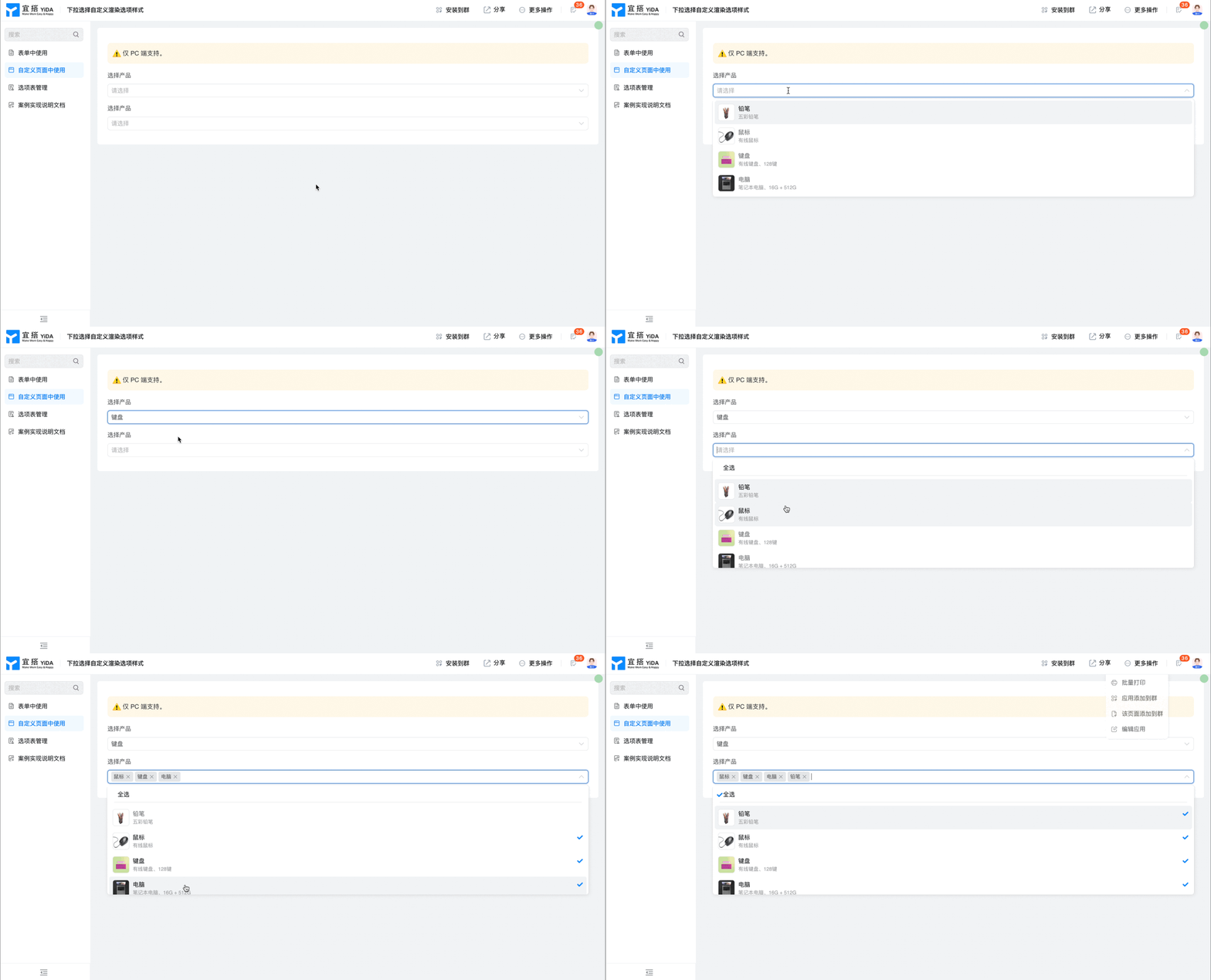
ドロップダウンでカスタムレンダリングオプションのスタイルを選択します
ユーザーが商品、製品、またはコースを選択するとき、彼らはしばしばブランド、色などの特定の属性に基づいてオプションを選別する必要があります。このプロセスをより直感的で効率的にするために、画像付きのドロップダウンメニューを使用することは非常に効果的な方法です。この方式は、ユーザーが異なるオプション間の違いを迅速に識別できるだけでなく、ユーザー体験を大幅に向上させ、意思決定プロセスを加速するのにも役立ちます。次に、このようなカスタムレンダリングスタイルを持つドロップダウン選択機能を実現する方法を例に挙げて検討します。
注意: pc側のみサポート
前提条件
このチュートリアルでは、基本的な機能の一部を使用する必要があります。まず、次の機能を理解することができます。
効果を実現する
フォームで使用する
カスタムページの使用
実装手順
フォームの作成
オプションデータを格納するオプションテーブルを作成します。
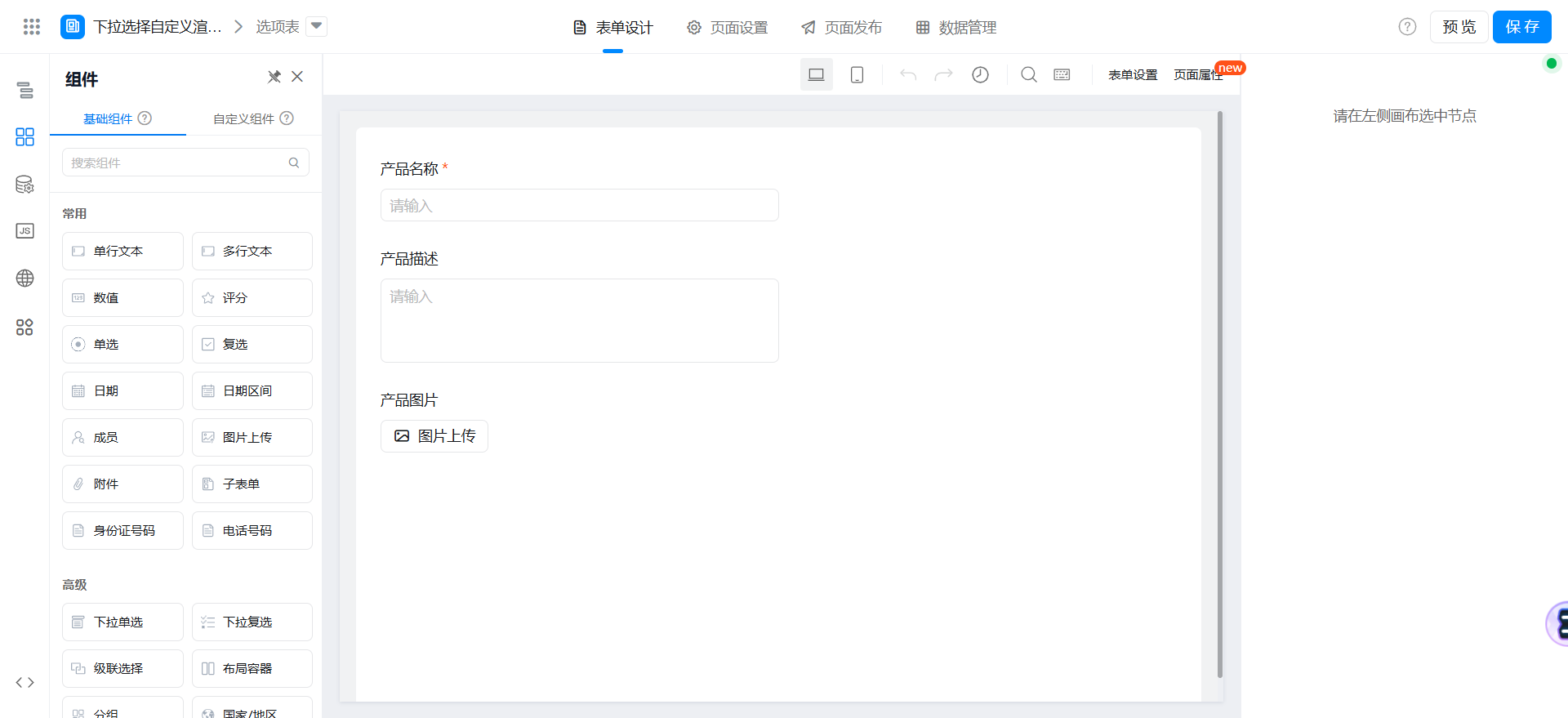
キャンバス領域で次のコンポーネントをドラッグします。
- 単一行テキスト: 製品名を付けます
- 複数行のテキスト: 製品の説明に名前を付けます
- 画像をアップロードする: 製品画像と命名
フォームで使用する
フォームの作成

キャンバス領域で次のコンポーネントをドラッグします。
- グループ分け
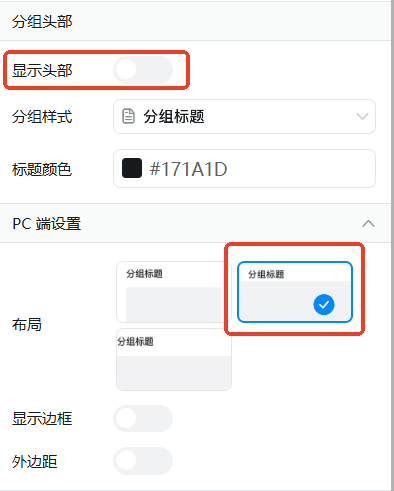
- ドロップダウン単一選択: 選択製品という名前
- ドロップダウンチェック: 選択製品という名前を付けます (チェック)
スタイルの設定
グループ化されたスタイル属性に次のスタイルを追加します。
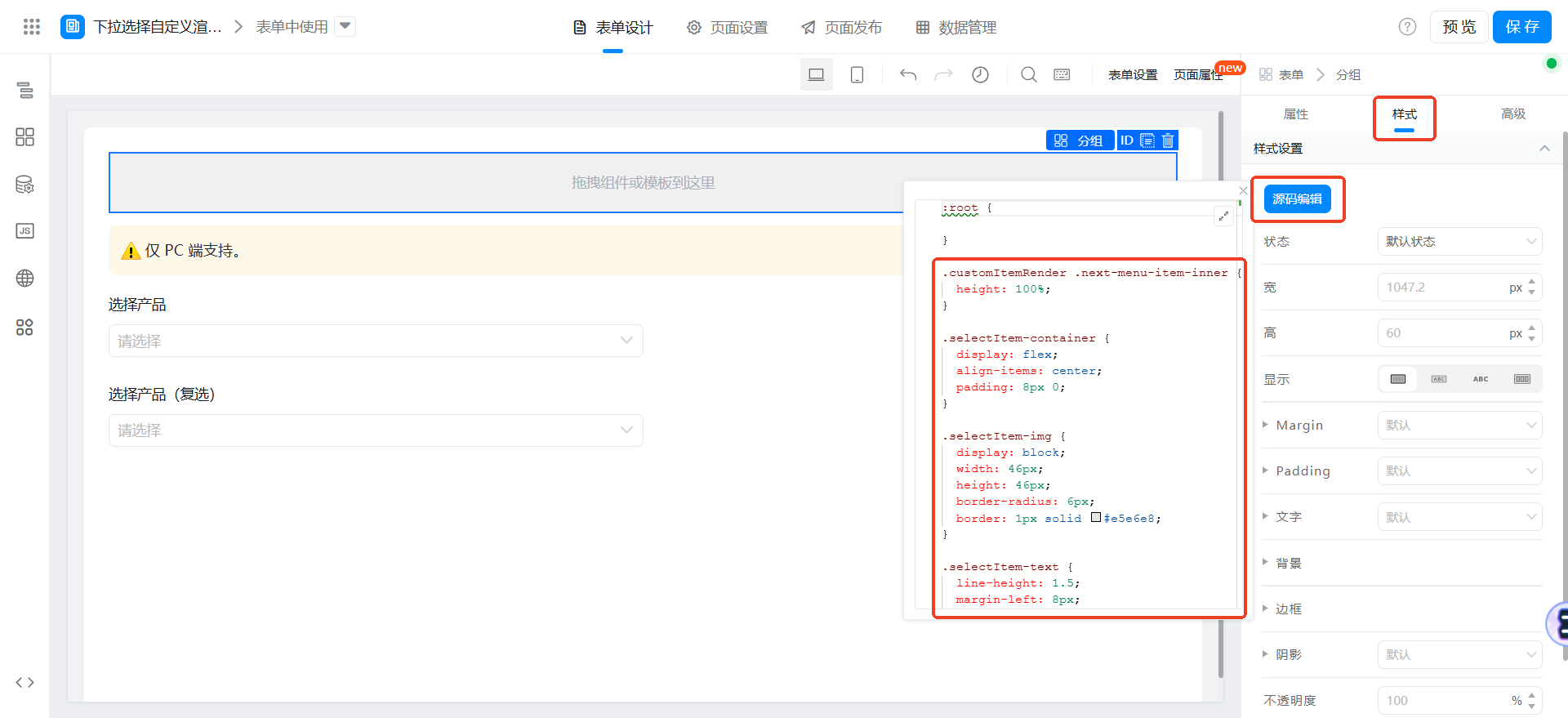
.customItemRender .next-menu-item-inner {
  height: 100%;
}

.selectItem-container {
  display: flex;
  align-items: center;
  padding: 8px 0;
}

.selectItem-img {
  display: block;
  width: 46px;
  height: 46px;
  border-radius: 6px;
  border: 1px solid #e5e6e8;
}

.selectItem-text {
  line-height: 1.5;
  margin-left: 8px;
  overflow: hidden;
}

.selectItem-title {
  font-size: 14px;
  text-overflow: ellipsis;
  overflow: hidden;
  white-space: nowrap;
}

.selectItem-description {
  font-size: 12px;
  color: #a2a3a5;
  text-overflow: ellipsis;
  overflow: hidden;
  white-space: nowrap;
}
取得オプションデータ関数の設定
ページjsに次の関数を追加します。ここでのformuuidは、上で作成したオプションテーブルのformuuidです。
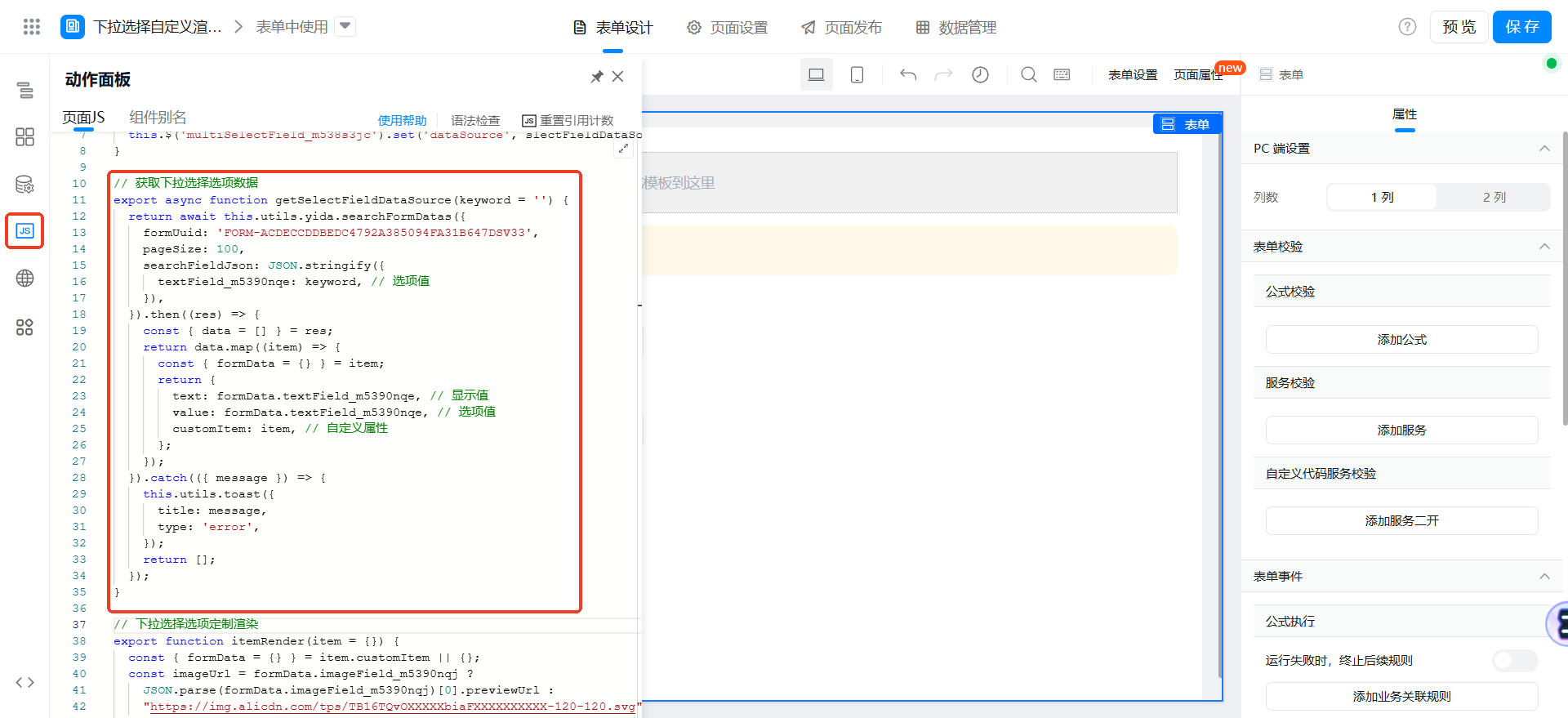
// 获取下拉选择选项数据
export async function getSelectFieldDataSource(keyword = '') {
  return await this.utils.yida.searchFormDatas({
    formUuid: 'FORM-ACDECCDDBEDC4792A385094FA31B647DSV33',
    pageSize: 100,
    searchFieldJson: JSON.stringify({
      textField_m5390nqe: keyword, // 选项值
    }),
  }).then((res) => {
    const { data = [] } = res;
    return data.map((item) => {
      const { formData = {} } = item;
      return {
        text: formData.textField_m5390nqe, // 显示值
        value: formData.textField_m5390nqe, // 选项值
        customItem: item, // 自定义属性
      };
    });
  }).catch(({ message }) => {
    this.utils.toast({
      title: message,
      type: 'error',
    });
    return [];
  });
}
ドロップダウン選択オプションの設定レンダリング関数のカスタマイズ
ページjsに下记の関数を追加します。
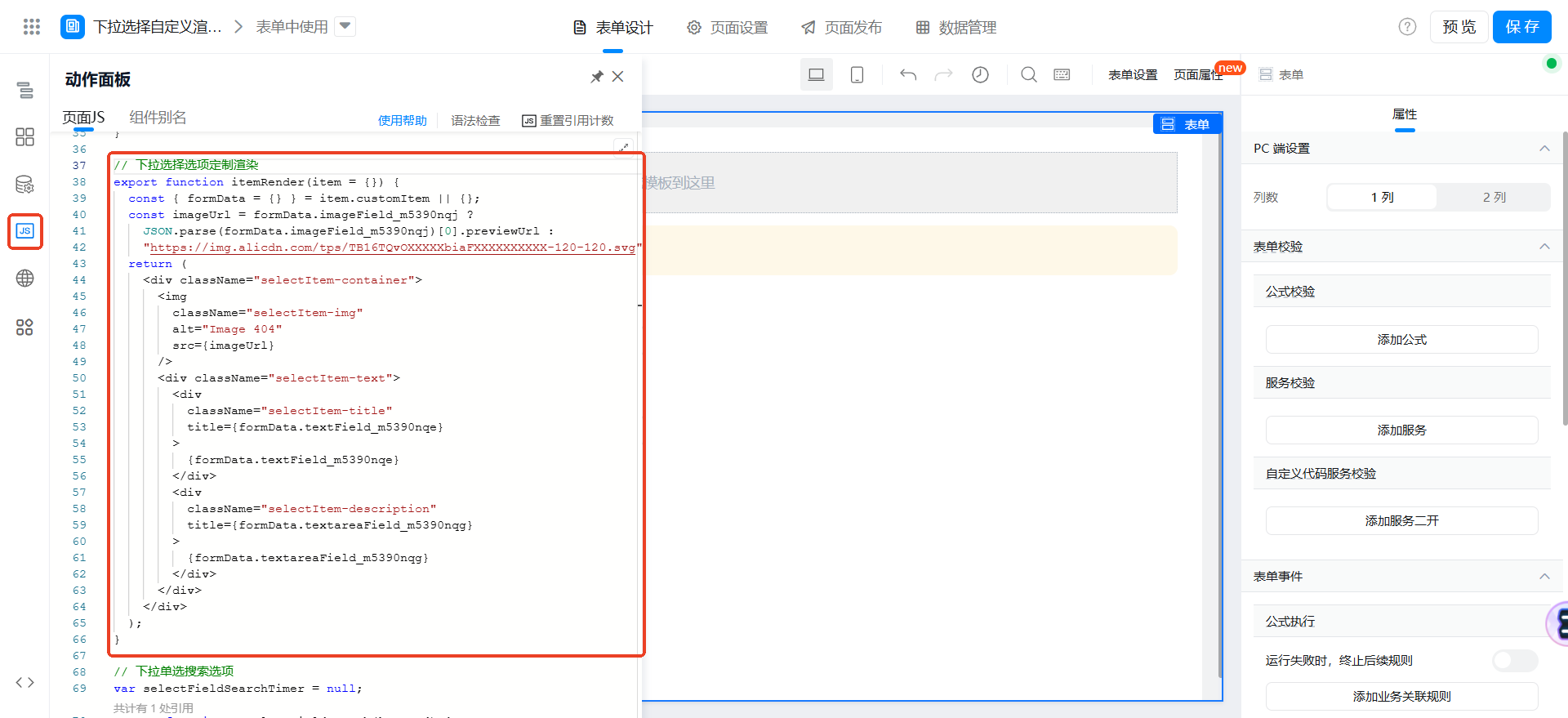
// 下拉选择选项定制渲染
export function itemRender(item = {}) {
  const { formData = {} } = item.customItem || {};
  const imageUrl = formData.imageField_m5390nqj ?
    JSON.parse(formData.imageField_m5390nqj)[0].previewUrl :
    "https://img.alicdn.com/tps/TB16TQvOXXXXXbiaFXXXXXXXXXX-120-120.svg";
  return (
    <div className="selectItem-container">
      <img
        className="selectItem-img"
        alt="Image 404"
        src={imageUrl}
      />
      <div className="selectItem-text">
        <div
          className="selectItem-title"
          title={formData.textField_m5390nqe}
        >
          {formData.textField_m5390nqe}
        </div>
        <div
          className="selectItem-description"
          title={formData.textareaField_m5390nqg}
        >
          {formData.textareaField_m5390nqg}
        </div>
      </div>
    </div>
  );
}
検索イベント関数の設定
「製品の選択」ドロップダウン・ラジオで、検索イベントをバインドします。
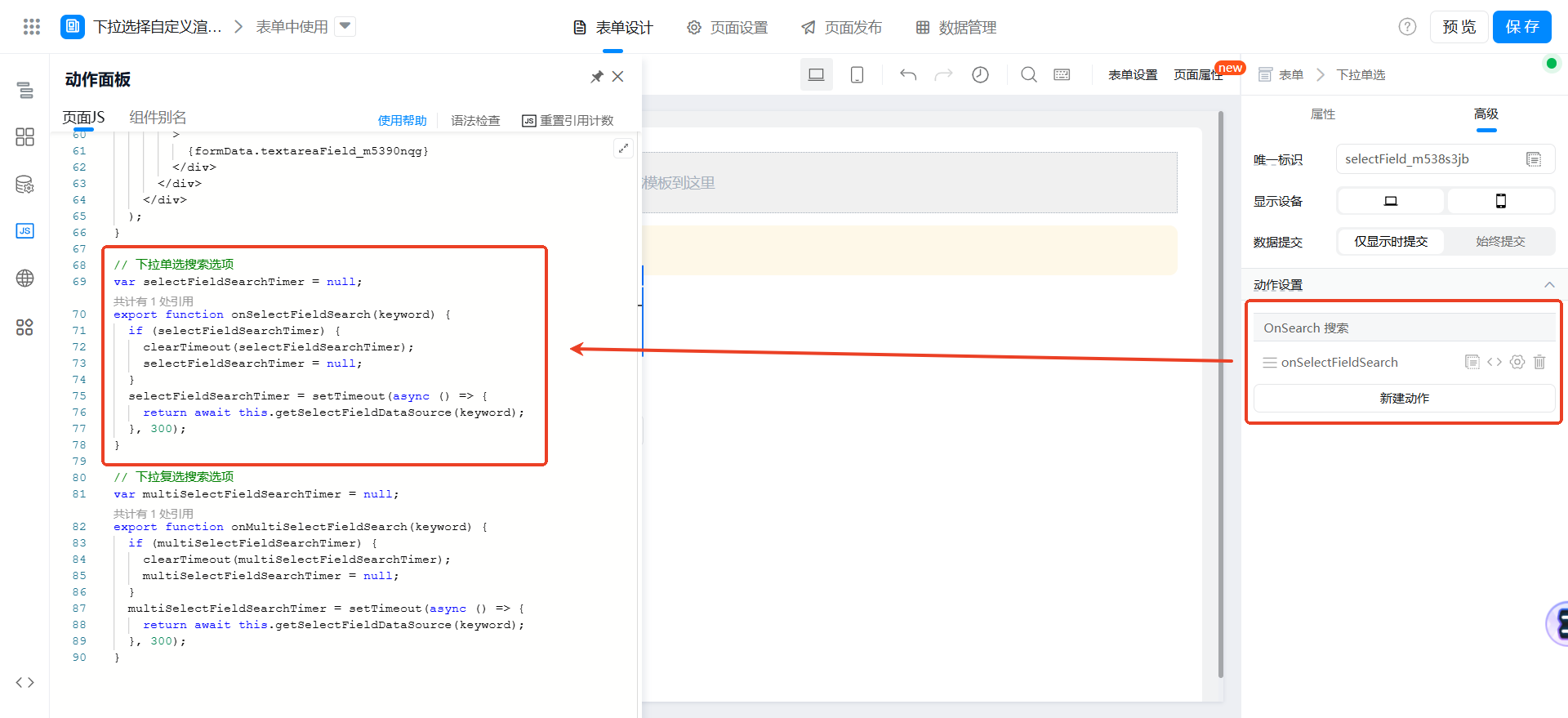
// 下拉单选搜索选项
var selectFieldSearchTimer = null;
export function onSelectFieldSearch(keyword) {
  if (selectFieldSearchTimer) {
    clearTimeout(selectFieldSearchTimer);
    selectFieldSearchTimer = null;
  }
  selectFieldSearchTimer = setTimeout(async () => {
    return await this.getSelectFieldDataSource(keyword);
  }, 300);
}
「製品の選択 (チェック) 」ドロップダウンにチェックを入れ、検索イベントをバインドします。
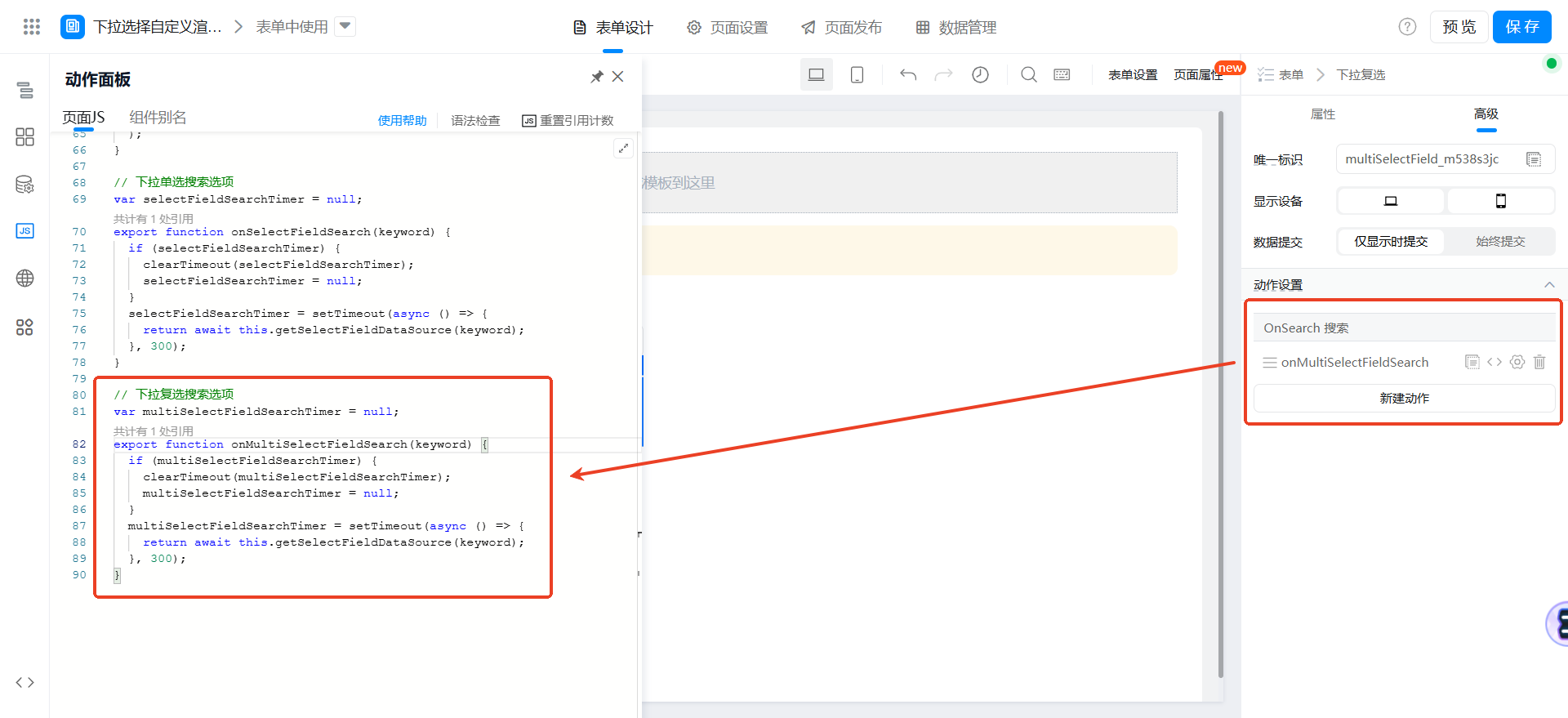
// 下拉复选搜索选项
var multiSelectFieldSearchTimer = null;
export function onMultiSelectFieldSearch(keyword) {
  if (multiSelectFieldSearchTimer) {
    clearTimeout(multiSelectFieldSearchTimer);
    multiSelectFieldSearchTimer = null;
  }
  multiSelectFieldSearchTimer = setTimeout(async () => {
    return await this.getSelectFieldDataSource(keyword);
  }, 300);
}
Didmount呼び出しの設定
ページjsに下记の関数を追加します。
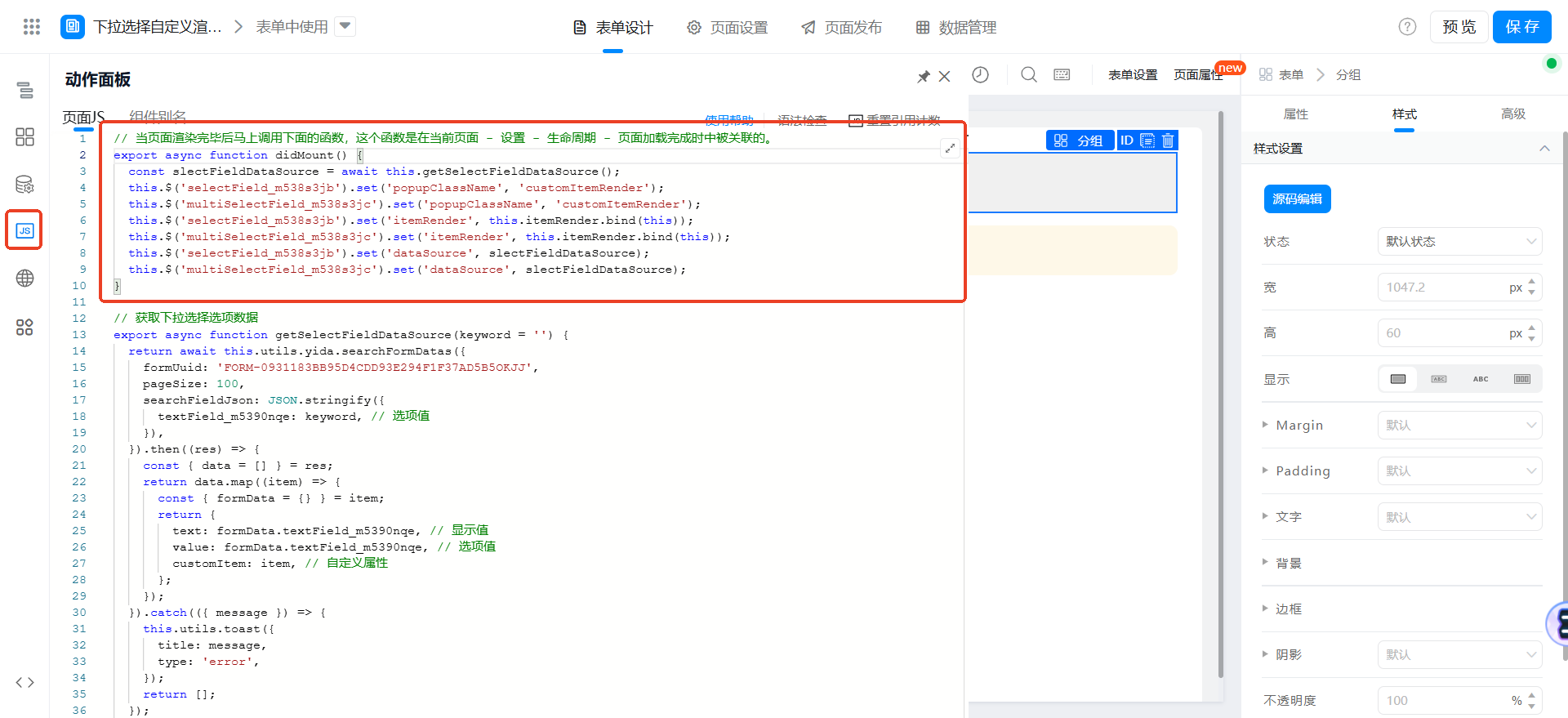
// 当页面渲染完毕后马上调用下面的函数,这个函数是在当前页面 - 设置 - 生命周期 - 页面加载完成时中被关联的。
export async function didMount() {
  const slectFieldDataSource = await this.getSelectFieldDataSource();
  this.$('selectField_m538s3jb').set('popupClassName', 'customItemRender');
  this.$('multiSelectField_m538s3jc').set('popupClassName', 'customItemRender');
  this.$('selectField_m538s3jb').set('itemRender', this.itemRender.bind(this));
  this.$('multiSelectField_m538s3jc').set('itemRender', this.itemRender.bind(this));
  this.$('selectField_m538s3jb').set('dataSource', slectFieldDataSource);
  this.$('multiSelectField_m538s3jc').set('dataSource', slectFieldDataSource);
}
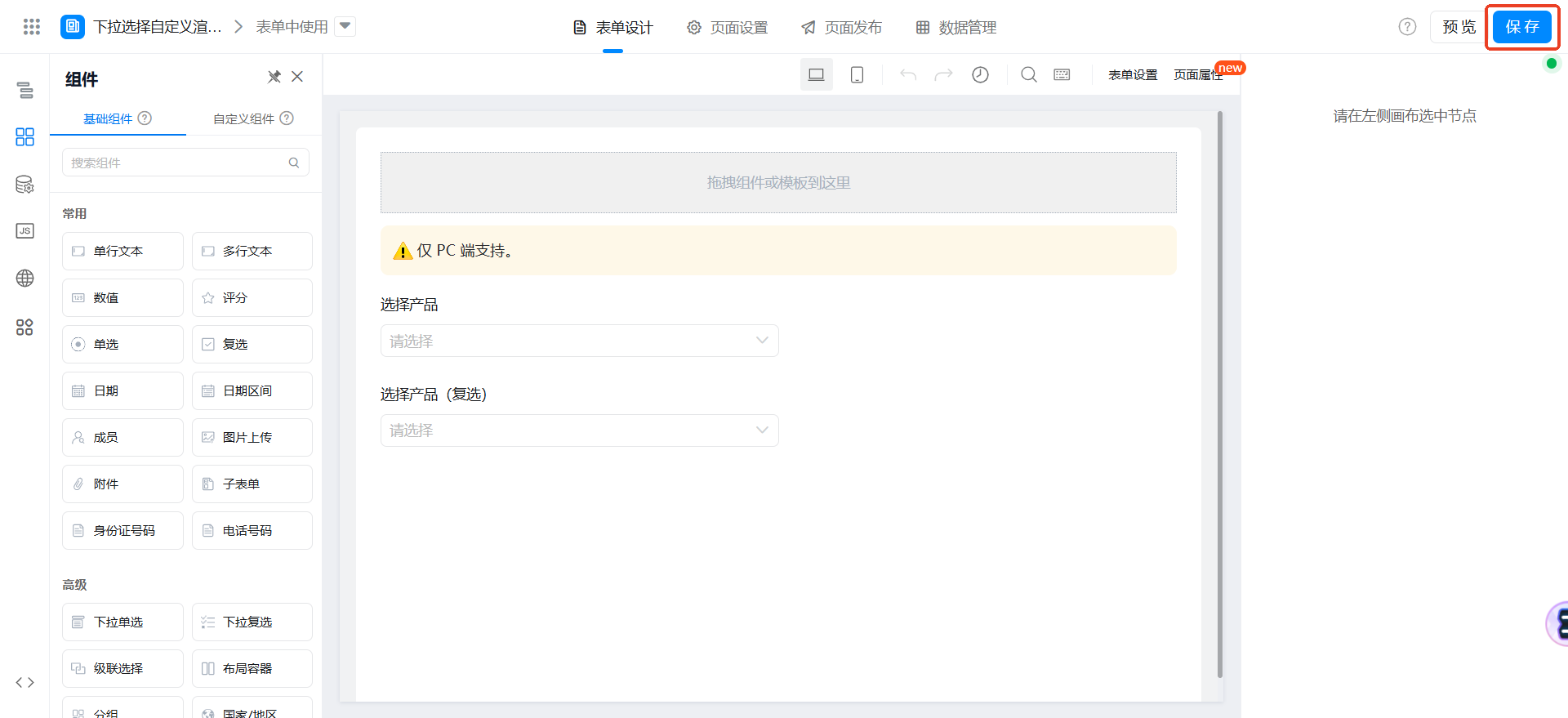
保存ページ
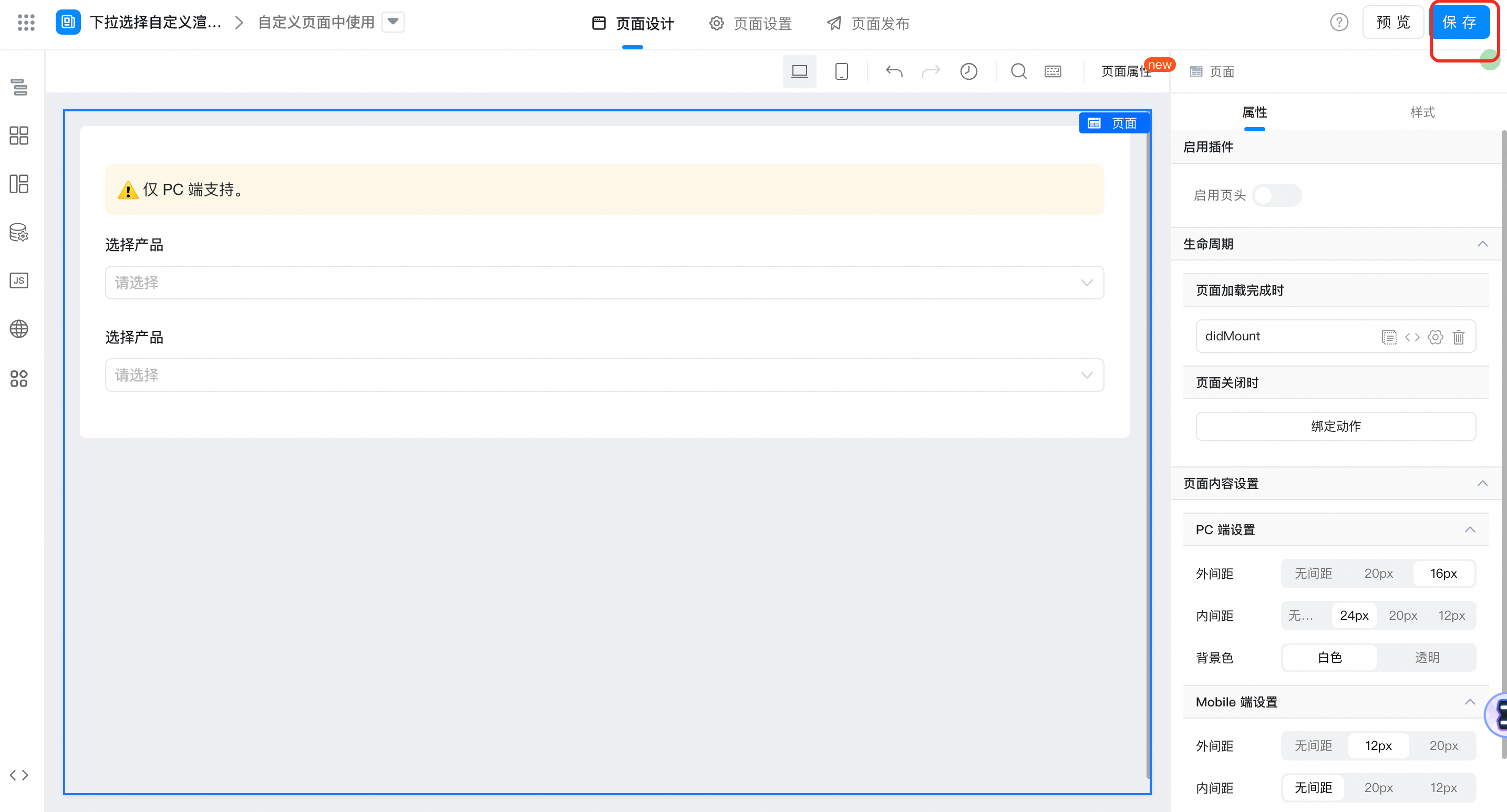
カスタムページで使用する
カスタムページの作成
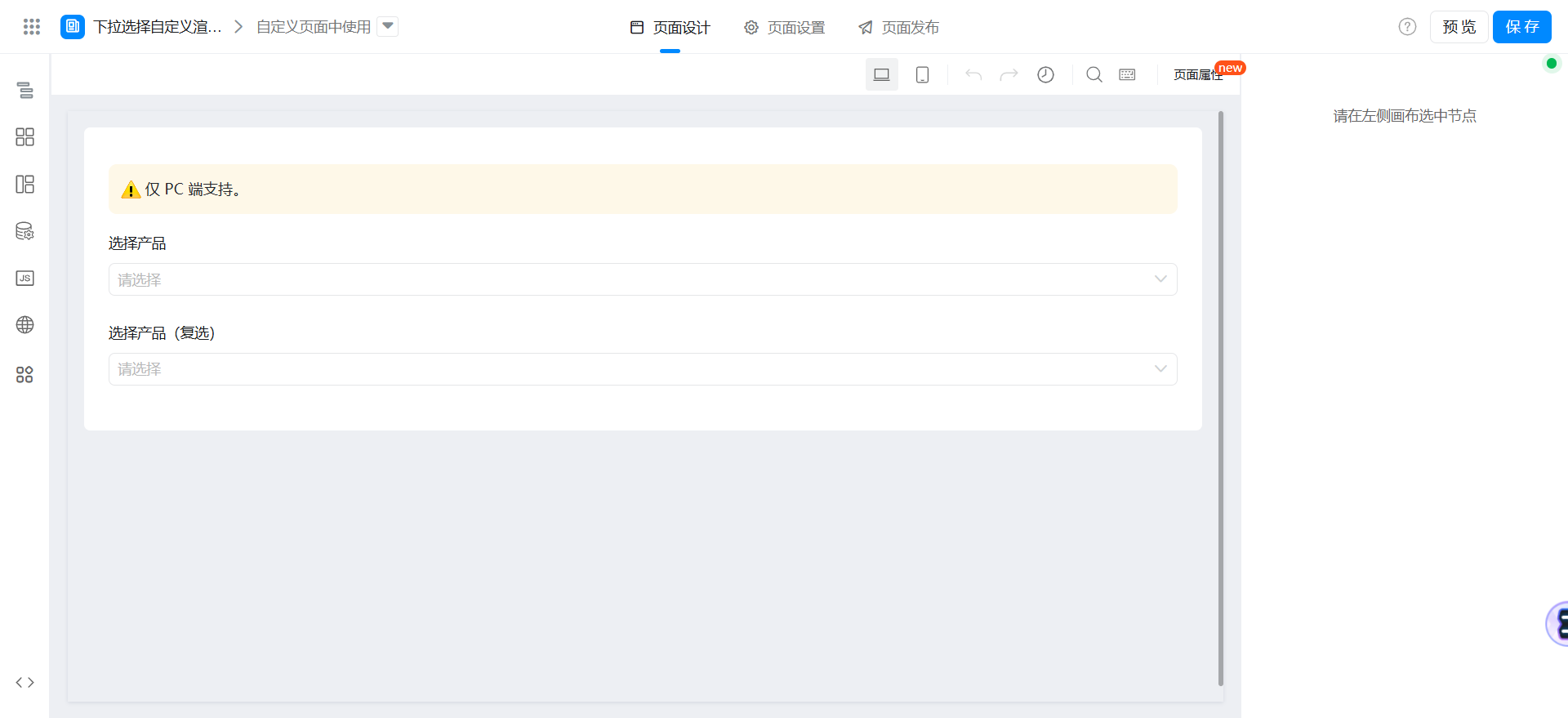
キャンバス領域で次のコンポーネントをドラッグします。
- ドロップダウン単一選択: 選択製品という名前
- ドロップダウン複数選択: 選択製品という名前を付けます (チェック)
スタイルの設定
ページのプロパティに、次のスタイルを追加します。
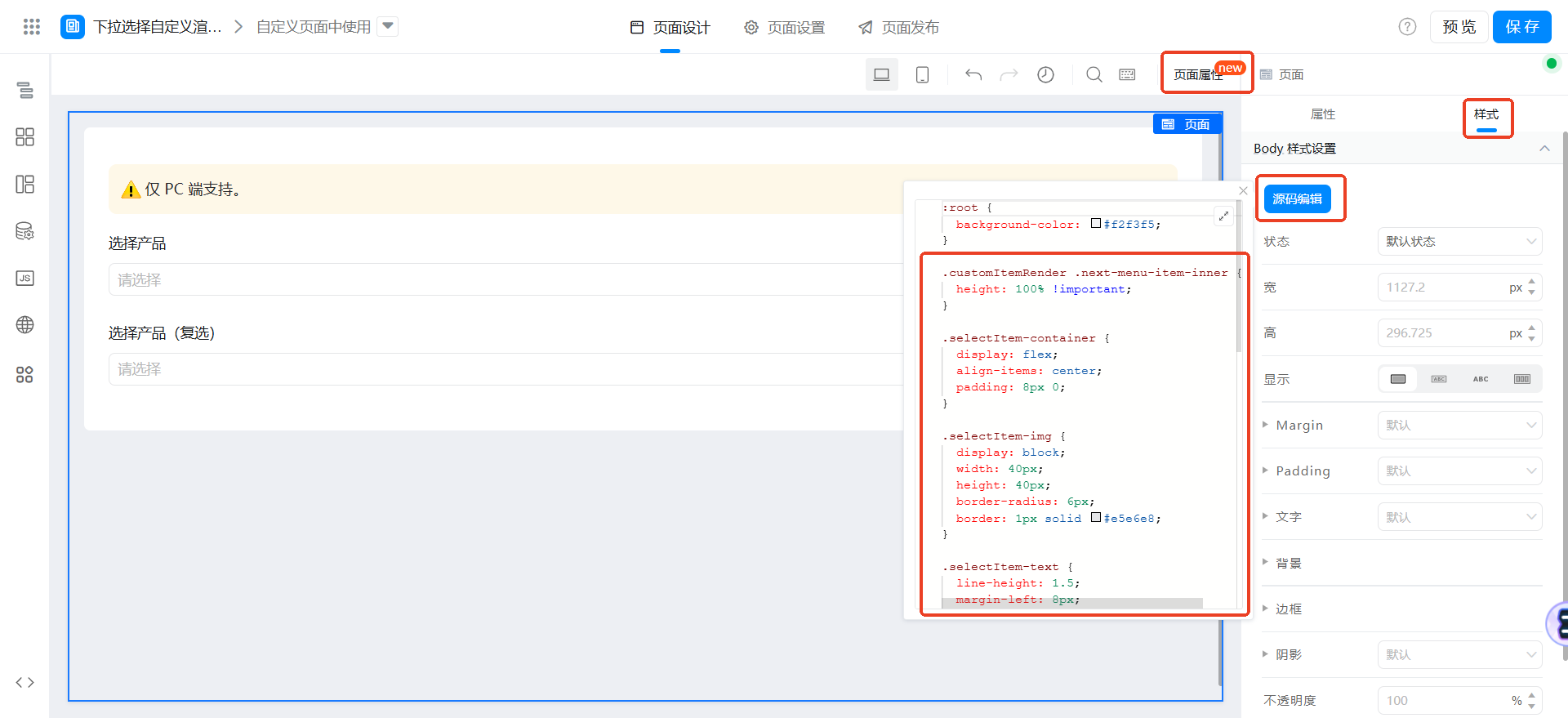
.customItemRender .next-menu-item-inner {
  height: 100% !important;
}

.selectItem-container {
  display: flex;
  align-items: center;
  padding: 8px 0;
}

.selectItem-img {
  display: block;
  width: 40px;
  height: 40px;
  border-radius: 6px;
  border: 1px solid #e5e6e8;
}

.selectItem-text {
  line-height: 1.5;
  margin-left: 8px;
  overflow: hidden;
}

.selectItem-title {
  font-size: 14px;
  text-overflow: ellipsis;
  overflow: hidden;
  white-space: nowrap;
}

.selectItem-description {
  font-size: 12px;
  color: #a2a3a5;
  text-overflow: ellipsis;
  overflow: hidden;
  white-space: nowrap;
}
取得オプションデータ関数の設定
ページjsに次の関数を追加します。ここでのformuuidは、上で作成したオプションテーブルのformuuidです。

// 获取下拉选择选项数据
export async function getSelectFieldDataSource(keyword = '') {
  return await this.utils.yida.searchFormDatas({
    formUuid: 'FORM-ACDECCDDBEDC4792A385094FA31B647DSV33',
    pageSize: 100,
    searchFieldJson: JSON.stringify({
      textField_m5390nqe: keyword, // 选项值
    }),
  }).then((res) => {
    const { data = [] } = res;
    return data.map((item) => {
      const { formData = {} } = item;
      return {
        text: formData.textField_m5390nqe, // 显示值
        value: formData.textField_m5390nqe, // 选项值
        customItem: item, // 自定义属性
      };
    });
  }).catch(({ message }) => {
    this.utils.toast({
      title: message,
      type: 'error',
    });
    return [];
  });
}
ドロップダウン選択オプションの設定レンダリング関数のカスタマイズ
ページjsに下记の関数を追加します。
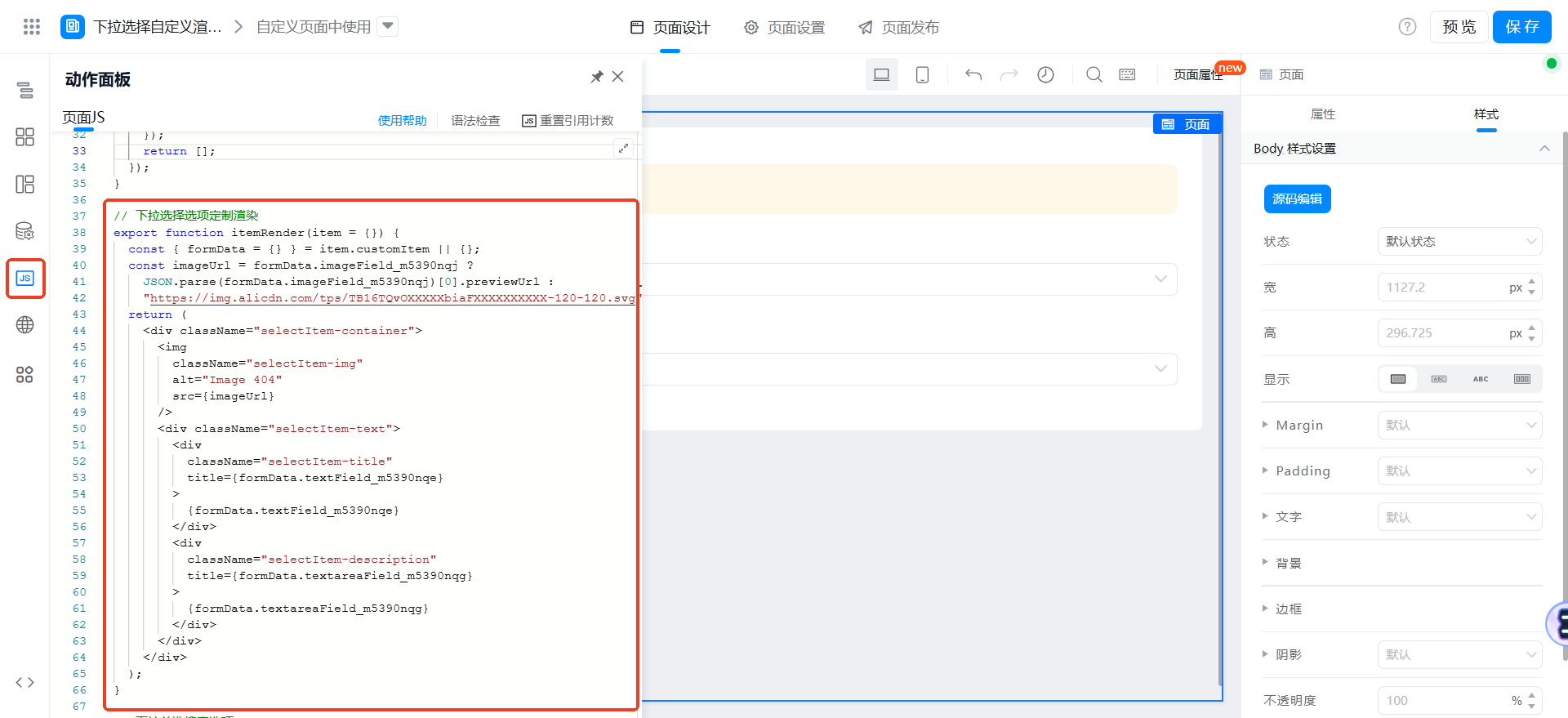
// 下拉选择选项定制渲染
export function itemRender(item = {}) {
  const { formData = {} } = item.customItem || {};
  const imageUrl = formData.imageField_m5390nqj ?
    JSON.parse(formData.imageField_m5390nqj)[0].previewUrl :
    "https://img.alicdn.com/tps/TB16TQvOXXXXXbiaFXXXXXXXXXX-120-120.svg";
  return (
    <div className="selectItem-container">
      <img
        className="selectItem-img"
        alt="Image 404"
        src={imageUrl}
      />
      <div className="selectItem-text">
        <div
          className="selectItem-title"
          title={formData.textField_m5390nqe}
        >
          {formData.textField_m5390nqe}
        </div>
        <div
          className="selectItem-description"
          title={formData.textareaField_m5390nqg}
        >
          {formData.textareaField_m5390nqg}
        </div>
      </div>
    </div>
  );
}
検索イベント関数の設定
「製品を選択」ドロップダウンで選択し、イベントバインディングを検索します
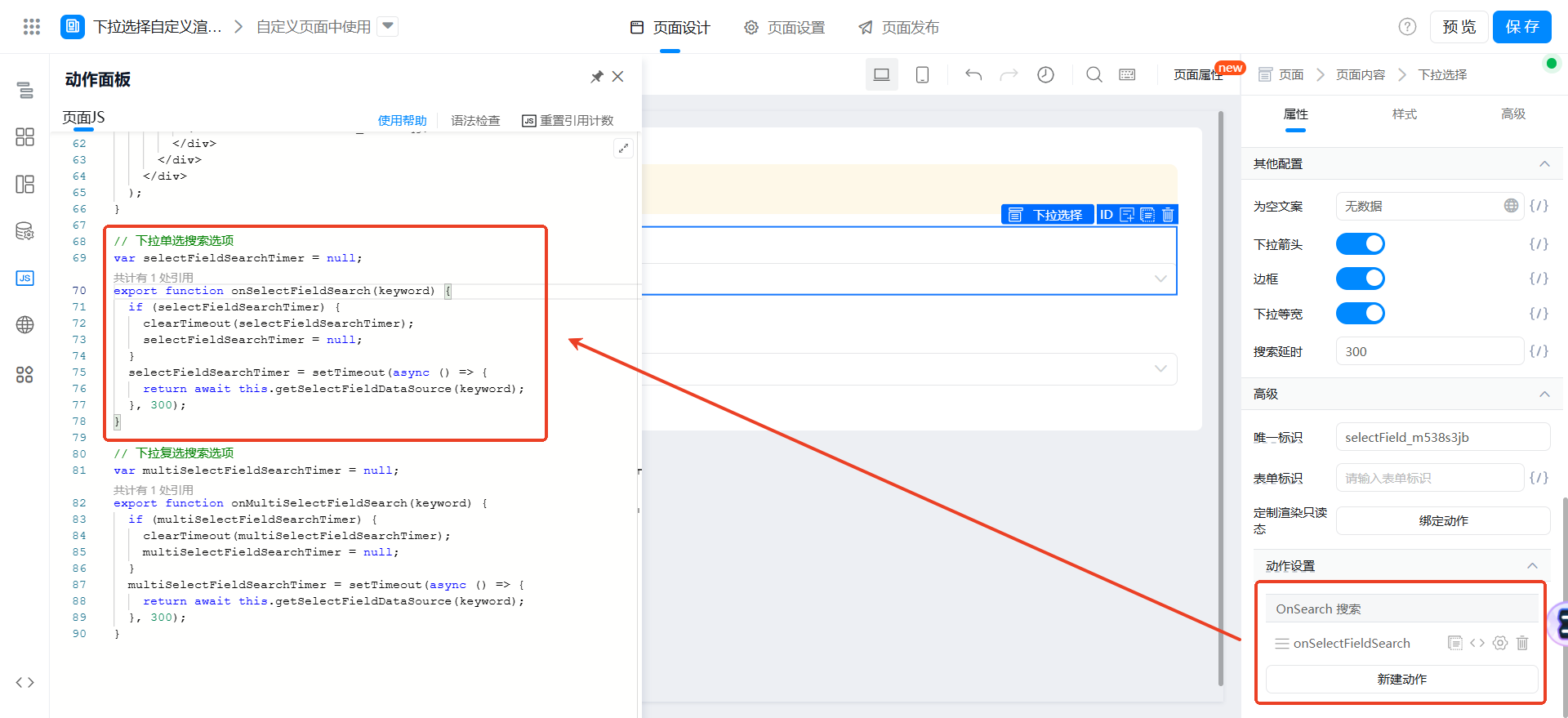
// 下拉单选搜索选项
var selectFieldSearchTimer = null;
export function onSelectFieldSearch(keyword) {
  if (selectFieldSearchTimer) {
    clearTimeout(selectFieldSearchTimer);
    selectFieldSearchTimer = null;
  }
  selectFieldSearchTimer = setTimeout(async () => {
    return await this.getSelectFieldDataSource(keyword);
  }, 300);
}
「製品の選択」ドロップダウン複数選択、イベントバインディングを検索
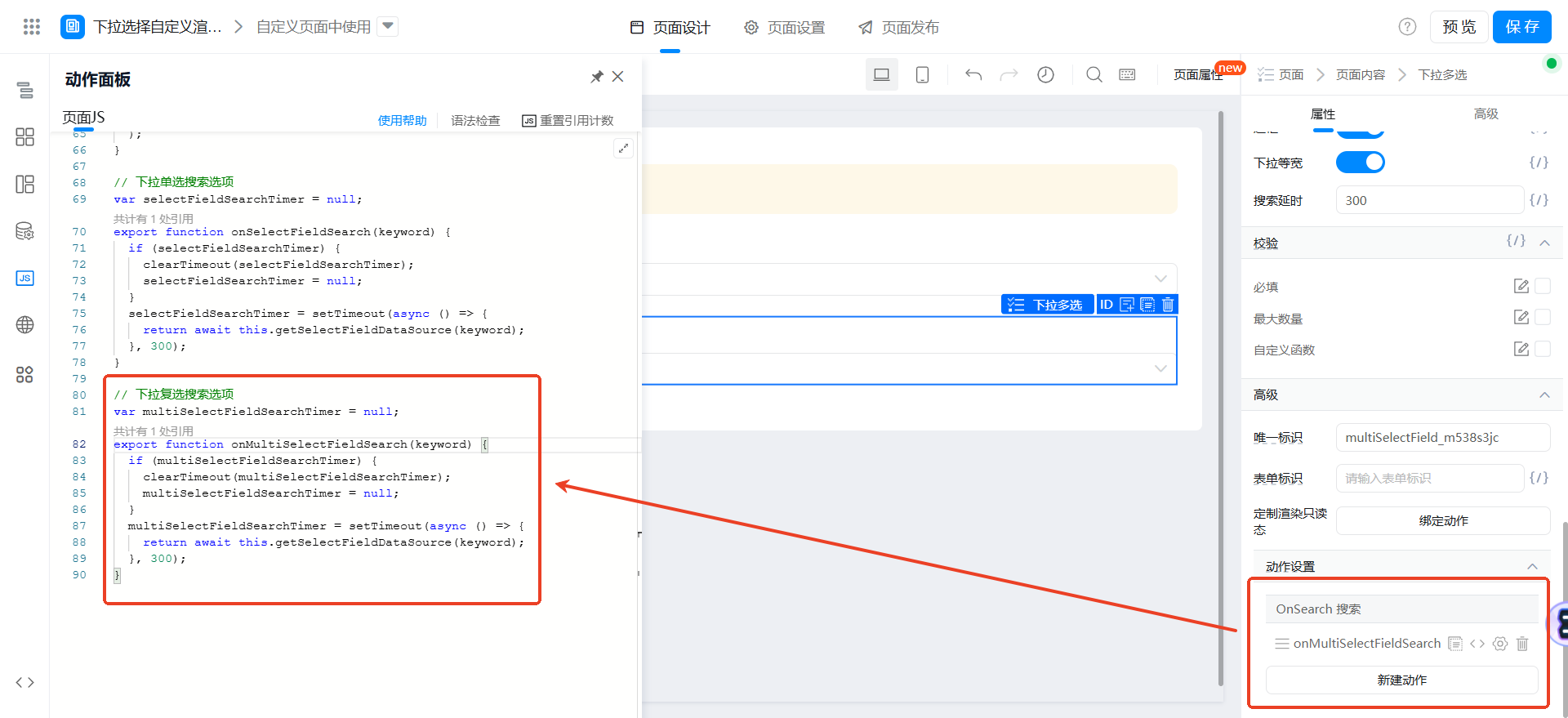
// 下拉复选搜索选项
var multiSelectFieldSearchTimer = null;
export function onMultiSelectFieldSearch(keyword) {
  if (multiSelectFieldSearchTimer) {
    clearTimeout(multiSelectFieldSearchTimer);
    multiSelectFieldSearchTimer = null;
  }
  multiSelectFieldSearchTimer = setTimeout(async () => {
    return await this.getSelectFieldDataSource(keyword);
  }, 300);
}
Didmount呼び出しの設定
ページjsに下记の関数を追加します。
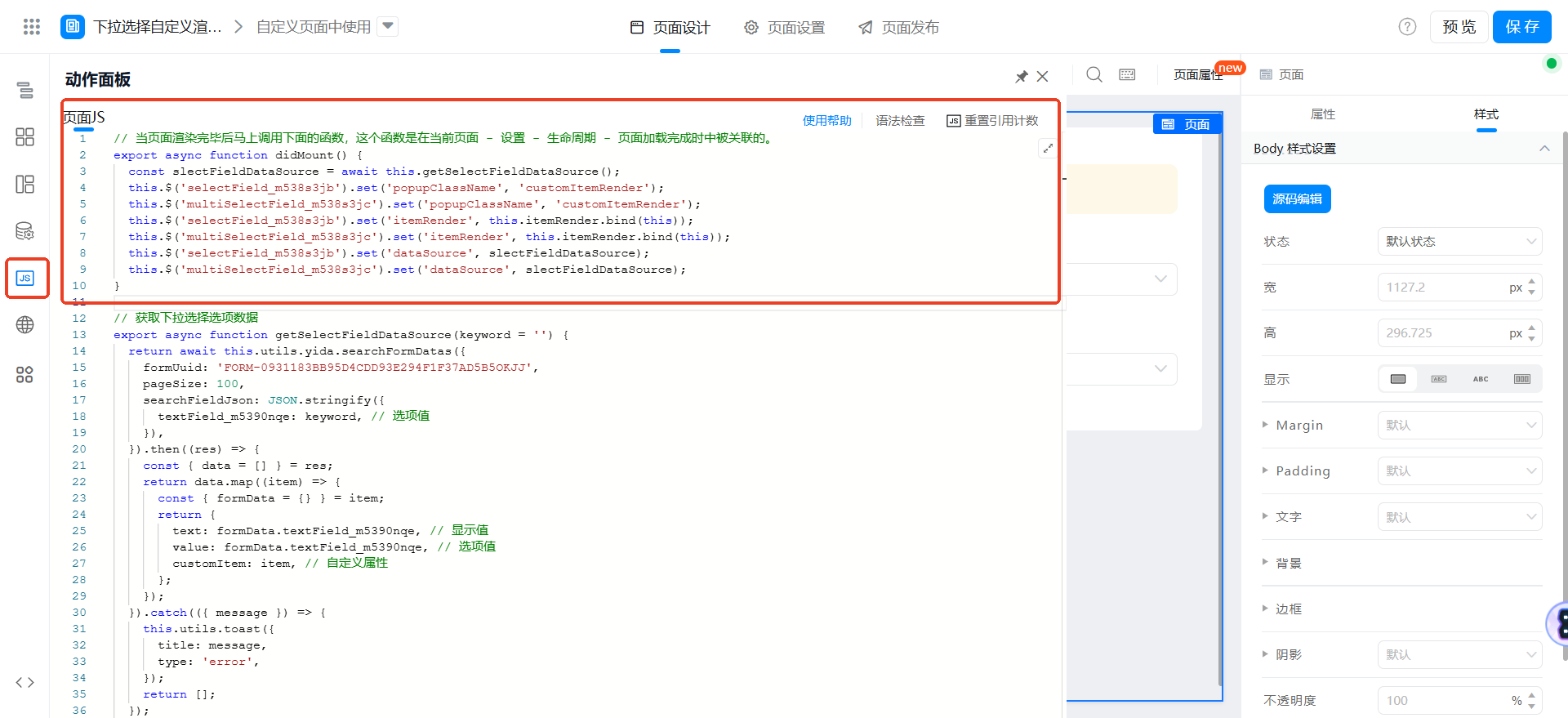
// 当页面渲染完毕后马上调用下面的函数,这个函数是在当前页面 - 设置 - 生命周期 - 页面加载完成时中被关联的。
export async function didMount() {
  const slectFieldDataSource = await this.getSelectFieldDataSource();
  this.$('selectField_m538s3jb').set('popupClassName', 'customItemRender');
  this.$('multiSelectField_m538s3jc').set('popupClassName', 'customItemRender');
  this.$('selectField_m538s3jb').set('itemRender', this.itemRender.bind(this));
  this.$('multiSelectField_m538s3jc').set('itemRender', this.itemRender.bind(this));
  this.$('selectField_m538s3jb').set('dataSource', slectFieldDataSource);
  this.$('multiSelectField_m538s3jc').set('dataSource', slectFieldDataSource);
}
保存ページ