1. Initialization of product and inventory information
- Initialization of basic information
- First, use the system to clear the sample data of the system.
- On one of the data management pages, click one-click to clear the sample data.
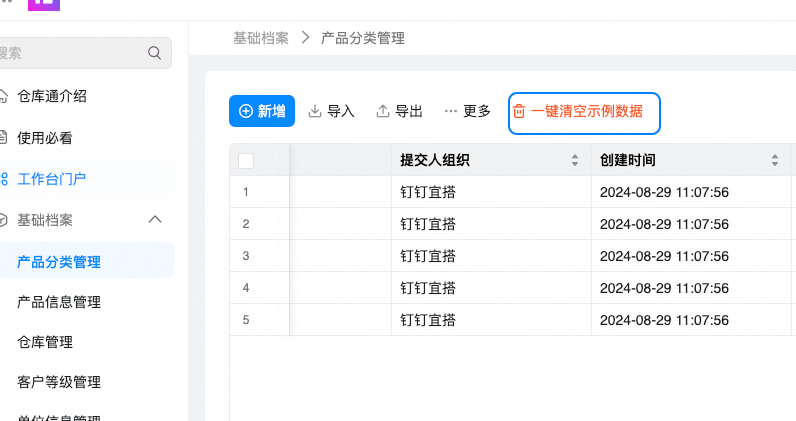
- Inventory Report: you need to enter the management background for inventory data synchronization-the inventory calculation table is republished for recalculation synchronization.


- Before using the system, you must initialize the following forms in the basic file.
- "Unit information management": Enter the measurement unit of the product, enter it according to the enterprise's own needs, and select it in "Product Information Management" after classified entry. Common units, KG, boxes, etc.
- "Product classification management": the first-level classification of products. After the classification is entered, it can be easily selected in Product Information Management.
- "Product Information Management": all product information of the enterprise, such as product name, specification, supplier, sales price, etc. We recommend that you use the system-generated number for the product number. After entering, you can directly select products in sales orders, purchase orders, etc.
- Inventory initialization
- First, enter the basic information of the enterprise warehouse in warehouse management, including the name, administrator, and address. After entering, you can directly select the corresponding warehouse in the inbound and outbound tables.
- Initialize the inventory quantity and enter the previous inventory information of the enterprise into the system. You can enter it manually or import it in batches.
- Batch import inventory
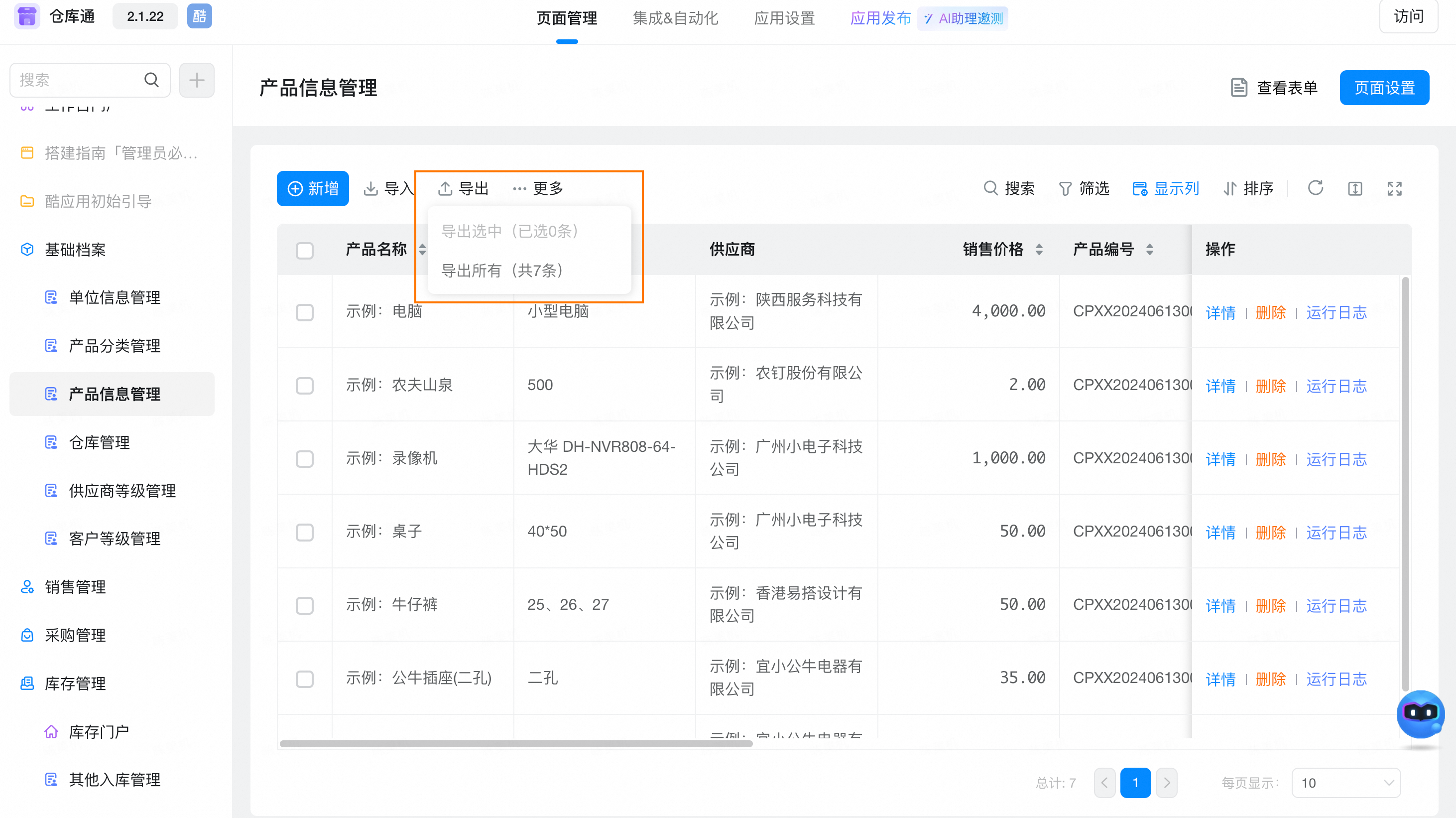
- Because the entire inventory quantity is managed by product number, you must first obtain the product number of each product if you import it in batches. First, export excel data in product information management, including the product name., product No., product specification, product unit, product classification, purchase amount
- Open other warehousing management, click Add, enter the warehousing date, warehousing staff, and warehousing warehouse, and then select batch import in the warehousing details to download the import template, enter the exported data and inventory data in Product Information Management and import them into the system.
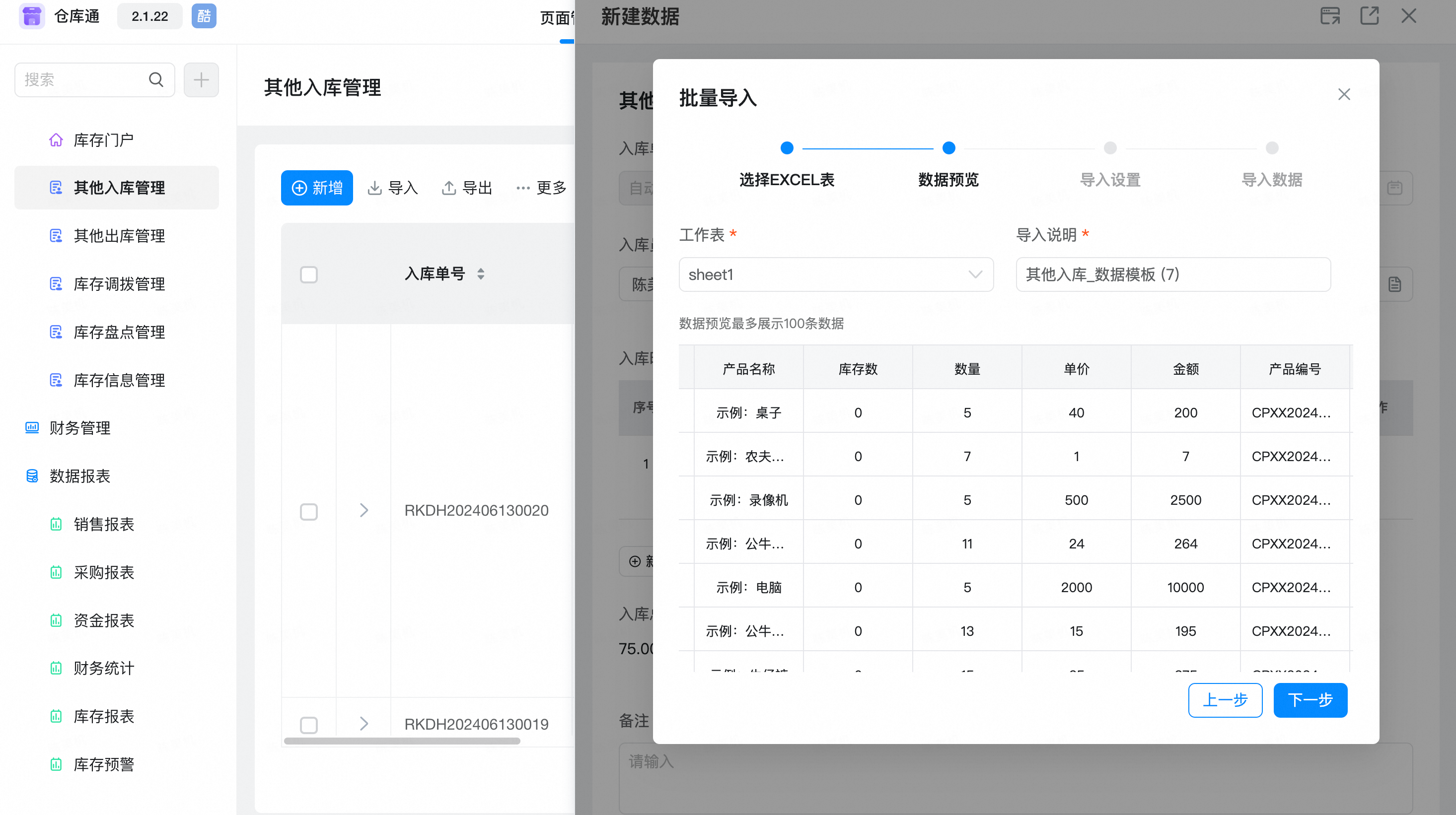
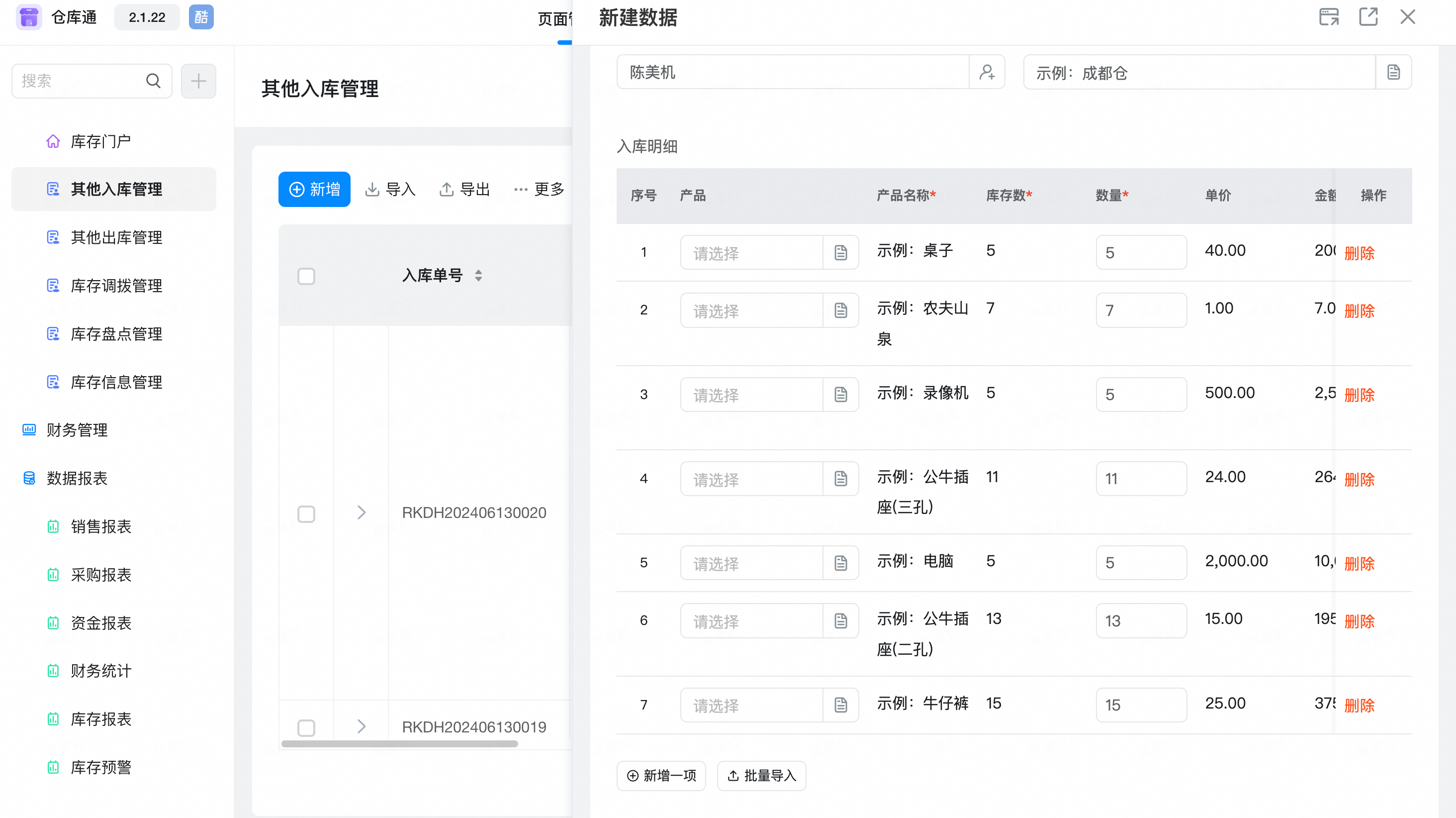
- After the import is successful, click submit to complete batch import of inventory quantity.
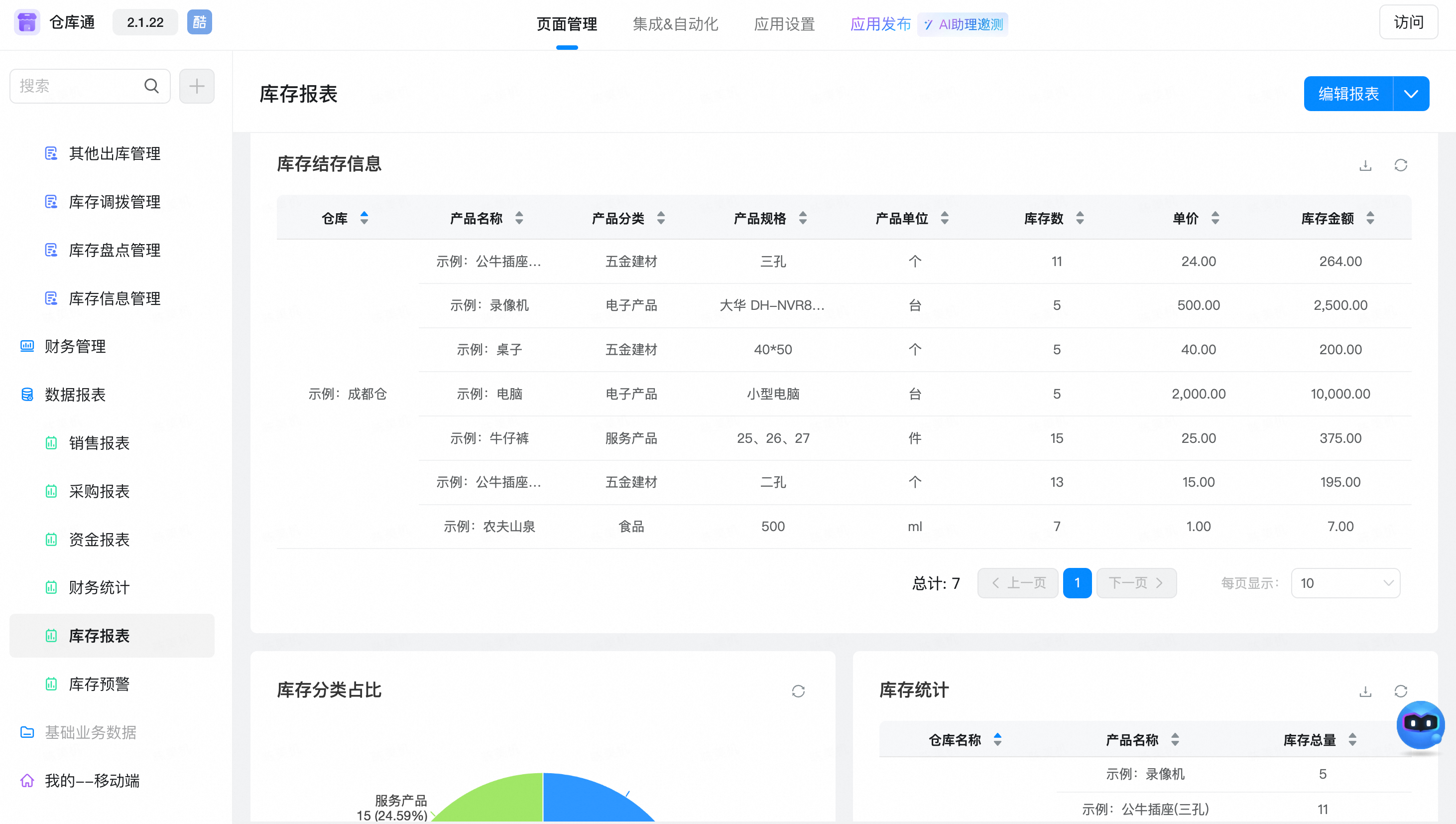
- Click inventory information management to view the initialized inventory information.Inventory Information management data is an inventory source Table. Theoretically, do not directly operate the table. If there is any problem with the data, we recommend that you use inventory to correct it, involving outbound, do not edit the form directly after the form is submitted. If you have any questions, we recommend that you set up a modification approval flow to modify or delete the data.You can also view inventory information in the data report-inventory report.
- Manual inventory entry
- Open other warehousing management, click Add, enter the warehousing date, warehousing staff, warehousing warehouse, then select the corresponding product, enter the quantity, and click submit

- After entering, you can view the inventory information of all products in inventory information management and inventory report.
This doc is generated using machine translation. Any discrepancies or differences created in the translation are not binding and have no legal effect for compliance or enforcement purposes.
Is this document helpful?