3. How to complete permission configuration
After data initialization, we can configure permissions to enable different personnel to operate different functions and data.
1. Configure permissions for viewing data on a single page
For example, common salesmen can only view and manage the customer information they are responsible. The salesperson can only see the sales price of the product and cannot see the purchase price of the product.
- How does the salesperson view the product information, and only the sales price of the product cannot see the purchase price
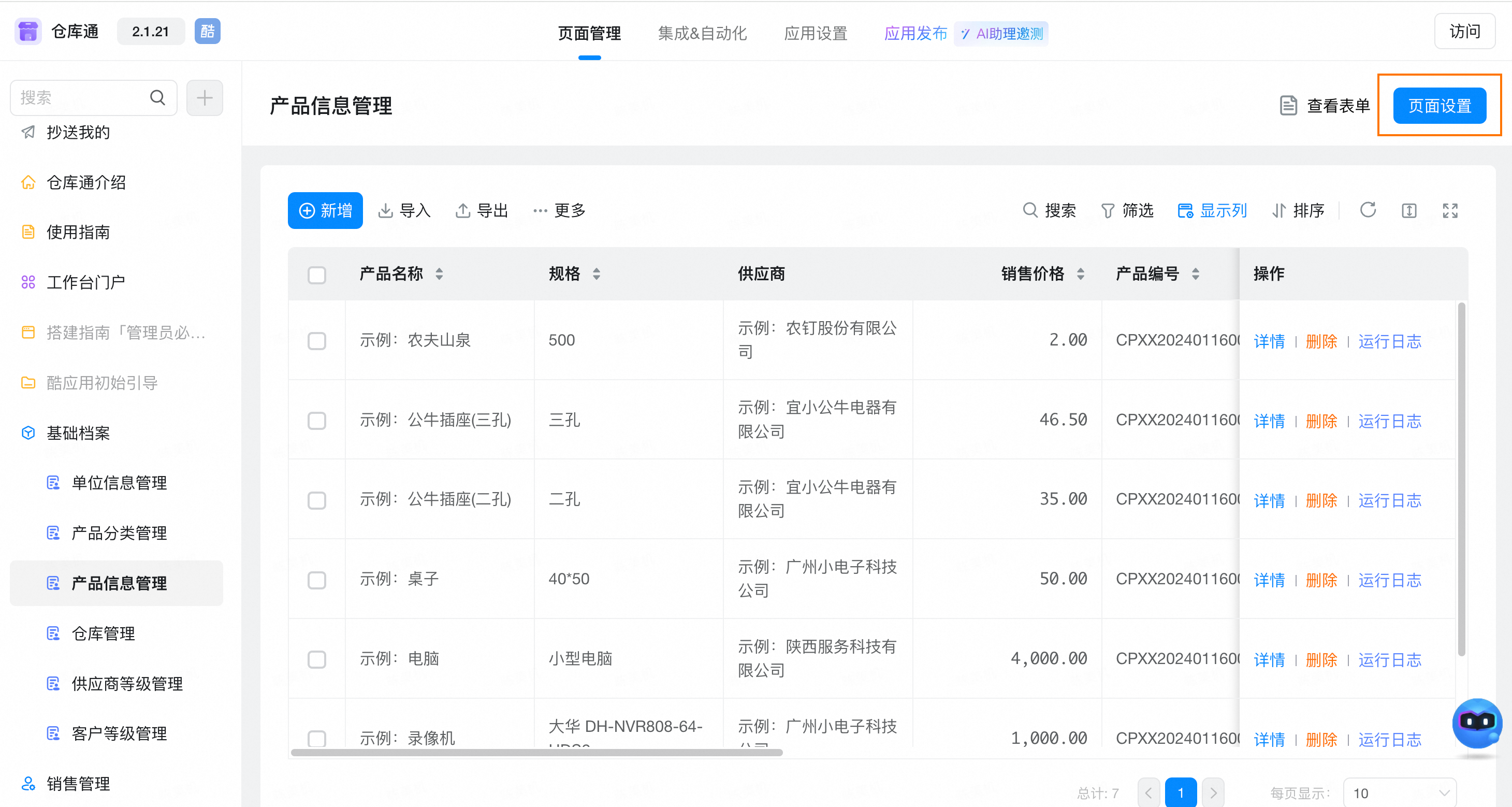
- Open Product Information Management in the basic file and click page settings on the right.
- Click permission settings on the left to configure the display permissions on the page. You can add permissions or edit existing permissions.
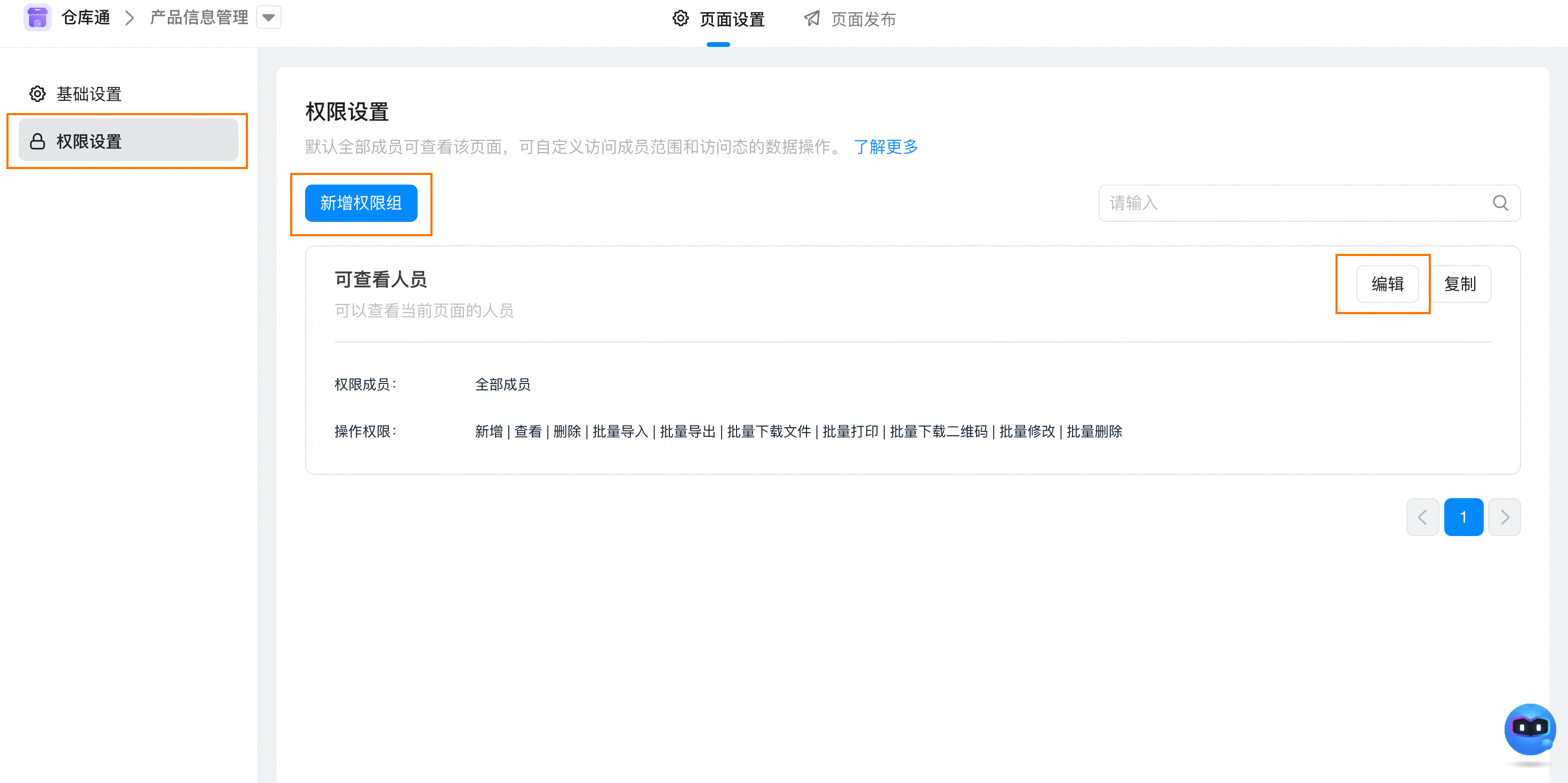
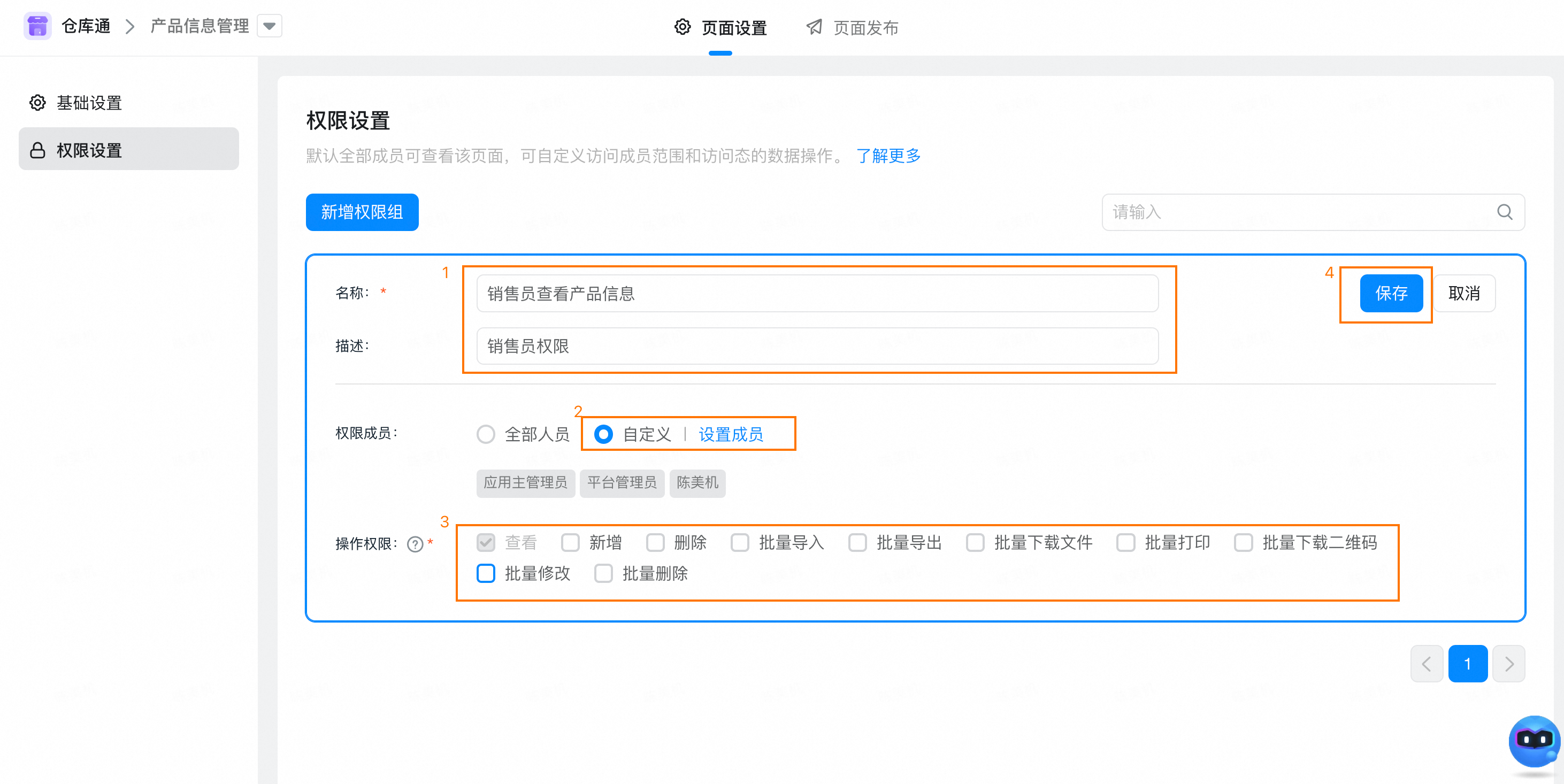
- In this operation case, we directly click edit, modify the permission group name to view product information for the salesperson, describe it as the salesperson permission, then select custom members, click set members to select the corresponding sales department or salesperson, only check the operation permission, and then click save. At this time, our salesperson can see the product information management page in the system, but cannot see the data. Next, let's complete the data permission configuration.
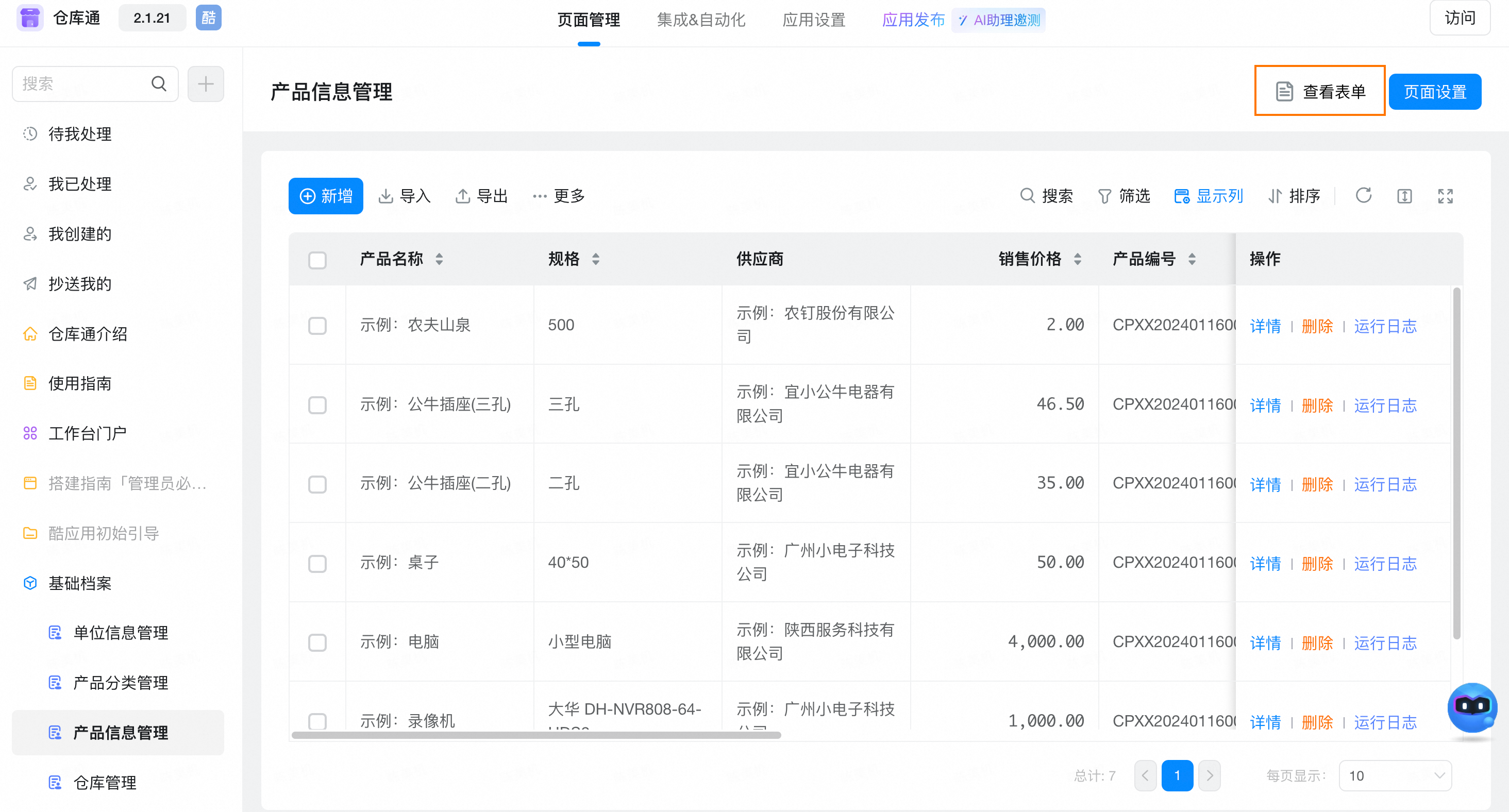
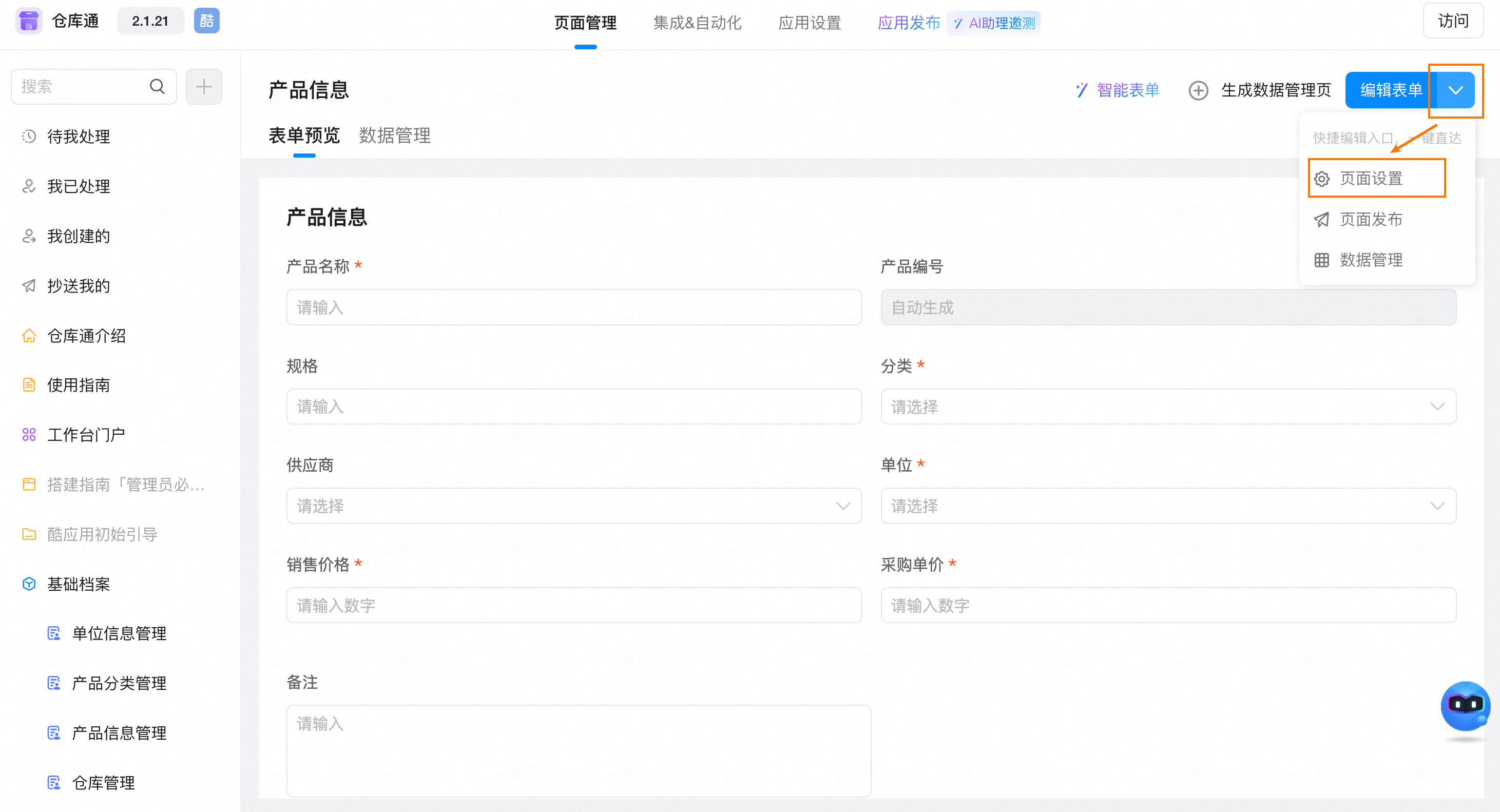
- Click View form
- Click page settings
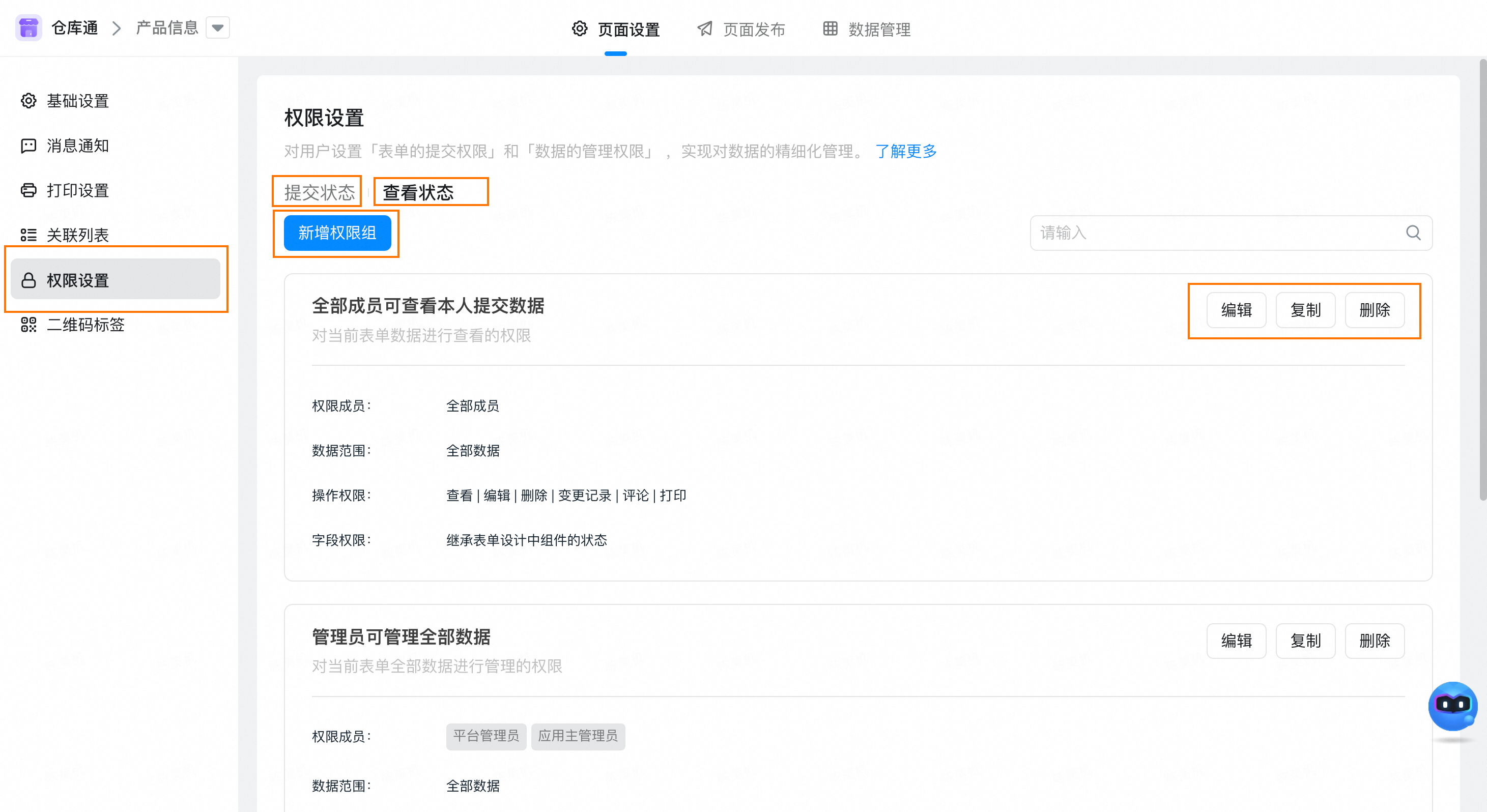
- Click permission settings on the right to enter the data permission configuration page of product information management. The submission status is to configure who can submit it. View status is the permission to view and delete configuration data.
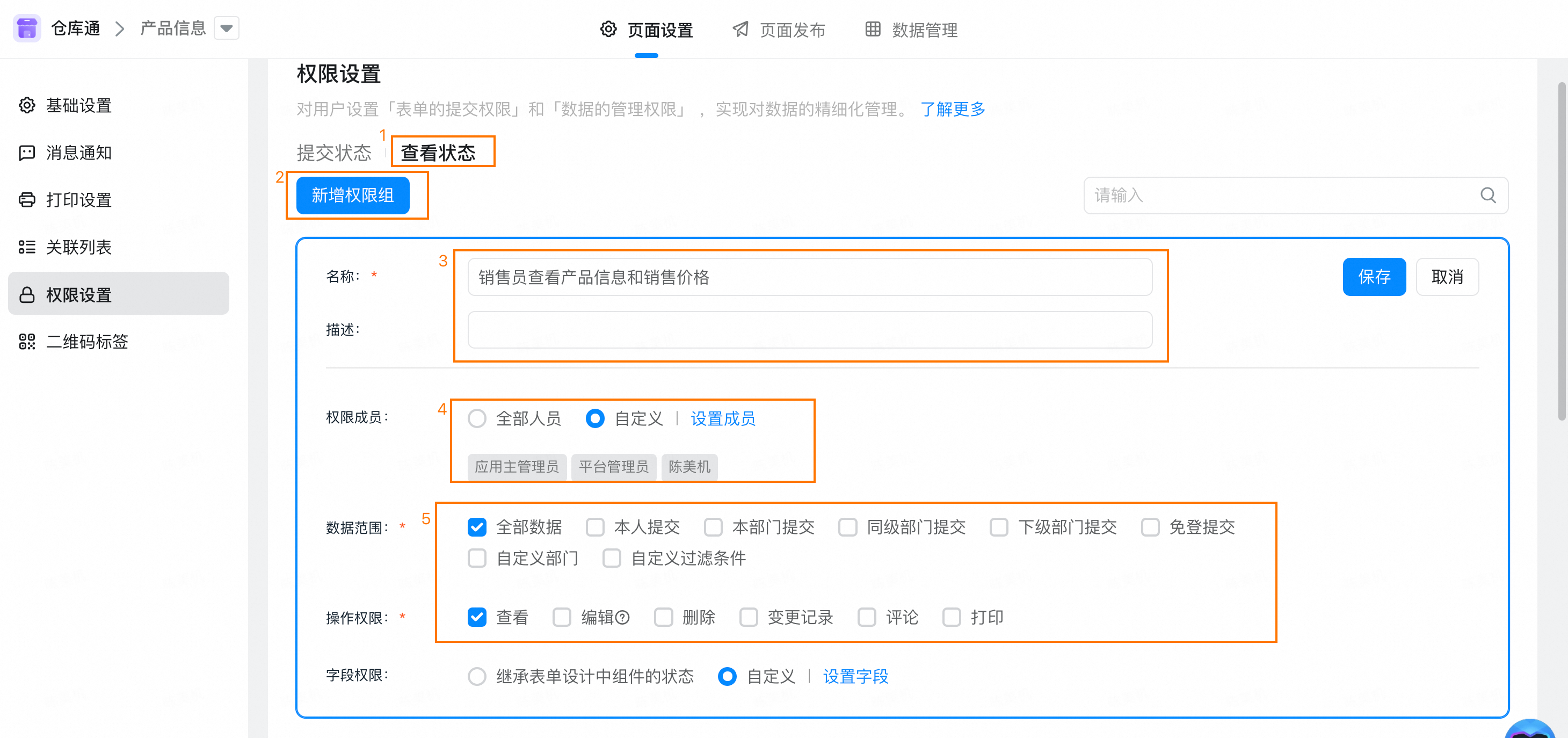
- Click View status, add a permission group, enter the permission group name, set the member to the sales department or the corresponding salesperson, the data permission is all data, and the operation permission is view.
- Click the Settings field to hide the purchase price, click OK, and then save it.
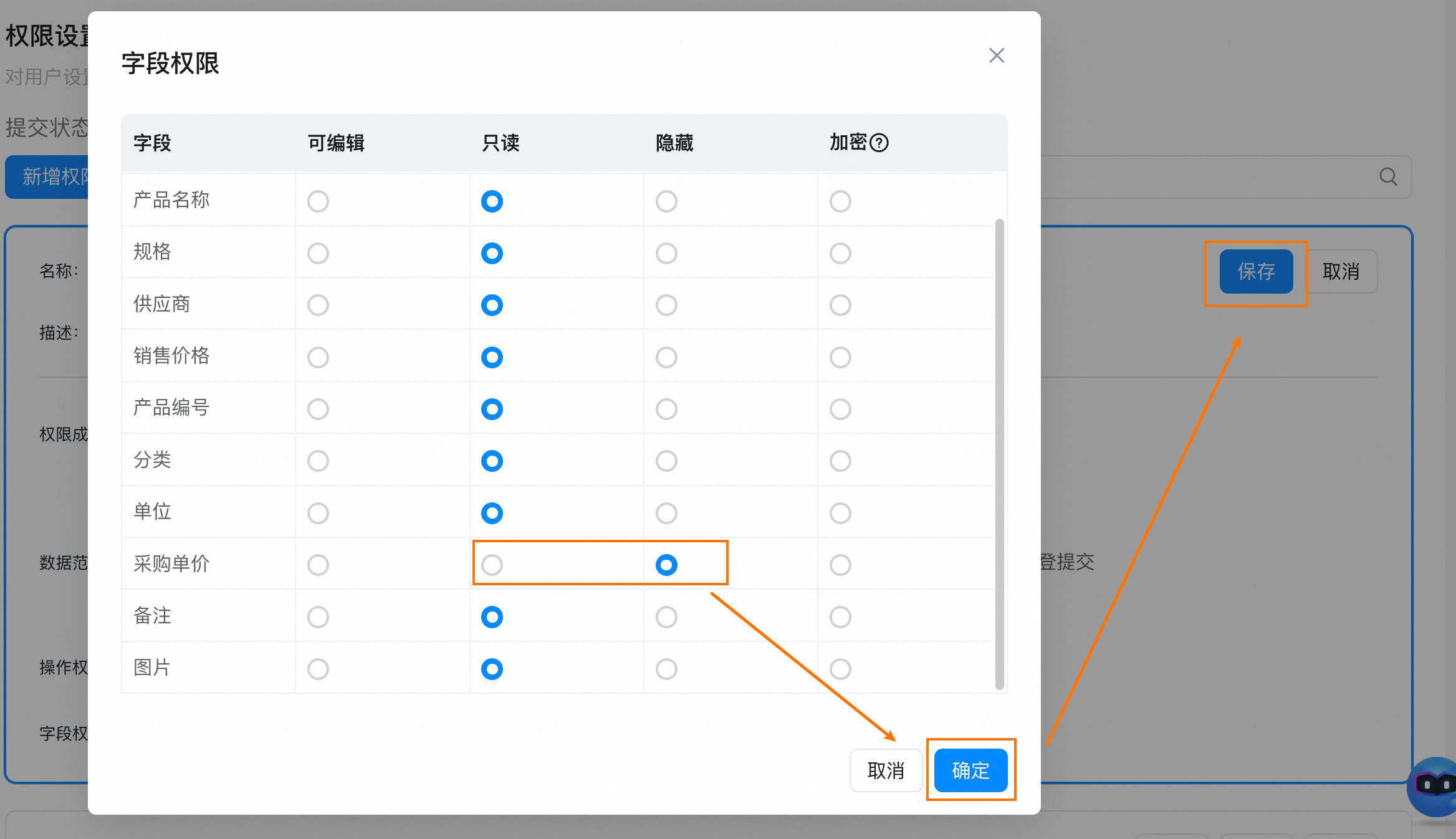
- After completing the above configuration, the salesperson can view the product information, and only the sales price of the product cannot see the purchase price.
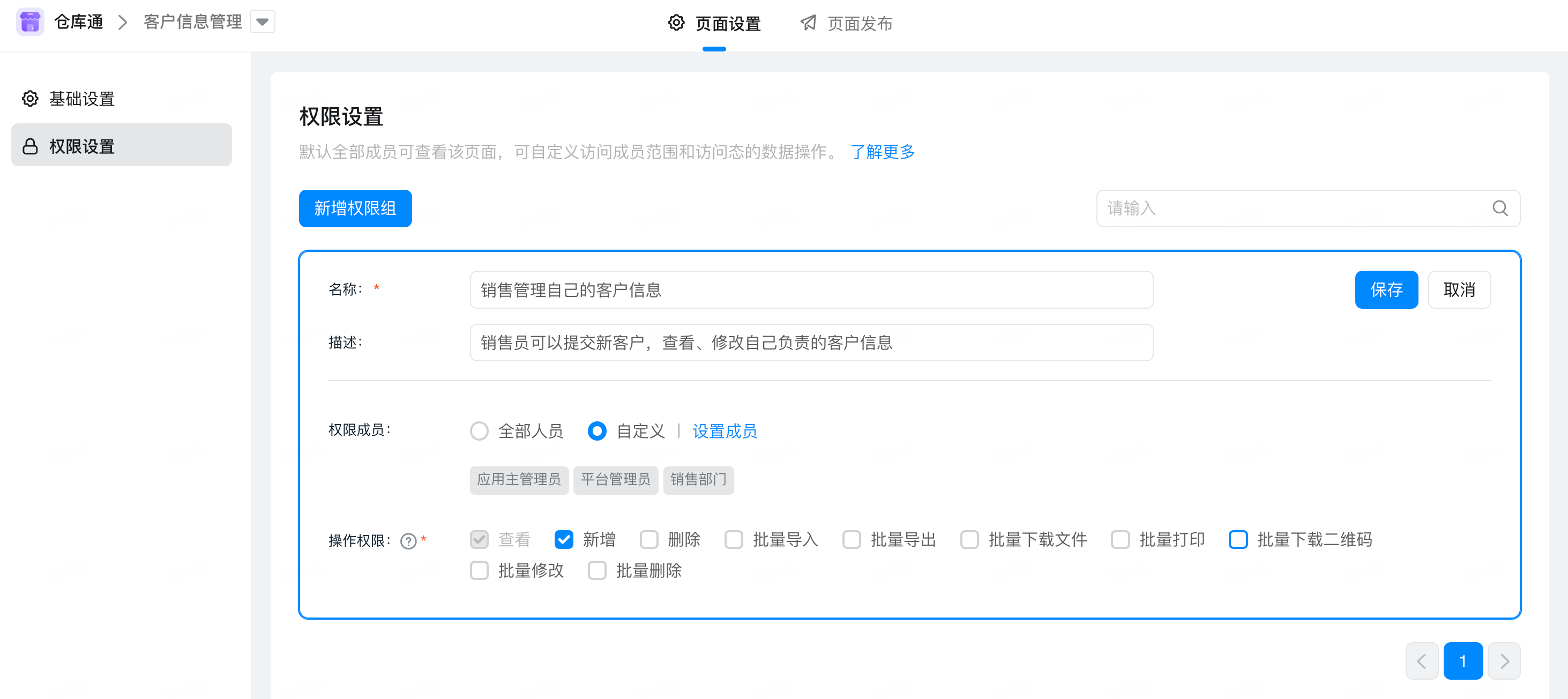
- Salesmen can only see and manage their own customer information.
- Open customer information management in sales management, click permission settings, edit or add permissions, refer to the following for configuration, pay special attentionSet members as sales departments or salesmen, and the operation permission is added. Click save.At this time, all salesmen can see the customer information management form. Next, we will complete the data permission configuration for customer information management.
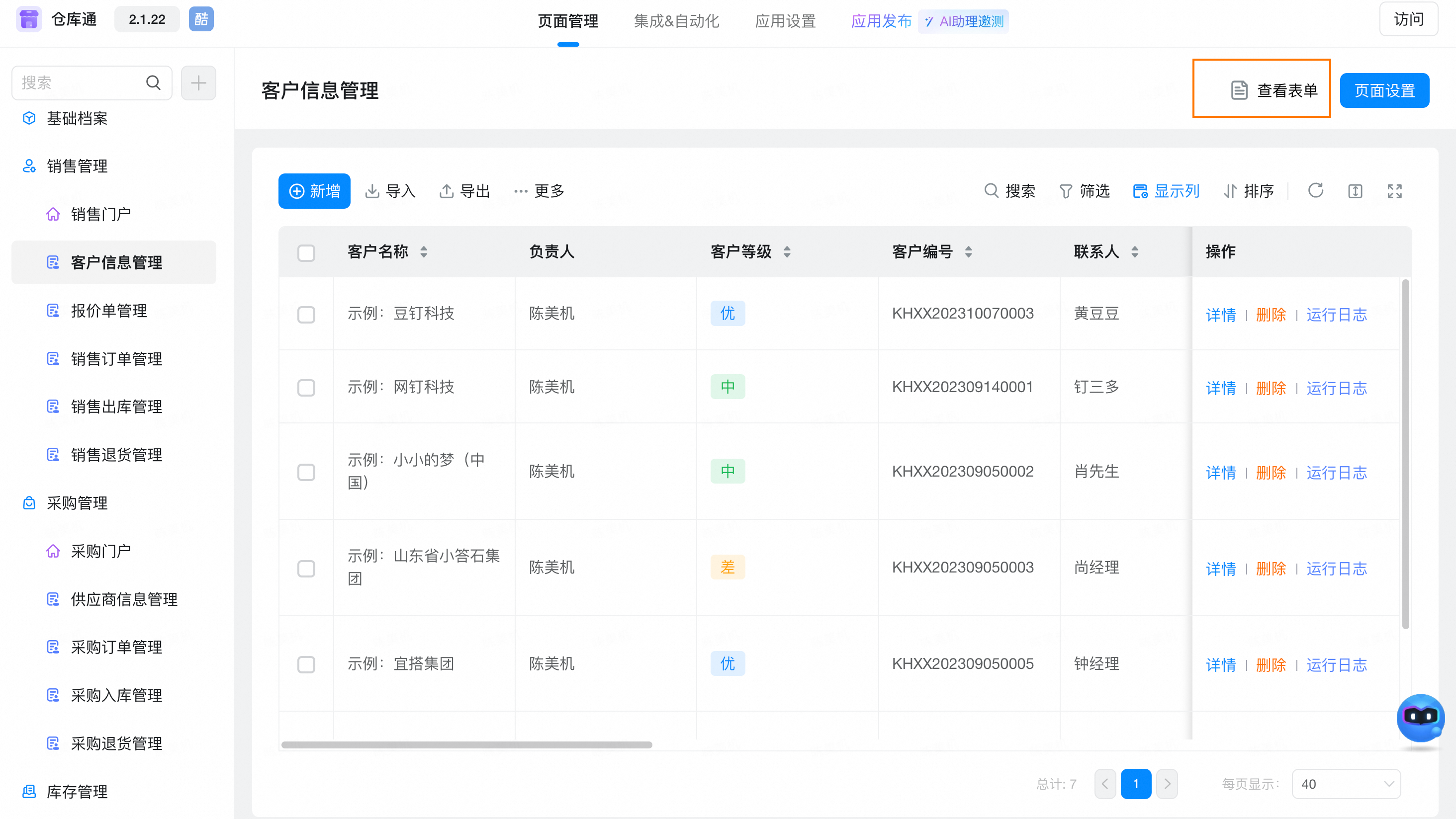
- Click View form
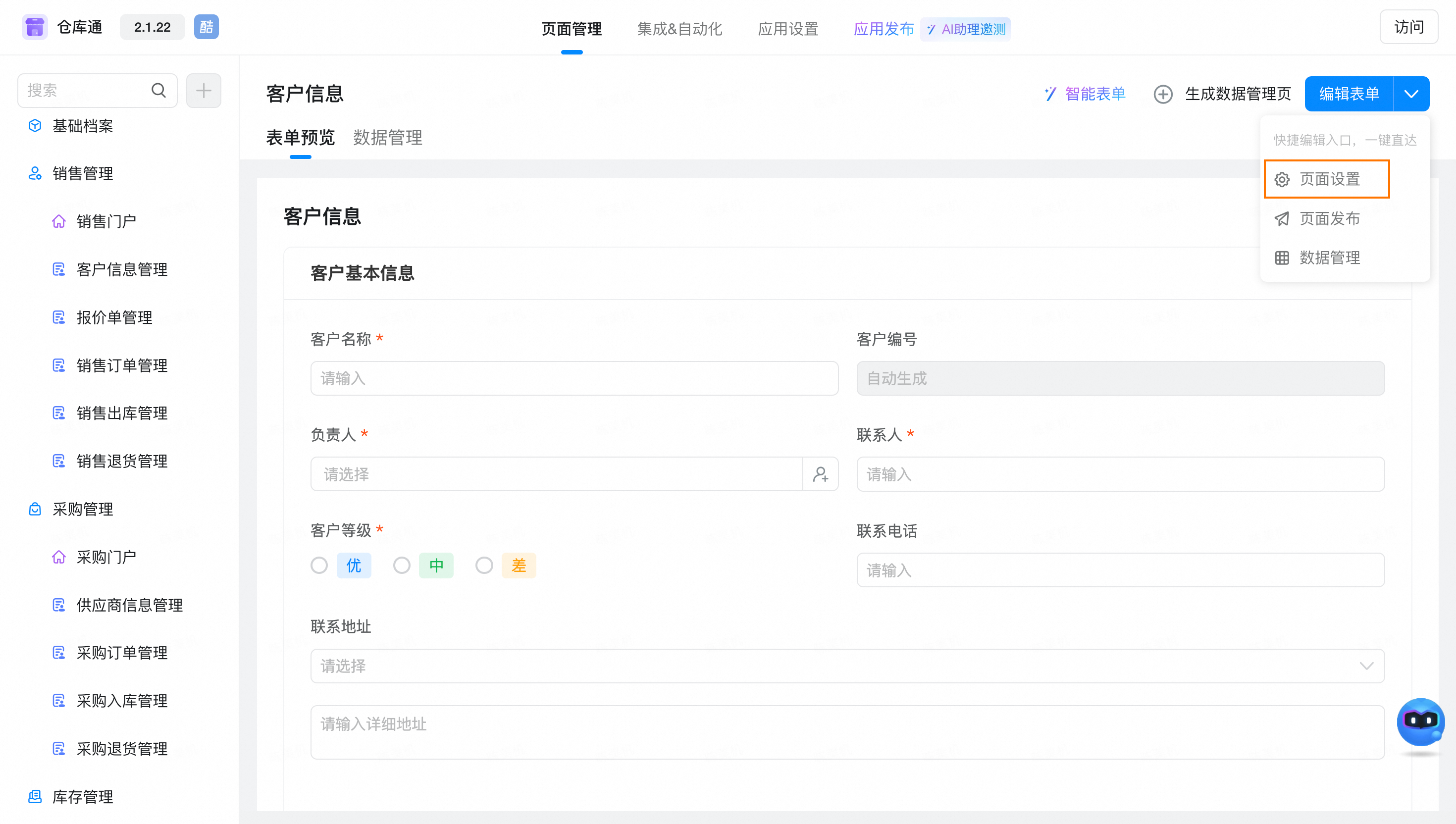
- Click page settings
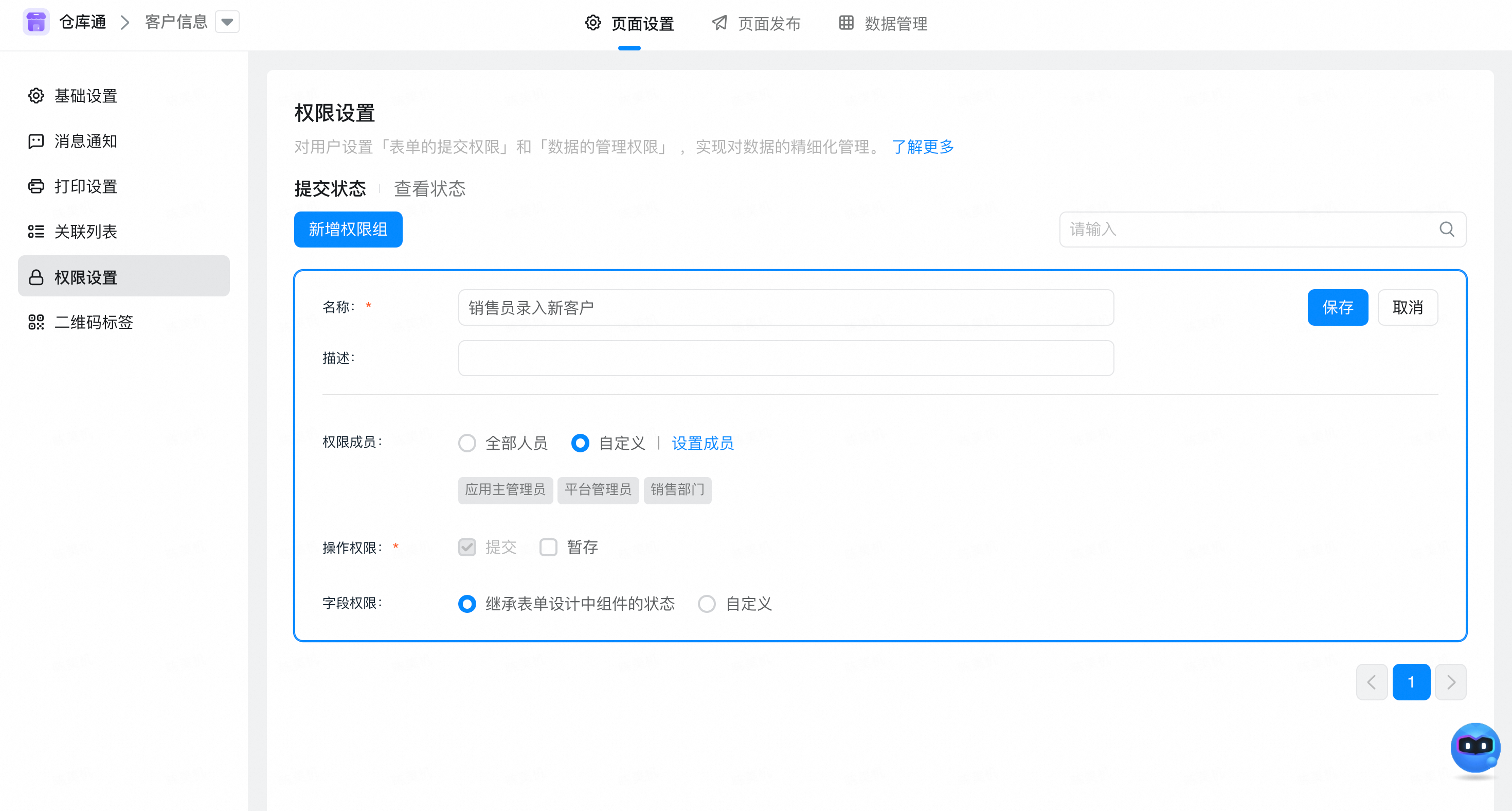
- Click permission settings on the right to enter the data permission configuration page of customer information management. For more information about submitting data permissions, see the following configuration to enable salesmen to enter new customer information.
- Then click View status to add a permission group configuration as follows. The core is to set the customer owner = current login person through custom filter conditions, so that the salesperson can only view, modify the customer information that you are responsible for to avoid customer information leakage.
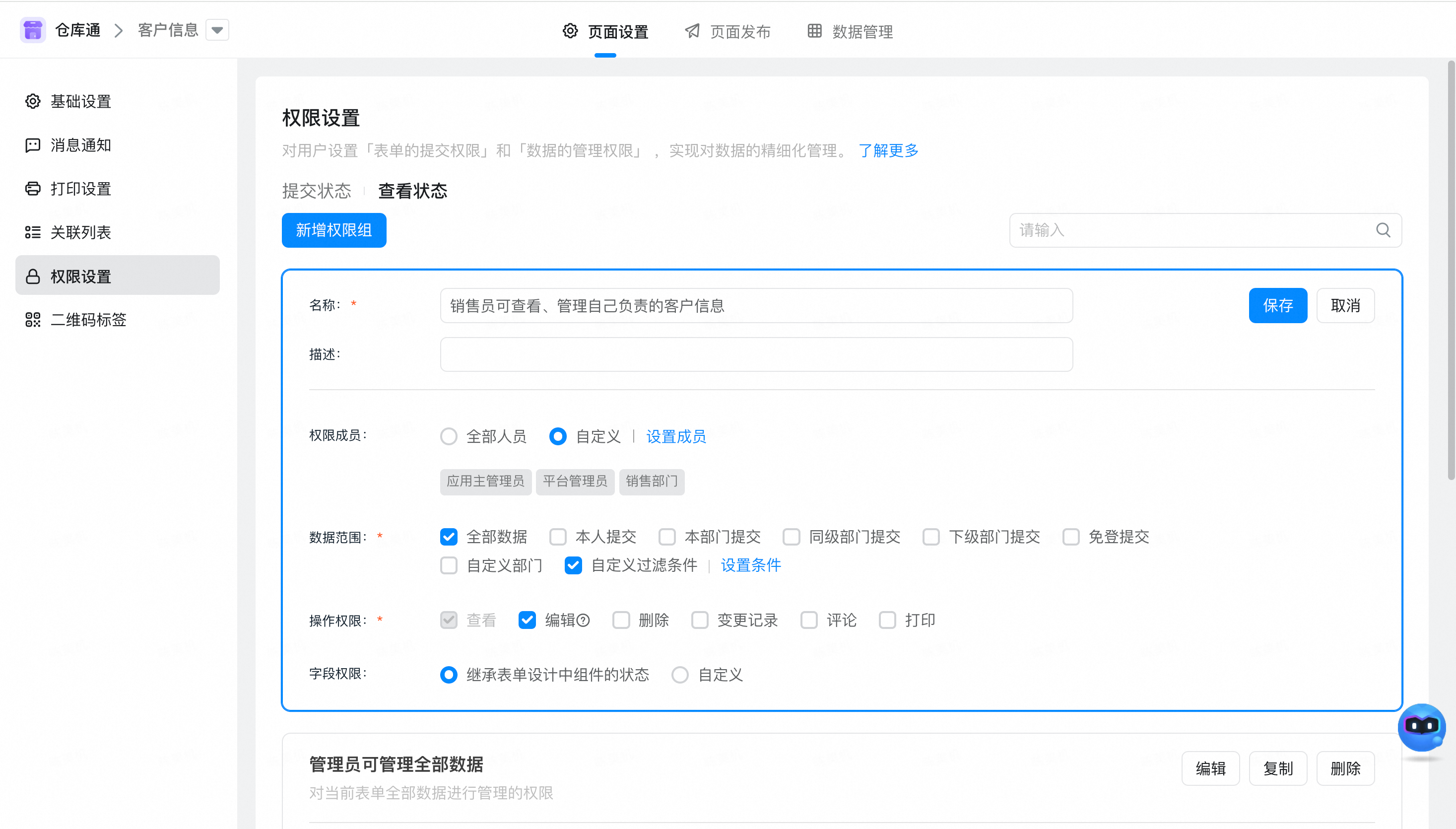
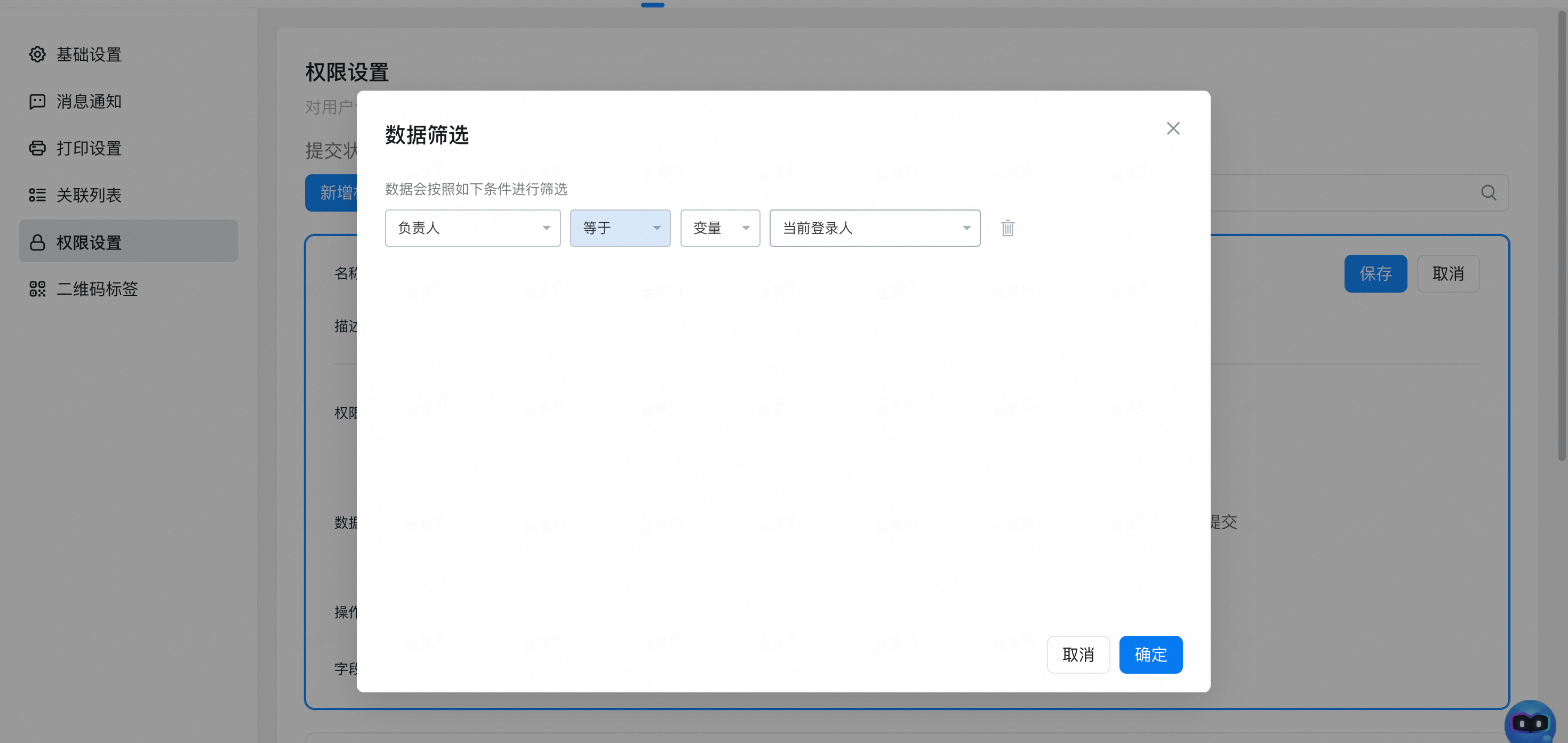
- After completing the above configuration, salesmen can see and manage their own customer information.
2,Quickly configure permissions through roles
- Go to the management background> Application Settings> Application roles and add corresponding role members
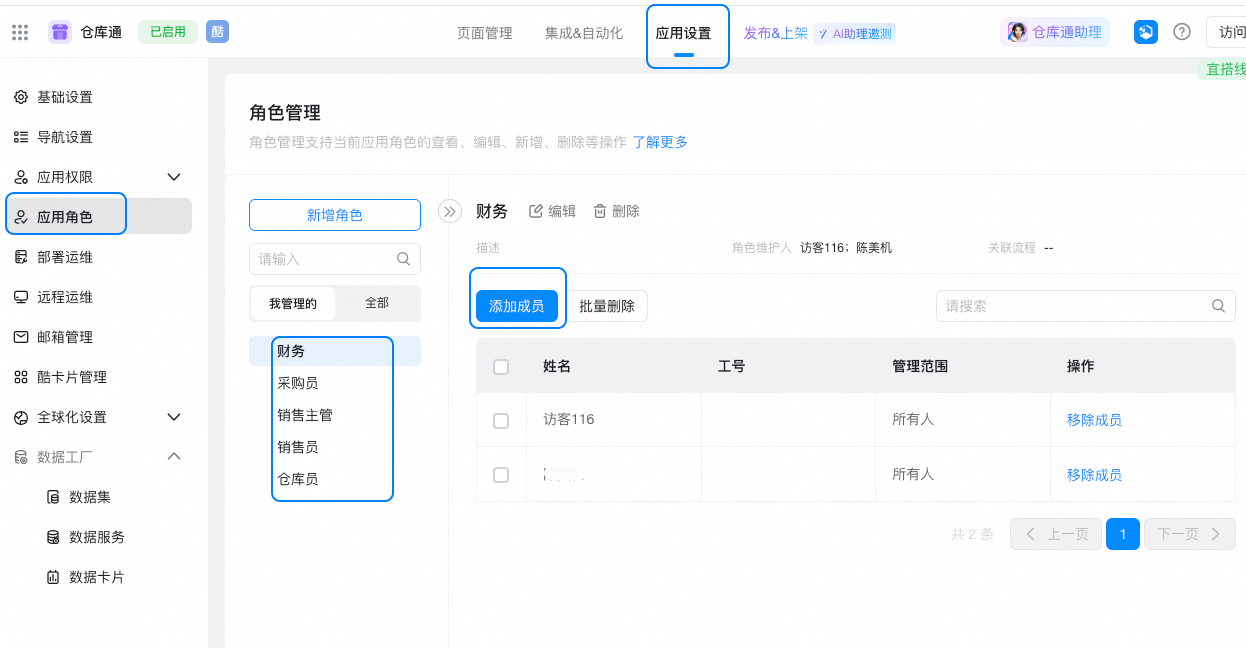
- You can have the permissions of the corresponding role after the addition is successful.
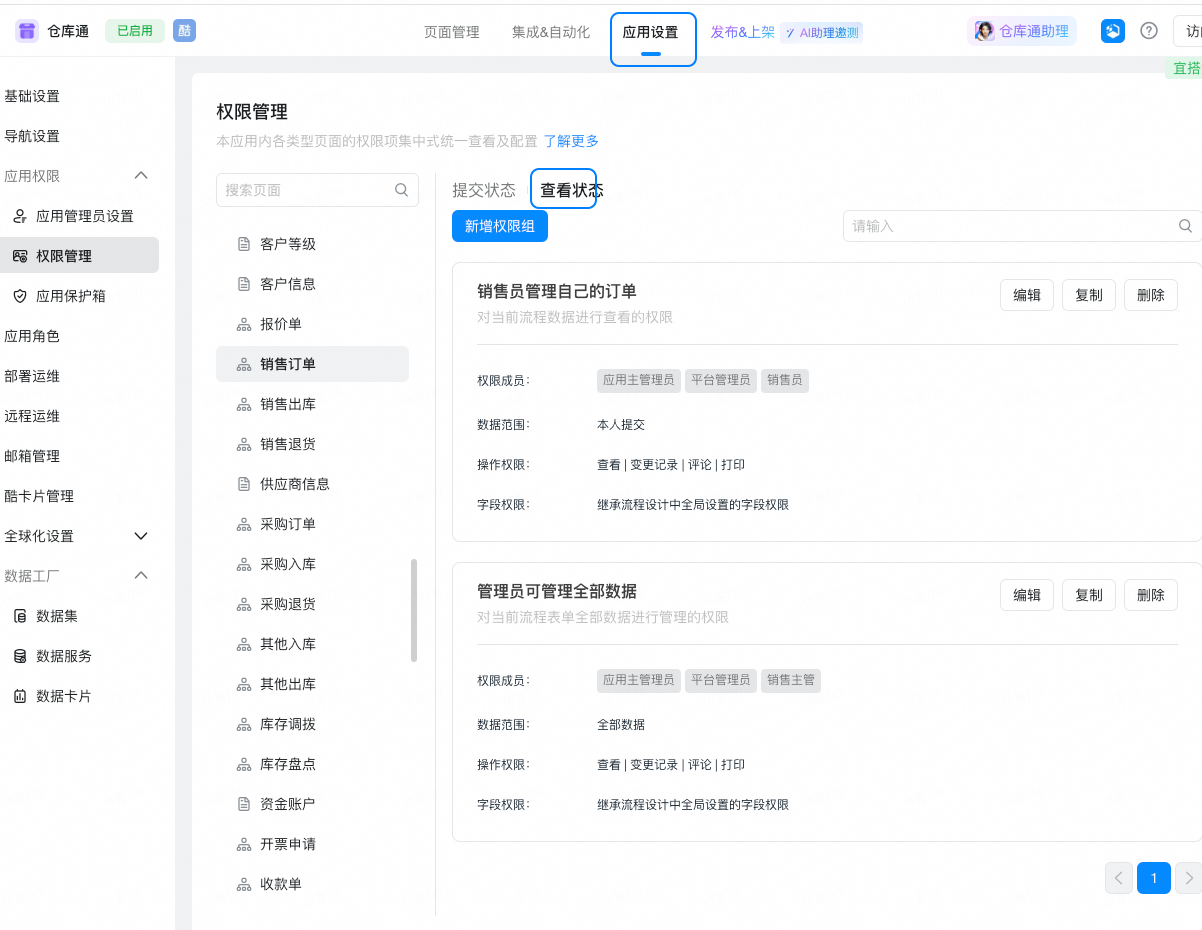
The above two methods quickly help you understand how to configure permissions. For more information, see the above configuration method to configure permissions according to your own needs.
This doc is generated using machine translation. Any discrepancies or differences created in the translation are not binding and have no legal effect for compliance or enforcement purposes.
Is this document helpful?