
Custom page control folding panel folding display
1. Usage scenarios
This example describes how to control the folding display of the folding panel on the YIDA custom page.
2. Implement functions
2.1 create a custom page
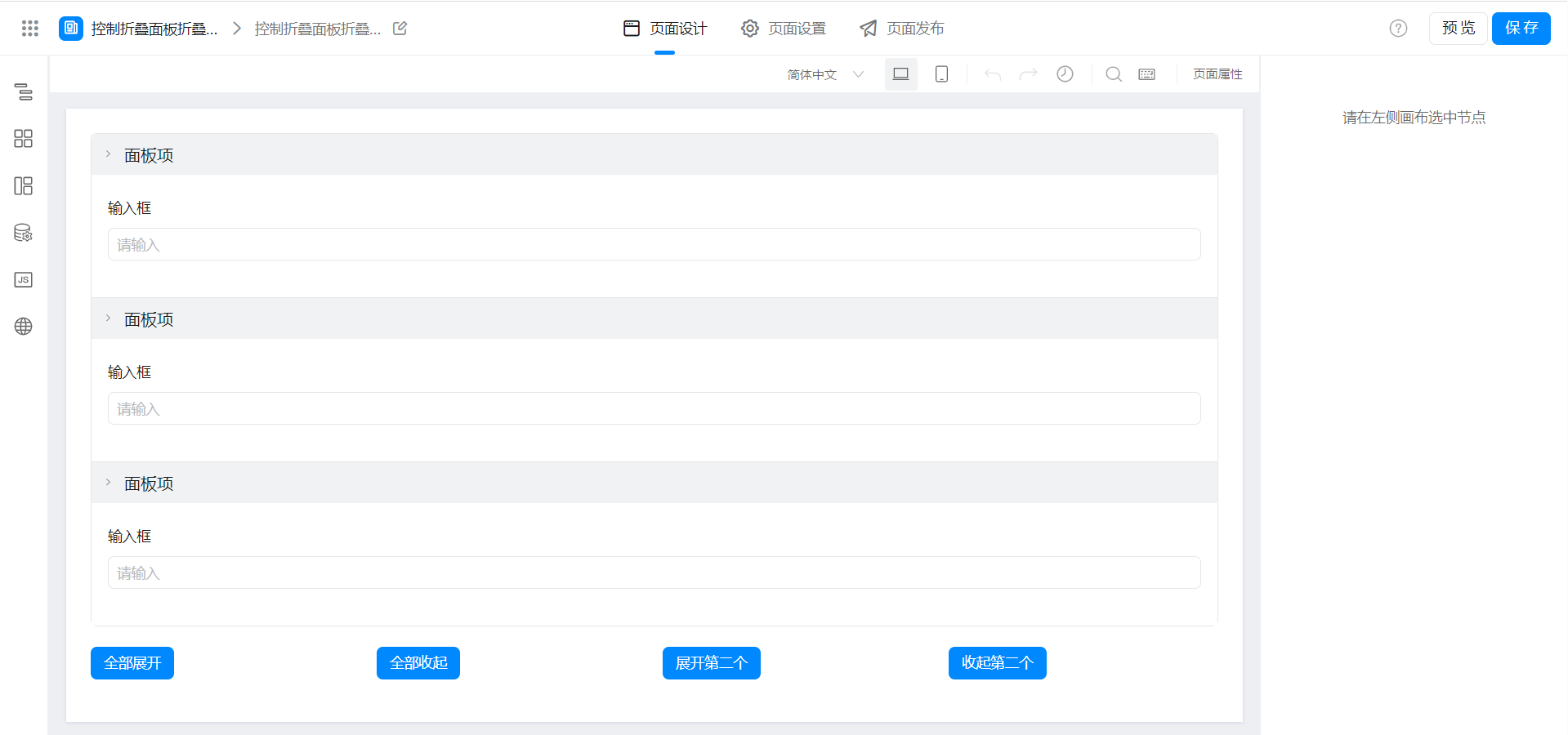
2.2 configure folding panel
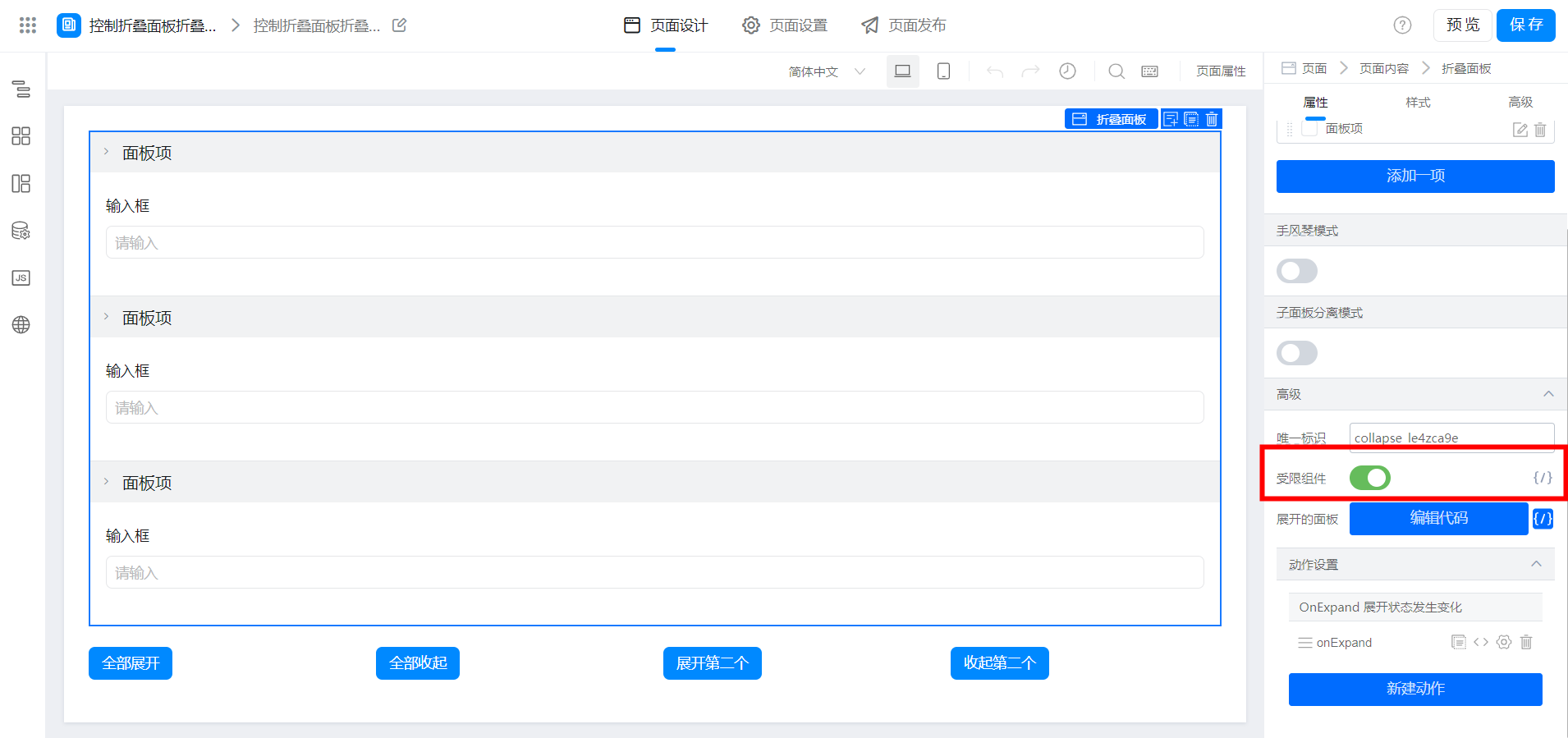
(1) enable restricted component options
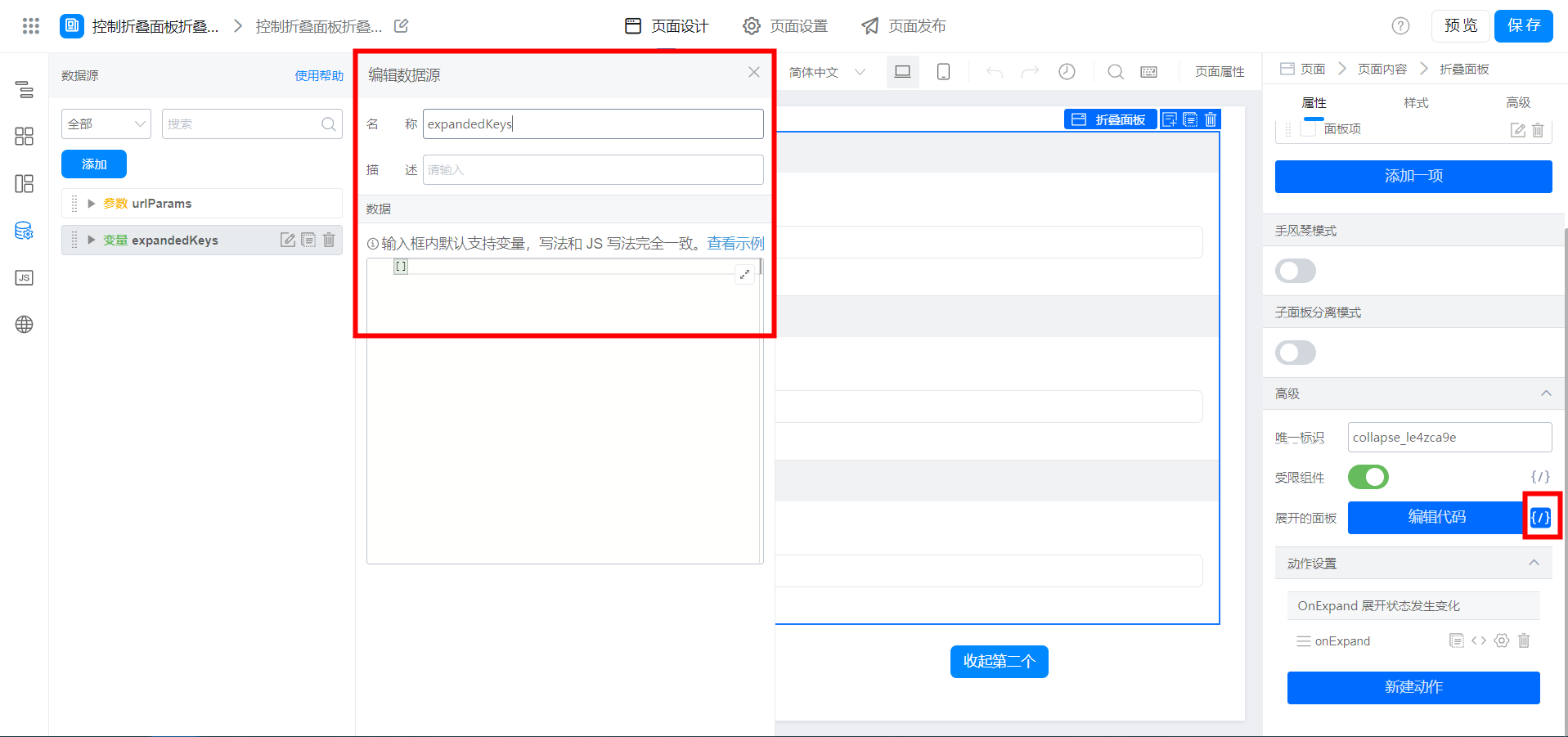
(2) add variables and bind them
(3) bind events
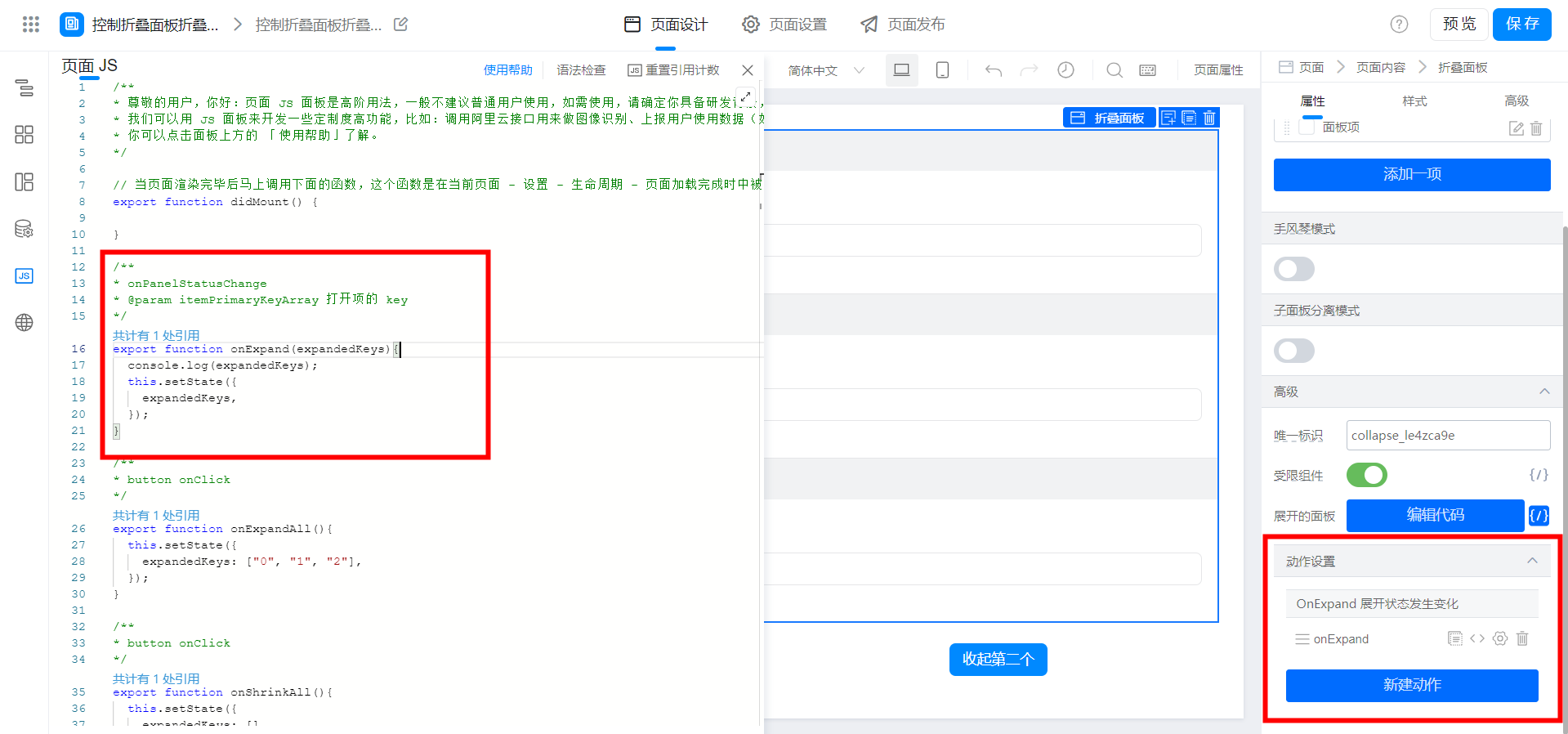
export function onExpand(expandedKeys){
  console.log(expandedKeys);
  this.setState({
    expandedKeys,
  });
}
2.3 configuration function
The expandedKeys parameter contains the key of the expanded folding panel, starting from 0 from top to bottom. Item 1: 0, Item 2: 1, Item 3: 2...
(1) expand all
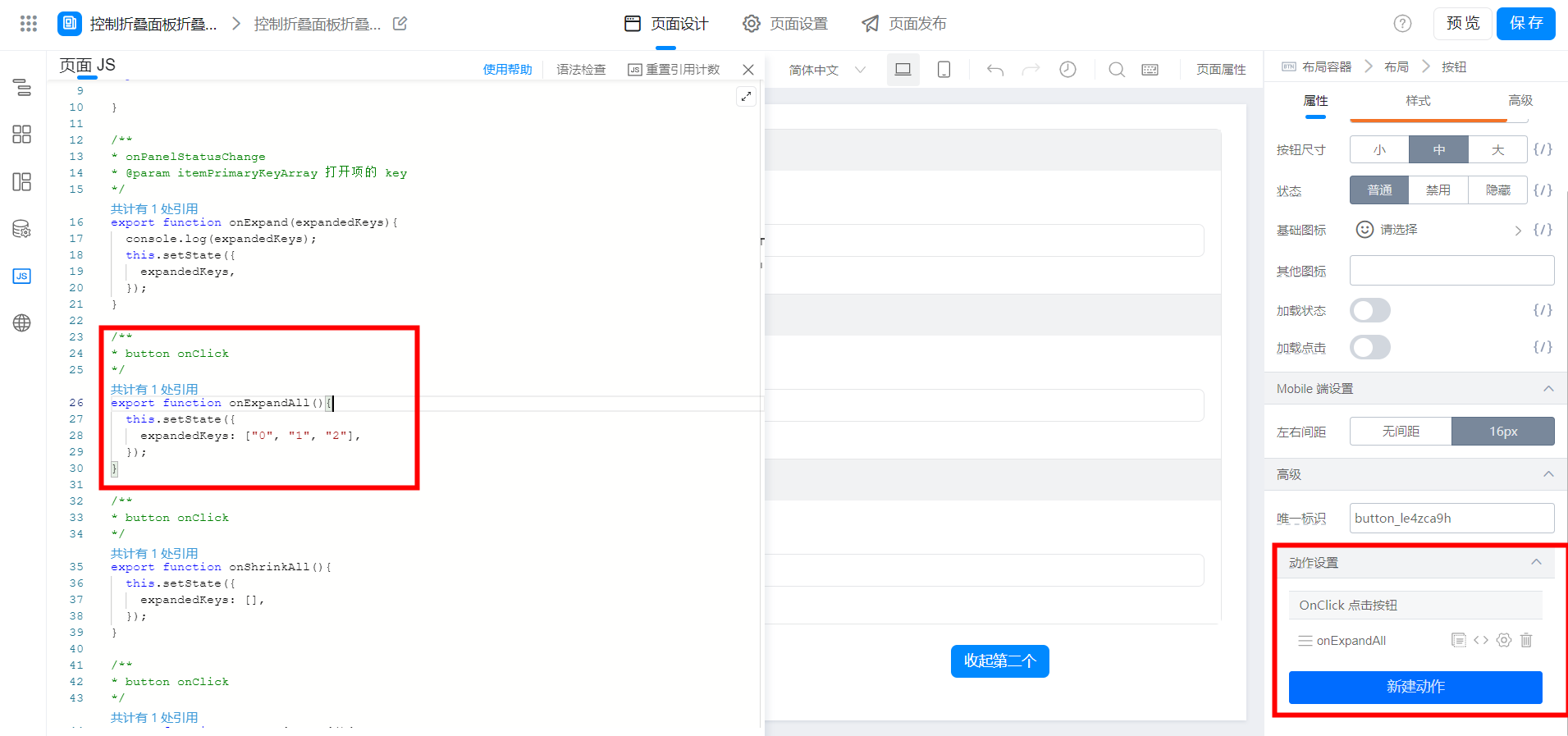
export function onExpandAll(){
  this.setState({
    expandedKeys: ["0", "1", "2"],
  });
}
(2) put it all away
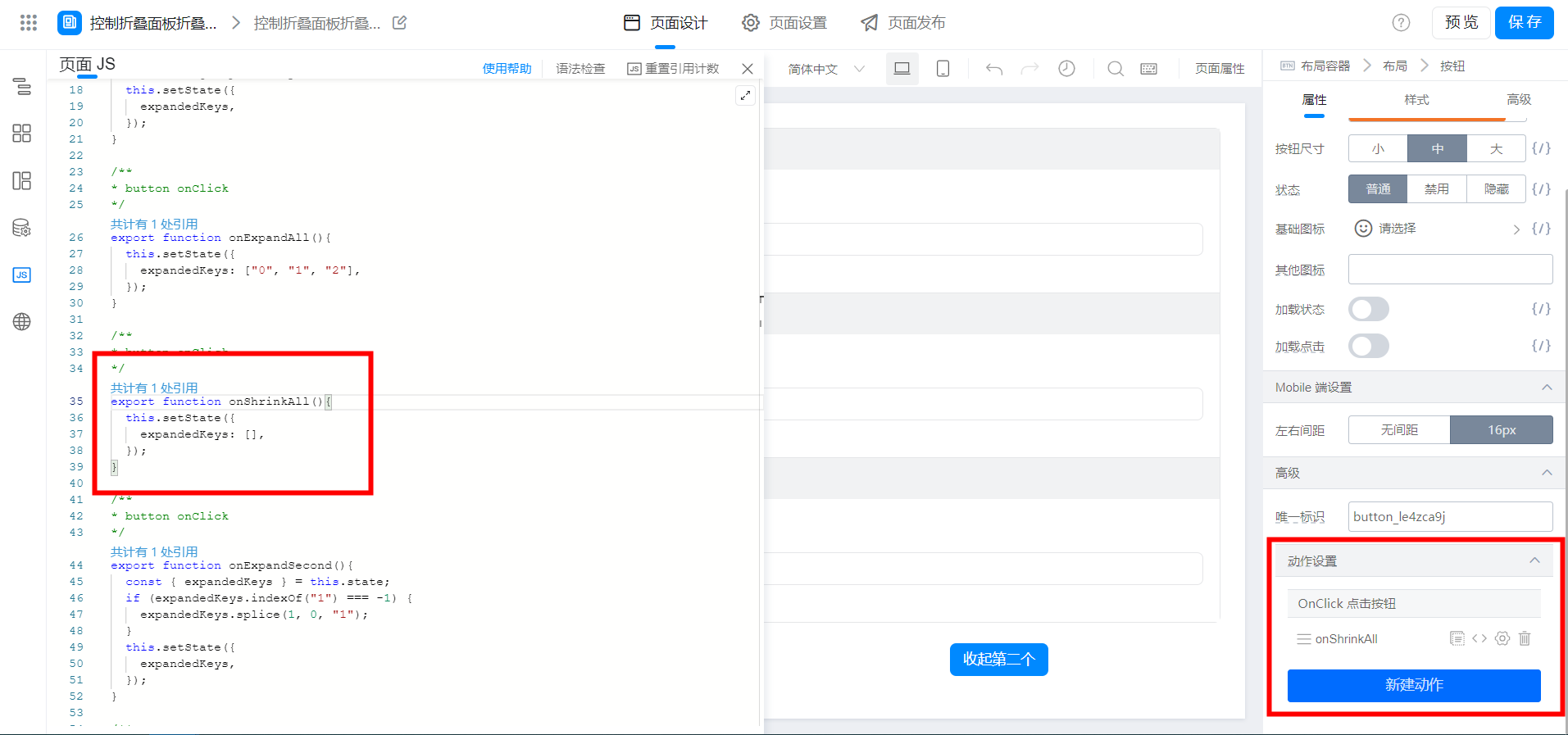
export function onShrinkAll(){
  this.setState({
    expandedKeys: [],
  });
}
(3) expand/collapse the specified item
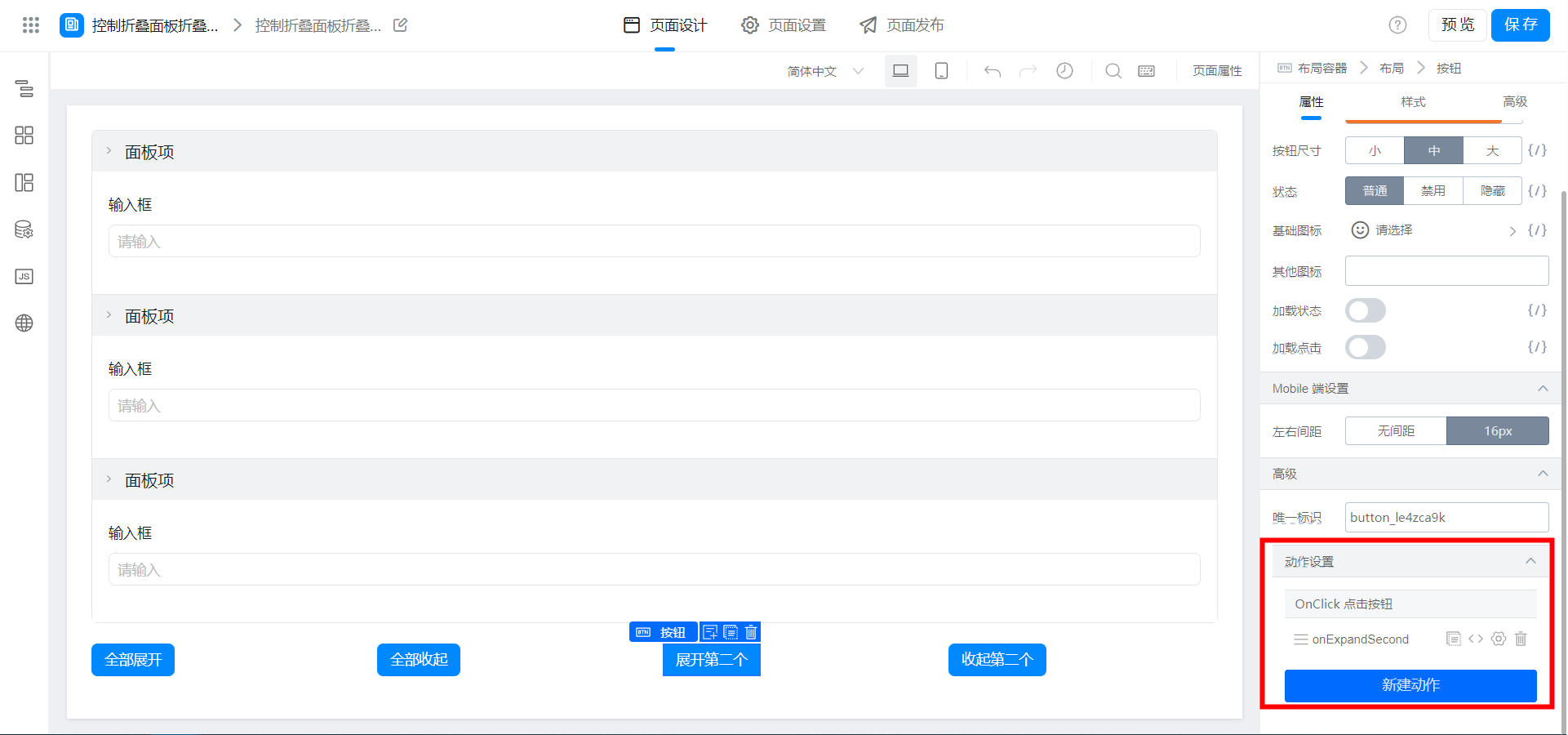
// 展开 / 收起指定项,key:展开 / 收起的项,type:expand(展开) shrink(收起)
export function onDesign(key, type) {
  if (!type || !key) { return };
  const { expandedKeys } = this.state;
  const index = expandedKeys.indexOf(key);
  if (index === -1 && type === 'expand') {
    // 展开
    expandedKeys.splice(1, 0, key);
  } else {
    // 收起
    expandedKeys.splice(index, 1);
  }
  this.setState({
    expandedKeys,
  });
}
// 展开第二个
export function onExpandSecond() {
  this.onDesign('1', 'expand');
}

// 收起第二个
export function onShrinkSecond() {
  this.onDesign('1', 'shrink');
}
3. Achieve results
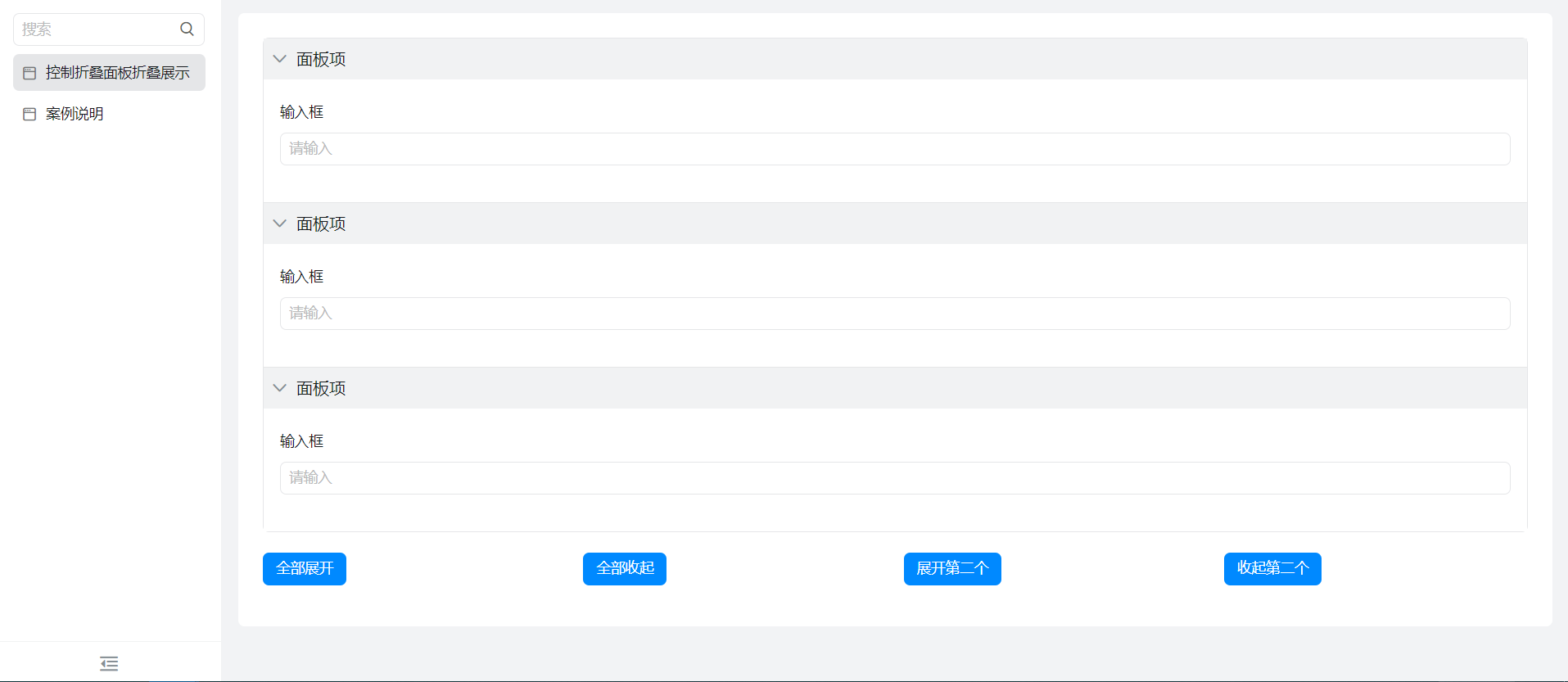
4. Try it online

This doc is generated using machine translation. Any discrepancies or differences created in the translation are not binding and have no legal effect for compliance or enforcement purposes.
Is this document helpful?