Integration & Automation-associate form assignment
This example describes how to assign values to associated forms through integration automation.
Prerequisites
This tutorial uses some basic functions of YIDA. You can first learn about the following functions.
Effect
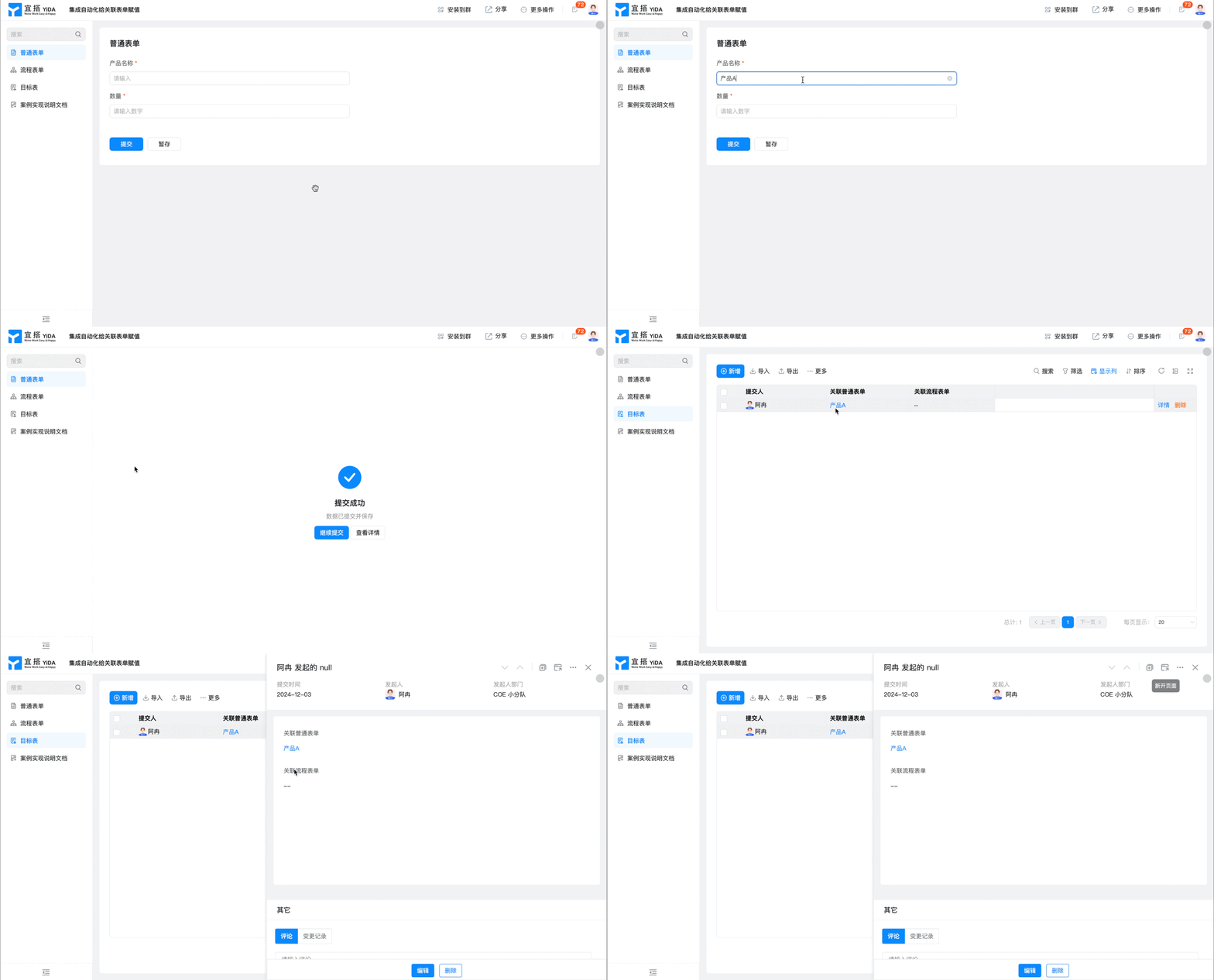
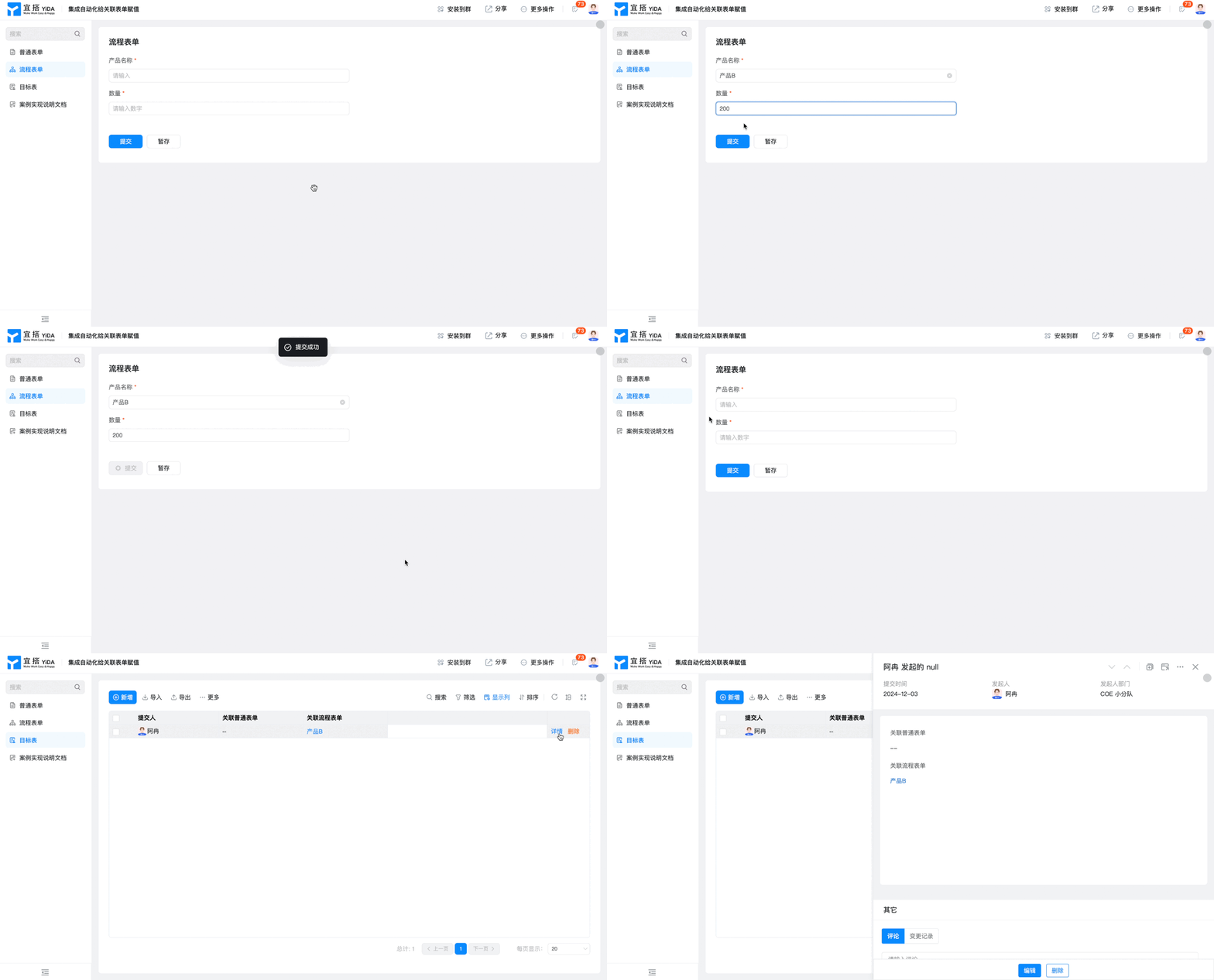
Implementation steps
Create form page
Create a normal form page named "normal form". For more information, seeCommon form.
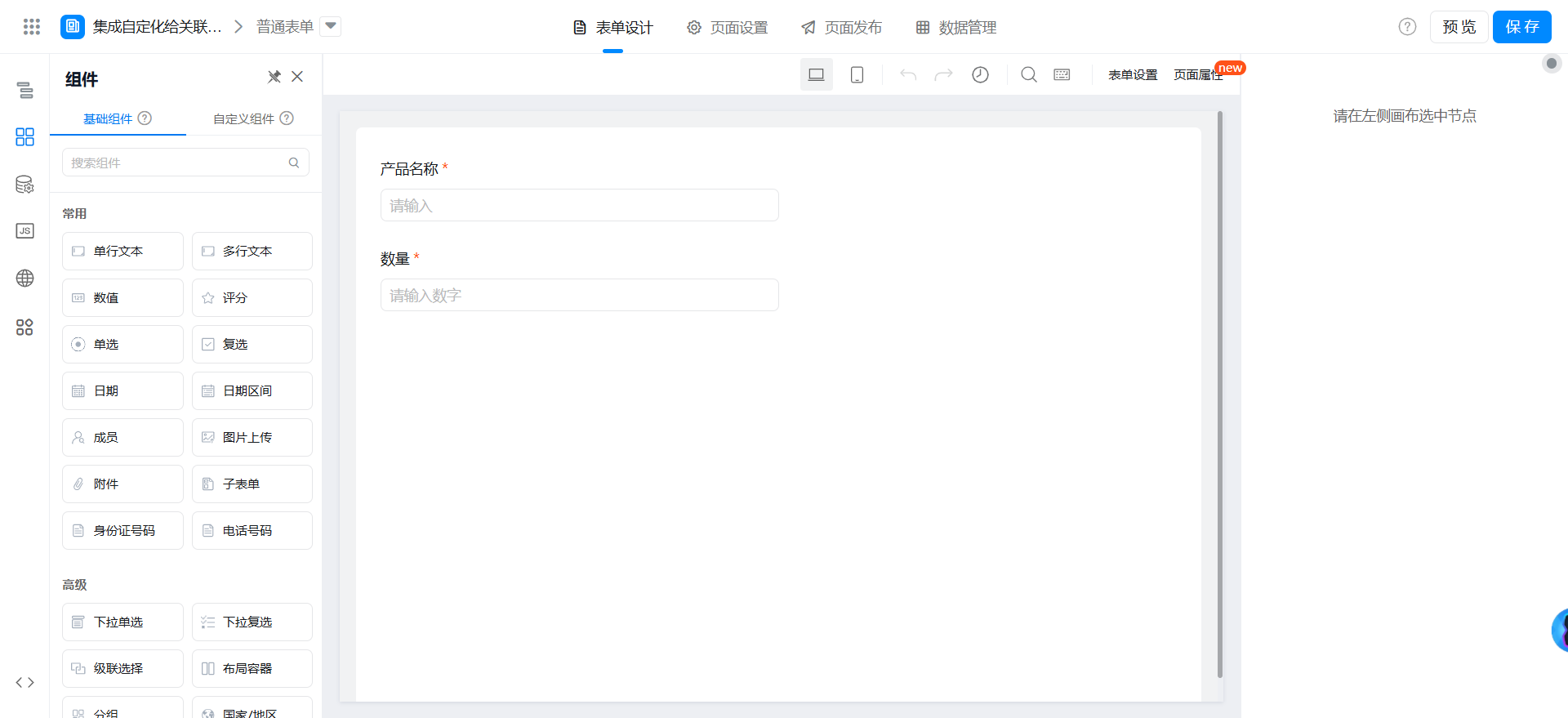
Drag the following components into the canvas area.
- Single line text: name the product name
- Numerical value: named quantity
Create a flow chart page named flow chart. For more information, seeFlow chart.
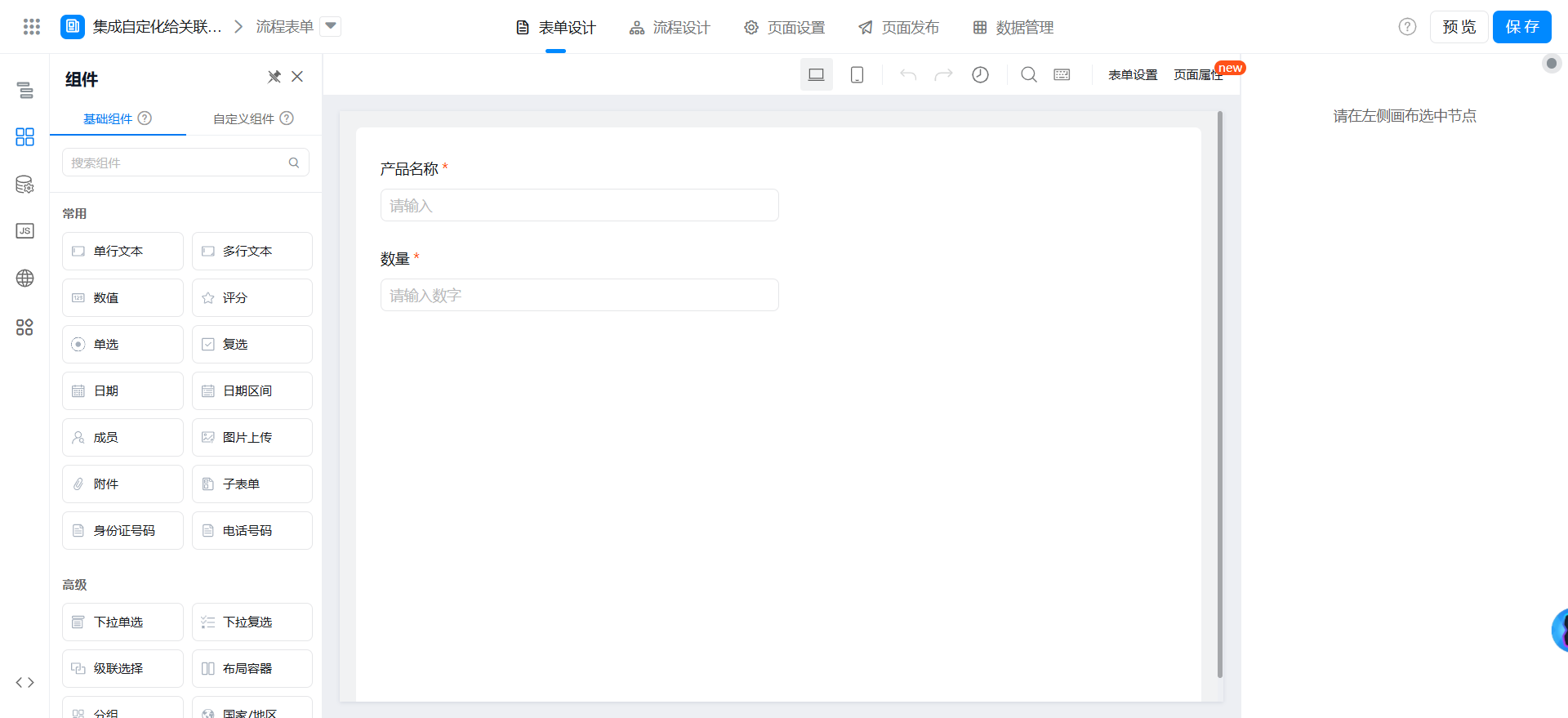
Drag the following components into the canvas area.
- Single line text: name the product name
- Numerical value: named quantity
Create a common form page named target Table. For more information, seeCommon form.
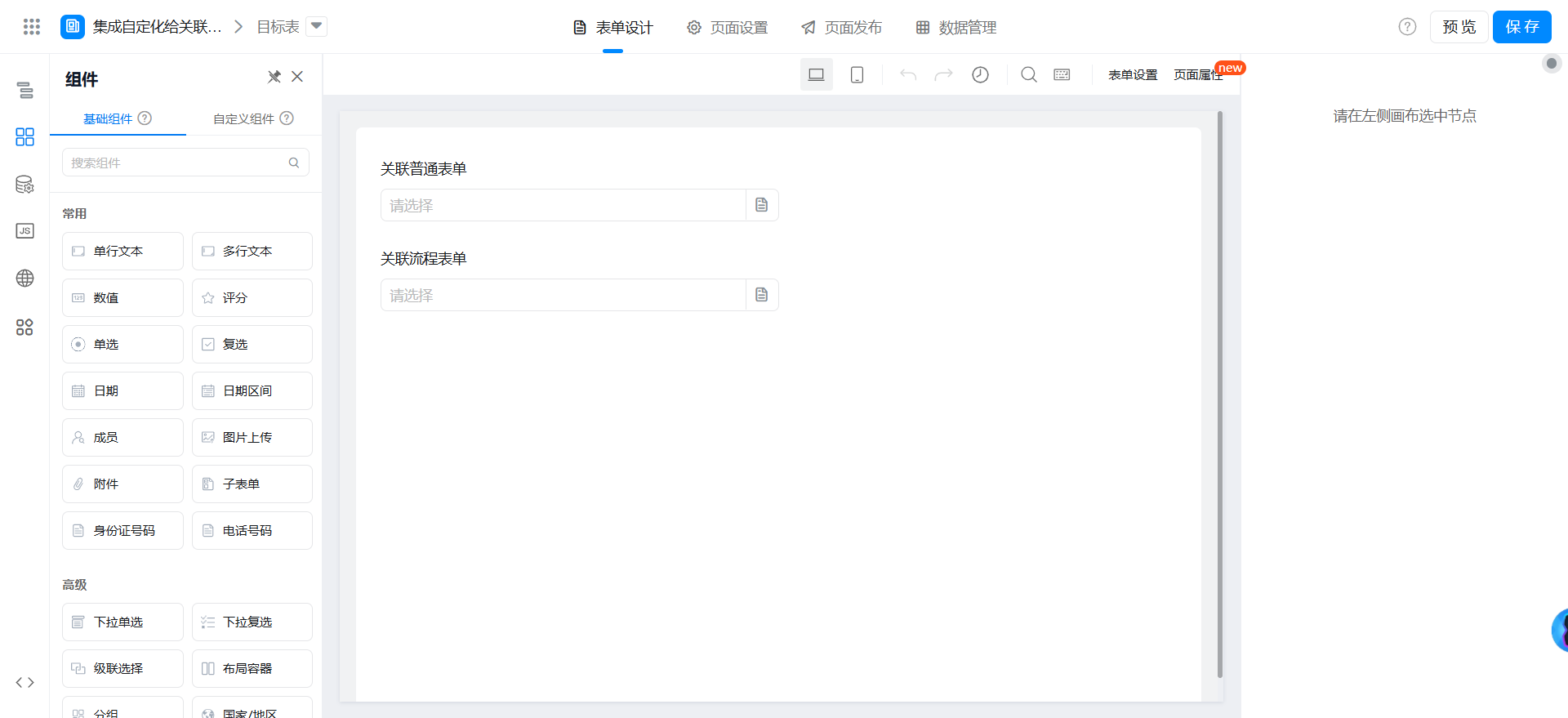
Drag the following components into the canvas area.
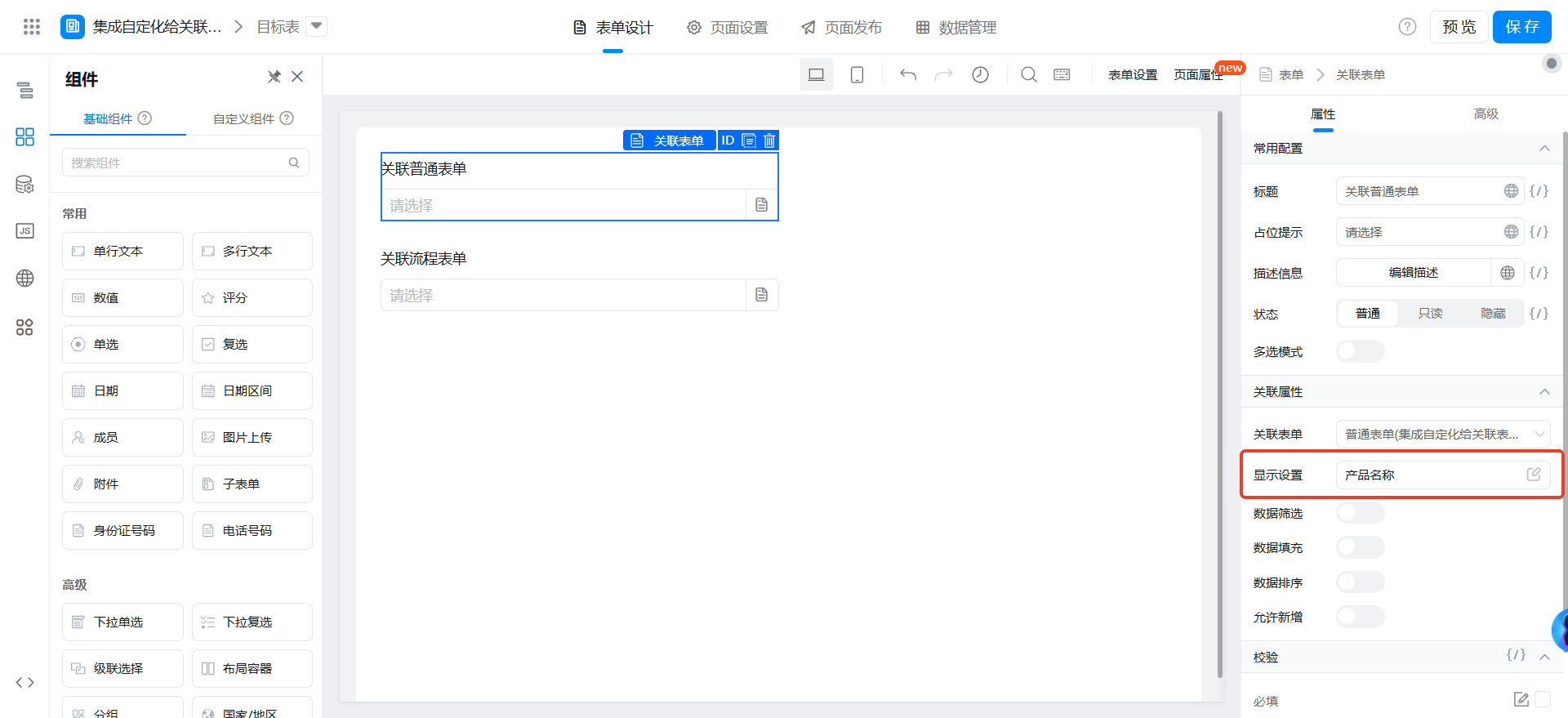
- Associated form: associate a normal form with the normal form.
- Associate flow chart: Named associate normal form, associate [flow chart] form
Configure General form Integration & Automation
Create integration automation.
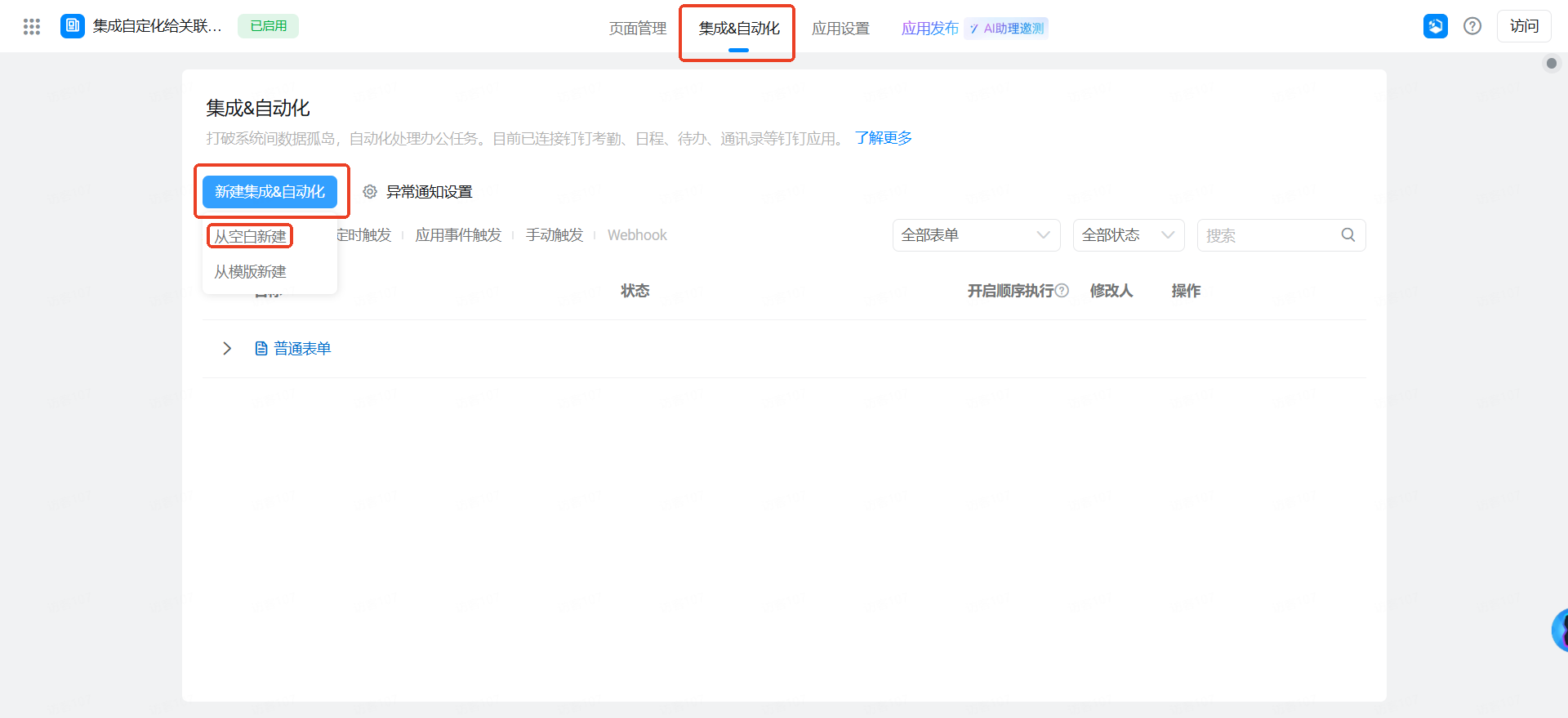
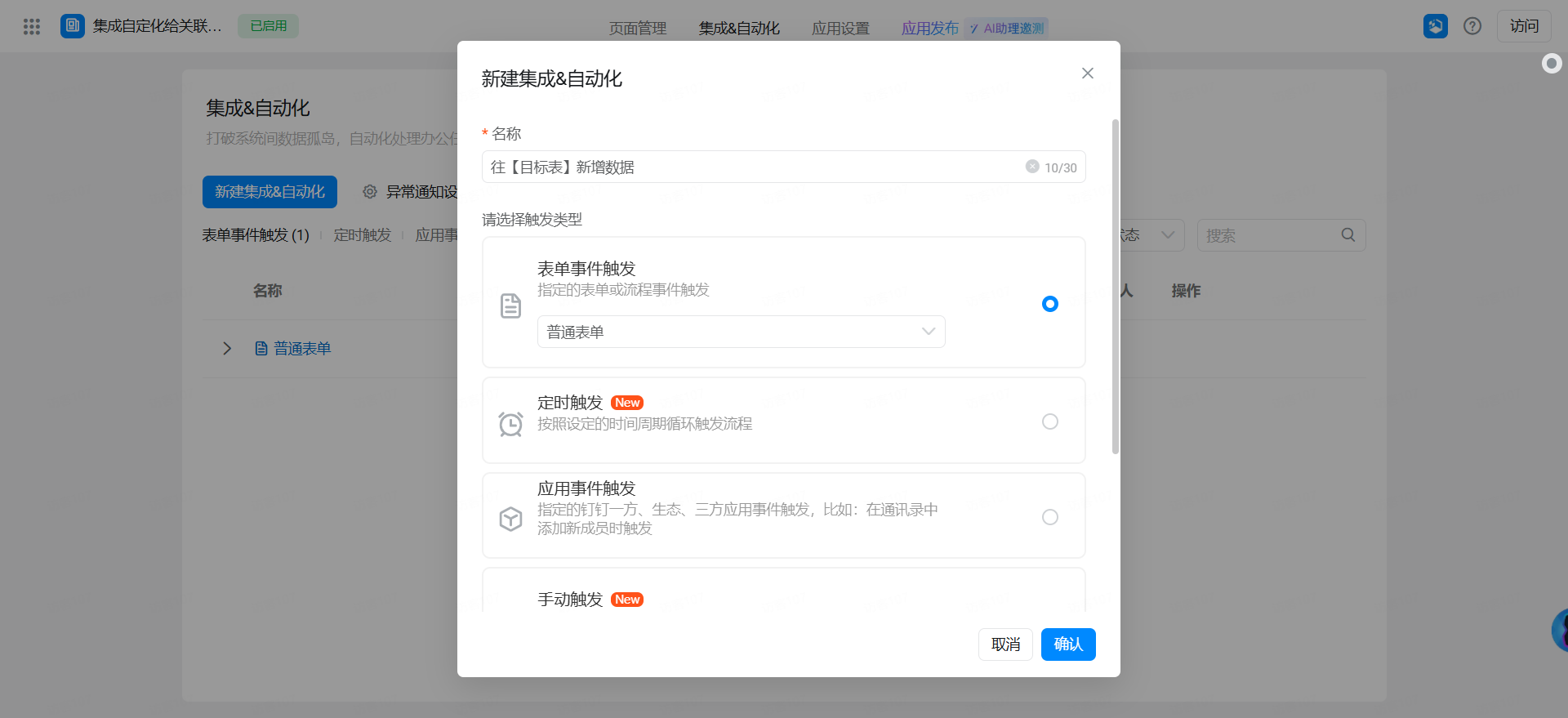
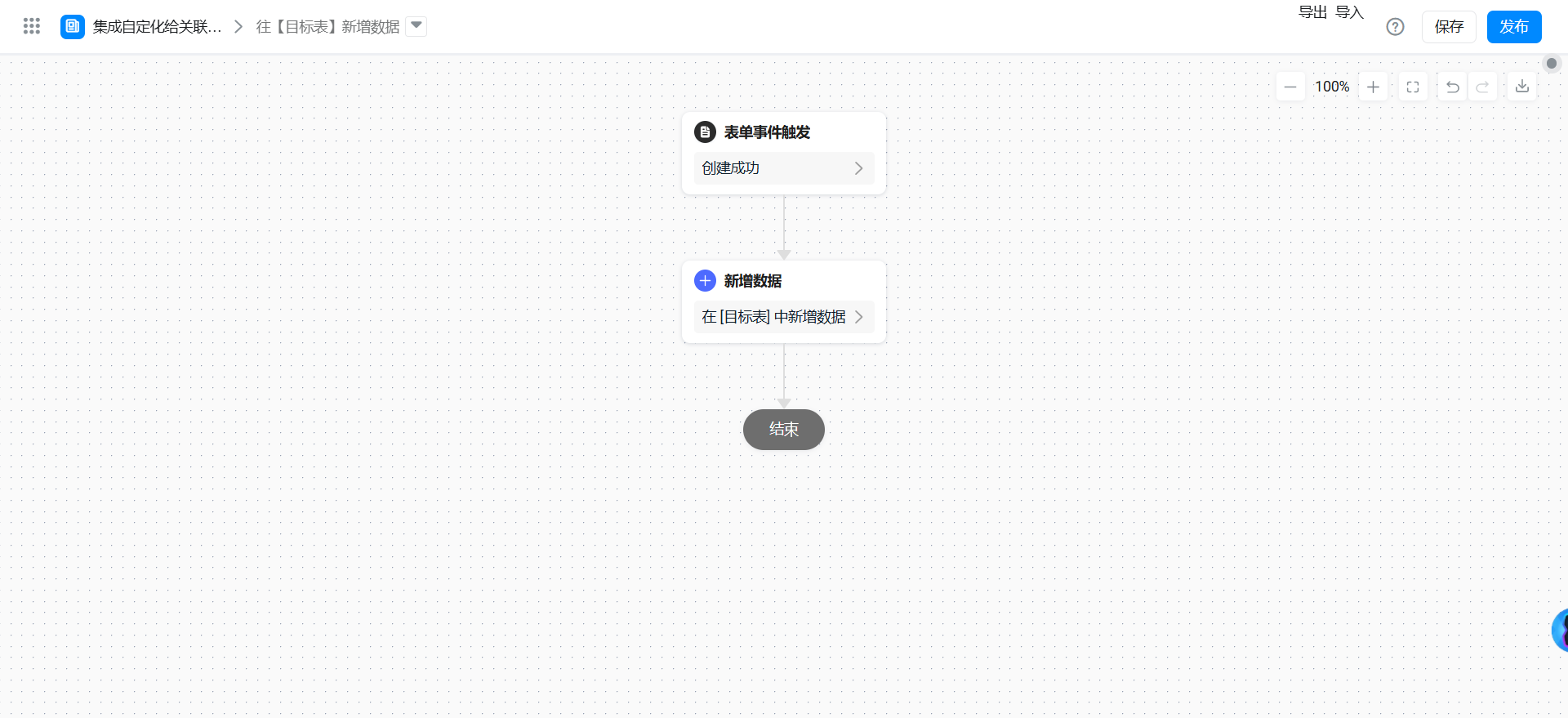
Note the formula.
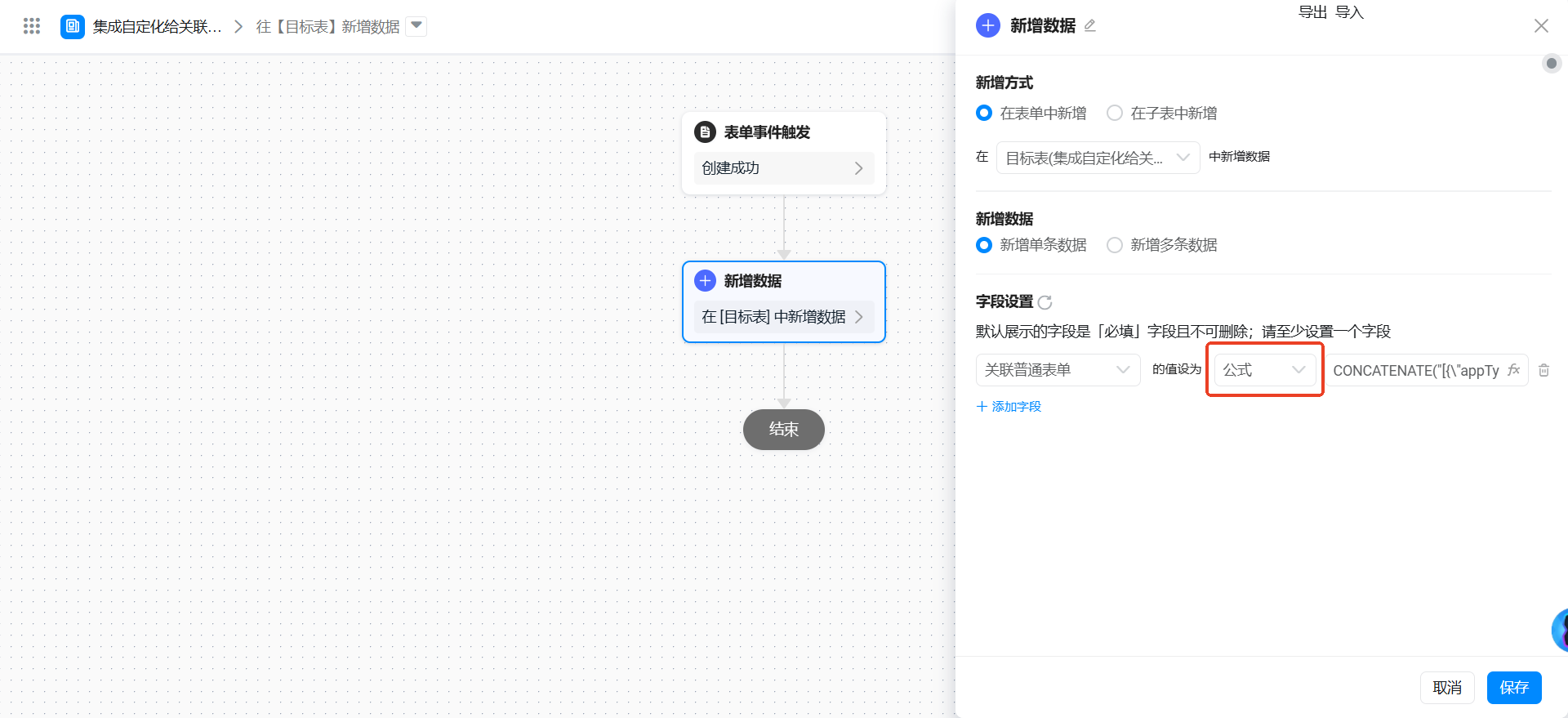
Configure the following formula to modify the fields.
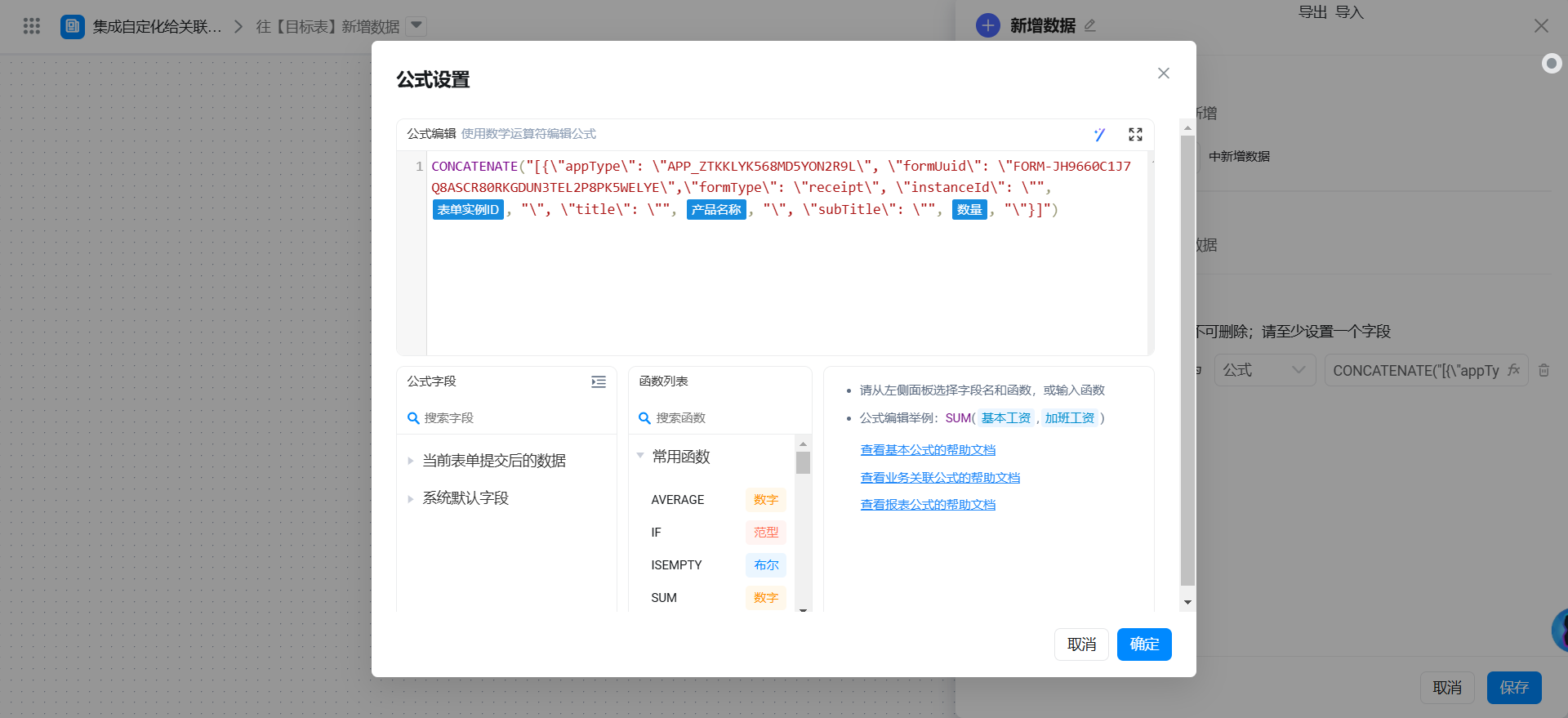
Formula field description:
- appType: Associate form components
Associated tableappType of the application - formUuid: Associate form components
Associated tableformUuid - formType: Associate form components
Associated tableThe form type of, receipt (normal form), process (flow chart) - instanceId: Associate form components
Associated tableThe instance ID of the data. - title: Associate form components
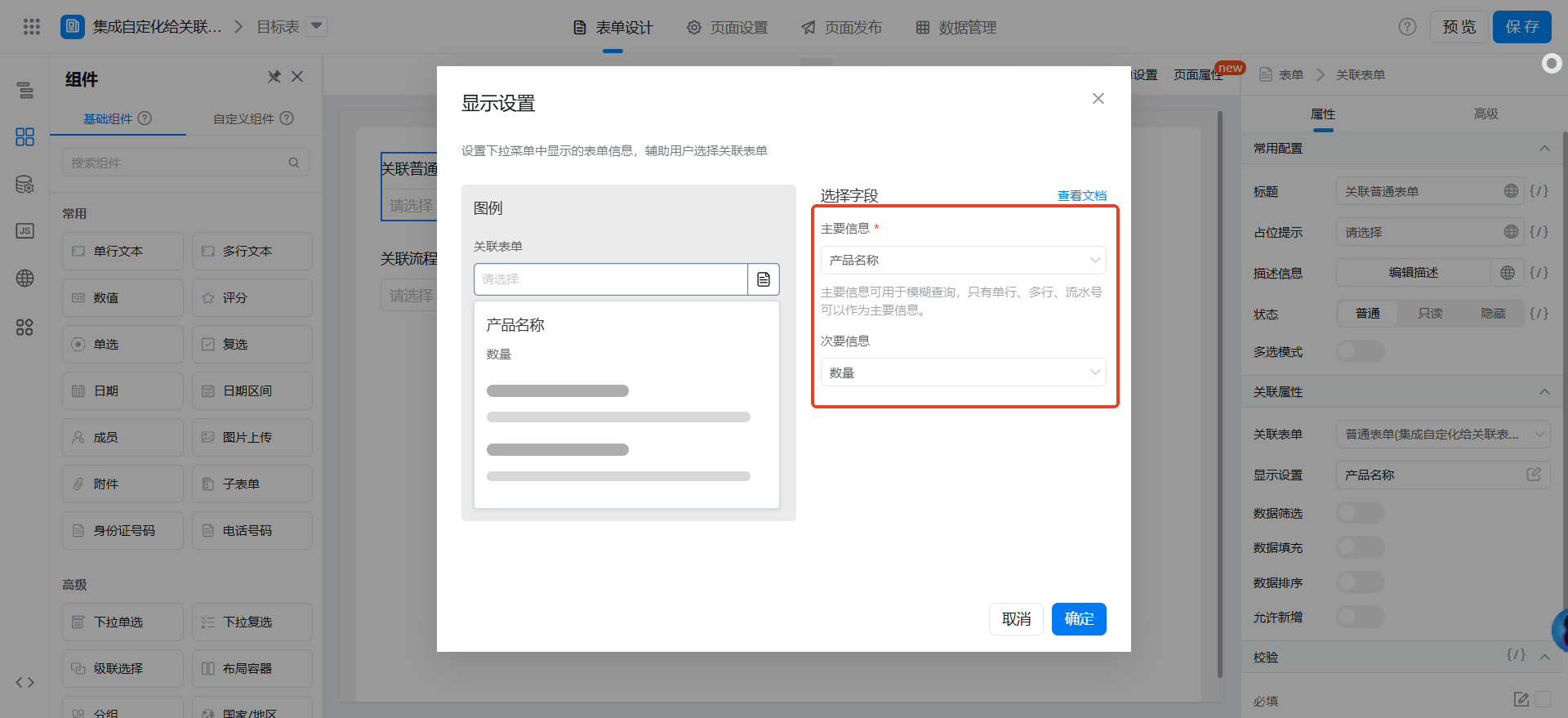
Associated tableThe main information field - subTitle: Associate form components
Associated tableSecondary information field
{"text":"CONCATENATE(\"[{\\"appType\\": \\"APP_ZTKKLYK568MD5YON2R9L\\", \\"formUuid\\": \\"FORM-JH9660C1J7Q8ASCR80RKGDUN3TEL2P8PK5WELYE\\",\\"formType\\": \\"receipt\\", \\"instanceId\\": \\"\", 表单实例ID, \"\\", \\"title\\": \\"\", 产品名称, \"\\", \\"subTitle\\": \\"\", 数量, \"\\"}]\")","marks":[{"from":{"line":0,"ch":169,"sticky":null},"to":{"line":0,"ch":177,"sticky":null},"value":"__masterdata_form_inst_id","invalid":false},{"from":{"line":0,"ch":200,"sticky":null},"to":{"line":0,"ch":206,"sticky":null},"value":"textField_lbfu1xg1","invalid":false},{"from":{"line":0,"ch":232,"sticky":null},"to":{"line":0,"ch":236,"sticky":null},"value":"numberField_lbfu1xg2","invalid":false}],"isCmData":true}
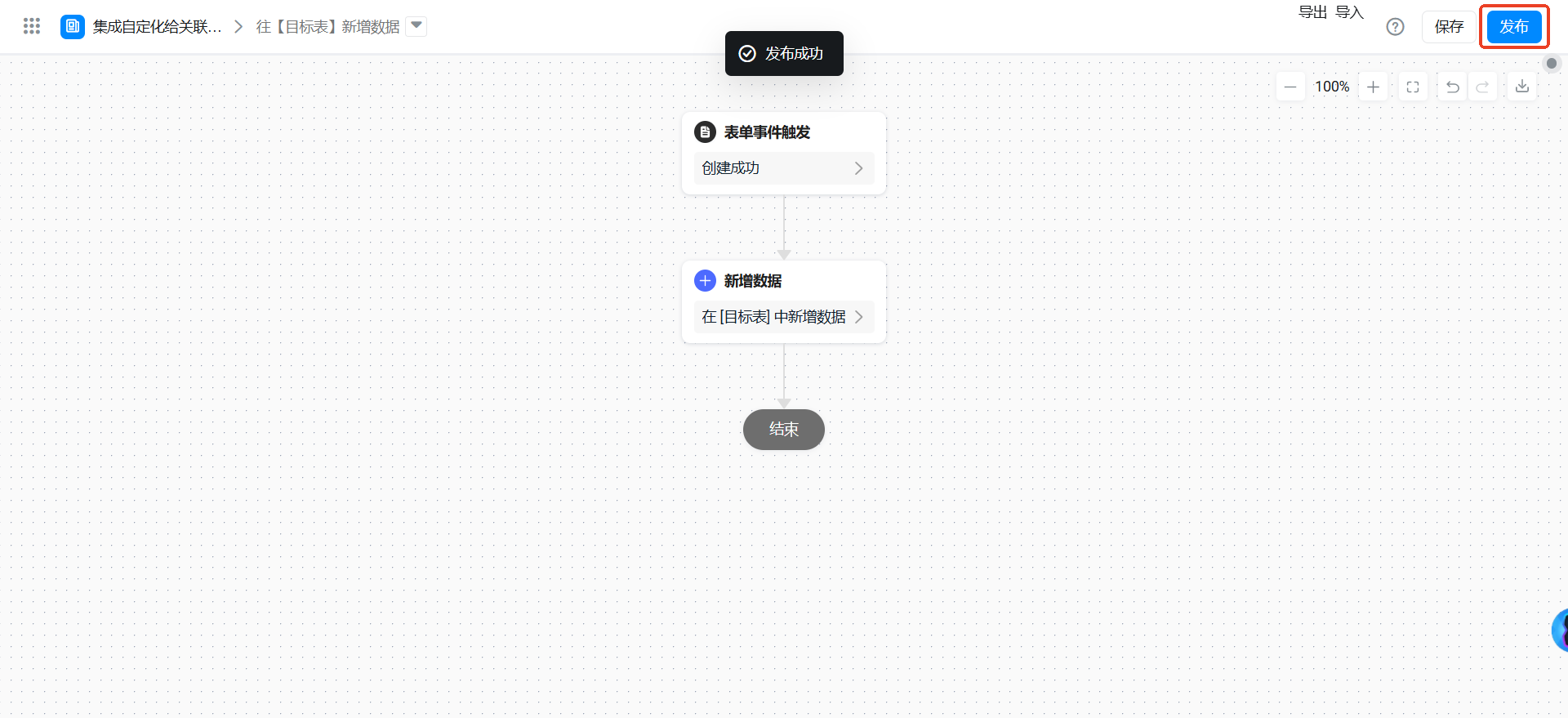
After the configuration is completed, the integration automation is released.
Configure [flow chart] Integration & Automation
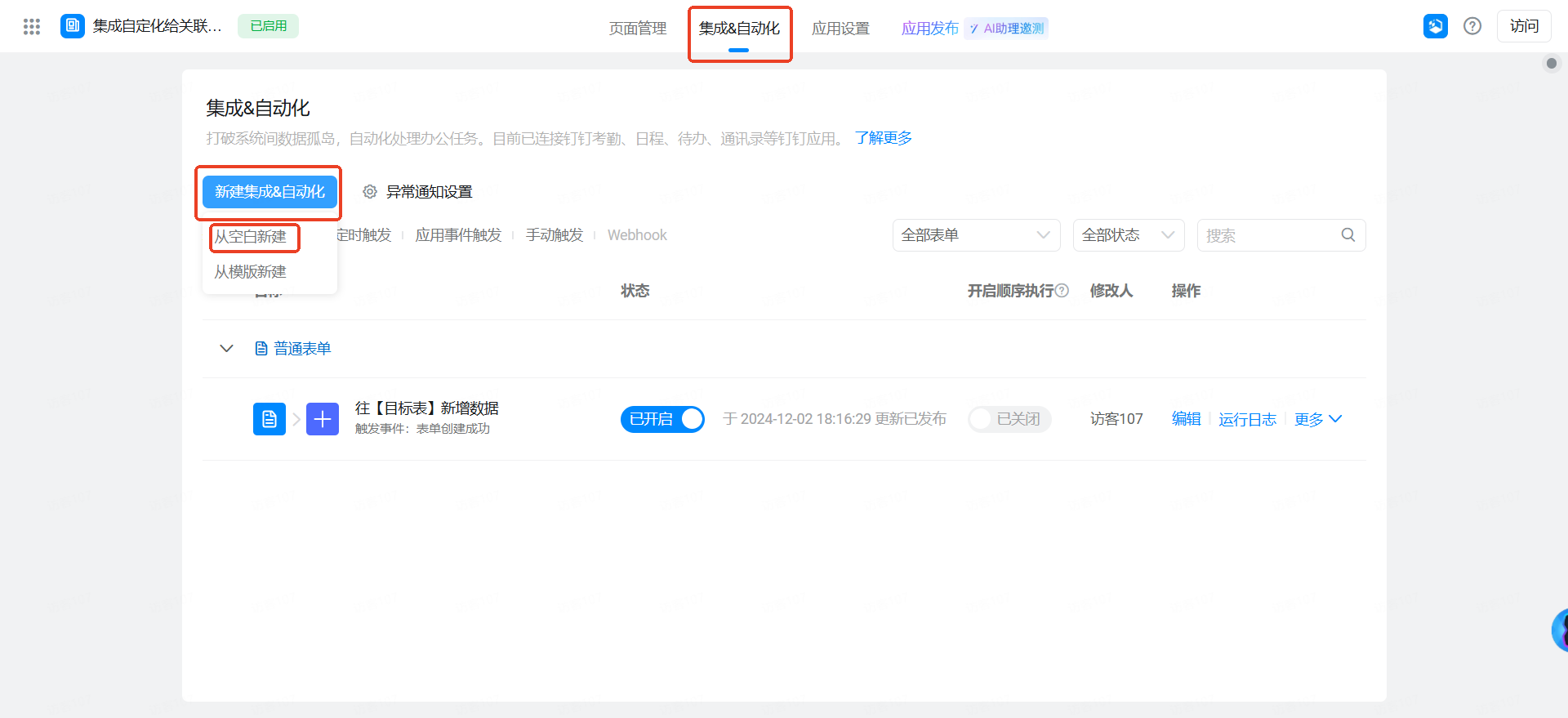
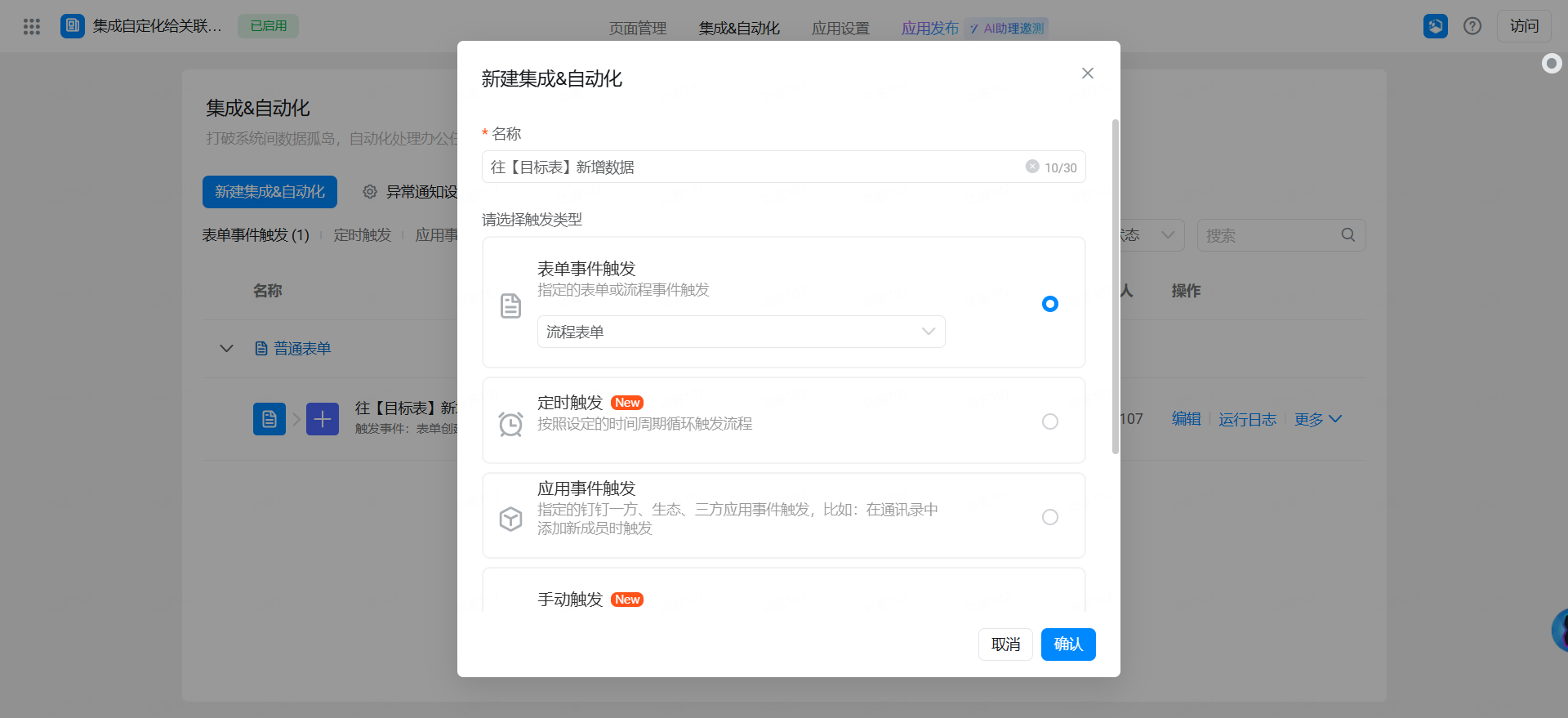
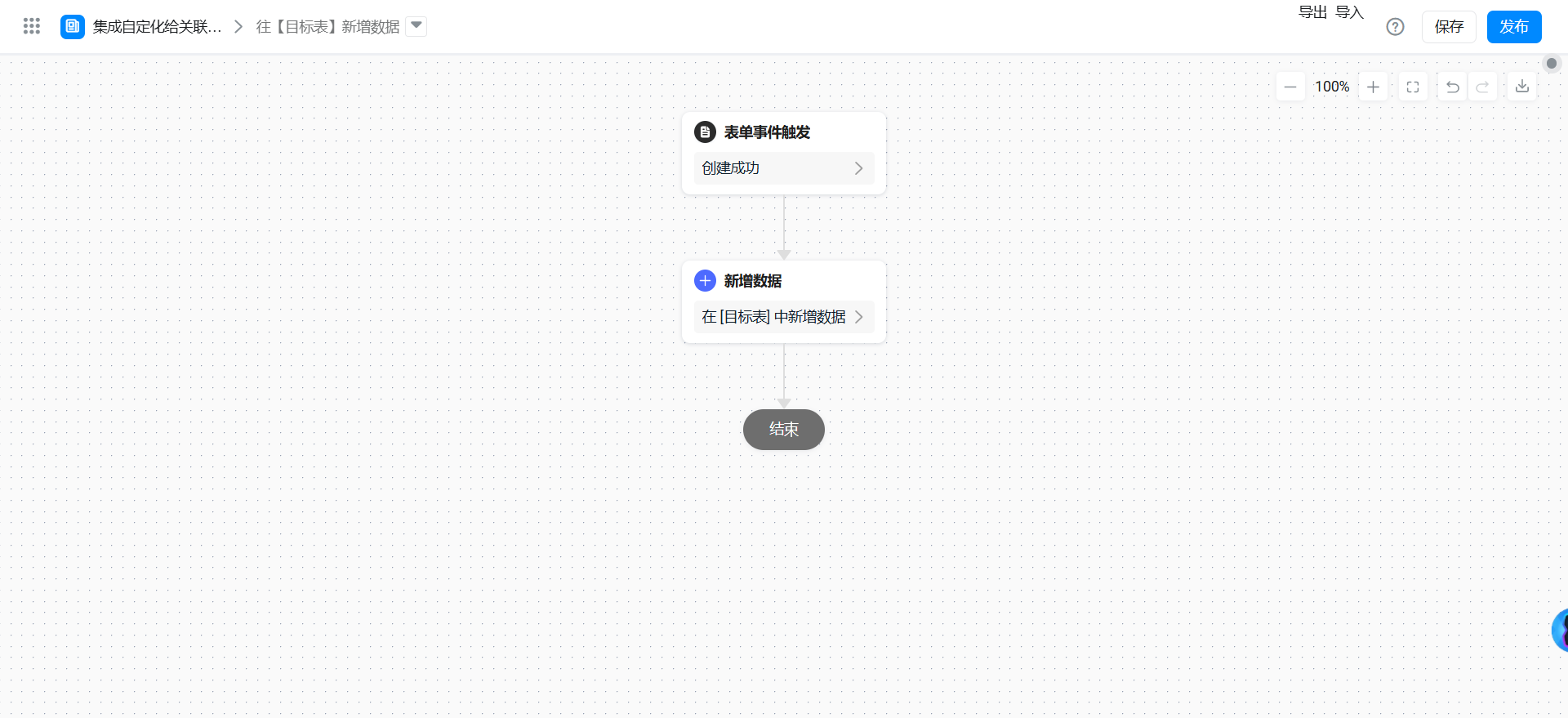
Create integration automation.
Note the formula.
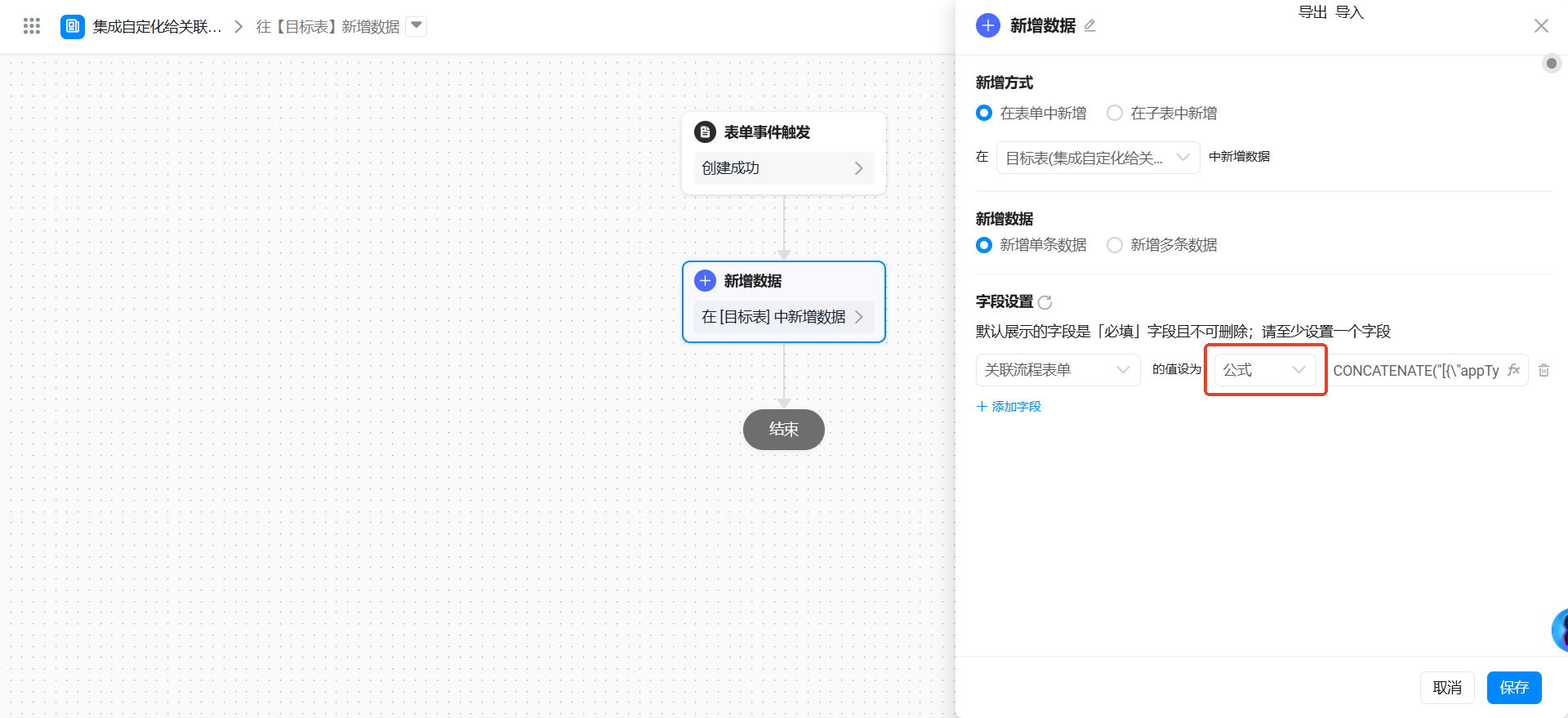
Configure the following formula to modify the fields.
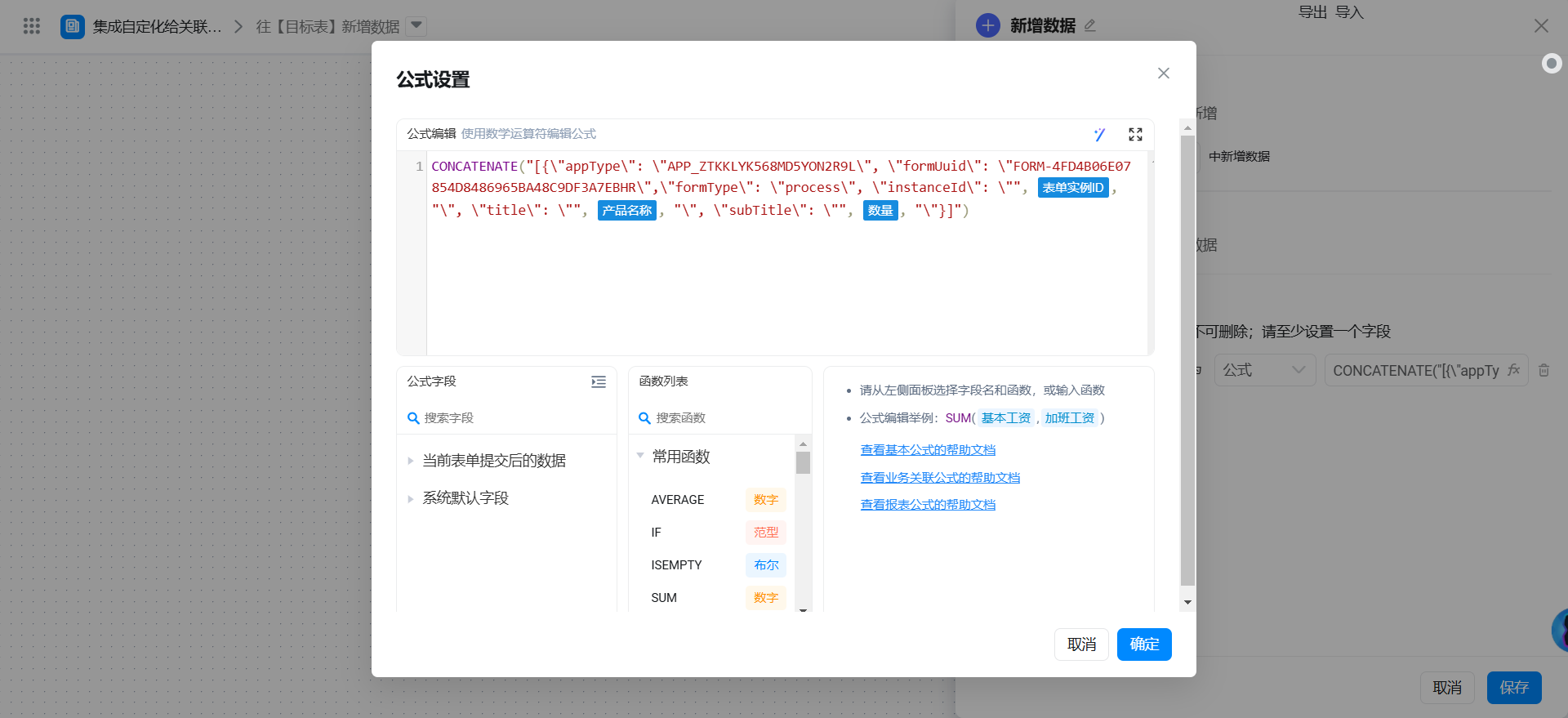
Formula field description:
- appType: Associate form components
Associated tableappType of the application - formUuid: Associate form components
Associated tableformUuid - formType: Associate form components
Associated tableThe form type of, receipt (normal form), process (flow chart) - instanceId: Associate form components
Associated tableThe instance ID of the data. - title: Associate form components
Associated tableThe main information field - subTitle: Associate form components
Associated tableSecondary information field
{"text":"CONCATENATE(\"[{\\"appType\\": \\"APP_ZTKKLYK568MD5YON2R9L\\", \\"formUuid\\": \\"FORM-4FD4B06E07854D8486965BA48C9DF3A7EBHR\\",\\"formType\\": \\"process\\", \\"instanceId\\": \\"\", 表单实例ID, \"\\", \\"title\\": \\"\", 产品名称, \"\\", \\"subTitle\\": \\"\", 数量, \"\\"}]\")","marks":[{"from":{"line":0,"ch":166,"sticky":null},"to":{"line":0,"ch":174,"sticky":null},"value":"__masterdata_form_inst_id","invalid":false},{"from":{"line":0,"ch":197,"sticky":null},"to":{"line":0,"ch":203,"sticky":null},"value":"textField_m46uttmb","invalid":false},{"from":{"line":0,"ch":229,"sticky":null},"to":{"line":0,"ch":233,"sticky":null},"value":"numberField_m46uttmc","invalid":false}],"isCmData":true}
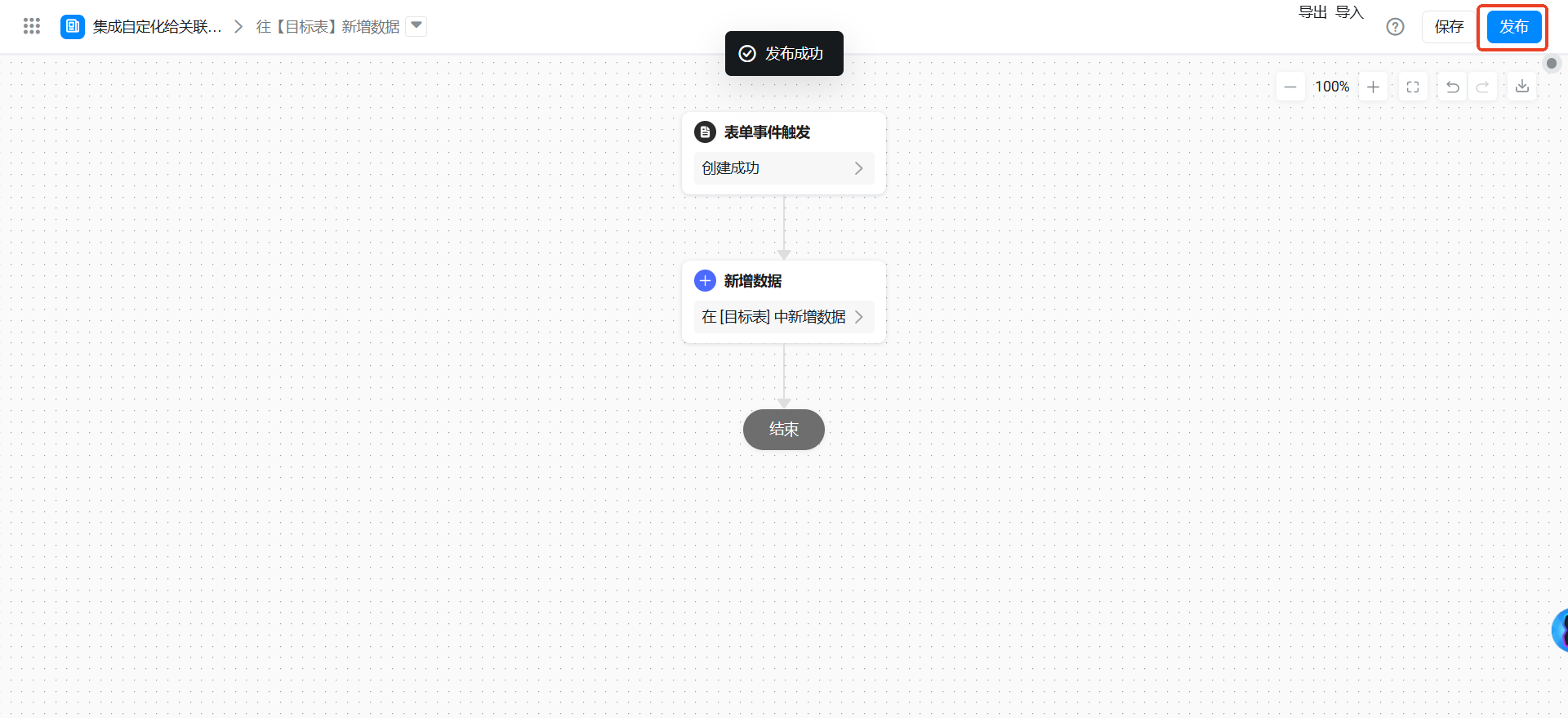
After the configuration is completed, the integration automation is released.
FAQ
How to View associated tables
The table associated with the associated form attribute in the associated form attribute is the associated table.
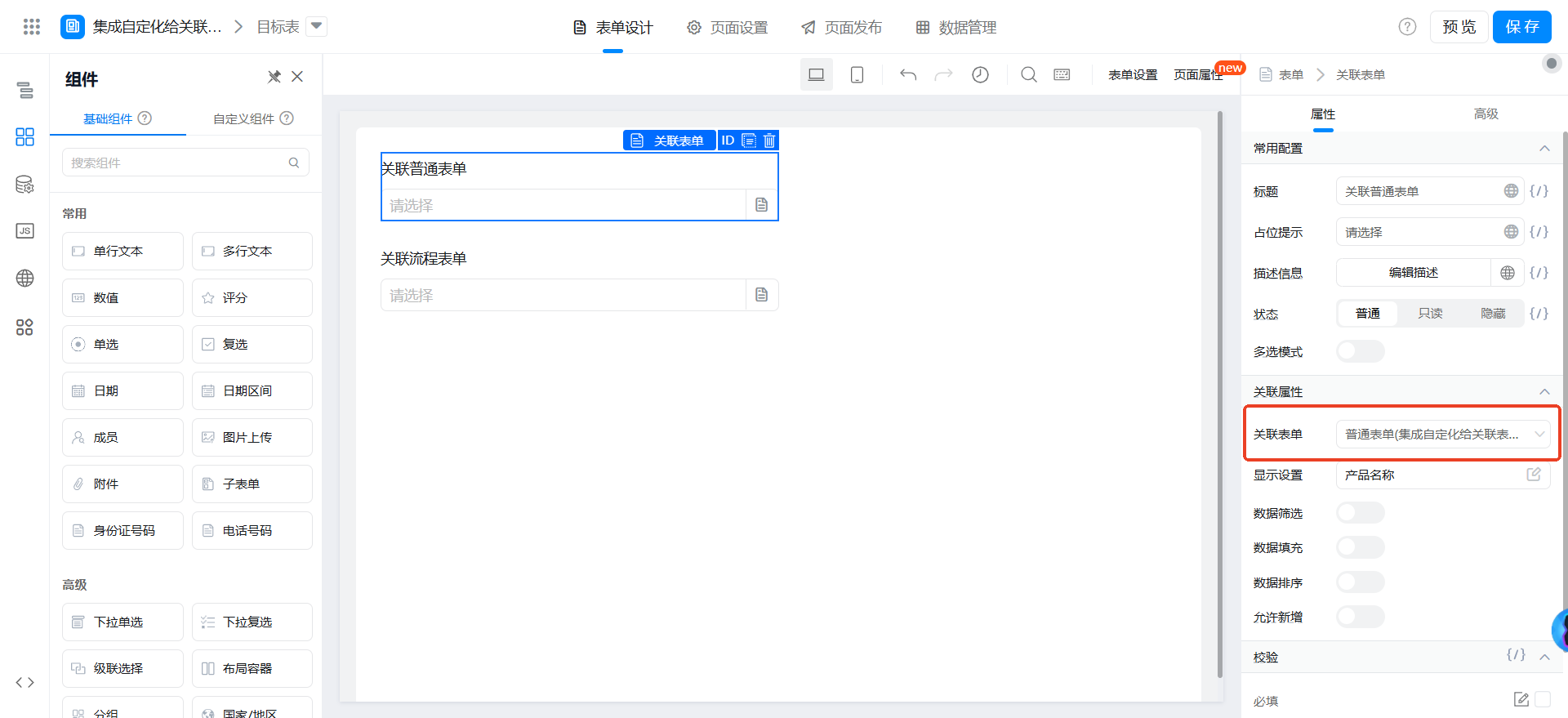
How to View primary information and secondary information fields
The fields configured in the display settings attribute of the associated form are primary information and secondary information fields.