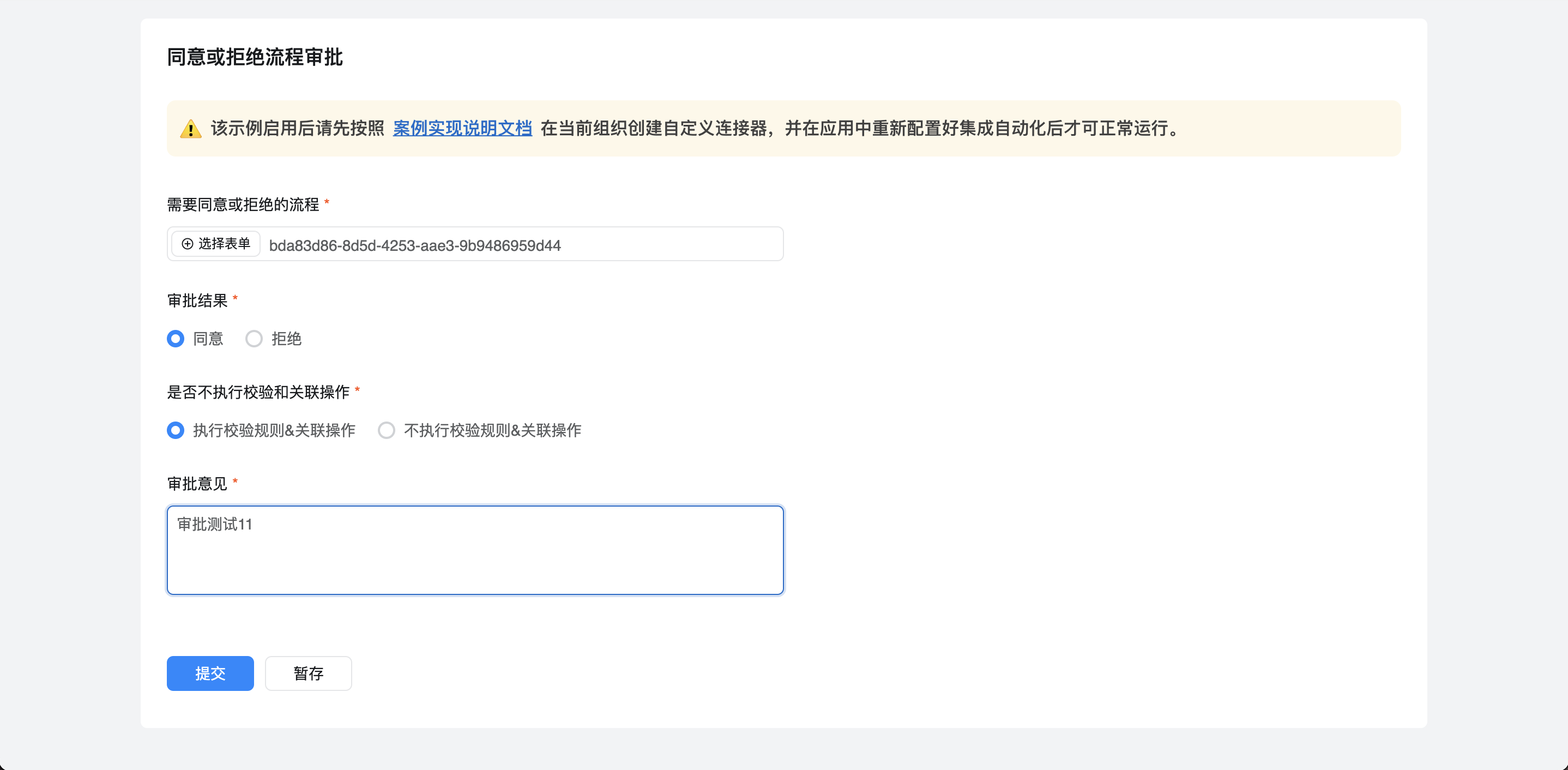
HTTP connector-agree or reject process approval
1. Usage scenarios
This example describes how to use the DingTalk open platform OpenAPI approve or reject process approval.
1.1. Connector introduction document
2. Implement functions
2.1. Apply for DingTalk open platform application credentials and interface permissions
If you have applied, you can ignore this step.
2.2. Create an HTTP connector
The DingTalk open platform interface used in this example:
2.2.1. Create an HTTP connector
For more information about configuring the obtain process approval record connector, see:HTTP connector-DingTalk open platform-obtain process approval Records
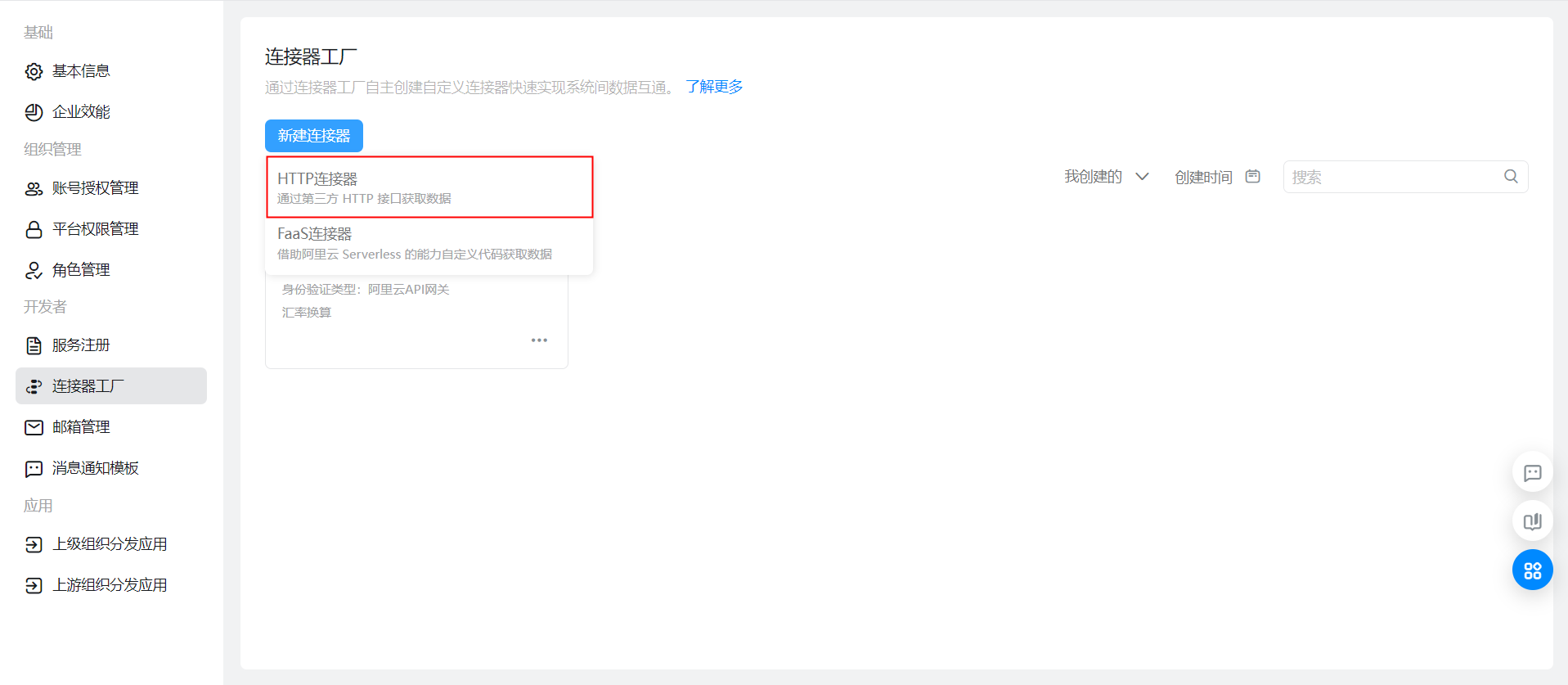
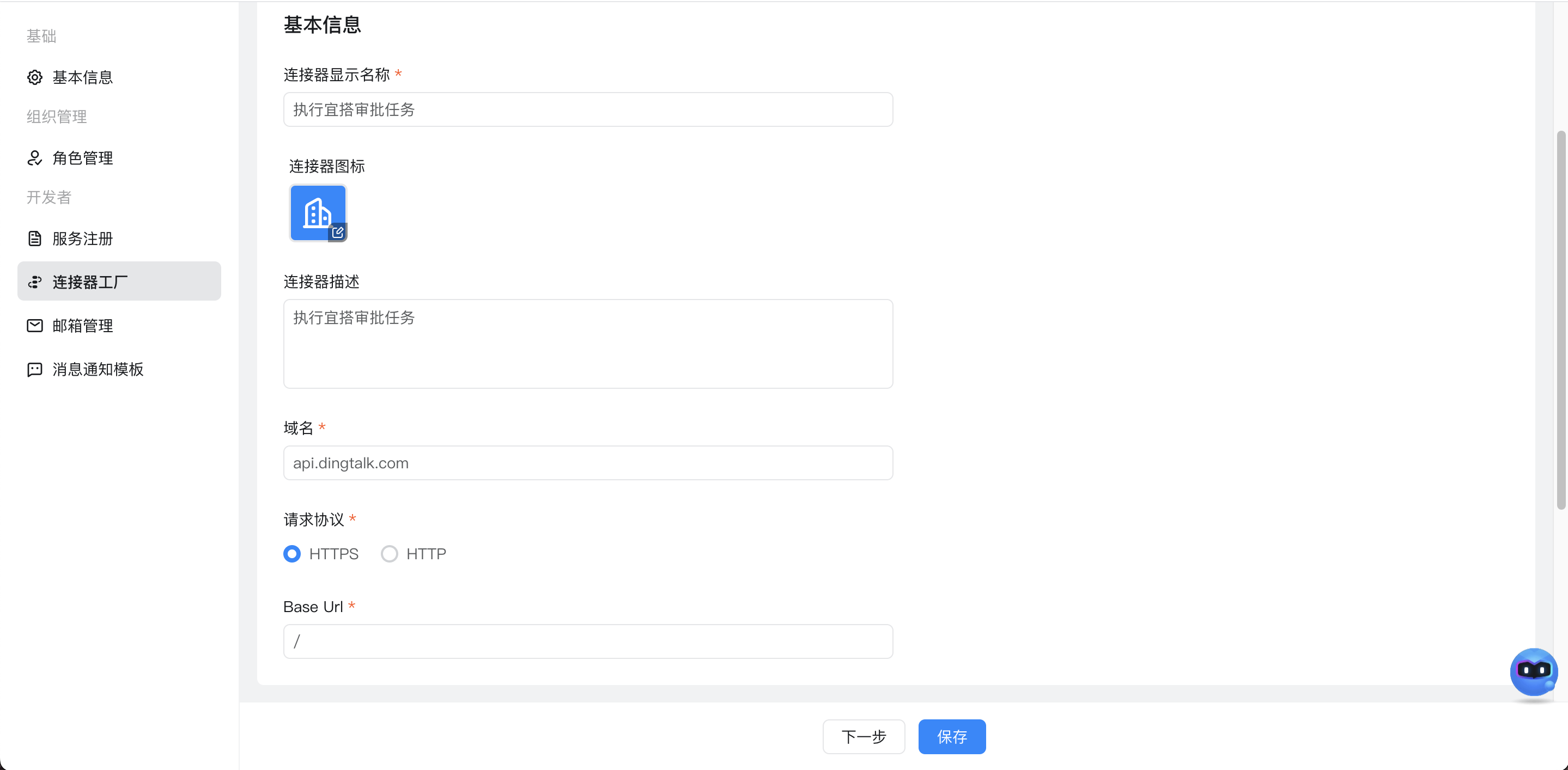
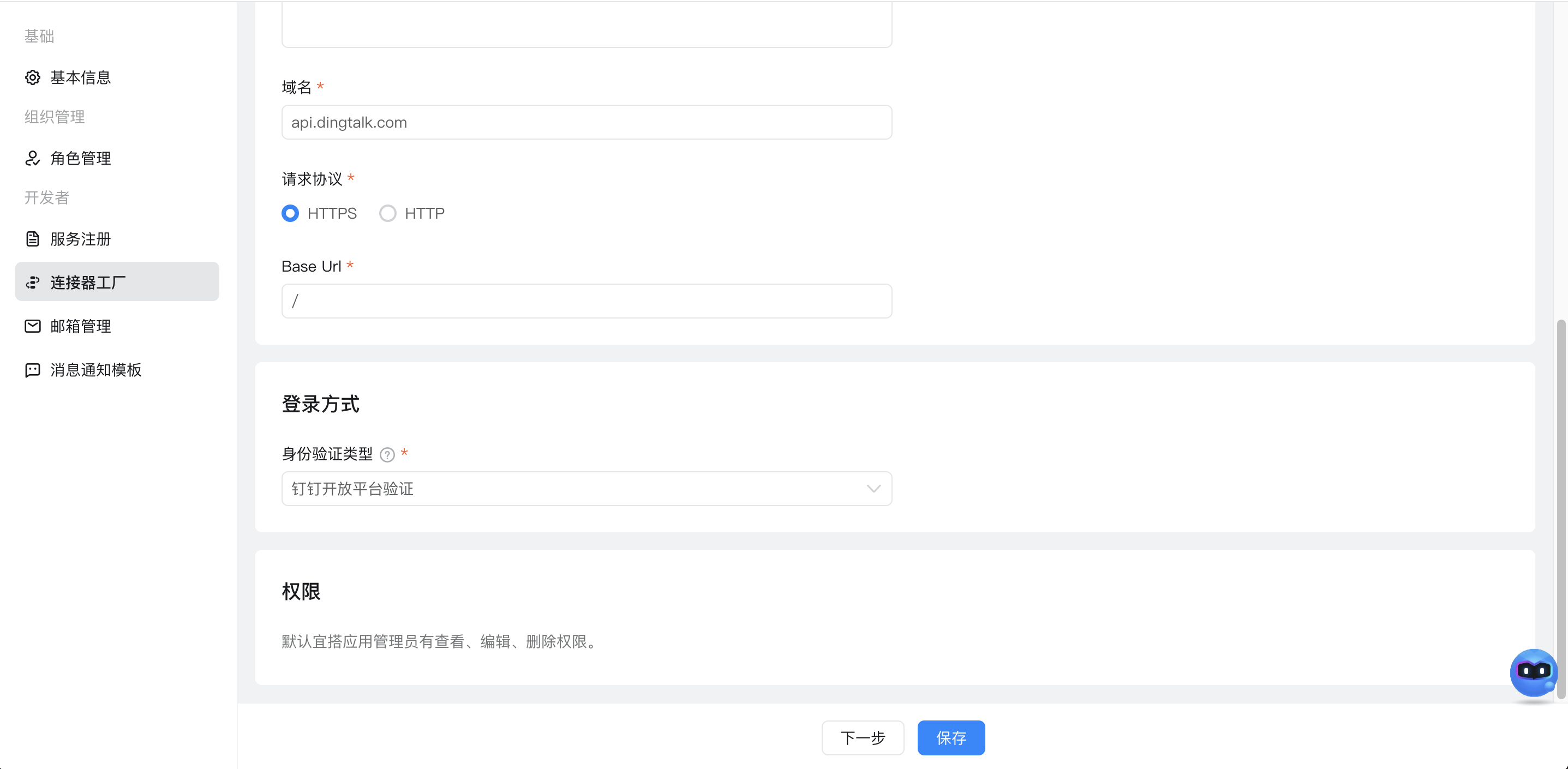
2.2.2. Configure basic connector information and logon methods
2.2.3. Configure connector execution actions

Configure interface request Headers parameters:

Configure the request Body parameter:
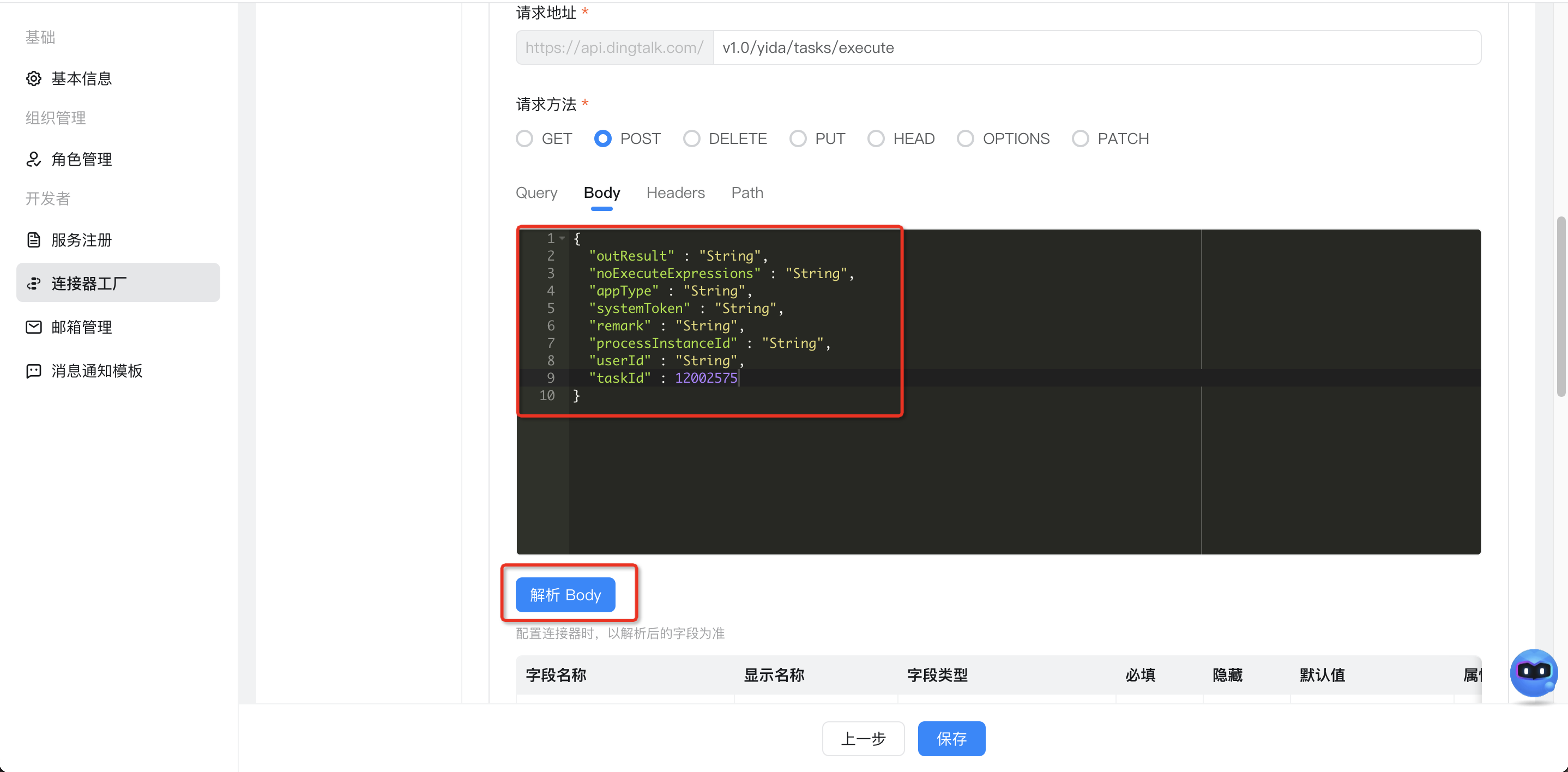
{
  "outResult" : "String",
  "noExecuteExpressions" : "String",
  "appType" : "String",
  "systemToken" : "String",
  "remark" : "String",
  "processInstanceId" : "String",
  "userId" : "String",
  "taskId" : 12002575
}
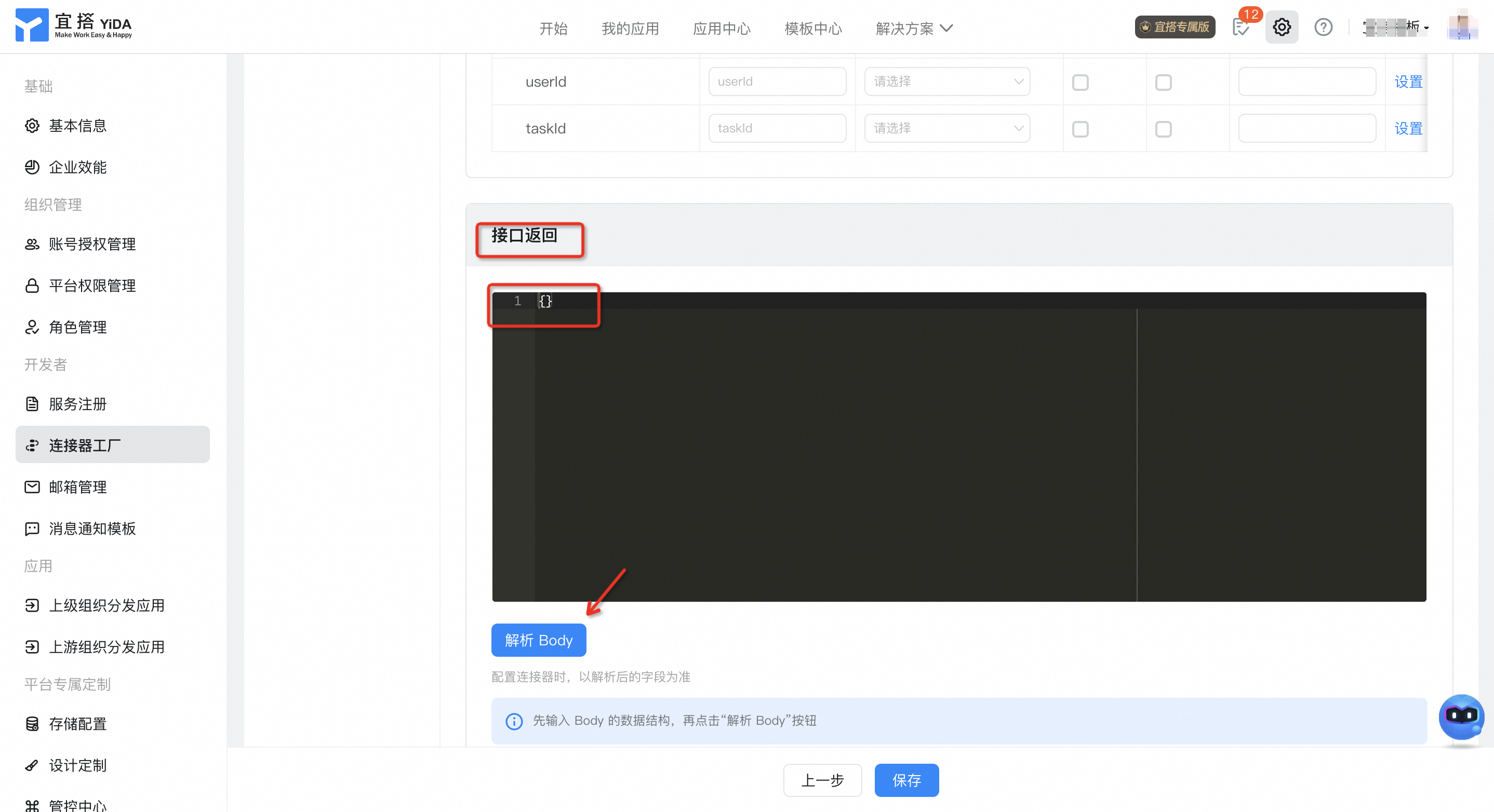
The interface returns:
2.2.4. Configure authentication templates
If you do not have an account, you must add an account. For more information about the parameters required for the account, see 2.1:
For more information about the authentication template, see:
2.3. Configure the page and configure integration automation
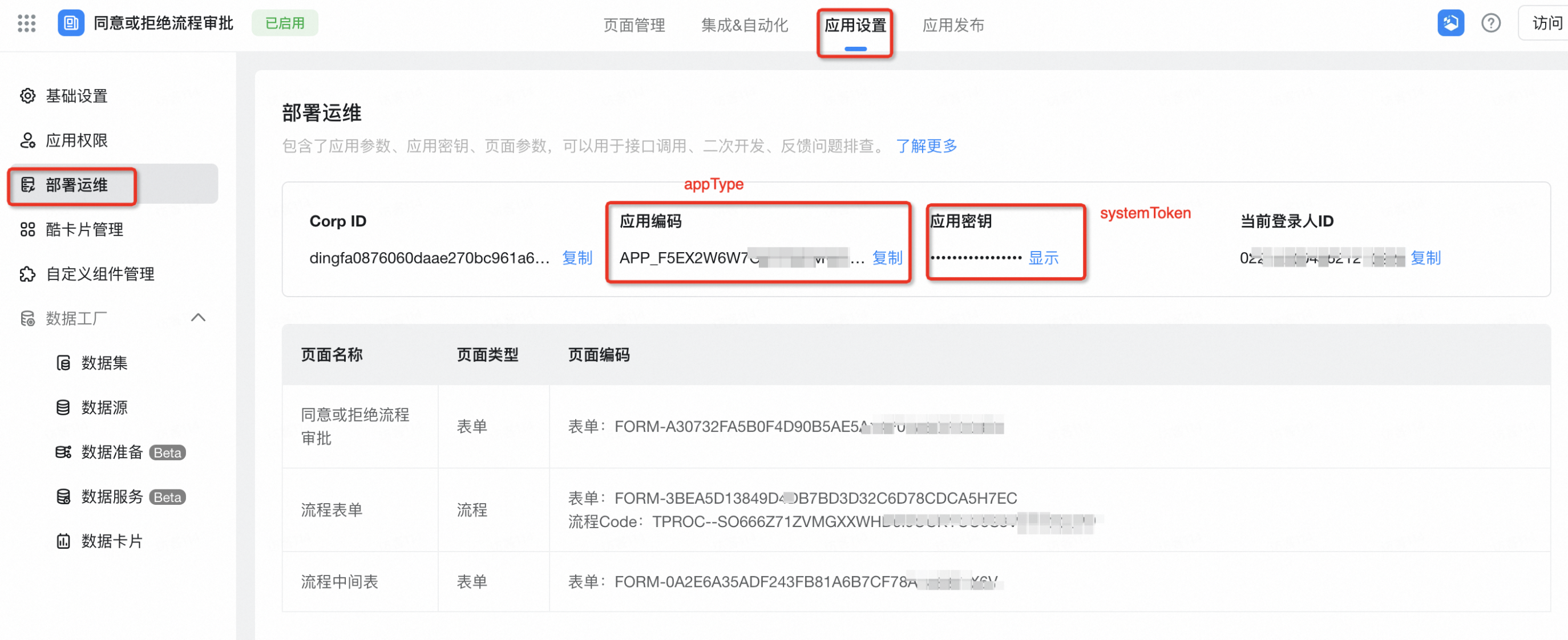
Note: Follow these steps to find the appType and systemToken used by the connector node.
View path: System Background-> Application Settings-> deployment O & M
2.3.1. Configure flow chart (flow chart)
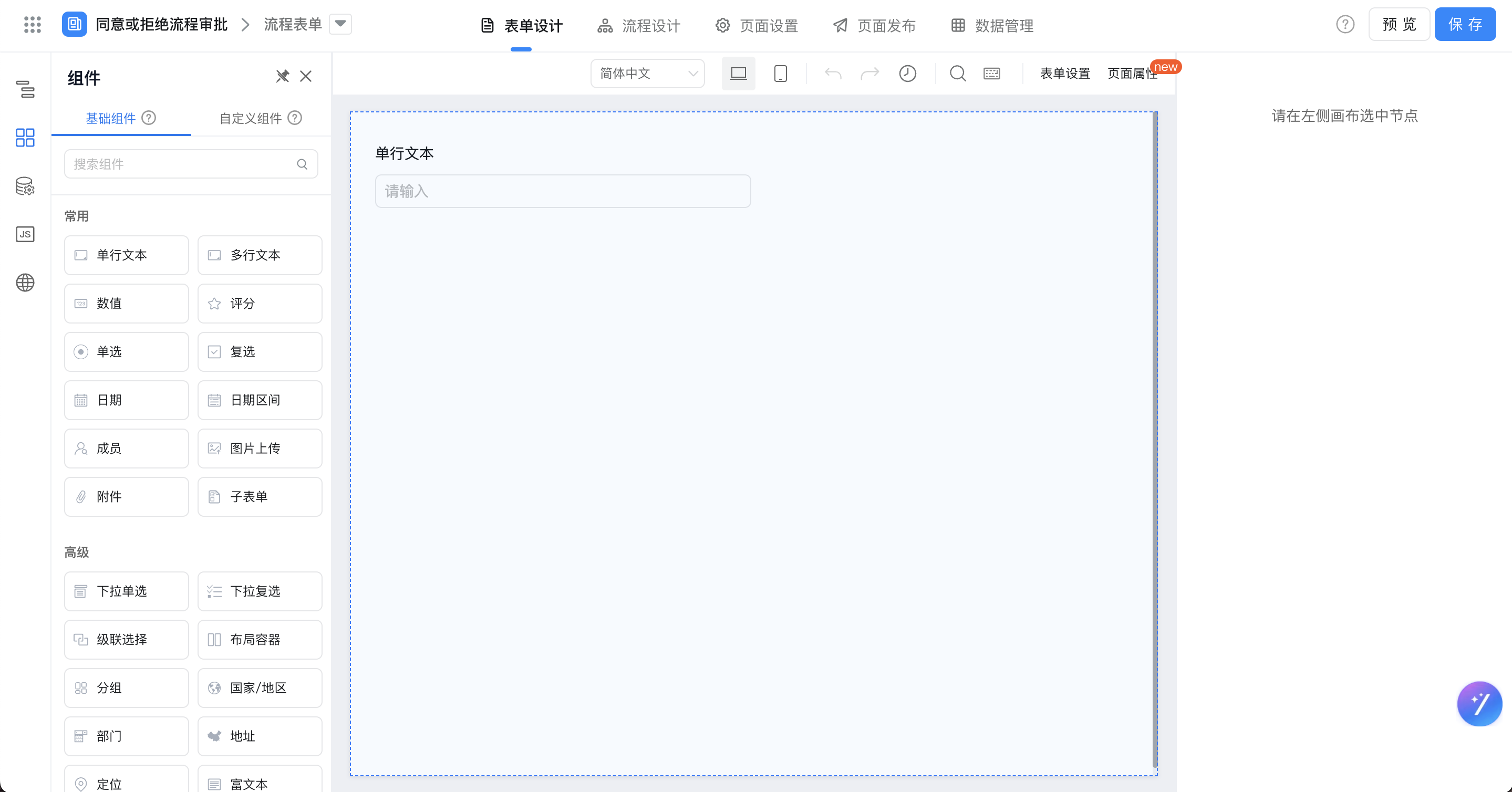
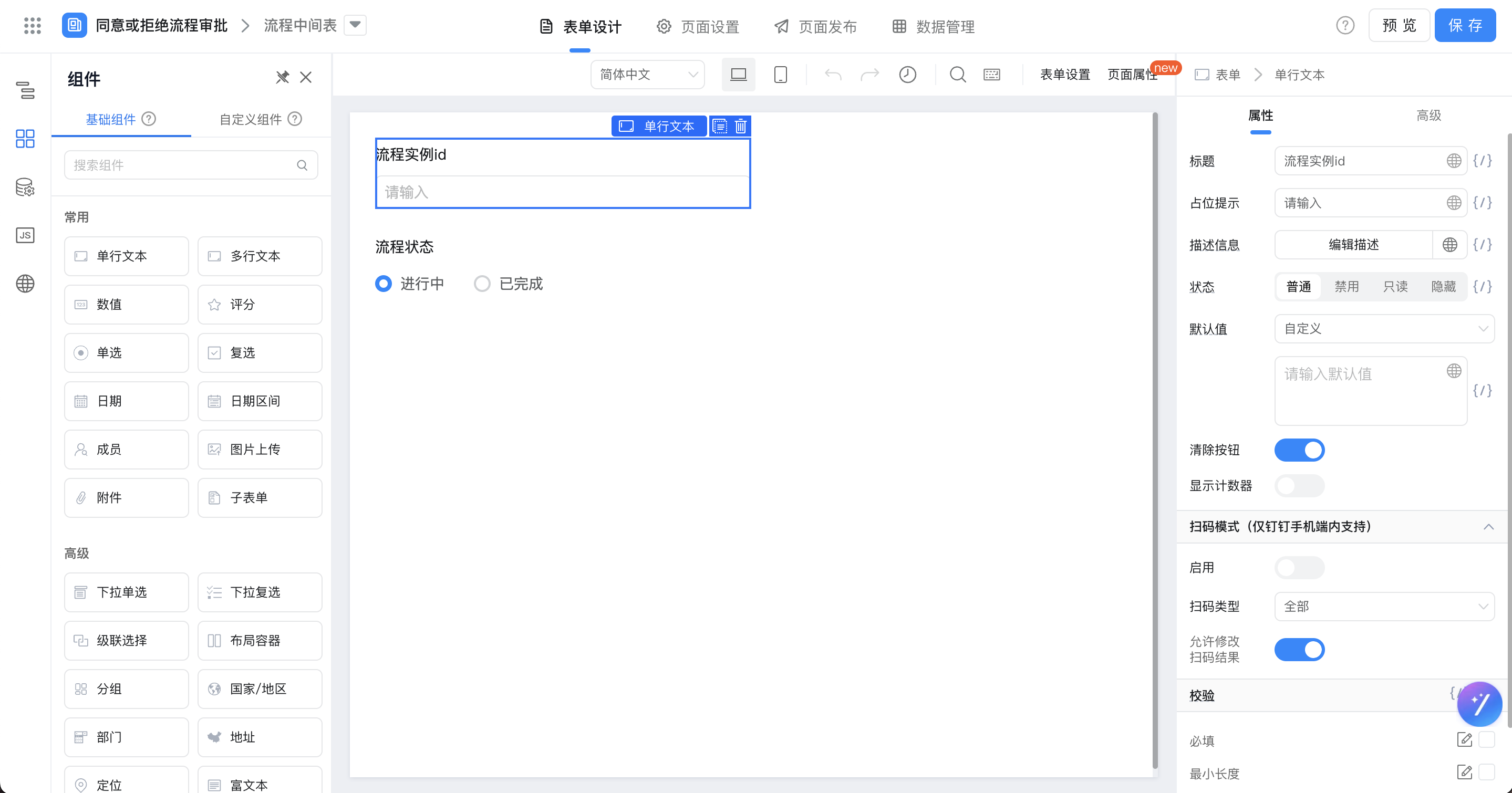
2.3.2. Configuration process intermediate table (common form)
[Flow chart] after the creation is successful, use integration automation to add data to the table, mainly recording the instance ID and process status of [flow chart], use the agree or reject process approval form.
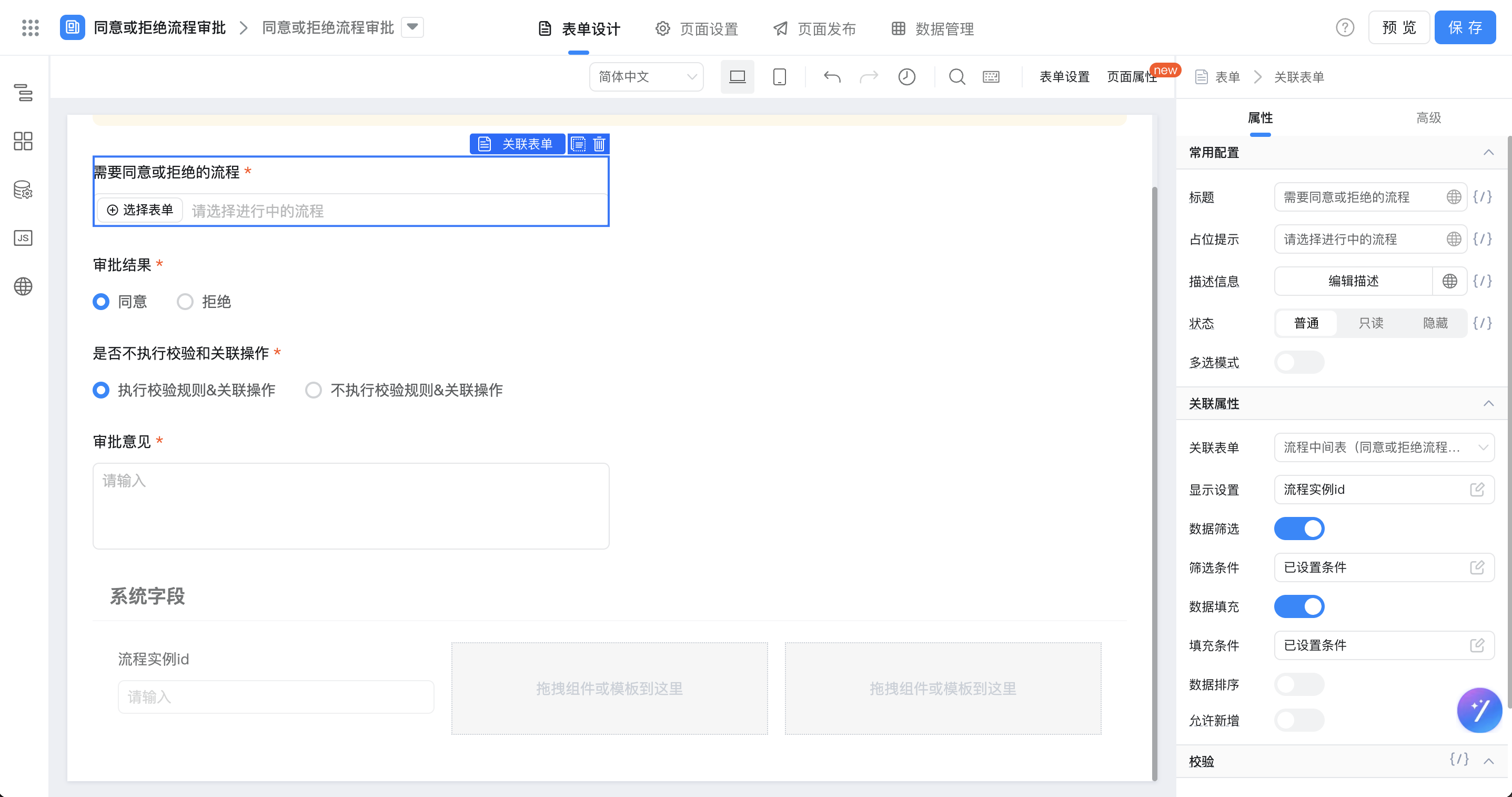
2.3.3. Configure the execution approval operation table
Associate [process intermediate table] to configure display fields and fill content.
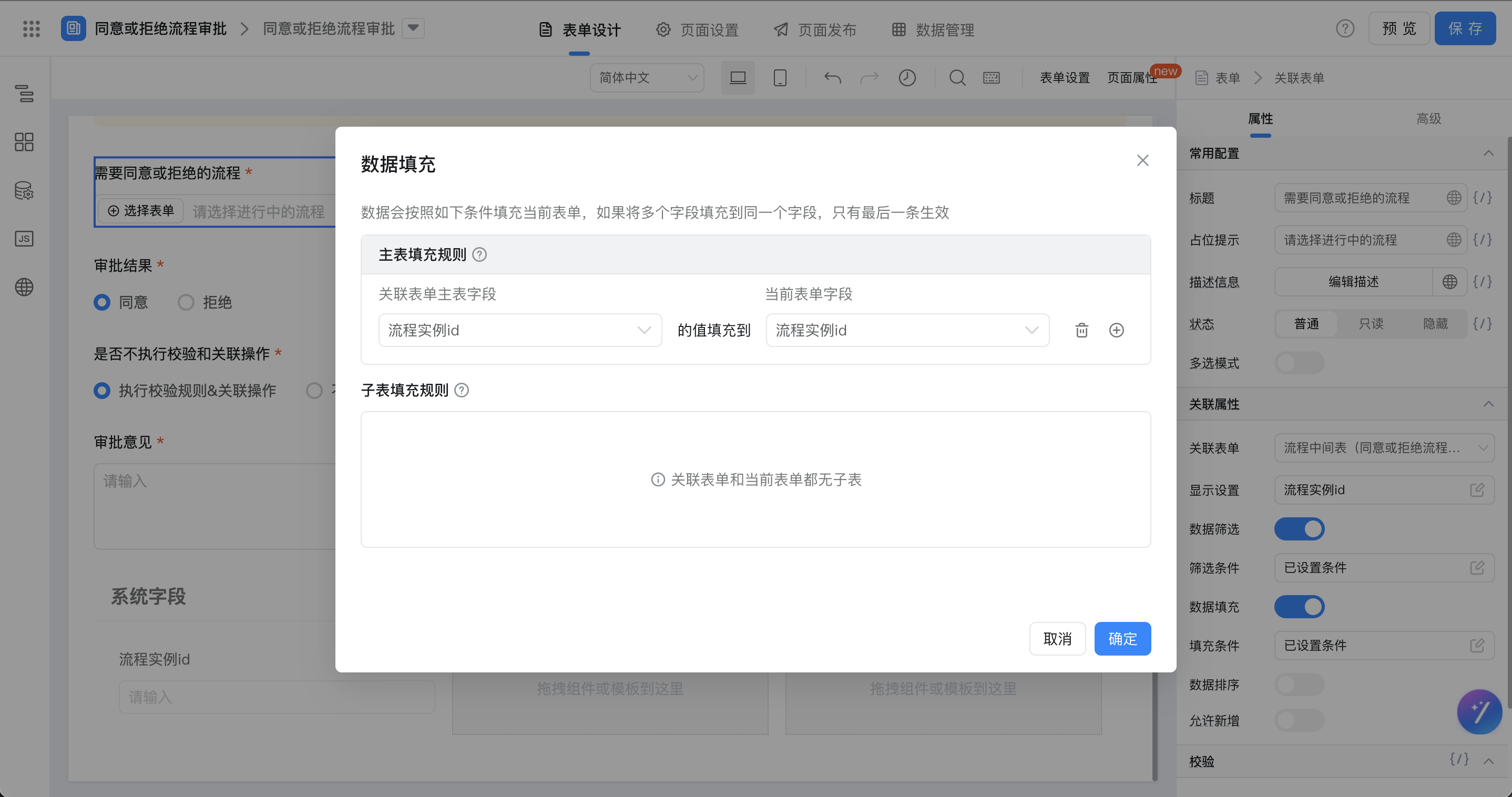
Configure the fill rule.
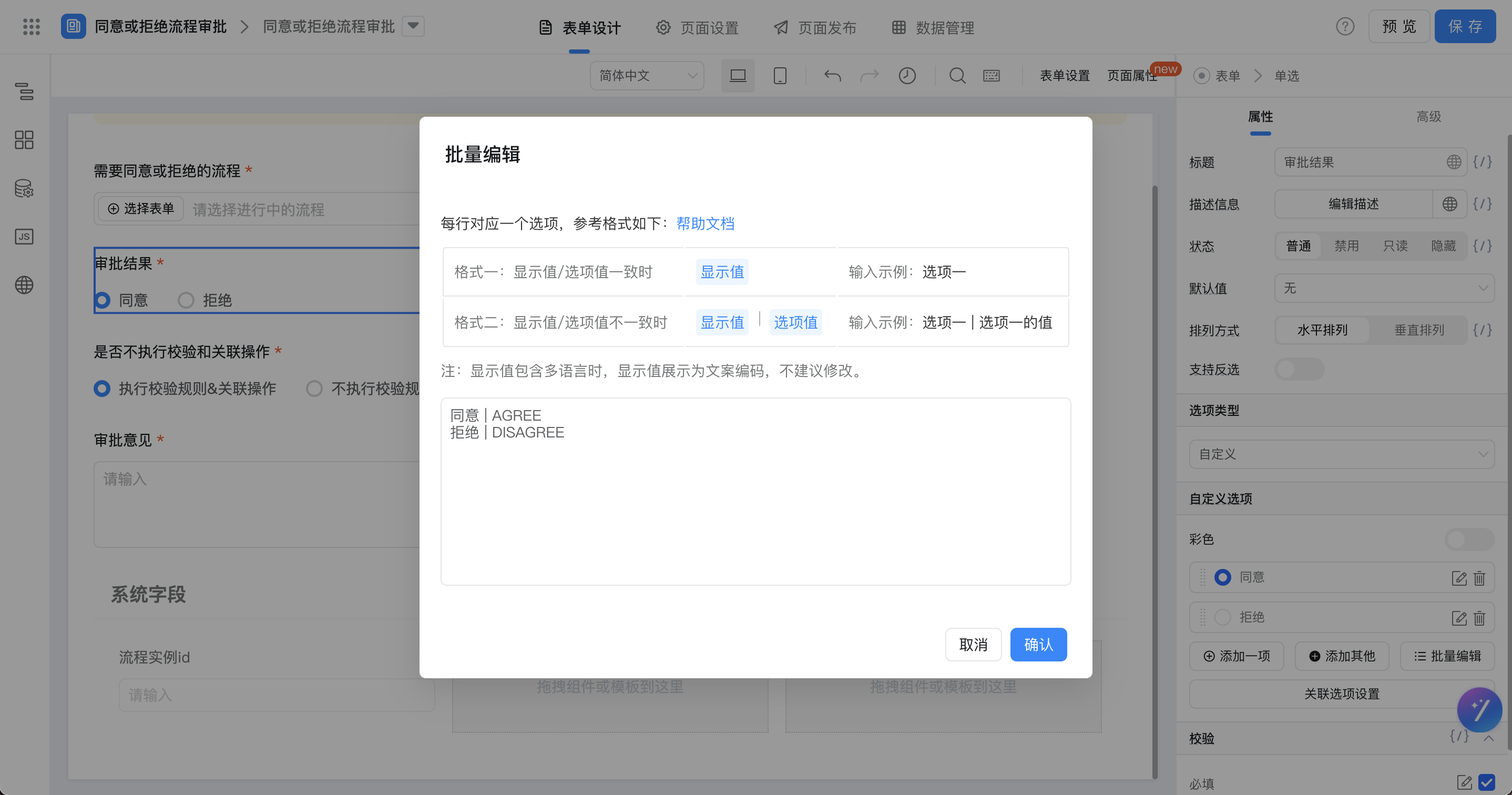
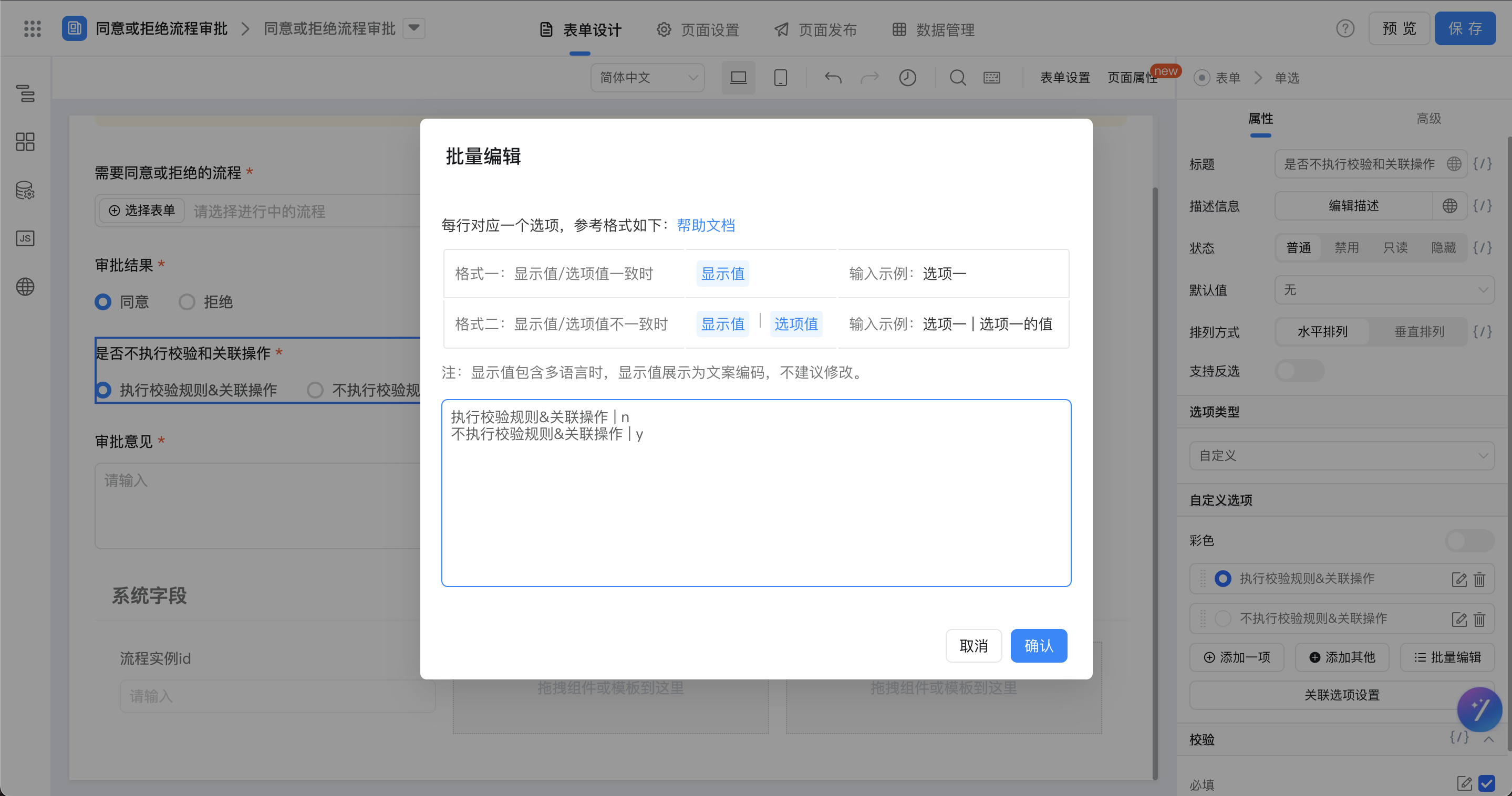
Configure options/display values for the approval result field:
Configure the option/display value of the check and association operation field:
2.3.4. Configure flow chart integration automation
[Flow chart] The form has been created-> Add [process intermediate table] data and record the process instance ID.

Process approval succeeded-> obtain a single data of [process intermediate table]-> Update [process intermediate table] data.
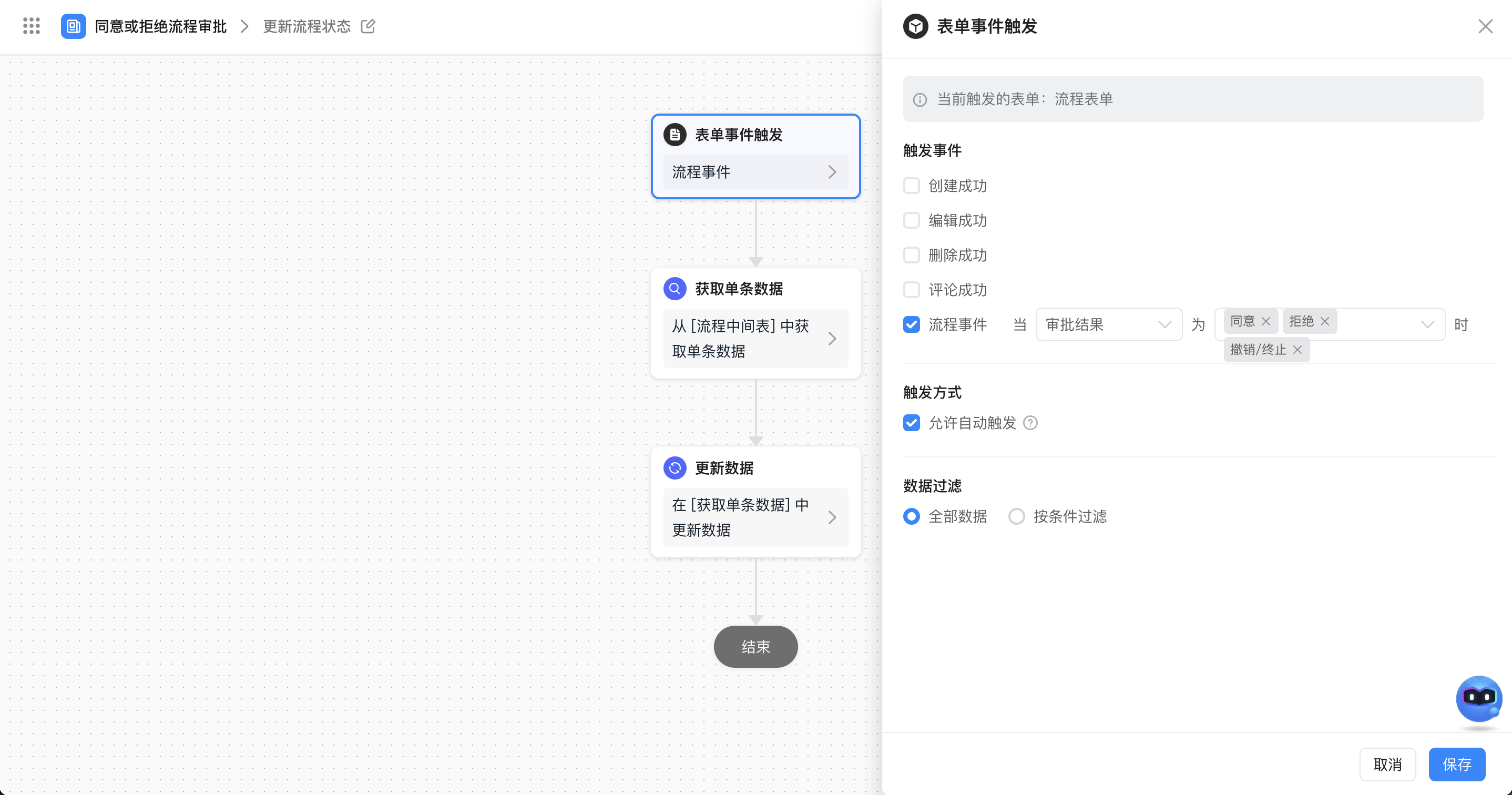
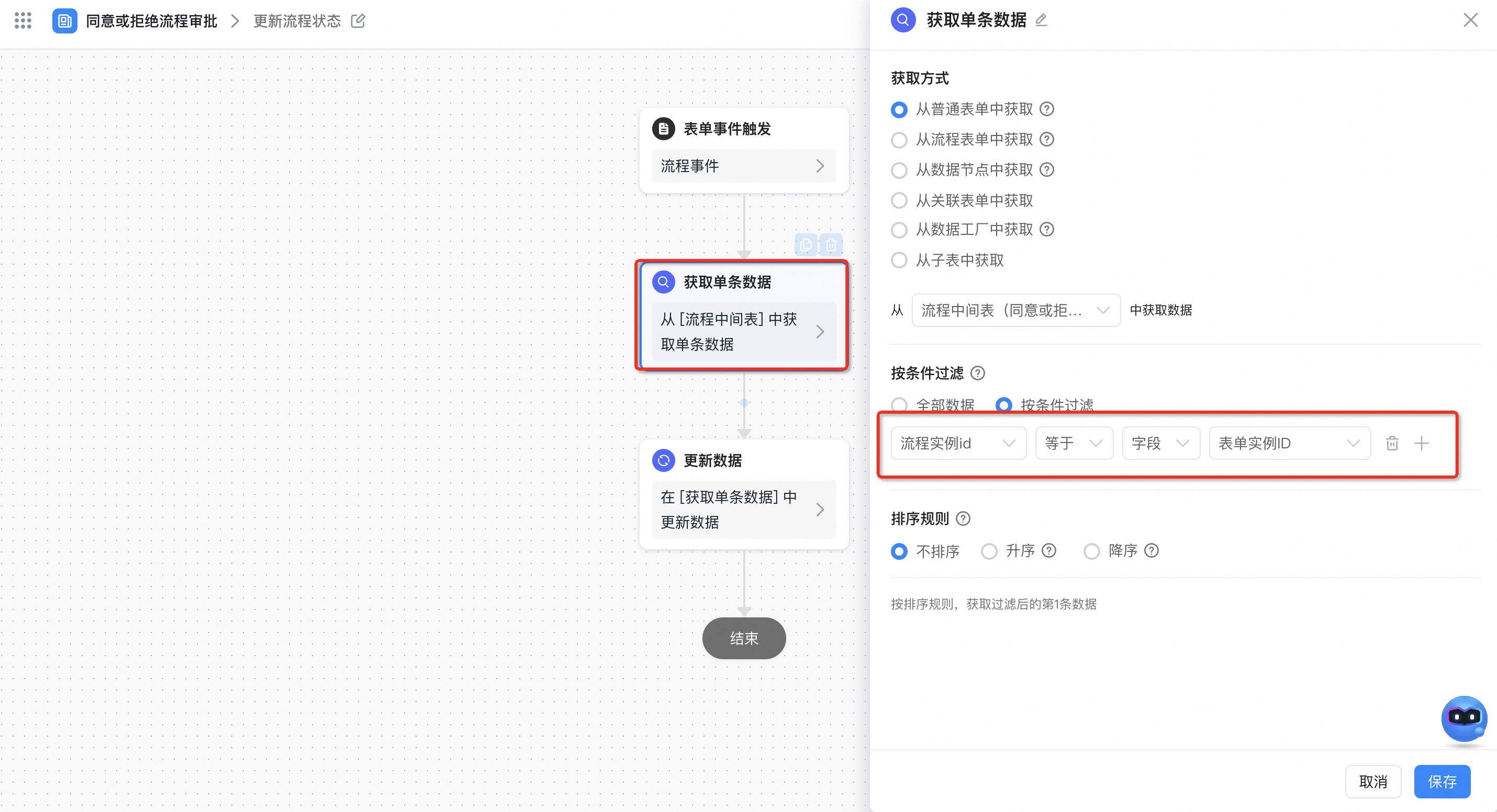

2.3.5. Configuration process operation table integration automation
Created successfully-> connector node to obtain approval Records-> script node to process the task ID and userId returned by the approval Records-> connector node to perform the approval task.
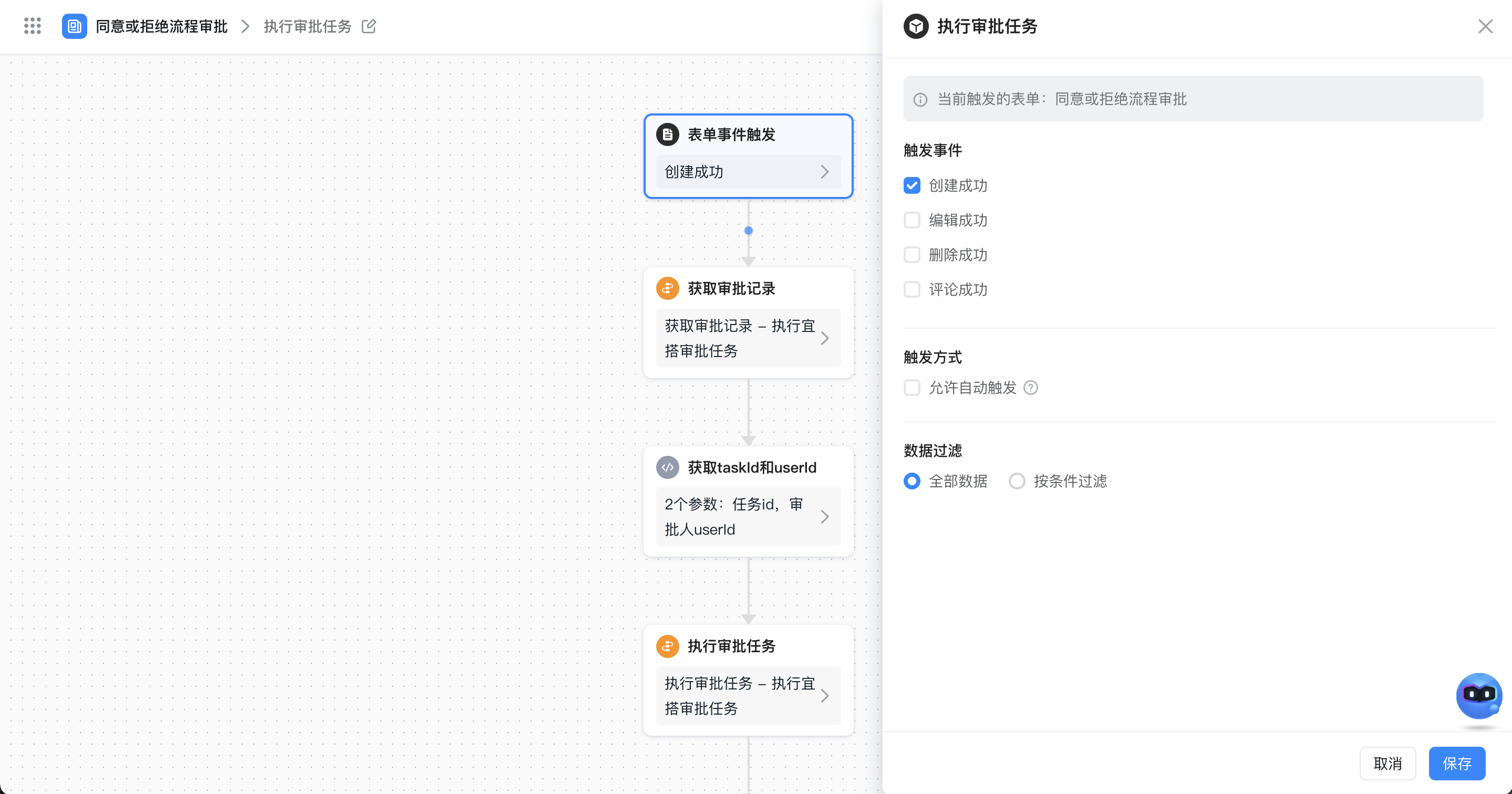
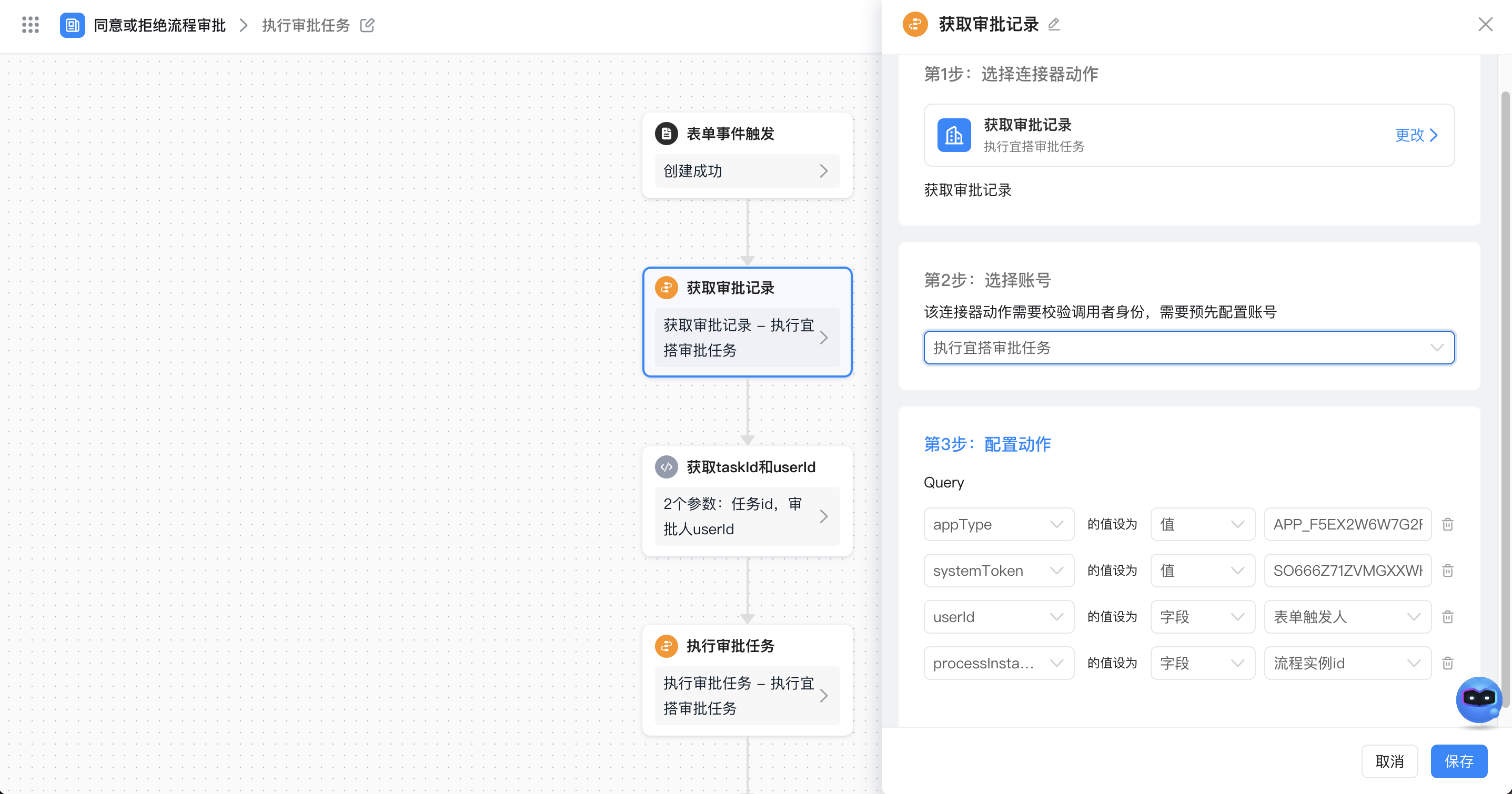
Return parameters for script node processing:

var todoTasks = approvalRecords.filter(function(item) {
  return item.type === "TODO";
});
var todoTaskIds = todoTasks[0].taskId;
var userId = todoTasks[0].operatorUserId;
outputs.add("任务id", "todoTaskIds", todoTaskIds);
outputs.add("审批人userId", "userId", userId);
The connector node performs the approval task:
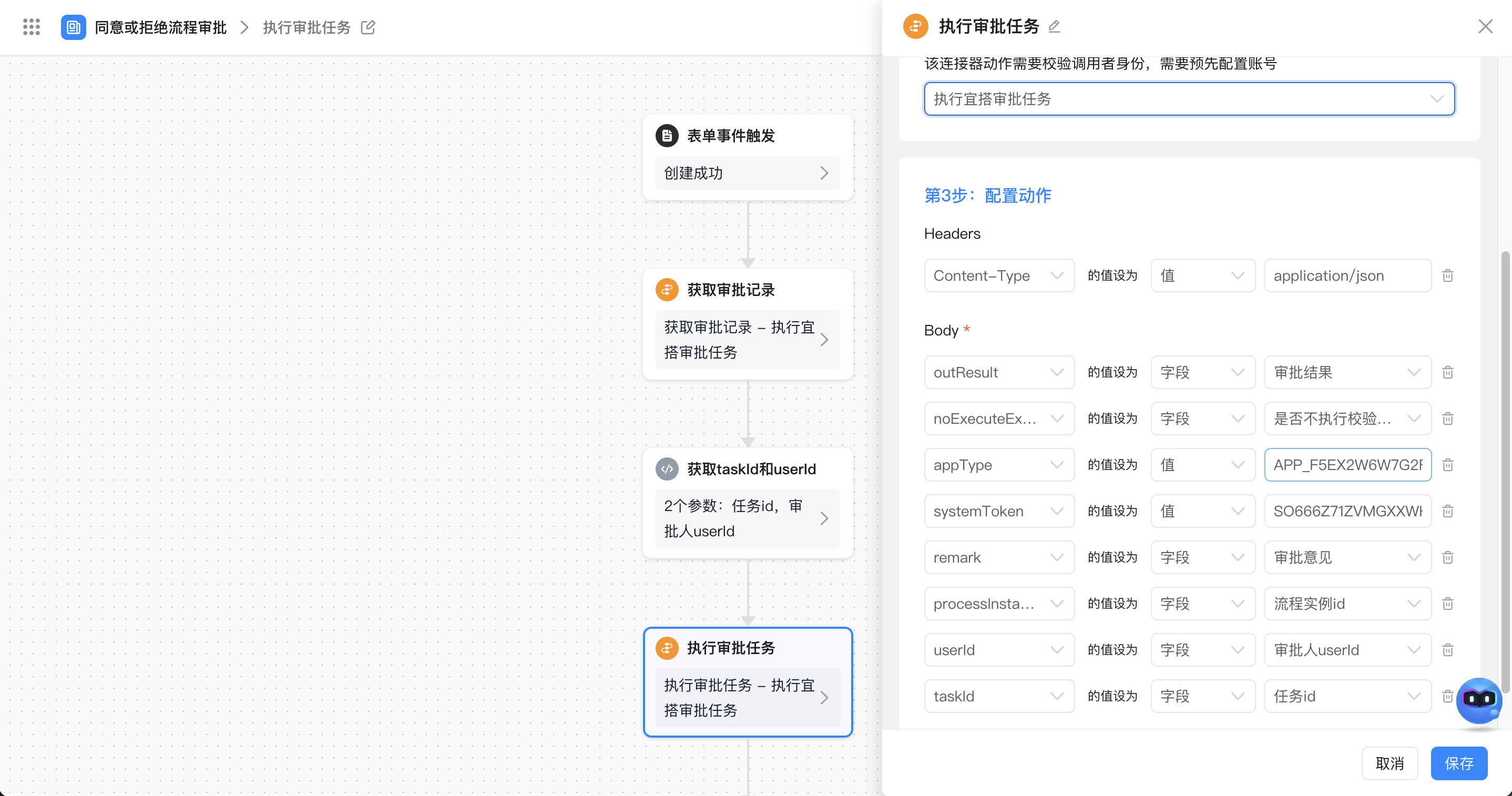
3. Effect