Obtain the manager of a specified member
In the process of building YIDA applications, you may encounter the following problems.
- In the performance appraisal system, when employees conduct performance appraisal, supervisors are required to participate in process approval and make corresponding evaluations.
- In the employee attendance system, when employees apply for leave, the supervisor is required to participate in the process approval or copy to the supervisor.
Prerequisites
This tutorial uses the form formula of YIDA. You can first understand the followingForm formula.
Effect
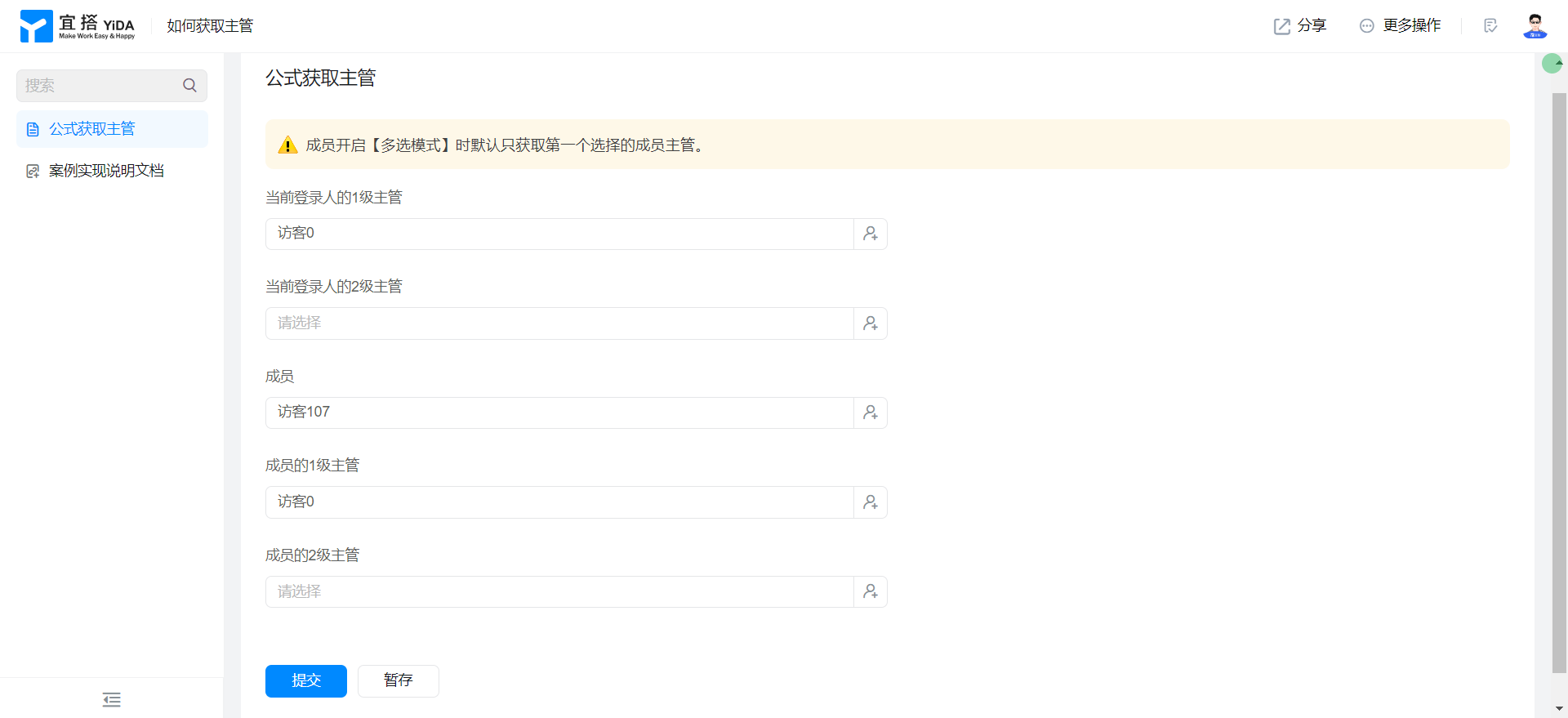
Implementation steps
Create a common form page
Create a common form page. For more information, seeCommon form.
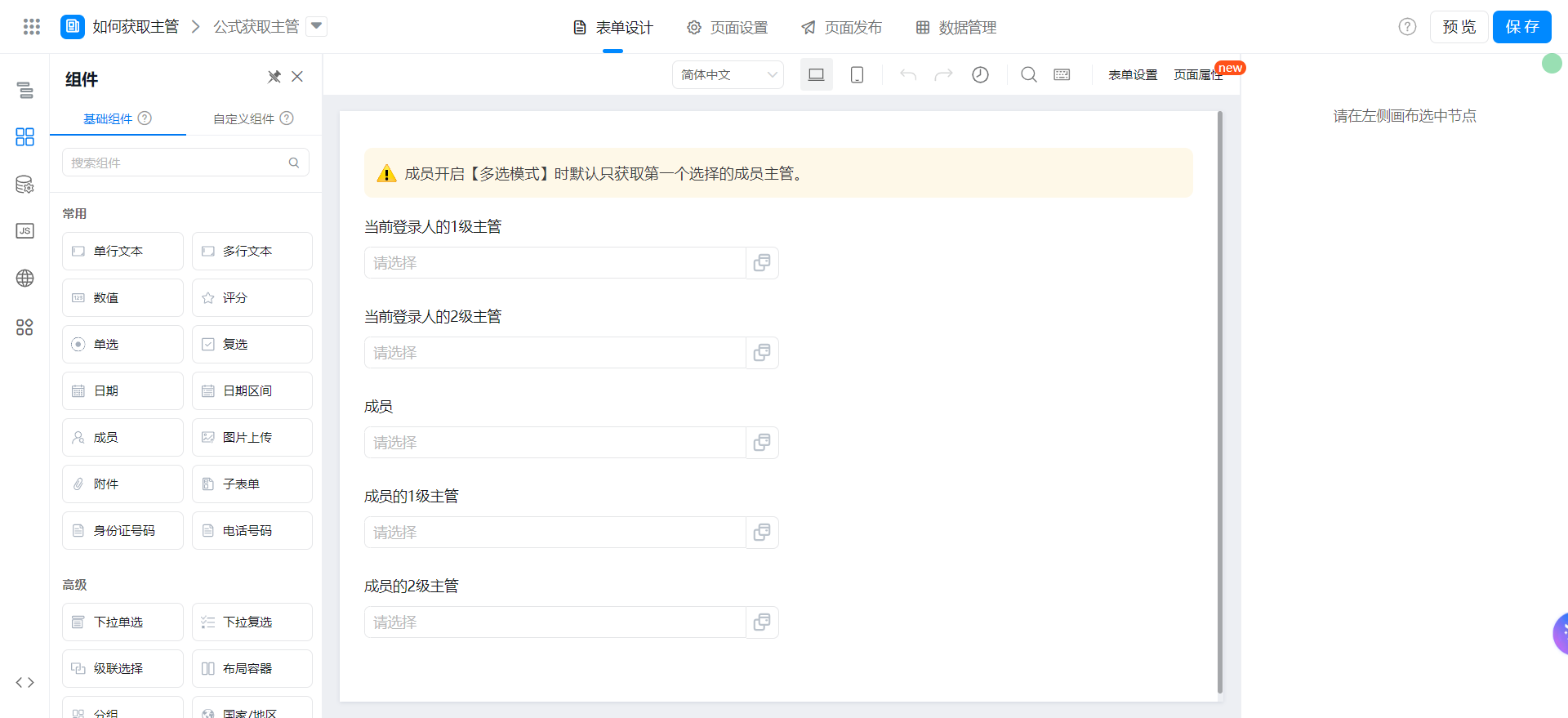
Drag the following components into the canvas area.
- Member: The level 1 supervisor named the current login person.
- Member: The level 2 supervisor named the current login person.
- Member: Named as a member
- Member: A level 1 supervisor named a member
- Member: a level 2 supervisor named a member
Add Form formula
By default, only the first member supervisor is obtained when multiple selection mode is enabled.
The level 1 supervisor of the current login selects formula editing and configures the formula shown in the following figure. You can also directly copy the formula source code.
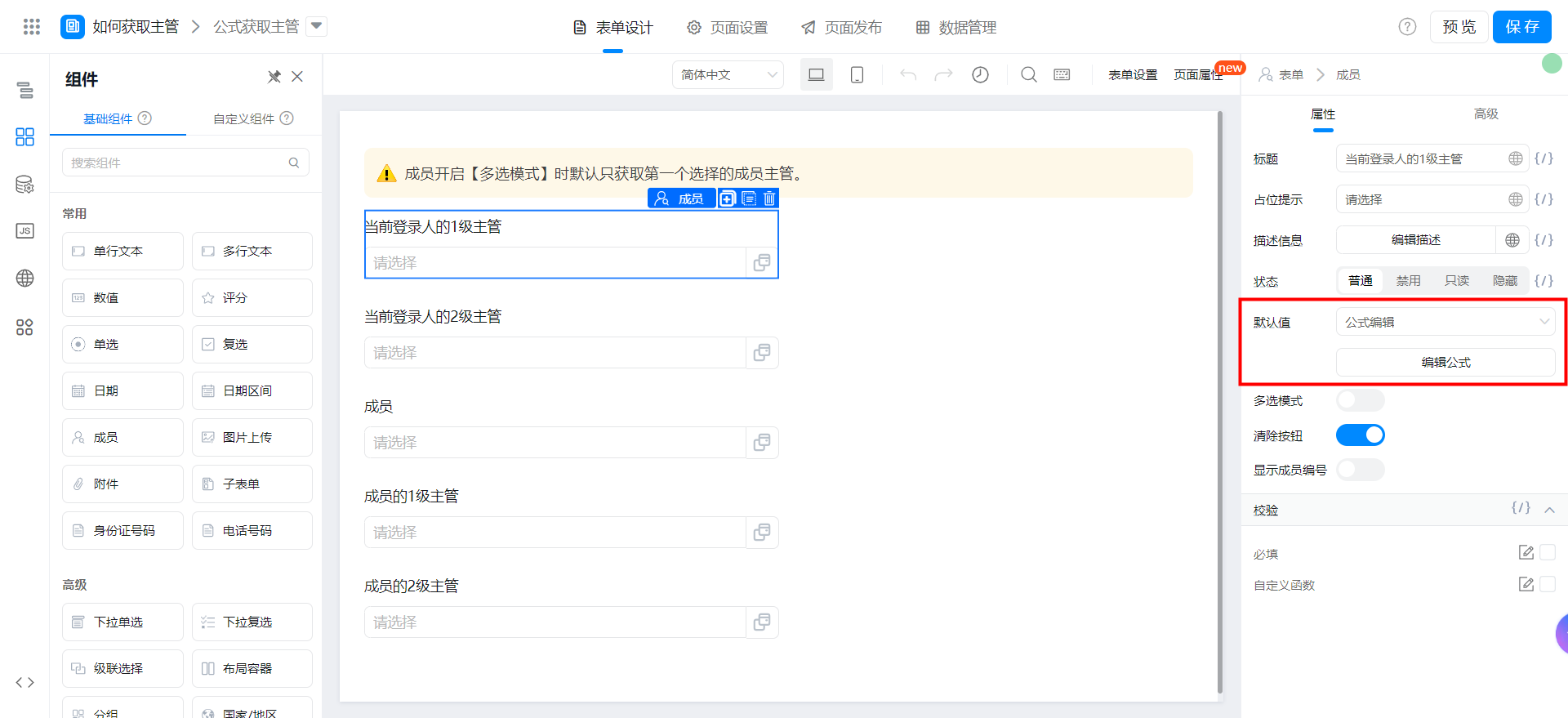
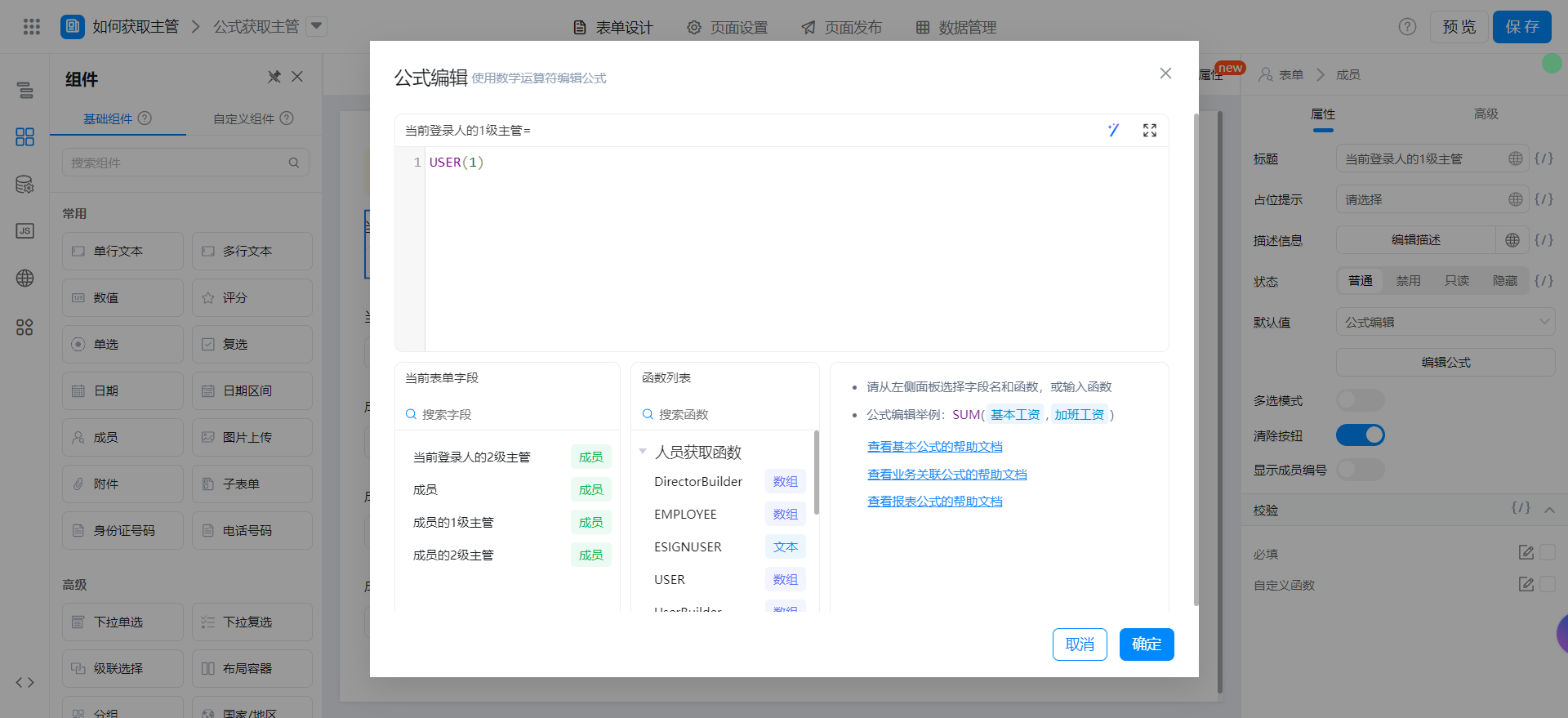
{"text":"USER(1)","marks":[],"isCmData":true}
The level 2 supervisor of the current login selects formula editing and configures the formula shown in the following figure. You can also directly copy the formula source code.
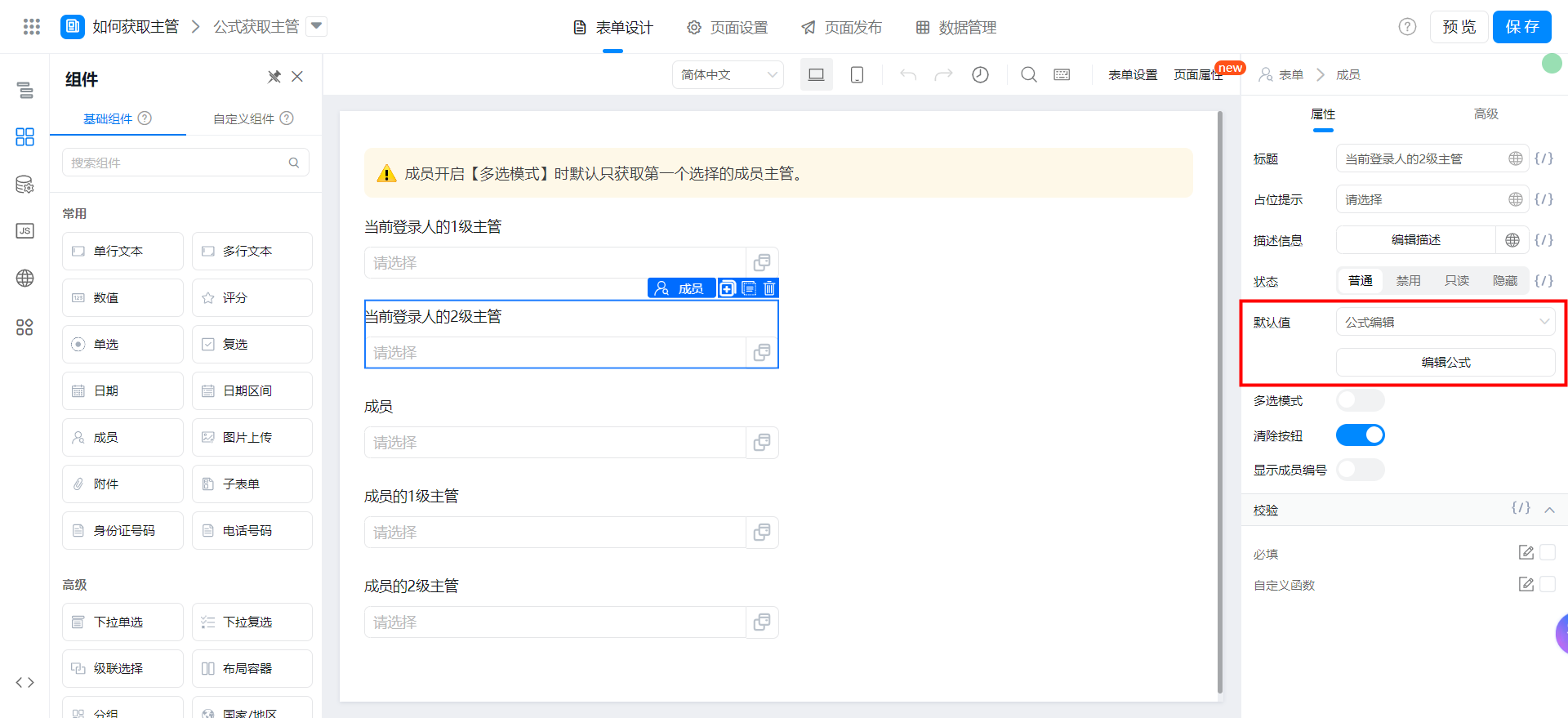
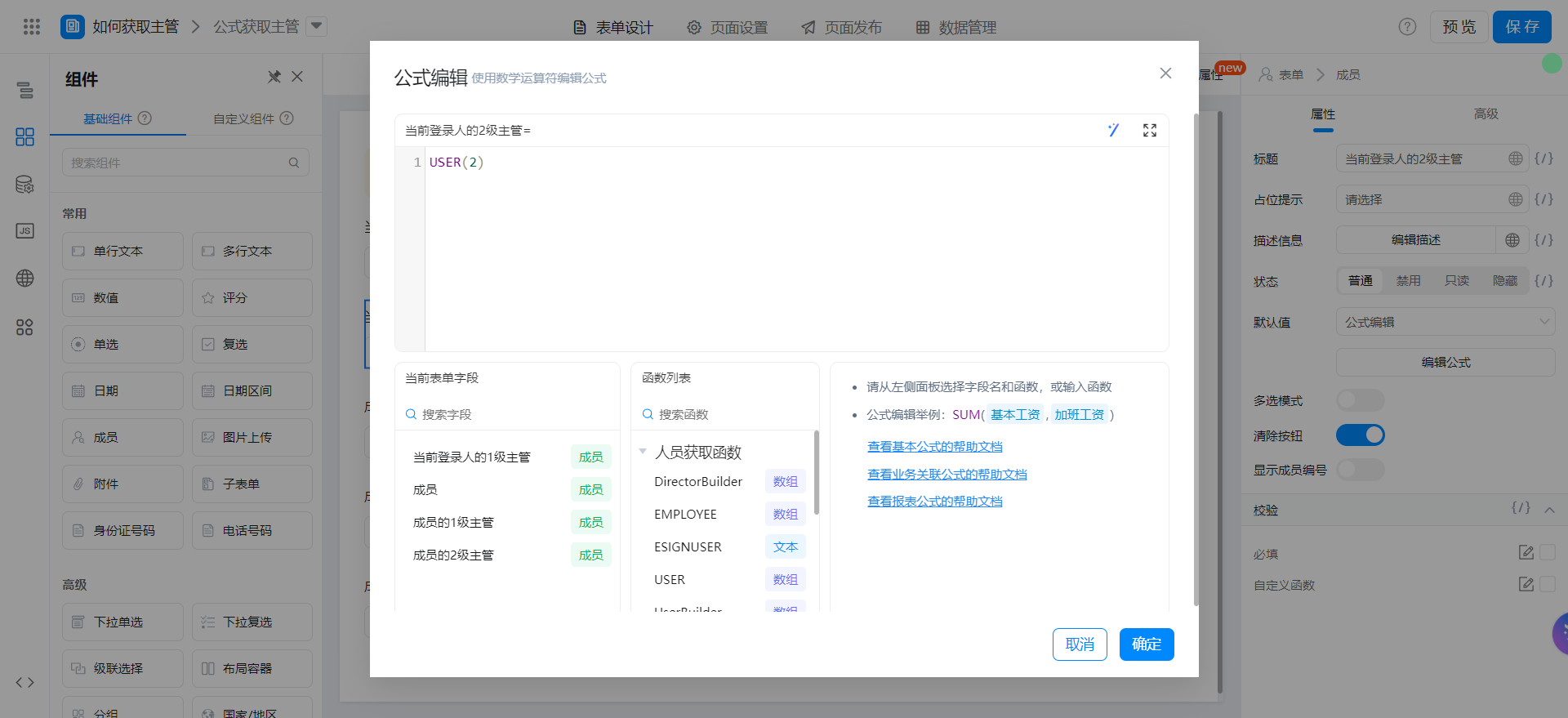
{"text":"USER(2)","marks":[],"isCmData":true}
Select quick configuration for the member component. By default, the current logon person is selected.
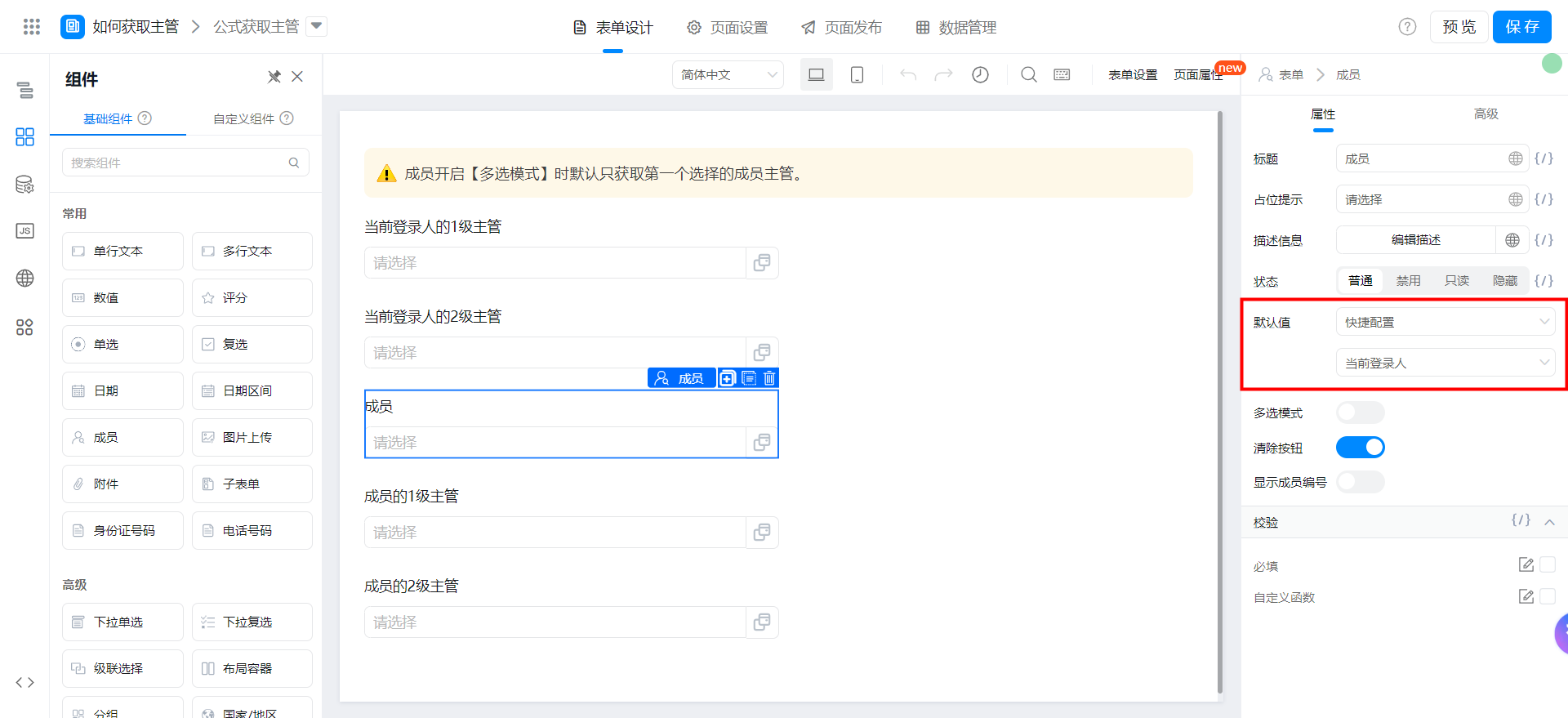
The member's Level 1 supervisor selects formula editing and configures the formula shown in the following figure. You can also directly copy the formula source code and pay attention to modifying the fields.
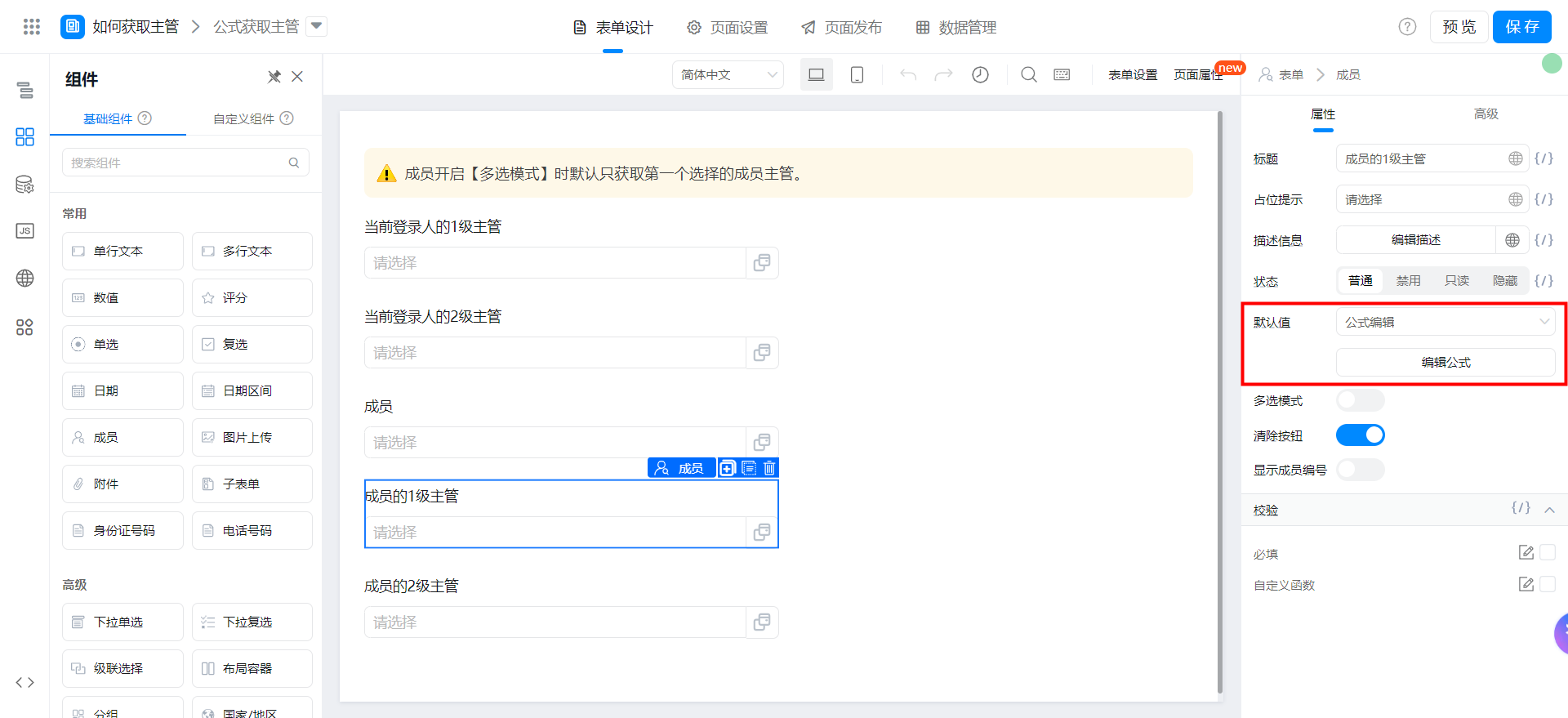
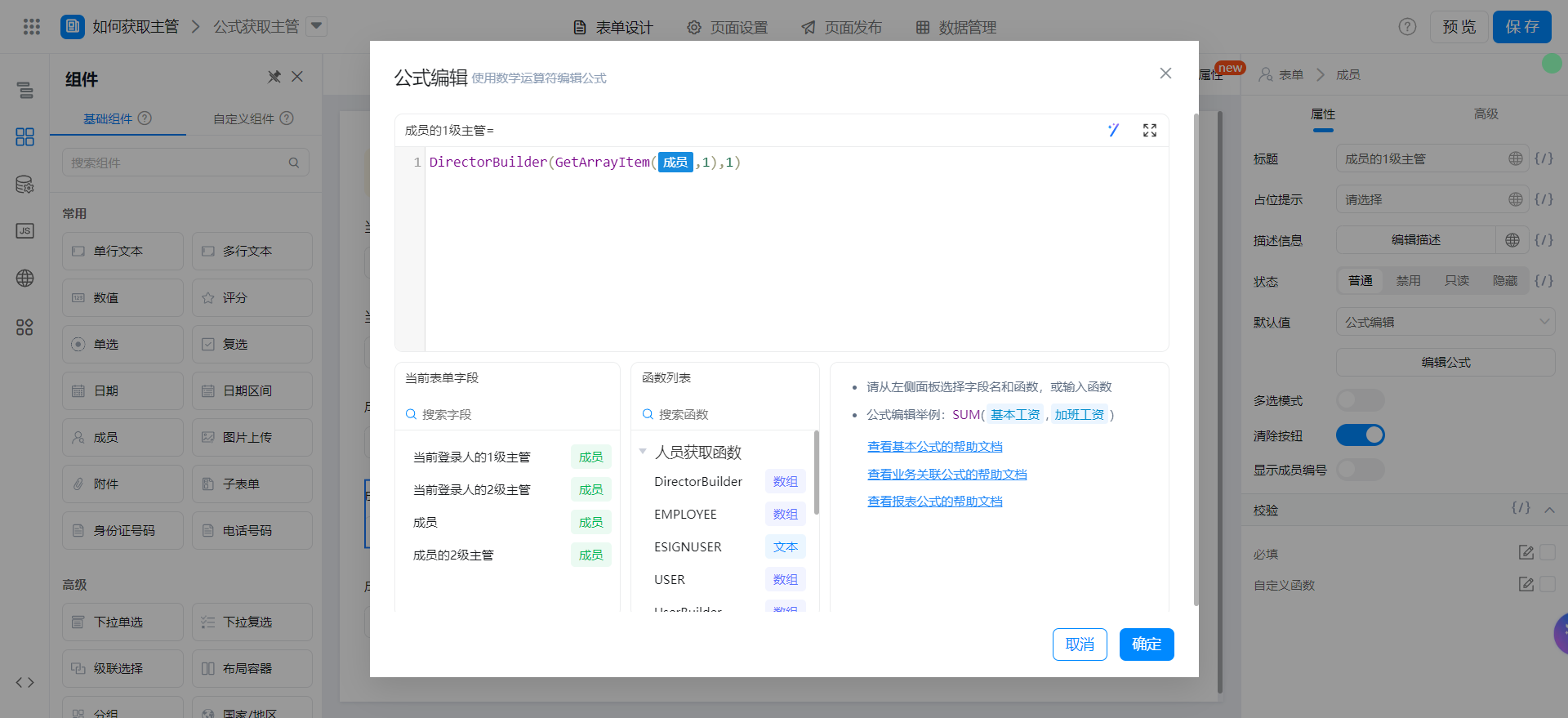
{"text":"DirectorBuilder(GetArrayItem(成员,1),1)","marks":[{"from":{"line":0,"ch":29,"sticky":null},"to":{"line":0,"ch":33,"sticky":null},"value":"employeeField_lyy1wm9w","invalid":false}],"isCmData":true}
The member's Level 2 supervisor selects formula editing and configures the formula shown in the following figure. You can also directly copy the formula source code and pay attention to modifying the fields.
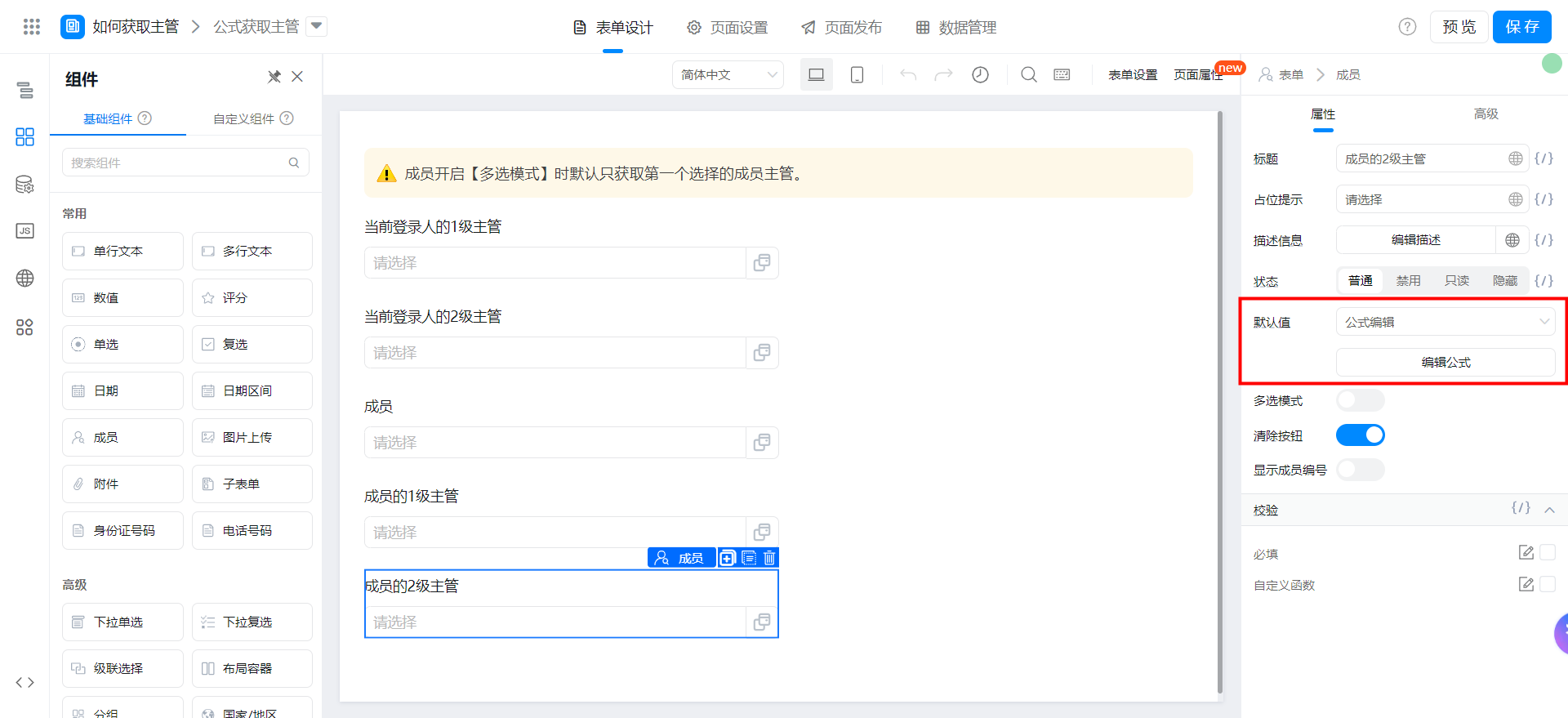
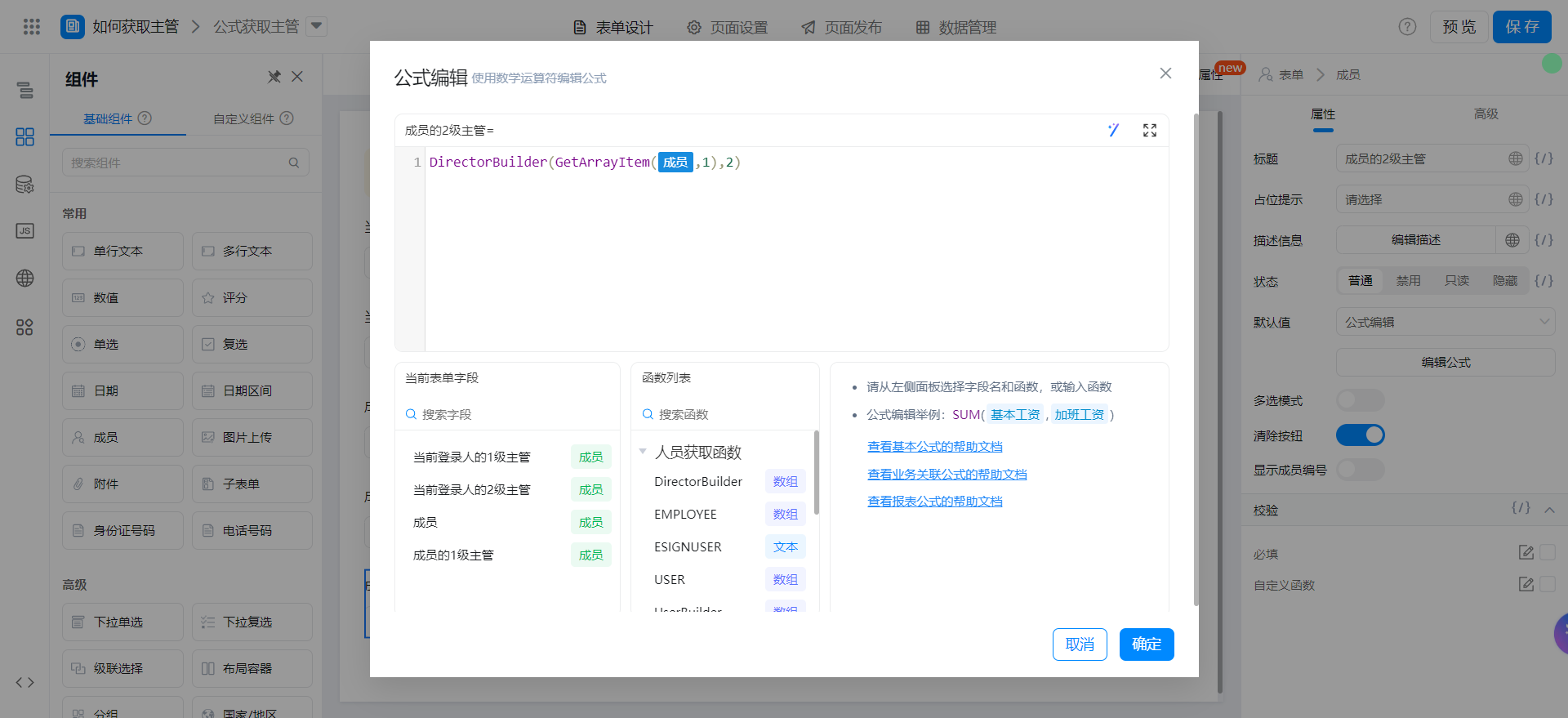
{"text":"DirectorBuilder(GetArrayItem(成员,1),2)","marks":[{"from":{"line":0,"ch":29,"sticky":null},"to":{"line":0,"ch":33,"sticky":null},"value":"employeeField_lyy1wm9w","invalid":false}],"isCmData":true}
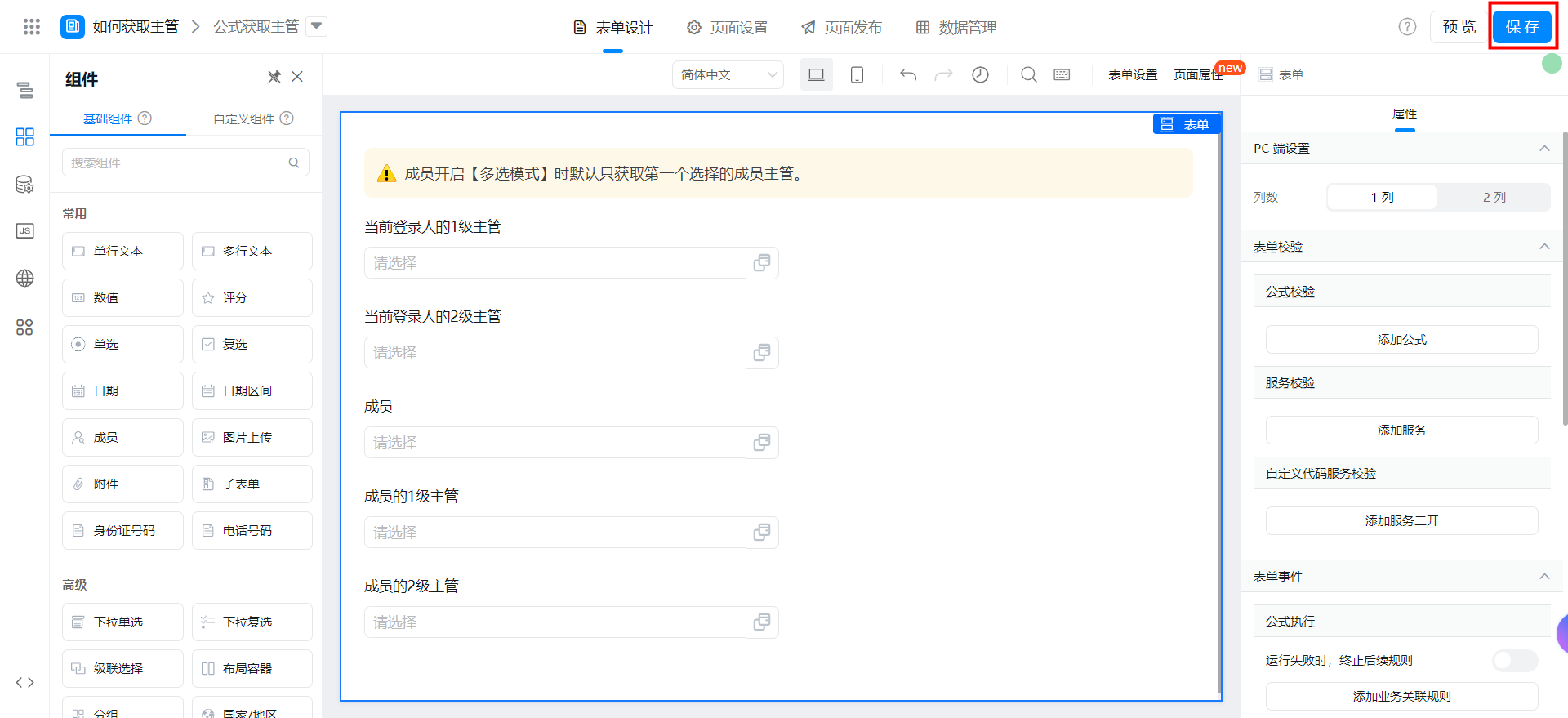
Save page