
Paste and upload images in the form

This case comes from Feng Peng, a three-party developer 」
1. Usage scenarios
The function is only supported on the PC side.
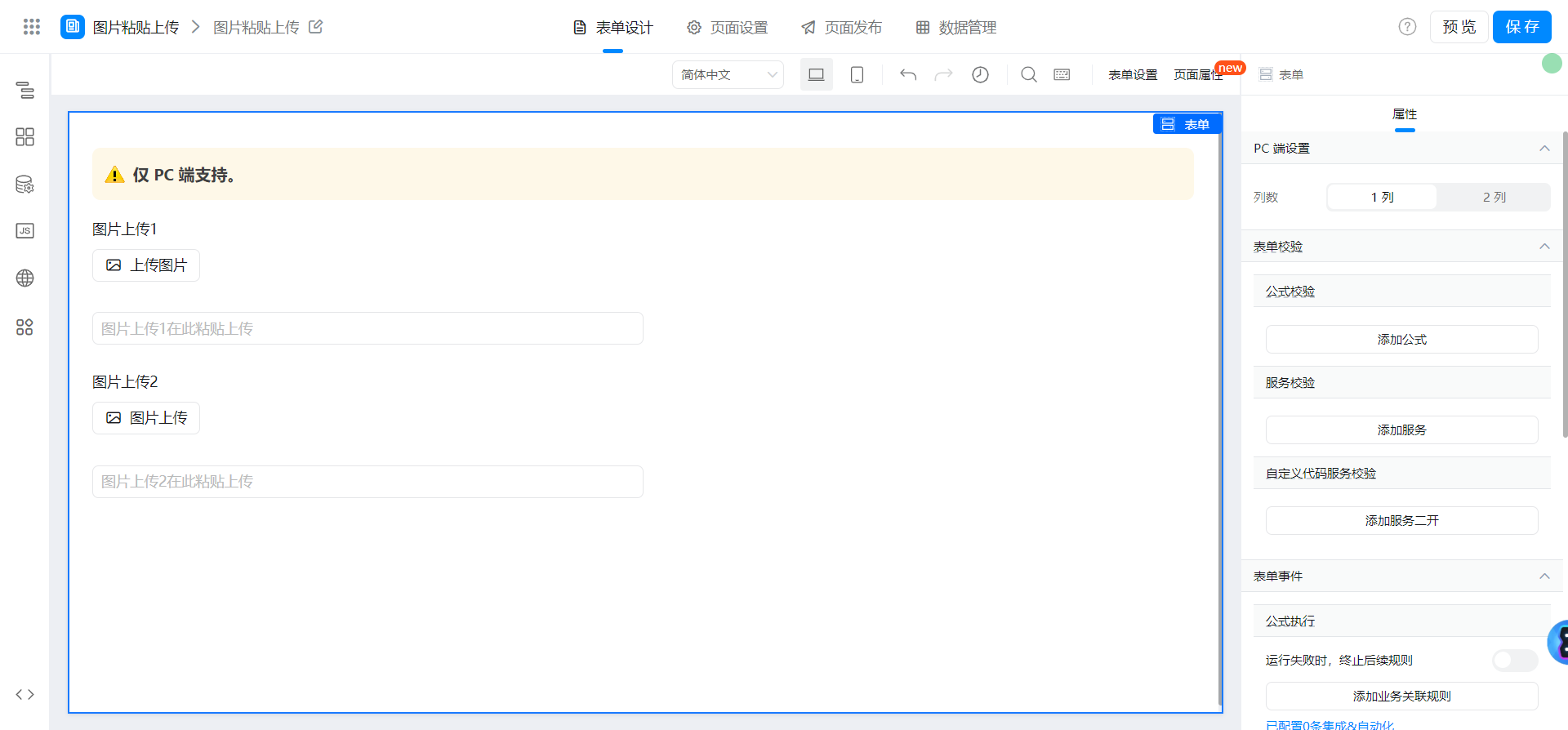
In this example, let's learn how to paste and upload images in the YIDA form.
2. Implement functions
2.1. Page configuration
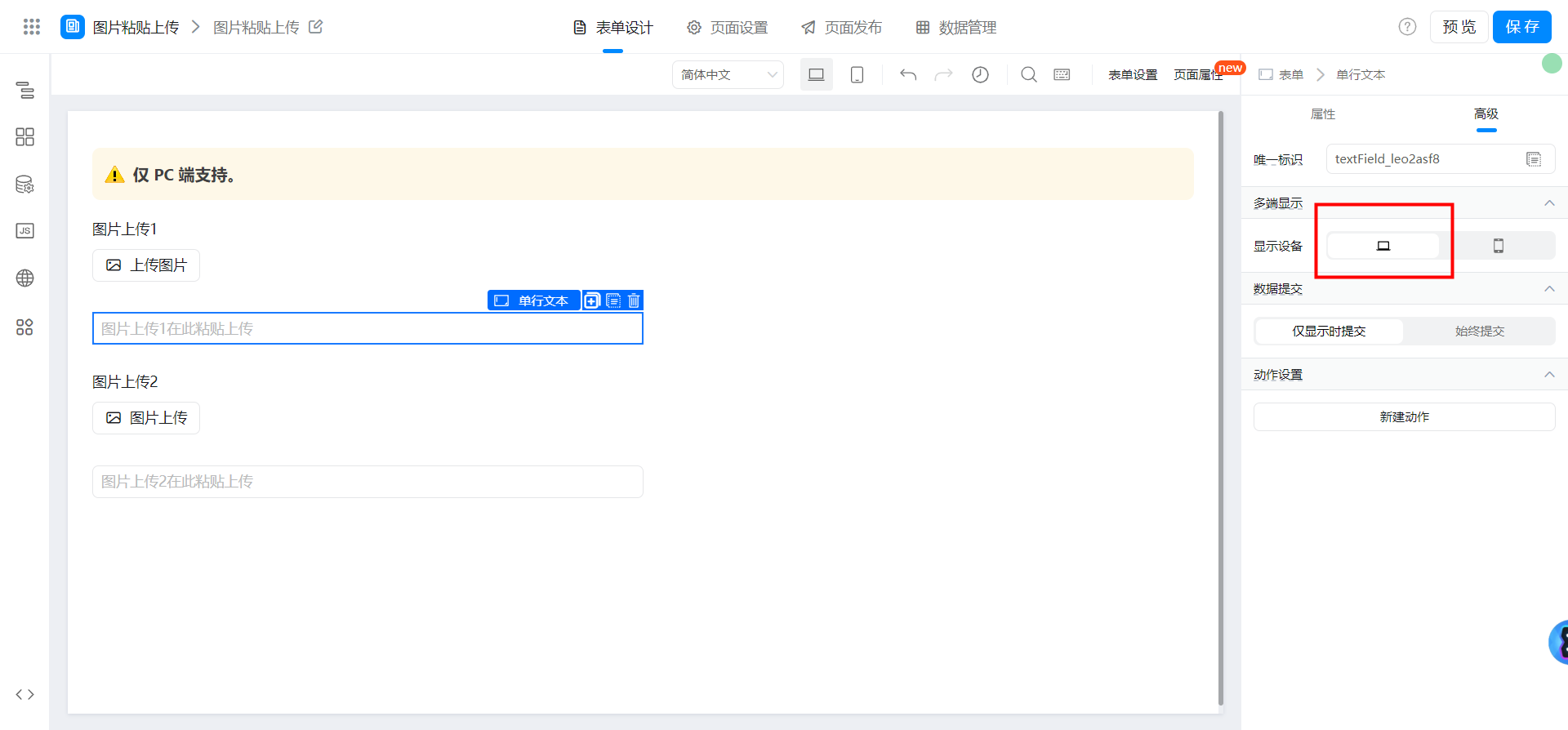
The mobile terminal does not support it, so we need to hide this component on the mobile terminal:
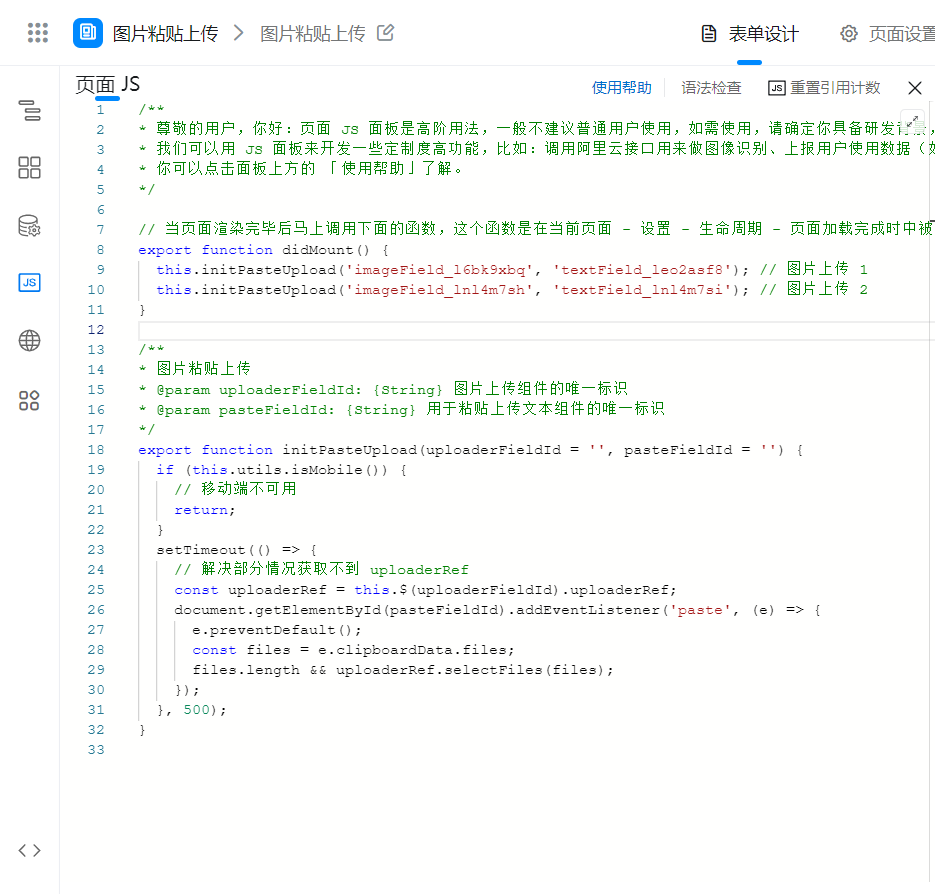
2.2. Copy the following code to Page JS
Called in didMount, the unique identifier is modified according to the actual situation.
/**
* 图片粘贴上传
* @param uploaderFieldId: {String} 图片上传组件的唯一标识
* @param pasteFieldId: {String} 用于粘贴上传文本组件的唯一标识
*/
export function initPasteUpload(uploaderFieldId = '', pasteFieldId = '') {
  if (this.utils.isMobile()) {
    // 移动端不可用
    return;
  }
  setTimeout(() => {
    // 解决部分情况获取不到 uploaderRef
    const uploaderRef = this.$(uploaderFieldId).uploaderRef;
    document.getElementById(pasteFieldId).addEventListener('paste', (e) => {
      e.preventDefault();
      const files = e.clipboardData.files;
      files.length && uploaderRef.selectFiles(files);
    });
  }, 500);
}
export function didMount() {
  this.initPasteUpload('imageField_l6bk9xbq', 'textField_leo2asf8'); // 图片上传 1
  this.initPasteUpload('imageField_lnl4m7sh', 'textField_lnl4m7si'); // 图片上传 2
}
3. Effect

4. Try it online

This doc is generated using machine translation. Any discrepancies or differences created in the translation are not binding and have no legal effect for compliance or enforcement purposes.
Is this document helpful?